
1. ആമുഖം
Welcome to the instruction manual for your Zenwire USB-C Hub Adapter EB7. This guide provides essential information for setting up, operating, and maintaining your device to ensure optimal performance.
The Zenwire EB7 is a versatile 8-in-1 USB-C hub designed to expand the connectivity of your USB-C enabled devices. It offers a comprehensive range of ports for display output, high-speed data transfer, stable wired networking, and efficient power delivery.

ചിത്രം 1: The Zenwire USB-C Hub Adapter EB7, shown alongside its packaging, highlighting its compact design and multiple connectivity options.
2. ഉൽപ്പന്ന സവിശേഷതകൾ
The Zenwire EB7 USB-C Hub Adapter offers a robust set of features to enhance your device's connectivity:
- Advanced Display Output: Supports Display Port resolutions up to 8K at 60Hz, 4K at 144Hz, 2K WQHD at 144Hz, and Full HD at 240Hz.
- ഫാസ്റ്റ് ഇഥർനെറ്റ്: സ്ഥിരമായ ഒരു വയർഡ് നെറ്റ്വർക്ക് കണക്ഷൻ നൽകുന്നു.
- പവർ ഡെലിവറി 3.0: Supports up to 100W for efficient charging of your host device.
- ഒന്നിലധികം USB പോർട്ടുകൾ: Includes 2x USB 3.0 and 1x USB 2.0 ports for various peripherals.
- Integrated Card Reader: Features dedicated slots for SD and Micro SD memory cards.
- ഒതുക്കമുള്ളതും പോർട്ടബിൾ: Lightweight design (approximately 61 grams) for easy transport.
- നീണ്ടുനിൽക്കുന്ന നിർമ്മാണം: Housed in a robust aluminum casing.
- വിശാലമായ അനുയോജ്യത: Works with Windows, macOS (including Macbook M1/M2), Linux, iOS, and Android devices.

ചിത്രം 2: ഒരു ക്ലോസപ്പ് view of the Zenwire USB-C Hub Adapter EB7, demonstrating its various ports in use with connected USB drives and an HDMI adapter, along with SD and Micro SD cards.
3. പാക്കേജ് ഉള്ളടക്കം
നിങ്ങളുടെ പാക്കേജിൽ എല്ലാ ഇനങ്ങളും ഉണ്ടെന്ന് ഉറപ്പാക്കുക:
- Zenwire USB-C Hub Adapter EB7
- നിർദ്ദേശ മാനുവൽ (ഈ പ്രമാണം)
4. ഡിവൈസ് ഓവർview തുറമുഖങ്ങളും
The Zenwire EB7 hub integrates the following ports:
- 1x Display Port: Supports high-resolution video output up to 8K@60Hz, 5K@120Hz, 4K@144Hz, 2K WQHD@144Hz, and Full HD@240Hz.
- 2x യുഎസ്ബി 3.0 പോർട്ടുകൾ: For connecting high-speed USB peripherals and data transfer.
- 1x യുഎസ്ബി 2.0 പോർട്ട്: Ideal for connecting standard USB devices such as keyboards, mice, or webക്യാമറകൾ.
- 1x USB-C പവർ ഡെലിവറി (PD) പോർട്ട്: Allows charging of your host device with up to 100W power input.
- 1x SD Card Slot: For standard Secure Digital memory cards.
- 1x Micro SD Card Slot: For smaller Micro Secure Digital memory cards.
- 1x Fast Ethernet (RJ45) Port: Provides a stable wired network connection at speeds up to 100 Mbps.

ചിത്രം 3: Zenwire USB-C Hub Adapter EB7 with all its ports clearly labeled for identification.
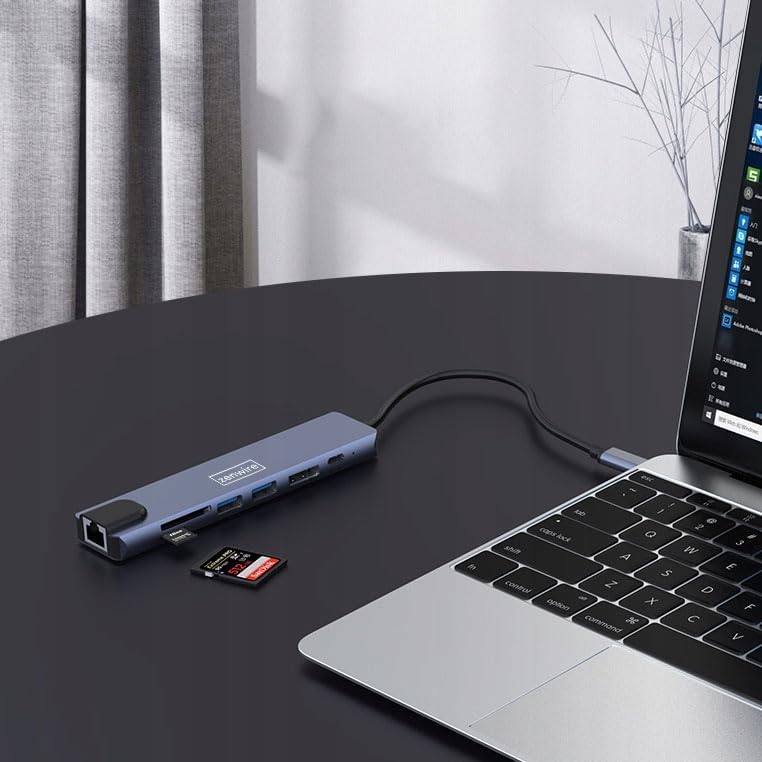
ചിത്രം 4: The Zenwire USB-C Hub Adapter EB7 connected to a laptop, with an SD card clearly inserted into its slot, demonstrating the card reader function.
5. സജ്ജീകരണ ഗൈഡ്
Follow these steps to set up your Zenwire EB7 hub:
- ഹബ് ബന്ധിപ്പിക്കുക: Plug the USB-C connector of the Zenwire EB7 hub firmly into an available USB-C port on your laptop, tablet, or smartphone. Ensure the USB-C port on your host device supports DisplayPort Alternate Mode for video output.
- പെരിഫറലുകൾ ബന്ധിപ്പിക്കുക:
- ഡിസ്പ്ലേ: Connect a Display Port cable from the hub's Display Port to your external monitor or TV.
- USB ഉപകരണങ്ങൾ: നിങ്ങളുടെ USB ഉപകരണങ്ങൾ (ഉദാ: മൗസ്, കീബോർഡ്, USB ഡ്രൈവ്) USB 3.0 അല്ലെങ്കിൽ USB 2.0 പോർട്ടുകളിലേക്ക് പ്ലഗ് ചെയ്യുക.
- മെമ്മറി കാർഡുകൾ: Insert your SD or Micro SD card into the corresponding slot.
- നെറ്റ്വർക്ക്: സ്ഥിരമായ വയർഡ് ഇന്റർനെറ്റ് കണക്ഷനായി ഒരു ഇതർനെറ്റ് കേബിൾ RJ45 പോർട്ടിലേക്ക് ബന്ധിപ്പിക്കുക.
- പവർ ഡെലിവറി: If your host device requires charging, connect your USB-C power adapter to the hub's USB-C PD port. This allows your device to charge while using the hub.
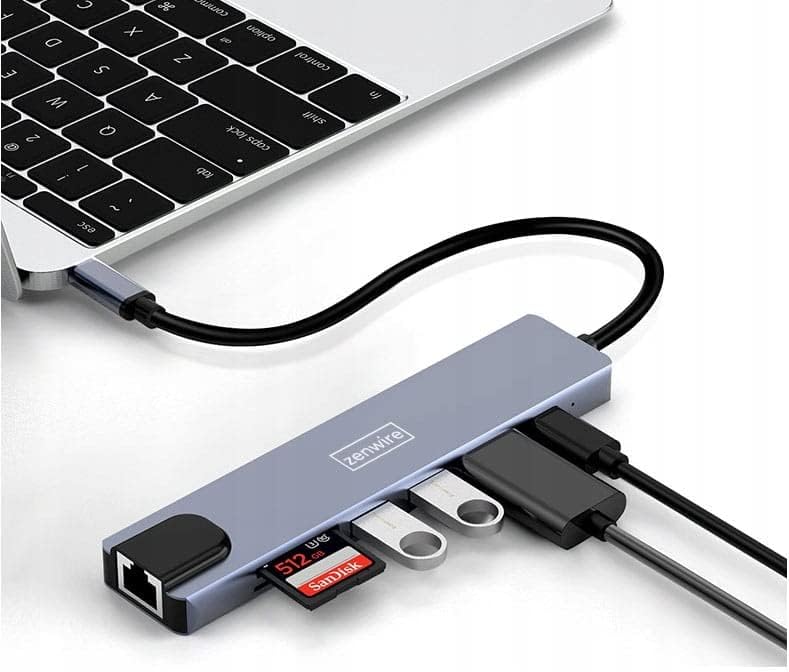
ചിത്രം 5: The Zenwire USB-C Hub Adapter EB7 connected to a laptop, showcasing its functionality with multiple USB flash drives and an SD card inserted into its respective slots.

ചിത്രം 6: The Zenwire USB-C Hub Adapter EB7 connected to a laptop, with a power adapter plugged into the hub's Power Delivery port and a power strip, illustrating its charging capability.
6. പ്രവർത്തന നിർദ്ദേശങ്ങൾ
6.1 ഡിസ്പ്ലേ ഔട്ട്പുട്ട്
The Display Port allows you to connect an external monitor or projector. The hub supports various resolutions and refresh rates. Ensure your display and Display Port cable support the desired resolution and refresh rate for optimal performance.
- മിറർ മോഡ്: Duplicate your host device's screen onto the external display.
- വിപുലീകരിച്ച മോഡ്: Extend your desktop across multiple screens, allowing for more workspace.
To configure display settings (e.g., resolution, refresh rate, mirror/extend), refer to your operating system's display preferences (e.g., Windows Display Settings, macOS System Preferences).

ചിത്രം 7: A laptop connected to a large external monitor via the Zenwire USB-C Hub Adapter EB7, illustrating its display output capability for an extended or mirrored desktop.
6.2 ഡാറ്റ കൈമാറ്റം
Utilize the USB 3.0 ports for high-speed data transfer with compatible devices such as external hard drives or high-speed flash drives. The USB 2.0 port is suitable for standard peripherals that do not require high bandwidth.
6.3 Card Reader Functionality
Insert your SD or Micro SD cards into their respective slots. The cards will appear as removable drives on your host device, allowing you to access, transfer, and manage files.
6.4 നെറ്റ്വർക്ക് കണക്ഷൻ
The Fast Ethernet port provides a stable wired network connection. Once an Ethernet cable is connected, your host device should automatically detect the network and establish an internet connection.
6.5 പവർ ഡെലിവറി
The USB-C PD port allows you to charge your host device while simultaneously using the hub's other functions. Connect your original USB-C power adapter to this port. The hub supports up to 100W power delivery, ensuring efficient charging for most compatible devices.
7 അനുയോജ്യത
The Zenwire EB7 USB-C Hub Adapter is designed for broad compatibility with various devices and operating systems:
- ഓപ്പറേറ്റിംഗ് സിസ്റ്റങ്ങൾ: Windows, macOS (including Macbook M1/M2), Linux, iOS (for compatible iPad models), Android (for compatible smartphones and tablets, including Samsung DEX).
- ഉപകരണങ്ങൾ: Laptops, tablets, and smartphones equipped with a full-featured USB-C port that supports DisplayPort Alternate Mode and Power Delivery.

ചിത്രം 8: The Zenwire USB-C Hub Adapter EB7 connected to both a smartphone and a tablet, highlighting its compatibility with mobile devices for expanded connectivity.
8 സ്പെസിഫിക്കേഷനുകൾ
| ഫീച്ചർ | വിശദാംശങ്ങൾ |
|---|---|
| Display Port Resolution | 8K@60Hz, 5K@120Hz, 4K@144Hz, 2K WQHD@144Hz, Full HD@240Hz |
| USB പോർട്ടുകൾ | 2x USB 3.0, 1x USB 2.0 |
| കാർഡ് റീഡർ | SD Card Slot, Micro SD Card Slot |
| ഇഥർനെറ്റ് | Fast Ethernet (100 Mbps) |
| പവർ ഡെലിവറി | USB-C PD 3.0, up to 100W |
| അളവുകൾ (L x W x H) | ഏകദേശം. 142mm x 32.4mm x 11mm |
| കേബിൾ നീളം | ഏകദേശം 150 മി.മീ |
| ഭാരം | ഏകദേശം 61 ഗ്രാം |
| മെറ്റീരിയൽ | അലുമിനിയം |
| നിറം | സ്പേസ് ഗ്രേ |
| പിന്തുണയ്ക്കുന്ന ഓപ്പറേറ്റിംഗ് സിസ്റ്റങ്ങൾ | Windows, macOS, Linux, iOS, Android |

ചിത്രം 9: A technical diagram illustrating the precise dimensions of the Zenwire USB-C Hub Adapter EB7, including its length, width, height, and cable length.
9. പരിപാലനം
To ensure the longevity and optimal performance of your Zenwire EB7 hub, please follow these maintenance guidelines:
- വൃത്തിയാക്കൽ: Keep the hub clean and free from dust. Use a soft, dry, lint-free cloth for cleaning. Avoid using liquid cleaners or abrasive materials.
- പരിസ്ഥിതി വ്യവസ്ഥകൾ: തീവ്രമായ താപനില, ഉയർന്ന ഈർപ്പം, അല്ലെങ്കിൽ നേരിട്ടുള്ള സൂര്യപ്രകാശം എന്നിവയിൽ ഉപകരണം തുറന്നുകാട്ടുന്നത് ഒഴിവാക്കുക.
- കൈകാര്യം ചെയ്യൽ: Handle the hub with care. Do not drop it or subject it to strong impacts.
- വേർപെടുത്തുക: Do not attempt to disassemble or repair the hub yourself. This may void your warranty and could cause damage.
- സംഭരണം: Disconnect the hub from your devices and store it in a cool, dry place when not in use for extended periods.
10. പ്രശ്നപരിഹാരം
If you encounter issues with your Zenwire EB7 hub, please refer to the following troubleshooting tips:
10.1 ഡിസ്പ്ലേ ഔട്ട്പുട്ട് ഇല്ല
- കണക്ഷൻ പരിശോധന: Ensure the USB-C connection to your host device is secure and fully inserted.
- കേബിൾ പരിശോധന: Verify that the Display Port cable is correctly connected to both the hub and the external monitor. Try a different cable if available.
- Host Device Support: Confirm that your host device's USB-C port supports video output (DisplayPort Alternate Mode). Not all USB-C ports have this capability.
- ഇൻപുട്ട് നിരീക്ഷിക്കുക: Ensure your monitor is set to the correct input source (e.g., Display Port).
- ഡ്രൈവർ അപ്ഡേറ്റ്: Update your graphics drivers on your host device to the latest version.
10.2 USB ഉപകരണങ്ങൾ തിരിച്ചറിഞ്ഞിട്ടില്ല
- ശരിയായ ഉൾപ്പെടുത്തൽ: ഹബ്ബിന്റെ പോർട്ടുകളിൽ USB ഉപകരണങ്ങൾ ശരിയായി ചേർത്തിട്ടുണ്ടെന്ന് ഉറപ്പാക്കുക.
- Direct Connection Test: Try connecting the USB device directly to your host device to confirm its functionality.
- പവർ ആവശ്യകതകൾ: Some high-power USB devices may require external power. Ensure the hub's Power Delivery port is connected to a power source if needed.
10.3 കുറഞ്ഞ നെറ്റ്വർക്ക് വേഗത
- വേഗത പരിമിതി: The Fast Ethernet port supports speeds up to 100 Mbps. If you require Gigabit Ethernet speeds, this hub may not meet that requirement.
- കേബിളും കണക്ഷനും: Check your Ethernet cable for damage and ensure a secure connection to both the hub and your router/modem.
- ഡ്രൈവർ അപ്ഡേറ്റ്: നിങ്ങളുടെ ഹോസ്റ്റ് ഉപകരണത്തിൽ നെറ്റ്വർക്ക് ഡ്രൈവറുകൾ കാലികമാണെന്ന് ഉറപ്പാക്കുക.
10.4 Host Device Not Charging
- പവർ അഡാപ്റ്റർ കണക്ഷൻ: Ensure your USB-C power adapter is connected to the hub's USB-C PD port.
- Power Adapter Functionality: നിങ്ങളുടെ പവർ അഡാപ്റ്റർ പ്രവർത്തനക്ഷമമാണെന്നും ആവശ്യത്തിന് വൈദ്യുതി ലഭിക്കുന്നുണ്ടെന്നും ഉറപ്പാക്കുക.tage (ഹബ് പിന്തുണയ്ക്കുന്ന 100W വരെ).
- Host Device Support: Check if your host device supports charging via its USB-C port.
11. വാറൻ്റിയും പിന്തുണയും
For detailed warranty information and technical support, please refer to the official Zenwire website or contact your retailer. It is recommended to retain your proof of purchase for any warranty claims.