
ഫോമെമോ M220
ഫോമെമോ M220 തെർമൽ ലേബൽ പ്രിന്റർ ഉപയോക്തൃ മാനുവൽ
മോഡൽ: M220
1. ആമുഖം
Thank you for choosing the Phomemo M220 Thermal Label Printer. This manual provides essential information for the safe and efficient use of your device. The M220 is an upgraded thermal label printer designed for various labeling needs, offering high-quality 203 DPI printing without the need for ink or toner. It supports label widths from 20mm to 75mm and connects via Bluetooth to mobile devices and USB to computers.
Please read this manual thoroughly before operating the printer and keep it for future reference.
2 സുരക്ഷാ വിവരങ്ങൾ
സുരക്ഷിതമായ പ്രവർത്തനം ഉറപ്പാക്കുന്നതിനും കേടുപാടുകൾ തടയുന്നതിനും, ദയവായി ഇനിപ്പറയുന്ന മുൻകരുതലുകൾ പാലിക്കുക:
- പ്രിന്റർ സ്വയം ഡിസ്അസംബ്ലിംഗ് ചെയ്യുകയോ നന്നാക്കുകയോ പരിഷ്കരിക്കുകയോ ചെയ്യരുത്.
- പ്രിന്റർ വെള്ളം, ഈർപ്പം, നേരിട്ടുള്ള സൂര്യപ്രകാശം എന്നിവയിൽ നിന്ന് അകറ്റി നിർത്തുക.
- Use only Phomemo-approved power adapters and accessories.
- പ്രിന്റർ താഴെയിടുകയോ ശക്തമായ ആഘാതങ്ങൾക്ക് വിധേയമാക്കുകയോ ചെയ്യുന്നത് ഒഴിവാക്കുക.
- കുട്ടികൾക്ക് ലഭ്യമാകാതെ സൂക്ഷിക്കുക.
- Do not touch the print head immediately after printing, as it may be hot.
3. പാക്കേജ് ഉള്ളടക്കം
നിങ്ങളുടെ പാക്കേജിൽ എല്ലാ ഇനങ്ങളും ഉണ്ടെന്ന് ഉറപ്പാക്കുക:
- Phomemo M220 Thermal Label Printer
- യുഎസ്ബി ചാർജിംഗ് കേബിൾ (ടൈപ്പ്-സി)
- ഉപയോക്തൃ മാനുവൽ (ഈ പ്രമാണം)
- Label Rolls (e.g., 1 roll of 40x30mm, 1 roll of 50x30mm, 1 roll of 70x80mm)
- Label Storage Case (may vary by package)
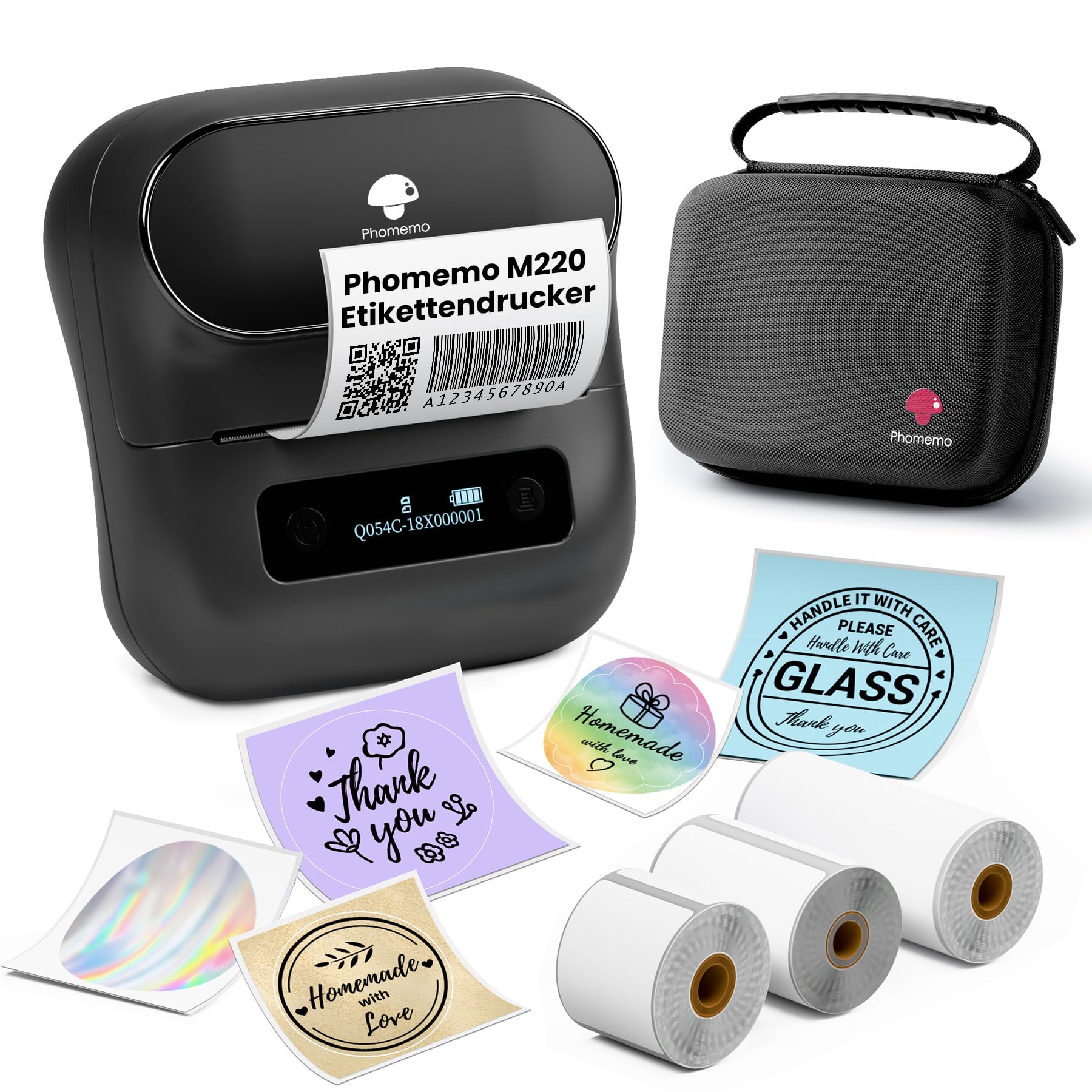
Image: Phomemo M220 printer with included accessories and labels.
4. സജ്ജീകരണം
4.1 പ്രിന്റർ ചാർജ് ചെയ്യുന്നു
The Phomemo M220 printer has a built-in 2200 mAh rechargeable battery.
- നൽകിയിരിക്കുന്ന യുഎസ്ബി ടൈപ്പ്-സി കേബിൾ പ്രിന്ററിന്റെ ചാർജിംഗ് പോർട്ടുമായി ബന്ധിപ്പിക്കുക.
- കേബിളിന്റെ മറ്റേ അറ്റം ഒരു USB പവർ അഡാപ്റ്ററുമായി (ഉൾപ്പെടുത്തിയിട്ടില്ല) അല്ലെങ്കിൽ ഒരു കമ്പ്യൂട്ടറിന്റെ USB പോർട്ടുമായി ബന്ധിപ്പിക്കുക.
- The indicator light will show charging status. Charge fully before first use.

Image: Phomemo M220 printer highlighting its 2200mAh battery and Type-C charging port.
4.2 ലേബൽ റോളുകൾ ലോഡുചെയ്യുന്നു
Follow these steps to load a label roll into the printer:
- പ്രിൻ്റർ കവർ തുറക്കുക.
- പ്രിന്റിംഗ് വശം മുകളിലേക്ക് അഭിമുഖീകരിക്കുന്ന തരത്തിൽ ലേബൽ റോൾ തിരുകുക.
- Pull a small portion of the labels out past the print head.
- Close the printer cover firmly until it clicks. The printer will automatically calibrate the label position.

Image: Phomemo M220 printer with an open cover, showing how to load a label roll.
4.3 ആപ്പ് ഇൻസ്റ്റാളേഷനും കണക്ഷനും
The Phomemo M220 printer connects via Bluetooth to mobile devices and via USB to computers.
മൊബൈൽ ഉപകരണങ്ങൾക്ക് (iOS/Android):
- Download the "Print Master" app from the App Store (iOS) or Google Play Store (Android).
- നിങ്ങളുടെ ഫോണിന്റെ ബ്ലൂടൂത്ത് പ്രവർത്തനക്ഷമമാക്കിയിട്ടുണ്ടെന്ന് ഉറപ്പാക്കുക.
- Open the "Print Master" app.
- M220 പ്രിന്റർ ഓണാക്കുക.
- In the app, tap the "printer" icon (usually in the top right corner) to search for and connect to your M220 printer. Note: Do not connect directly via your phone's Bluetooth settings; connect through the app.
For Computers (Mac OS/Windows/Linux/Chromebook):
- Download the "Labelife" software from the official Phomemo webസൈറ്റ്.
- നിങ്ങളുടെ കമ്പ്യൂട്ടറിൽ സോഫ്റ്റ്വെയർ ഇൻസ്റ്റാൾ ചെയ്യുക.
- Connect the M220 printer to your computer using the provided USB cable.
- Follow the software instructions to set up and print.

Image: Diagram illustrating various connection methods for the Phomemo M220 printer, including Bluetooth for mobile devices and USB for computers.
5. പ്രവർത്തന നിർദ്ദേശങ്ങൾ
5.1 Using the "Print Master" App (Mobile)
The "Print Master" app offers a wide range of features for designing and printing labels.
- നിങ്ങളുടെ ലേബൽ രൂപകൽപ്പന ചെയ്യുക: Use the app's interface to create custom labels. Features include:
- Text input (multi-line)
- Barcode and QR code generation
- Image insertion
- Scanning functionality
- OCR (Optical Character Recognition)
- ശബ്ദം തിരിച്ചറിയൽ
- Various templates and icons
- Excel and PDF input for batch printing
- പ്രീview: Before printing, use the preview function to ensure the label design is correct.
- പ്രിൻ്റ്: Once satisfied with the design, tap the print button in the app.

Image: Screenshot of the "Print Master" app interface, showing various design options like text, barcode, image, and templates.
5.2 ലേബൽ ആപ്ലിക്കേഷനുകൾ
The M220 printer is versatile and can be used for various labeling purposes:
- Barcode and QR Code labels
- Address and Shipping labels
- Product identification (logos, prices)
- Document and file സംഘടന
- Storage labels
- School and home labeling
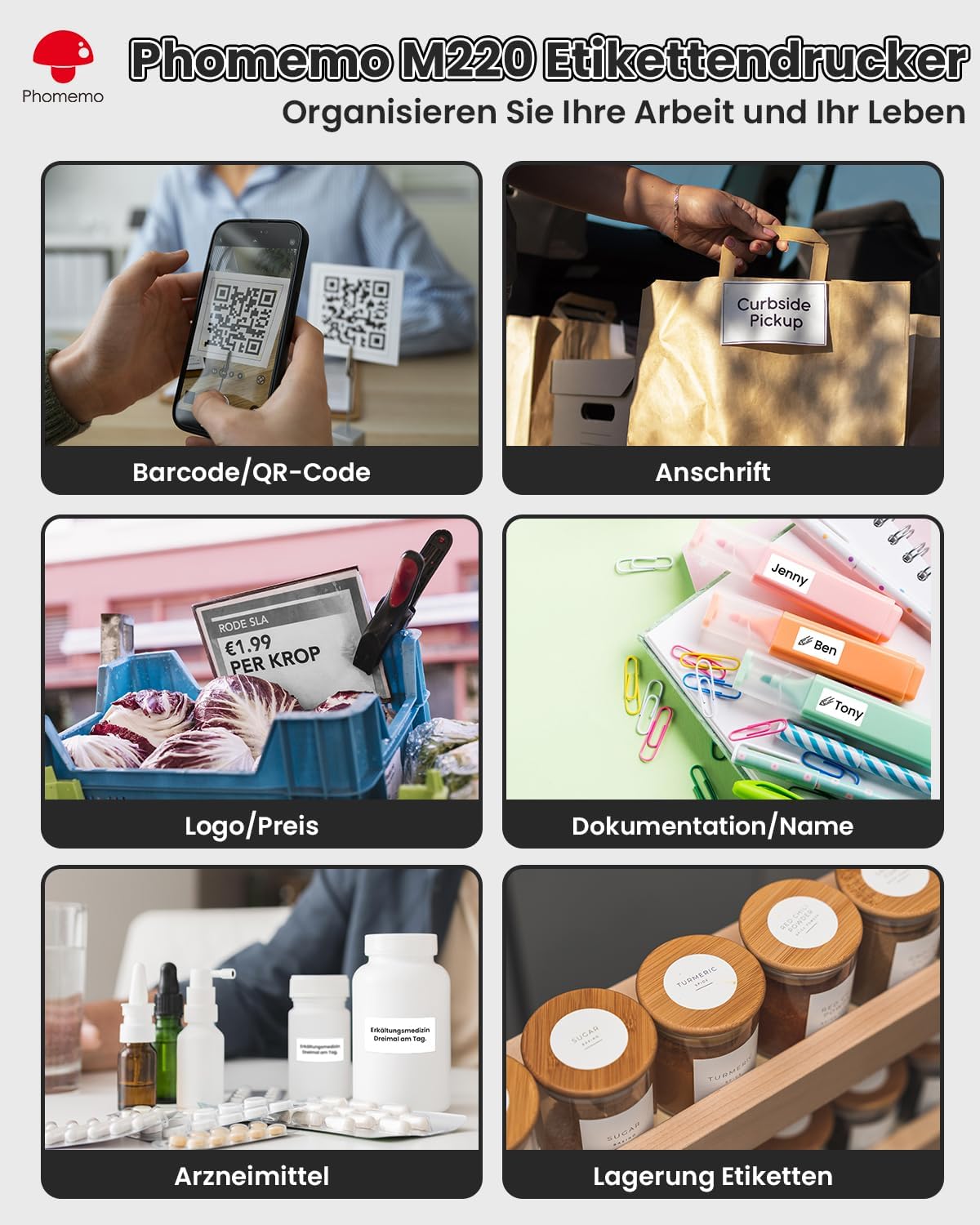
ചിത്രം: ഉദാamples of labels created with the Phomemo M220, demonstrating applications for barcodes, addresses, prices, and organization.
6. പരിപാലനം
6.1 പ്രിന്റർ വൃത്തിയാക്കുന്നു
പതിവായി വൃത്തിയാക്കുന്നത് പ്രിന്റ് ഗുണനിലവാരം നിലനിർത്താൻ സഹായിക്കുകയും പ്രിന്ററിന്റെ ആയുസ്സ് വർദ്ധിപ്പിക്കുകയും ചെയ്യുന്നു.
- Ensure the printer is turned off and unplugged before cleaning.
- നനവില്ലാത്തതും ലിനില്ലാത്തതുമായ തുണി ചെറുതായി ഉപയോഗിക്കുകampened with alcohol to clean the print head.
- ഉണങ്ങിയതും മൃദുവായതുമായ തുണി ഉപയോഗിച്ച് പ്രിന്ററിന്റെ പുറംഭാഗം തുടയ്ക്കുക.
- ഉരച്ചിലുകളുള്ള ക്ലീനറുകളോ ലായകങ്ങളോ ഉപയോഗിക്കരുത്.
6.2 ബാറ്ററി കെയർ
- ബാറ്ററിയുടെ ആരോഗ്യം നിലനിർത്താൻ, പതിവായി ഉപയോഗിക്കുന്നില്ലെങ്കിലും, പ്രിന്റർ പതിവായി ചാർജ് ചെയ്യുക.
- പ്രിന്ററിനെ തീവ്രമായ താപനിലയിൽ തുറന്നുകാട്ടുന്നത് ഒഴിവാക്കുക.
- If storing for an extended period, charge the battery to about 50% and store in a cool, dry place.
7. പ്രശ്നപരിഹാരം
If you encounter issues with your Phomemo M220 printer, refer to the table below for common problems and solutions.
| പ്രശ്നം | സാധ്യമായ കാരണം | പരിഹാരം |
|---|---|---|
| പ്രിന്റർ ഓണാക്കുന്നില്ല | കുറഞ്ഞ ബാറ്ററി അല്ലെങ്കിൽ വൈദ്യുതി പ്രശ്നം | Charge the printer using the provided USB cable. Ensure the cable and power source are working. |
| ബ്ലൂടൂത്ത് വഴി ബന്ധിപ്പിക്കാൻ കഴിയില്ല | Incorrect connection method or Bluetooth interference | Ensure you are connecting through the "Print Master" app, not directly via phone's Bluetooth settings. Restart both the printer and your mobile device. Move closer to the printer. |
| Poor print quality / Blank print | Incorrect label loading, dirty print head, or low battery | Check if the label roll is loaded correctly (printing side up). Clean the print head (see Maintenance section). Ensure the printer is sufficiently charged. |
| Labels are not feeding correctly | Label roll jammed or improperly loaded | Open the cover, remove the label roll, and re-insert it carefully, ensuring it's aligned. Remove any jammed labels. |
പ്രശ്നം നിലനിൽക്കുകയാണെങ്കിൽ, സഹായത്തിനായി ഫോമെമോ ഉപഭോക്തൃ പിന്തുണയുമായി ബന്ധപ്പെടുക.
8 സ്പെസിഫിക്കേഷനുകൾ
| ഫീച്ചർ | വിശദാംശങ്ങൾ |
|---|---|
| മോഡൽ | M220 |
| ബ്രാൻഡ് | ഫേമോമോ |
| പ്രിൻ്റിംഗ് ടെക്നോളജി | തെർമൽ |
| പ്രിൻ്റ് റെസല്യൂഷൻ | 203 ഡിപിഐ |
| പരമാവധി പ്രിന്റ് വേഗത (മോണോക്രോം) | 50 മിമി/സെ |
| കണക്റ്റിവിറ്റി | ബ്ലൂടൂത്ത്, യുഎസ്ബി (ടൈപ്പ്-സി) |
| അനുയോജ്യമായ ഉപകരണങ്ങൾ | Smartphones (Android, iOS), Tablets (iPad), Computers (Mac OS, Windows 10+, Linux, Chromebook) |
| ബാറ്ററി | 2200 mAh Lithium-polymer (included) |
| Max Label Width | 20-75 മിമി (0.78-2.95 ഇഞ്ച്) |
| ഉൽപ്പന്ന അളവുകൾ (L x W x H) | 11 സെ.മീ x 10 സെ.മീ x 5 സെ.മീ (ഏകദേശം) |
| പ്രത്യേക സവിശേഷതകൾ | Lightweight, Portable, Inkless Printing |
9. വാറണ്ടിയും പിന്തുണയും
9.1 വാറൻ്റി വിവരങ്ങൾ
The Phomemo M220 Thermal Label Printer comes with a limited warranty. For specific terms and conditions, including warranty duration and coverage, please refer to the warranty card included in your product packaging or visit the official Phomemo webസൈറ്റ്.
9.2 ഉപഭോക്തൃ പിന്തുണ
If you require technical assistance, have questions about your product, or need to report an issue, please contact Phomemo customer support.
- Webസൈറ്റ്: ഔദ്യോഗിക ഫോമെമോ സന്ദർശിക്കുക webപതിവുചോദ്യങ്ങൾ, ഡ്രൈവർ ഡൗൺലോഡുകൾ, ബന്ധപ്പെടാനുള്ള വിവരങ്ങൾ എന്നിവയ്ക്കുള്ള സൈറ്റ്.
- ഇമെയിൽ: Refer to your product packaging or the Phomemo webഉപഭോക്തൃ പിന്തുണ ഇമെയിൽ വിലാസത്തിനായുള്ള സൈറ്റ്.
Ask a question about this manual
Ask about setup, troubleshooting, compatibility, parts, safety, or missing instructions. Manuals+ will review the question and use this page’s manual context to help answer it.