
1. ആമുഖം
Welcome to the user manual for your Havit Gaming Mouse MS1032. This document provides essential information for setting up, operating, maintaining, and troubleshooting your device. Please read it carefully to ensure optimal performance and longevity of your mouse.
The Havit MS1032 is a gaming mouse featuring six adjustable DPI settings, a comfortable ergonomic design, and a non-slip surface. It is engineered for smooth and quiet operation, aiming to reduce fatigue during extended use.
2. സജ്ജീകരണം
2.1 പാക്കേജ് ഉള്ളടക്കം
- Havit Gaming Mouse MS1032
- ഉപയോക്തൃ മാനുവൽ
2.2 സിസ്റ്റം ആവശ്യകതകൾ
- Operating System: Windows XP, Windows 7, Linux
- യുഎസ്ബി പോർട്ട് ലഭ്യമാണ്
2.3 മൗസ് ബന്ധിപ്പിക്കൽ
- Unpack the Havit Gaming Mouse MS1032 from its packaging.
- നിങ്ങളുടെ കമ്പ്യൂട്ടറിൽ ലഭ്യമായ USB പോർട്ട് കണ്ടെത്തുക.
- USB പോർട്ടിലേക്ക് മൗസിൻ്റെ USB കണക്റ്റർ ചേർക്കുക.
- നിങ്ങളുടെ ഓപ്പറേറ്റിംഗ് സിസ്റ്റം ആവശ്യമായ ഡ്രൈവറുകൾ സ്വയമേവ കണ്ടെത്തി ഇൻസ്റ്റാൾ ചെയ്യണം. ഈ പ്രക്രിയയ്ക്ക് കുറച്ച് നിമിഷങ്ങൾ എടുത്തേക്കാം.
- ഇൻസ്റ്റാളേഷൻ പൂർത്തിയായിക്കഴിഞ്ഞാൽ, മൗസ് ഉപയോഗത്തിന് തയ്യാറാകും.
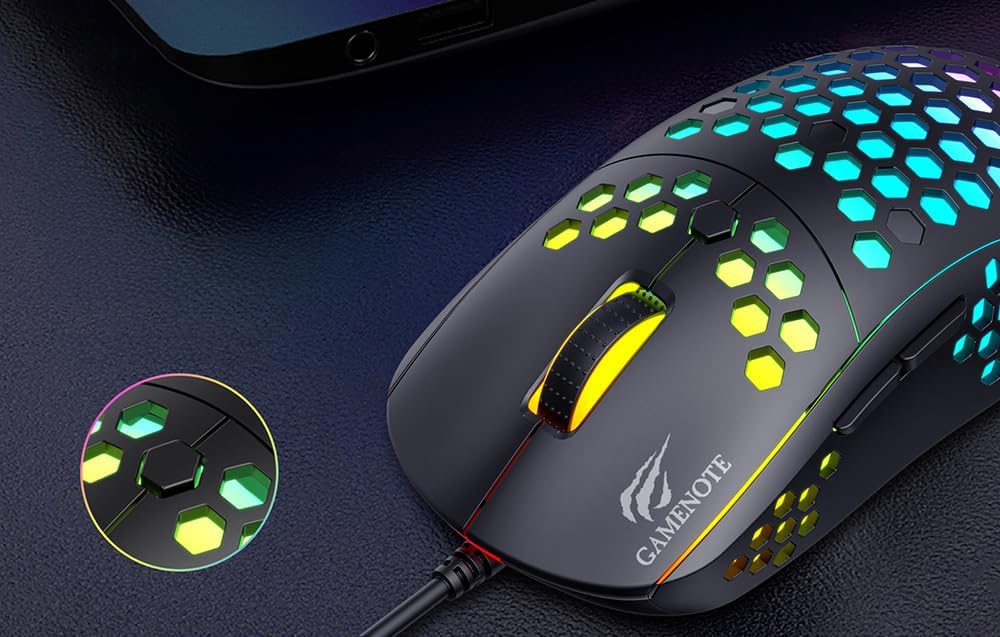
Figure 1: Havit MS1032 Gaming Mouse connected via USB.
3. പ്രവർത്തന നിർദ്ദേശങ്ങൾ
3.1 അടിസ്ഥാന പ്രവർത്തനങ്ങൾ
- ഇടത് ക്ലിക്ക്: പ്രാഥമിക പ്രവർത്തനം, തിരഞ്ഞെടുപ്പ്, സജീവമാക്കൽ.
- വലത് ക്ലിക്കിൽ: Opens context menus, performs secondary actions.
- സ്ക്രോൾ വീൽ: Scrolls up/down documents or web പേജുകൾ. മധ്യ-ക്ലിക്ക് പ്രവർത്തനത്തിനായി അമർത്താനും കഴിയും.
- സൈഡ് ബട്ടണുകൾ: സാധാരണയായി ഫോർവേഡ്/ബാക്ക്വേർഡ് നാവിഗേഷനായി ഉപയോഗിക്കുന്നത് web ബ്രൗസറുകൾ അല്ലെങ്കിൽ ഗെയിമുകളിലെ ഇഷ്ടാനുസൃത പ്രവർത്തനങ്ങൾ.
3.2 ഡിപിഐ അഡ്ജസ്റ്റ്മെന്റ്
The Havit MS1032 features six adjustable DPI (Dots Per Inch) settings, allowing you to change the mouse sensitivity on the fly. This is useful for adapting to different tasks, such as precise aiming in games or fast navigation across multiple monitors.
To adjust the DPI, locate the DPI button, typically positioned behind the scroll wheel. Press this button to cycle through the available DPI settings. The LED lighting on the mouse may change to indicate the current DPI level, providing visual feedback for your selection.
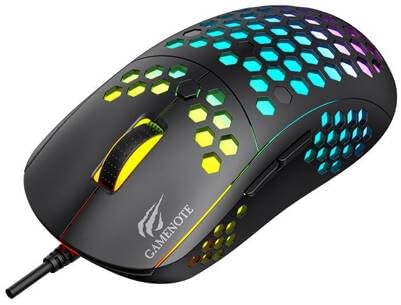
Figure 2: Location of the DPI button (behind the scroll wheel).
4. പരിപാലനം
4.1 വൃത്തിയാക്കൽ
മികച്ച പ്രകടനവും രൂപഭംഗിയും നിലനിർത്താൻ, നിങ്ങളുടെ മൗസ് പതിവായി വൃത്തിയാക്കുക:
- വൃത്തിയാക്കുന്നതിനുമുമ്പ് നിങ്ങളുടെ കമ്പ്യൂട്ടറിൽ നിന്ന് മൗസ് വിച്ഛേദിക്കുക.
- മൃദുവായ, ലിൻ്റ് രഹിത തുണി ഉപയോഗിക്കുകampവെള്ളം അല്ലെങ്കിൽ നേരിയതും, ഉരച്ചിലുകളില്ലാത്തതുമായ ക്ലീനിംഗ് ലായനി ഉപയോഗിച്ച് നനയ്ക്കുക.
- മൗസിന്റെ ഉപരിതലം സൌമ്യമായി തുടയ്ക്കുക.
- For crevices and the optical sensor, use a cotton swab or compressed air to remove dust and debris.
- Avoid using harsh chemicals, abrasive cleaners, or excessive moisture, as these can damage the mouse's finish or internal components.
4.2 സംഭരണം
When not in use, store the mouse in a clean, dry environment away from direct sunlight and extreme temperatures to prevent damage.
4.3 പൊതു പരിചരണം
- മൗസ് താഴെയിടുകയോ ശക്തമായ ആഘാതങ്ങൾക്ക് വിധേയമാക്കുകയോ ചെയ്യുന്നത് ഒഴിവാക്കുക.
- Do not attempt to disassemble the mouse, as this will void the warranty and may cause irreparable damage.
- Keep the mouse away from liquids to prevent electrical damage.
5. പ്രശ്നപരിഹാരം
If you encounter issues with your Havit Gaming Mouse MS1032, please refer to the following common solutions:
5.1 മൗസ് പ്രതികരിക്കുന്നില്ല
- യുഎസ്ബി കണക്ഷൻ പരിശോധിക്കുക: നിങ്ങളുടെ കമ്പ്യൂട്ടറിലെ പ്രവർത്തിക്കുന്ന ഒരു USB പോർട്ടിലേക്ക് USB കേബിൾ സുരക്ഷിതമായി പ്ലഗ് ചെയ്തിട്ടുണ്ടെന്ന് ഉറപ്പാക്കുക. മറ്റൊരു USB പോർട്ട് പരീക്ഷിക്കുക.
- കമ്പ്യൂട്ടർ പുനരാരംഭിക്കുക: ചിലപ്പോൾ ഒരു ലളിതമായ കമ്പ്യൂട്ടർ പുനരാരംഭിക്കുന്നത് കണക്റ്റിവിറ്റി പ്രശ്നങ്ങൾ പരിഹരിക്കും.
- മറ്റൊരു കമ്പ്യൂട്ടറിൽ പരീക്ഷിക്കുക: If possible, test the mouse on another computer to determine if the issue is with the mouse or your computer's setup.
5.2 Cursor Movement is Erratic or Jumpy
- ക്ലീൻ സെൻസർ: മൗസിന്റെ അടിയിലുള്ള ഒപ്റ്റിക്കൽ സെൻസർ വൃത്തിയുള്ളതും പൊടിയോ അവശിഷ്ടങ്ങളോ ഇല്ലാത്തതുമാണെന്ന് ഉറപ്പാക്കുക.
- ഉപരിതലം പരിശോധിക്കുക: Use the mouse on a clean, non-reflective, and uniform surface (e.g., a mouse pad). Avoid glass or highly reflective surfaces.
- Adjust DPI: If the cursor is too fast or too slow, adjust the DPI setting using the DPI button.
5.3 ബട്ടണുകൾ പ്രവർത്തിക്കുന്നില്ല
- തടസ്സങ്ങൾക്കായി പരിശോധിക്കുക: ബട്ടണുകൾക്ക് കീഴിൽ അവശിഷ്ടങ്ങൾ അടിഞ്ഞുകൂടുന്നില്ലെന്ന് ഉറപ്പാക്കുക.
- സോഫ്റ്റ്വെയർ വൈരുദ്ധ്യം: If you have custom mouse software installed, try uninstalling it temporarily to see if it resolves the issue.
5.4 LED ലൈറ്റുകൾ പ്രവർത്തിക്കുന്നില്ല
- കണക്ഷൻ പരിശോധിക്കുക: മൗസ് കമ്പ്യൂട്ടറുമായി ശരിയായി ബന്ധിപ്പിച്ചിട്ടുണ്ടെന്ന് ഉറപ്പാക്കുക.
- പവർ സൈക്കിൾ: Disconnect and reconnect the mouse to reset its power.
6 സ്പെസിഫിക്കേഷനുകൾ

Figure 3: Havit MS1032 Gaming Mouse design overview.
| ഫീച്ചർ | വിശദാംശങ്ങൾ |
|---|---|
| മോഡൽ | MS1032 |
| ബ്രാൻഡ് | ഹവിറ്റ് |
| അളവുകൾ | 15 x 8 x 5.2 സെ.മീ |
| ഭാരം | 200 ഗ്രാം |
| ഡിപിഐ ക്രമീകരണങ്ങൾ | ക്രമീകരിക്കാവുന്ന 6 ലെവലുകൾ |
| ഓപ്പറേറ്റിംഗ് സിസ്റ്റങ്ങൾ | ലിനക്സ്, വിൻഡോസ് 7, വിൻഡോസ് എക്സ്പി |
| കണക്റ്റിവിറ്റി | വയർഡ് യുഎസ്ബി |
| ബാറ്ററികൾ ആവശ്യമാണ് | ഇല്ല |
7. വാറൻ്റിയും പിന്തുണയും
For detailed warranty information and technical support, please refer to the official Havit website or contact your local retailer where the product was purchased. It is recommended to keep your purchase receipt as proof of purchase for any warranty claims.
നിർമ്മാതാവ്: ഹവിറ്റ്
മോഡൽ നമ്പർ: MS1032