
1. ആമുഖം
This CARabc wireless adapter is designed to integrate Apple CarPlay and Android Auto functionalities into compatible Toyota vehicles manufactured between 2014 and 2019, specifically those equipped with the Entune 2.0 or Touch2 infotainment systems. The adapter allows you to access navigation, phone contacts, music, and other smartphone features directly on your car's display, utilizing voice commands (Siri or Google Assistant) and original vehicle controls for a safer and more convenient driving experience.
2 അനുയോജ്യത
The CARabc adapter is compatible with specific Toyota models from 2014-2019 that feature the Entune 2.0 or Touch2 host system. It is crucial to verify your vehicle's infotainment system before installation.
പ്രധാന അനുയോജ്യതാ കുറിപ്പുകൾ:
- Not compatible with Corolla 86140-02540 Fujitsu with a 7-inch screen.
- Not compatible with 4Runner models equipped with a Pioneer host system.
- Not compatible with Prius models equipped with an 11.6-inch screen.
- Not compatible with RAV4 models with 86100-42241 system.
Compatible Toyota Models (2014-2019) with Touch2 & Entune 2.0 System (Must be Panasonic/Fujitsu/Pioneer):
- തുണ്ട്ര
- ഹൈലാൻഡർ
- RAV4
- ടാക്കോമ
- കാമ്രി
- കൊറോള
- അവലോൺ
- പ്രിയസ്
- സിഎച്ച്-ആർ
- സിയന്ന
- യാരിസ്
- ആൽഫാർഡ്
- അവെൻസിസ്
- ഫോർച്യൂണർ
- ഓറിസ്

3. പാക്കേജ് ഉള്ളടക്കം
താഴെ പറയുന്ന ഇനങ്ങൾക്കായി ബോക്സ് ചെക്ക് ചെയ്യുക:
- CARABC Adapter (x1)
- വൈഫൈ ആന്റിന (x1)
- CUSB Line (x1)
- പവർ കേബിൾ (x1)

4. സജ്ജീകരണവും ഇൻസ്റ്റാളേഷനും
Installation of the CARabc adapter involves connecting it to your vehicle's existing infotainment system. It is recommended to consult a professional if you are unsure about any steps.
ഇൻസ്റ്റലേഷൻ ഘട്ടങ്ങൾ:
- വാഹനം തയ്യാറാക്കുക: Ensure the vehicle's ignition is off and the battery is disconnected before beginning installation to prevent electrical damage.
- Access the Head Unit: Carefully remove the necessary trim panels to access the rear of your car's main head unit (radio/infotainment system).
- Connect the Main Unit Cables: Connect the provided 24-PIN, 10-PIN, and 28-PIN connectors from the CARabc wiring harness to the corresponding ports on your original car's main unit.
- Connect the Car's Plugs: Connect the original car's 28-PIN, 10-PIN, and 24-PIN plugs to the designated ports on the CARabc wiring harness.
- USB കേബിൾ ബന്ധിപ്പിക്കുക: Attach the CUSB Line (USB Cable) to the adapter and route it to an accessible location, such as the glove compartment.
- വൈഫൈ ആന്റിന ബന്ധിപ്പിക്കുക: Connect the WiFi antenna to the adapter. Position the antenna in a location that ensures good signal reception, avoiding metal obstructions.
- ഓപ്ഷണൽ കണക്ഷനുകൾ: If installing a forward-looking camera, connect it to the 'Forward Looking Input' port. Ensure GND (Ground) is properly connected.
- അഡാപ്റ്റർ സുരക്ഷിതമാക്കുക: Find a secure and dry location to mount the CARabc adapter unit, ensuring it does not interfere with any moving parts or vehicle operation.
- ബാറ്ററി വീണ്ടും ബന്ധിപ്പിക്കുക: Once all connections are secure, reconnect the vehicle's battery.
- ടെസ്റ്റ് പ്രവർത്തനം: Turn on the ignition and test the adapter's functionality as described in the Operating Instructions section.

5. പ്രവർത്തന നിർദ്ദേശങ്ങൾ
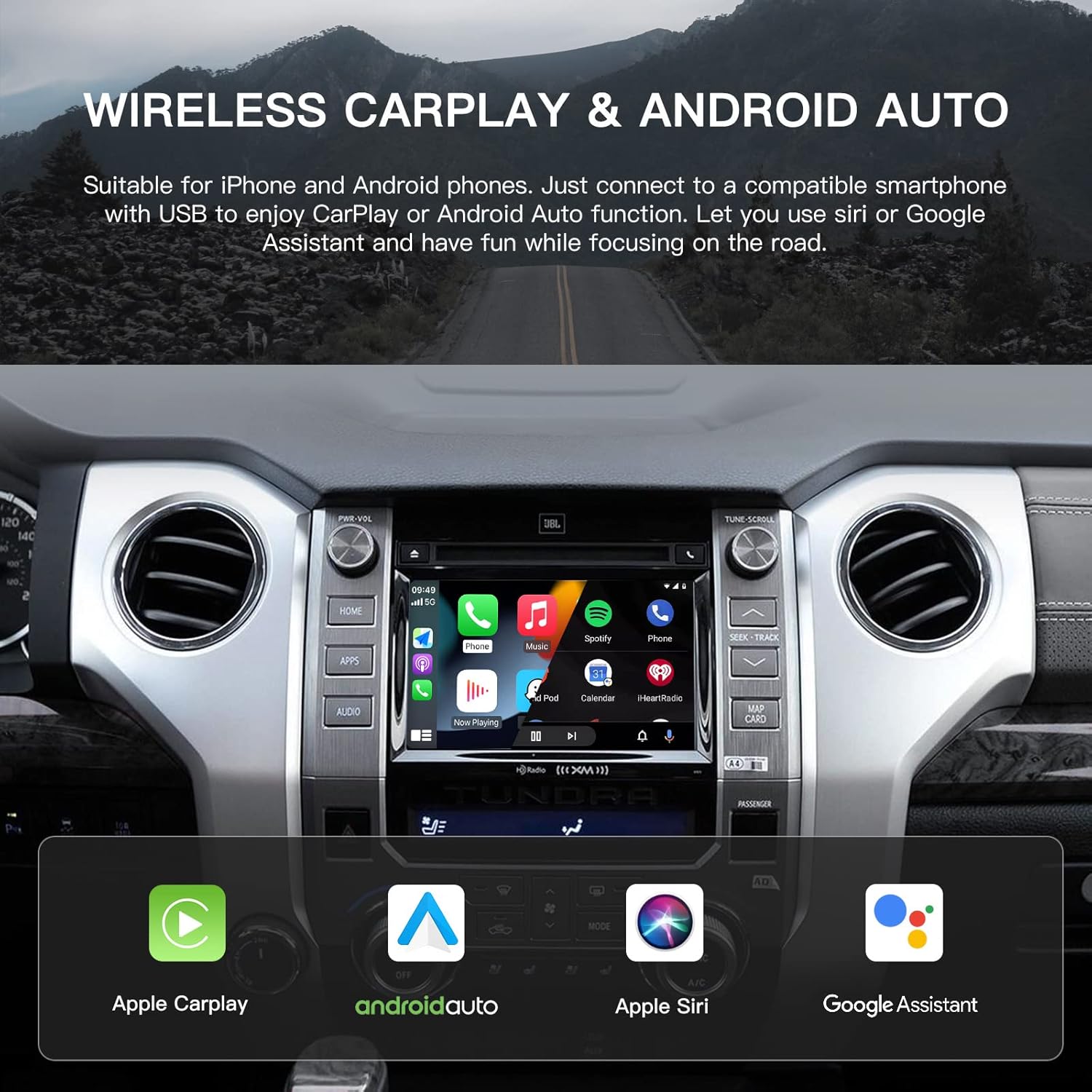
Once installed, the CARabc adapter allows you to use Apple CarPlay or Android Auto wirelessly.
നിങ്ങളുടെ സ്മാർട്ട്ഫോൺ ബന്ധിപ്പിക്കുന്നു:
- പവർ ഓൺ: Start your vehicle. The adapter should power on automatically.
- Activate CarPlay/Android Auto: On your car's infotainment screen, select the AUX input or the designated CarPlay/Android Auto icon (if available after installation).
- ബ്ലൂടൂത്ത് വഴി ജോടിയാക്കുക: On your smartphone, enable Bluetooth and search for the adapter's Bluetooth name (refer to the adapter's packaging or on-screen instructions for the exact name). Pair your phone with the adapter.
- കണക്ഷൻ സ്ഥിരീകരിക്കുക: Once paired, your phone will prompt you to enable CarPlay or Android Auto. Confirm the connection. The CarPlay or Android Auto interface should now appear on your car's screen.
കാർപ്ലേ/ആൻഡ്രോയിഡ് ഓട്ടോ ഉപയോഗിക്കുന്നു:
- നാവിഗേഷൻ: Use your preferred navigation apps (e.g., Apple Maps, Google Maps, Waze) directly on the car's screen.
- സംഗീതവും മാധ്യമവും: Play music, podcasts, and audiobooks from your smartphone apps.
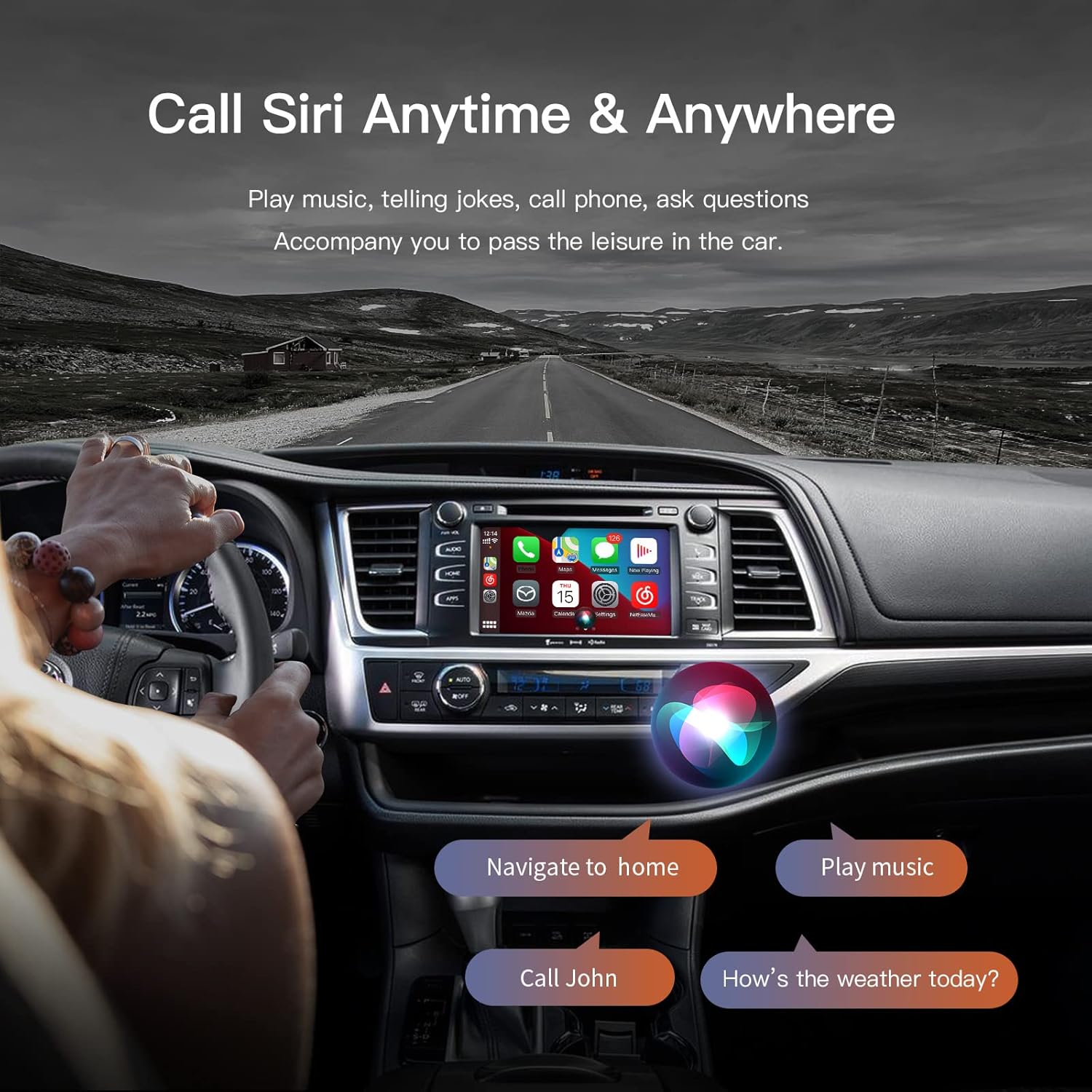
- കോളുകളും സന്ദേശങ്ങളും: Make and receive calls, and send/receive messages using voice commands or the on-screen interface.
- ശബ്ദ നിയന്ത്രണം: Activate Siri (for Apple CarPlay) or Google Assistant (for Android Auto) by pressing the voice command button on your steering wheel or by saying the wake phrase.
- Original Car Controls: The adapter supports operation via your car's original steering wheel buttons, rotary knob, and touch screen (if applicable).

6. പരിപാലനം
To ensure the longevity and optimal performance of your CARabc adapter, follow these maintenance guidelines:
- ഉണക്കി സൂക്ഷിക്കുക: അഡാപ്റ്റർ ഈർപ്പത്തിലോ ദ്രാവകങ്ങളിലോ സമ്പർക്കം പുലർത്തുന്നത് ഒഴിവാക്കുക.
- താപനില നിയന്ത്രണം: ഉപകരണം തീവ്രമായ താപനിലയിൽ (ചൂടോ തണുപ്പോ) തുറന്നുകാട്ടരുത്.
- വൃത്തിയാക്കൽ: Clean the adapter's exterior with a soft, dry cloth. Do not use harsh chemicals or abrasive cleaners.
- കേബിൾ സമഗ്രത: Periodically check all connected cables for any signs of wear or damage.
7. പ്രശ്നപരിഹാരം
If you encounter issues with your CARabc adapter, refer to the following common troubleshooting steps:
- No Display/Adapter Not Activating:
- Ensure all power and video cables are securely connected.
- Verify the vehicle's battery was reconnected after installation.
- Try switching between the car's original Radio and AUX input modes multiple times.
- In some cases, a full vehicle restart (turning off and on the ignition) may resolve the issue.
- മോശം ചിത്രത്തിന്റെ ഗുണനിലവാരം:
- The adapter utilizes the car's original screen resolution, which may be lower than modern smartphone displays. This is a limitation of the vehicle's hardware.
- Check if your car's display settings allow for adjustments to brightness, contrast, or color that might improve perceived quality.
- Audio Quality Issues/Distortion:
- Ensure your phone's volume and the car's volume are adjusted appropriately.
- Verify that the audio output from the adapter is correctly routed through the car's AUX input.
- Some users report slight differences in audio quality compared to direct Bluetooth connections. This can be influenced by the car's audio system and the adapter's processing.
- Frequent Connection Loss (CarPlay/Android Auto):
- Ensure the WiFi antenna is properly connected and positioned in an area with minimal obstruction for optimal signal.
- Confirm your smartphone's Bluetooth and Wi-Fi are enabled and functioning correctly.
- നിങ്ങളുടെ ഫോണിന്റെ ബ്ലൂടൂത്ത് ക്രമീകരണങ്ങളിൽ ഉപകരണം മറന്നു പോയി വീണ്ടും പെയർ ചെയ്യാൻ ശ്രമിക്കുക.
- Reverse Camera Not Activating:
- Double-check all connections related to the reverse camera input on the adapter and the car's system.
- Ensure the adapter is receiving the correct signal to switch to the reverse camera view.
- Cannot Use Car Radio and Navigation Simultaneously:
- The adapter typically uses the car's AUX audio input. When the AUX input is active for CarPlay/Android Auto, the car's original radio tuner may be muted or inaccessible. This is a common characteristic of such integration systems.
8 സ്പെസിഫിക്കേഷനുകൾ
| ബ്രാൻഡ് | CARabc |
| മോഡൽ നമ്പർ | BZ01 |
| ഉൽപ്പന്ന അളവുകൾ | 15 x 15 x 4 സെ.മീ |
| ഇനത്തിൻ്റെ ഭാരം | 740 ഗ്രാം |
| അനുയോജ്യമായ ഉപകരണങ്ങൾ | Smartphones with Android (6.0 or higher) or iOS (9 or higher) operating systems |
| നിർദ്ദിഷ്ട ഉൽപ്പന്ന ഉപയോഗങ്ങൾ | Car audio and video integration |
| കണക്റ്റർ തരം | യുഎസ്ബി ടൈപ്പ് എ |
| നിറം | വെള്ളി |
| യു.പി.സി | 718519930342 |
9. വാറൻ്റിയും പിന്തുണയും
CARabc is committed to providing professional technical support for its products. If you have any questions regarding the installation, operation, or troubleshooting of your adapter after reviewing this manual and any available video instructions, please do not hesitate to contact CARabc customer support. Technical assistance is typically provided within 24 hours.
For support, please refer to the contact information provided with your product or visit the official CARabc webസൈറ്റ്.