
1. ആമുഖം
The SofaBaton U2 Universal Remote Control is designed to simplify your home entertainment setup by consolidating multiple remote controls into a single, intuitive device. Compatible with over 500,000 devices from 6,000+ brands, including Smart TVs, DVD players, STBs, projectors, streaming players, and Blu-ray devices, the U2 offers both Infrared (IR) and Bluetooth connectivity. Its user-friendly design, app-based setup, and advanced features like macro programming and IR learning make it an ideal solution for managing your devices efficiently.
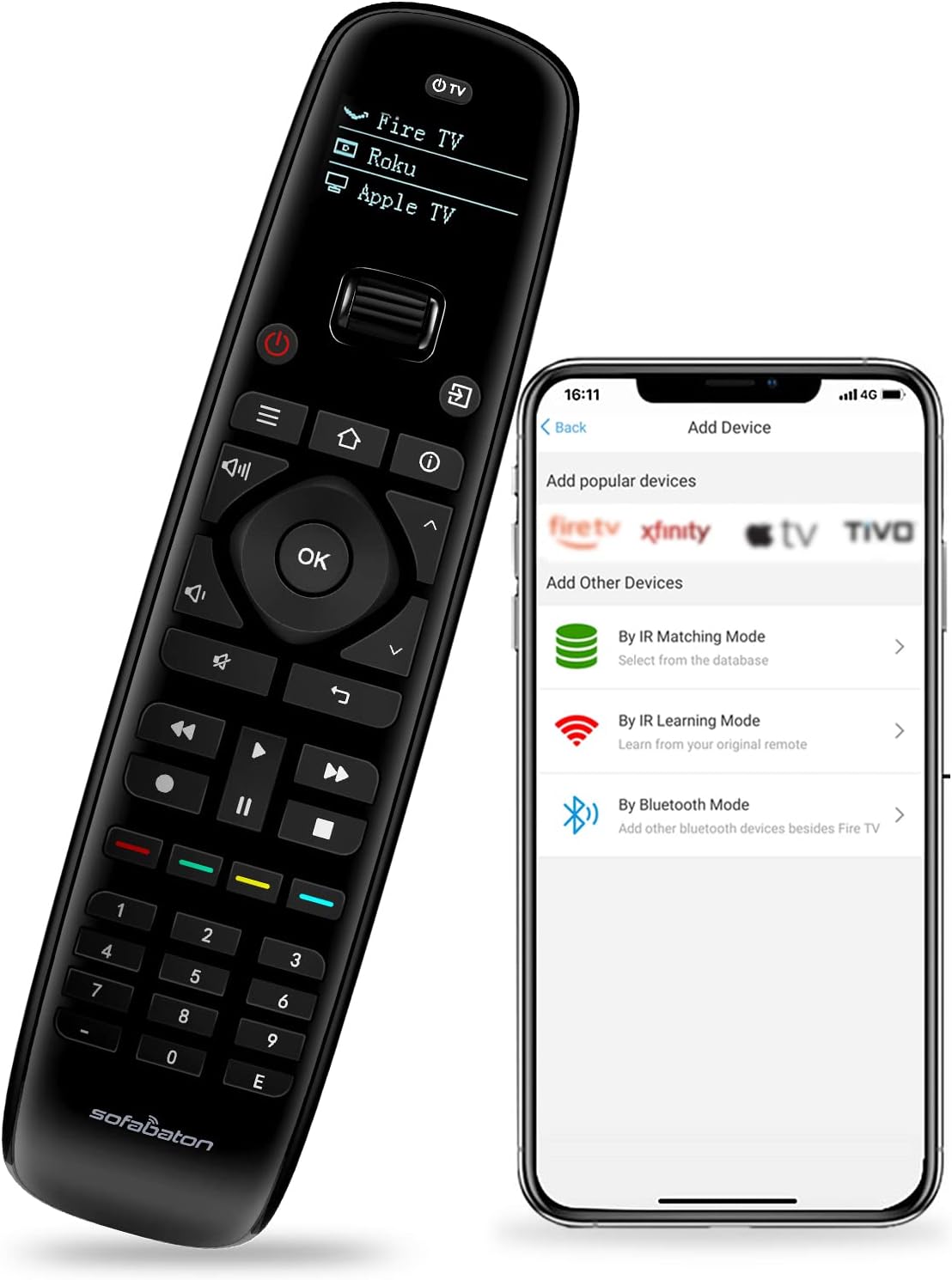
Figure 1: SofaBaton U2 Universal Remote Control and companion app interface.
2 പ്രധാന സവിശേഷതകൾ
- All-in-One Control: Replaces up to 15 Infrared and Bluetooth device remotes, compatible with 500,000+ devices from 6,000+ brands.
- Strong IR Signal Range: Upgraded infrared range extends up to 35 feet for reliable control.
- പ്രോഗ്രാം ചെയ്യാവുന്ന മാക്രോകൾ: Create custom sequences of up to 10 commands from a single button press, combining actions across different devices.
- Raise-to-Wake OLED Screen: The OLED display automatically illuminates when the remote is picked up, providing clear visibility and control.
- Infrared Learning Mode: Learn functions directly from your original remote controls for enhanced flexibility.
- എർഗണോമിക് ഡിസൈൻ: Features a comfortable, skin-friendly grip with rounded edges and a balanced feel to reduce hand fatigue.
- Scroll Wheel Navigation: Allows for quick and efficient switching between multiple configured devices.
- ഉപയോക്തൃ-സൗഹൃദ ഡിസൈൻ: Includes larger number buttons for easy readability and an improved battery cover for simple battery replacement.

Figure 2: The SofaBaton U2 can control up to 15 entertainment devices simultaneously.
3. സജ്ജീകരണ ഗൈഡ്
3.1. ബാറ്ററി ഇൻസ്റ്റാളേഷൻ
- റിമോട്ട് കൺട്രോളിന്റെ പിൻഭാഗത്ത് ബാറ്ററി കമ്പാർട്ട്മെന്റ് കണ്ടെത്തുക.
- Press and hold the black tab located above the battery compartment with your left hand.
- While holding the tab, slide down the battery compartment cover with your right hand to remove it.
- ശരിയായ പോളാരിറ്റി (+/-) ഉറപ്പാക്കിക്കൊണ്ട് രണ്ട് AA ബാറ്ററികൾ ഇടുക.
- സുരക്ഷിതമായി ക്ലിക്ക് ചെയ്യുന്നതുവരെ ബാറ്ററി കമ്പാർട്ട്മെന്റ് കവർ തിരികെ സ്ഥലത്തേക്ക് സ്ലൈഡുചെയ്ത് മാറ്റിസ്ഥാപിക്കുക.

Figure 3: Steps for battery installation.
3.2. ആപ്പ് ഡൗൺലോഡും പ്രാരംഭ ജോടിയാക്കലും
The SofaBaton U2 requires the SofaBaton companion app for setup and configuration. The app is available for both iOS and Android devices.
- Download the "SofaBaton" app from the Apple App Store (for iOS) or Google Play Store (for Android).
- Open the app and follow the on-screen instructions to pair your SofaBaton U2 remote control via Bluetooth.

Figure 4: The SofaBaton app interface for adding devices.
3.3. ഉപകരണങ്ങൾ ചേർക്കുന്നു
You can add devices to your SofaBaton U2 using three primary methods:
3.3.1. By IR Matching Mode (Cloud Database)
This is the recommended method for most devices, utilizing SofaBaton's extensive cloud code library.
- In the SofaBaton app, select "Add Device" and then choose "By IR Matching Mode".
- ഇതിനായി തിരയുക your device's brand and model number.
- The app will provide a list of codes. Test each code by pointing the U2 remote at your device and pressing the power button.
- Once a working code is found, confirm it in the app. The app will then guide you through mapping the buttons.

Figure 5: The cloud database supports over 500,000 devices.
3.3.2. By IR Learning Mode
Use this method if your device's code is not found in the cloud database or if you need to customize specific buttons.
- In the SofaBaton app, select "Add Device" and then choose "By IR Learning Mode".
- Position your original remote control and the SofaBaton U2 remote head-to-head, approximately 1-3 cm apart.
- In the app, select the button you wish to program on the U2 remote.
- Press and hold the corresponding button on your original remote until the app confirms successful learning.
- ആവശ്യമുള്ള എല്ലാ ബട്ടണുകൾക്കും ആവർത്തിക്കുക.
3.3.3. By Bluetooth Mode
This mode is specifically for adding Bluetooth-enabled devices, such as certain streaming players.
- In the SofaBaton app, select "Add Device" and then choose "By Bluetooth Mode".
- Follow the app's instructions to put your Bluetooth device into pairing mode.
- Select your device from the list of available Bluetooth devices in the app to complete pairing.
3.4. Programming Macros
Macros allow you to execute a sequence of commands with a single button press.
- In the SofaBaton app, navigate to the device profile where you want to create a macro.
- Select the button you wish to assign the macro to.
- Choose the "Create Macro" option.
- Add commands from various devices in the desired sequence. You can also set delays between commands if needed (e.g., for device power-up times).
- Save the macro. When you press this button on your U2 remote, the sequence of commands will be sent.

Figure 6: Macro programming allows for complex command sequences.
4. പ്രവർത്തന നിർദ്ദേശങ്ങൾ
4.1. ഉപകരണങ്ങൾക്കിടയിൽ മാറൽ
The SofaBaton U2 features an ergonomic scroll wheel for quick device selection.
- Rotate the scroll wheel located near the top of the remote to cycle through your configured devices displayed on the OLED screen.
- Press the scroll wheel to select the desired device. The remote will then send commands for the selected device.
4.2. Using the OLED Display
The OLED screen enhances usability by displaying the active device and other relevant information.
- The screen automatically lights up when the remote is picked up or moved (Raise to Wake feature).
- It displays the currently selected device, making it easy to confirm which device you are controlling.
- To conserve battery life, the screen will automatically turn off after a period of inactivity.
4.3. Infrared Signal Transmission
The U2 remote provides a strong and stable infrared signal.
- Ensure a clear line of sight between the front of the U2 remote and the IR receiver of the device you are controlling.
- The effective IR range is up to 35 feet, allowing for flexible positioning within your room.

Figure 7: The SofaBaton U2 offers an extended IR signal range of up to 35 feet.
5. പരിപാലനം
5.1. വൃത്തിയാക്കൽ
- മൃദുവായതും ഉണങ്ങിയതുമായ തുണി ഉപയോഗിച്ച് റിമോട്ട് കൺട്രോൾ തുടയ്ക്കുക.
- കഠിനമായ അഴുക്കിന്, ചെറുതായി dampവെള്ളം അല്ലെങ്കിൽ മൃദുവായ, ഉരച്ചിലുകളില്ലാത്ത ക്ലീനർ ഉപയോഗിച്ച് തുണിയിൽ വയ്ക്കുക.
- കഠിനമായ രാസവസ്തുക്കൾ, ലായകങ്ങൾ, അല്ലെങ്കിൽ ഉരച്ചിലുകൾ എന്നിവ ഉപയോഗിക്കുന്നത് ഒഴിവാക്കുക, കാരണം ഇവ റിമോട്ടിന്റെ ഫിനിഷിനോ ആന്തരിക ഘടകങ്ങളോ കേടുവരുത്തും.
5.2. ബാറ്ററി മാറ്റിസ്ഥാപിക്കൽ
Refer to Section 3.1 for detailed instructions on how to replace the AA batteries in your SofaBaton U2 remote control. Replace batteries when the remote's performance degrades or the OLED screen becomes dim.
6. പ്രശ്നപരിഹാരം
If you encounter issues with your SofaBaton U2 Universal Remote Control, please refer to the following common solutions:
| പ്രശ്നം | സാധ്യമായ കാരണം | പരിഹാരം |
|---|---|---|
| Remote not responding / No power | ഡെഡ് അല്ലെങ്കിൽ തെറ്റായി ഇൻസ്റ്റാൾ ചെയ്ത ബാറ്ററികൾ. | ബാറ്ററി പോളാരിറ്റി പരിശോധിച്ച് പുതിയ AA ബാറ്ററികൾ ഉപയോഗിച്ച് മാറ്റിസ്ഥാപിക്കുക. |
| കമാൻഡുകളോട് ഉപകരണം പ്രതികരിക്കുന്നില്ല | Incorrect device code, poor IR signal, or device not selected. | Ensure the correct device is selected using the scroll wheel. Verify line of sight to the device's IR receiver. Re-add the device using IR Matching or IR Learning mode in the app. |
| Macro not working correctly | Incorrect command sequence or insufficient delays. | Review the macro programming in the app. Adjust command order or add longer delays between commands, especially for device power-up sequences. |
| OLED screen not lighting up | Battery issue or remote not detecting motion. | Check batteries. Gently shake or move the remote to activate the 'Raise to Wake' feature. |
| Scroll wheel unresponsive or skipping devices | Dust/debris or mechanical issue. | Ensure the scroll wheel area is clean. If the issue persists, contact SofaBaton customer support. |
7 സ്പെസിഫിക്കേഷനുകൾ
- മോഡൽ നമ്പർ: U2
- ഉൽപ്പന്ന അളവുകൾ: 6 x 3 x 0.01 ഇഞ്ച്
- ഇനത്തിൻ്റെ ഭാരം: 10.5 ഔൺസ്
- ബാറ്ററികൾ: 2 AA ബാറ്ററികൾ ആവശ്യമാണ് (ഉൾപ്പെടുന്നു)
- പിന്തുണയ്ക്കുന്ന ഉപകരണങ്ങളുടെ പരമാവധി എണ്ണം: 15
- അനുയോജ്യമായ ഉപകരണങ്ങൾ: Television, Set Top Box, Stereo System, DVD/Blu-ray Player, Home Theater, Projector, Streaming Players
- നിറം: കറുപ്പ്
- പ്രത്യേക സവിശേഷതകൾ: Digital Display, Universal, Ergonomic, Lightweight, Pre-Programmed, Infrared Learning, Macro Programming, Raise to Wake
- നിർമ്മാതാവ്: SofaBaton
- മാതൃരാജ്യം: ചൈന
8. വാറൻ്റിയും പിന്തുണയും
SofaBaton products are designed for reliability and performance. For specific warranty details and terms, please refer to the warranty card included with your product or visit the official SofaBaton webസൈറ്റ്. വാറന്റി ക്ലെയിമുകൾക്കായി നിങ്ങളുടെ വാങ്ങലിന്റെ തെളിവ് സൂക്ഷിക്കുക.
8.1. ഉപഭോക്തൃ പിന്തുണ
If you require further assistance or encounter issues not covered in this manual, please contact SofaBaton customer support through their official website or the contact information provided in the product packaging. When contacting support, please have your product model number (U2) and a detailed description of the issue ready.