
Hexgears GK715
Hexgears GK715 Mechanical Gaming Keyboard User Manual
Model: GK715 | Brand: Hexgears
1. ആമുഖം
This manual provides comprehensive instructions for the setup, operation, and maintenance of your Hexgears GK715 Mechanical Gaming Keyboard. Designed for both office and gaming use, this 104-key full-size wired keyboard features hot-swappable Kailh Box mechanical switches, durable ABS double-shot keycaps, and white backlighting.
Please read this manual thoroughly to ensure proper use and to maximize your keyboard's performance and lifespan.
2. ഉൽപ്പന്നം കഴിഞ്ഞുview
The Hexgears GK715 is a robust mechanical keyboard built for precision and durability. Key features include:
- 104-Key Full-Size Layout: Provides a complete set of keys, including a numeric keypad, suitable for various tasks.
- Kailh Box Mechanical Switches: Offers accurate tactile and audio feedback for an enhanced typing experience.
- ഹോട്ട്-സ്വാപ്പ് ചെയ്യാവുന്ന PCB: Allows for easy replacement of 3-pin switches without soldering, enabling customization of typing feel and sound.
- Durable ABS Double-Shot Keycaps: ദീർഘായുസ്സിനും ധരിക്കാനുള്ള പ്രതിരോധത്തിനും വേണ്ടി രൂപകൽപ്പന ചെയ്തിരിക്കുന്നു.
- വെളുത്ത ബാക്ക്ലൈറ്റിംഗ്: Features various static backlight modes for improved visibility and aesthetics.
- എർഗണോമിക് ഡിസൈൻ: Includes adjustable feet for comfortable typing angles.
- വയർഡ് കണക്റ്റിവിറ്റി: Ensures stable and responsive performance.

Figure 2.1: Hexgears GK715 Mechanical Gaming Keyboard with pink and white keycaps.
3. സജ്ജീകരണം
Follow these steps to set up your Hexgears GK715 keyboard:
- കീബോർഡ് അൺപാക്ക് ചെയ്യുക: പാക്കേജിംഗിൽ നിന്ന് കീബോർഡും അനുബന്ധ ഉപകരണങ്ങളും ശ്രദ്ധാപൂർവ്വം നീക്കം ചെയ്യുക.
- നിങ്ങളുടെ ഉപകരണത്തിലേക്ക് കണക്റ്റുചെയ്യുക: The Hexgears GK715 is a wired keyboard. Connect the USB cable from the keyboard to an available USB port on your computer (PC, laptop, or compatible device).
- ഡ്രൈവർ ഇൻസ്റ്റാളേഷൻ: Your operating system (Windows, macOS, Android) should automatically detect and install the necessary drivers. No manual driver installation is typically required.
- Adjust Keyboard Feet: For ergonomic comfort, you can adjust the two-stage feet on the underside of the keyboard to your preferred typing angle.

ചിത്രം 3.1: വശം view of the keyboard demonstrating the adjustable feet for ergonomic positioning.
Video 3.1: Official Hexgears video demonstrating the wired connection and basic usage of the GK715 Mechanical Keyboard.
4. പ്രവർത്തന നിർദ്ദേശങ്ങൾ
4.1 അടിസ്ഥാന പ്രവർത്തനങ്ങൾ
The keyboard operates as a standard 104-key layout. Simply plug it in, and it's ready for use.
4.2 ബാക്ക്ലൈറ്റ് നിയന്ത്രണം
The Hexgears GK715 features white backlighting with multiple modes. Use the function (Fn) key combinations to control the backlight:
- ബാക്ക്ലൈറ്റ് മോഡുകൾ മാറ്റുന്നു: അമർത്തുക Fn + തിരുകുക to cycle through various static backlight patterns.
- തെളിച്ചം ക്രമീകരിക്കൽ: ഉപയോഗിക്കുക Fn + മുകളിലേക്കുള്ള അമ്പടയാളം തെളിച്ചം വർദ്ധിപ്പിക്കാനും Fn + താഴേക്കുള്ള അമ്പടയാളം തെളിച്ചം കുറയ്ക്കാൻ.
- Turning Backlight On/Off: Specific key combinations may vary, but typically എഫ്എൻ + ലൈറ്റ് കീ (often located near the arrow keys or F-row) can toggle the backlight.
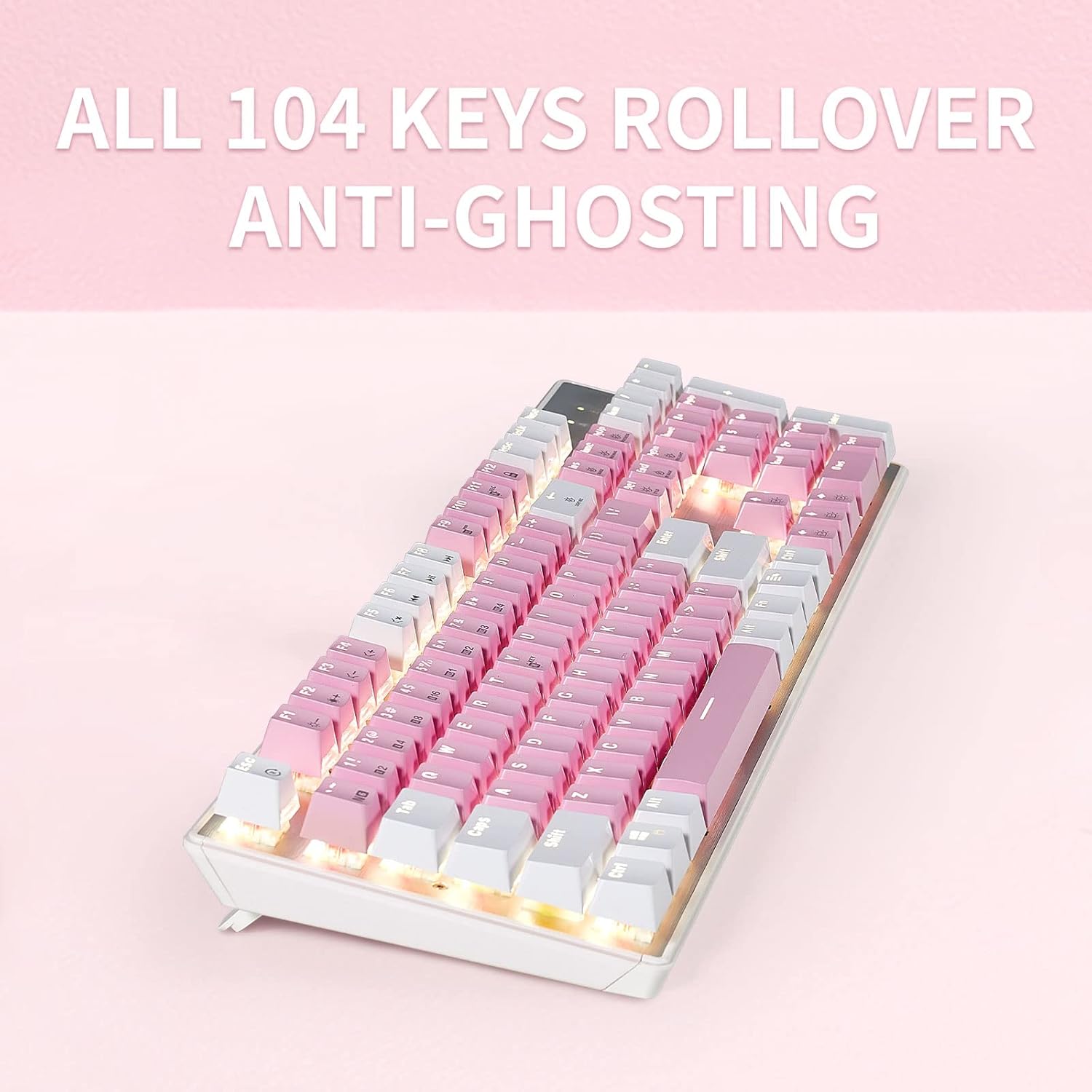
Figure 4.1: The white backlighting illuminates the keycaps, enhancing visibility.
4.3 എൻ-കീ റോൾഓവർ (NKRO)
The keyboard supports N-Key Rollover, which means every key press is registered independently, preventing ghosting even when multiple keys are pressed simultaneously. This feature is crucial for fast-paced gaming and typing.
- Toggle NKRO/6-Key Rollover: To switch between N-Key Rollover and 6-Key Rollover (for compatibility reasons), press Fn + Backtick (`). The default setting is usually NKRO.
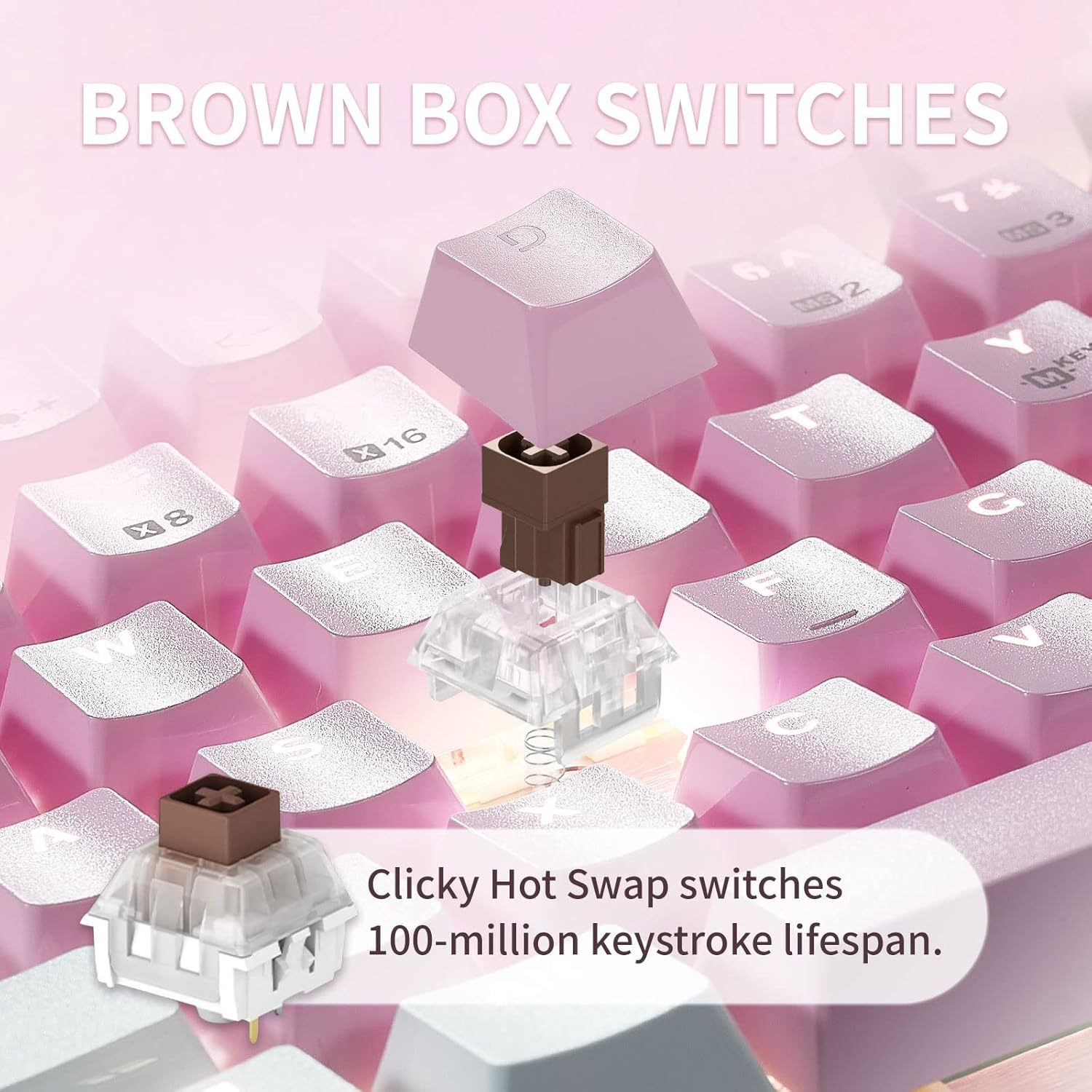
Figure 4.2: Illustration of the keyboard's full N-Key Rollover capability.
5. പരിപാലനം
5.1 കീബോർഡ് വൃത്തിയാക്കൽ
- പൊതുവായ ശുചീകരണം: Use a soft, dry cloth to wipe down the keycaps and keyboard surface. For deeper cleaning, a slightly damp കീബോർഡിലേക്ക് ദ്രാവകം പ്രവേശിക്കുന്നില്ലെന്ന് ഉറപ്പാക്കാൻ വീര്യം കുറഞ്ഞ സോപ്പ് ഉള്ള തുണി ഉപയോഗിക്കാം.
- പൊടി നീക്കം: കീക്യാപ്പുകൾക്കിടയിൽ നിന്ന് പൊടിയും അവശിഷ്ടങ്ങളും നീക്കം ചെയ്യാൻ കംപ്രസ് ചെയ്ത വായു ഉപയോഗിക്കുക.
5.2 കീക്യാപ്പും സ്വിച്ചും മാറ്റിസ്ഥാപിക്കൽ
The Hexgears GK715 features hot-swappable switches and durable double-shot ABS keycaps, allowing for easy customization and maintenance.
- കീക്യാപ്പുകൾ നീക്കംചെയ്യുന്നു: Use the included keycap puller tool to gently remove keycaps. Hook the tool onto the keycap and pull upwards evenly.
- സ്വിച്ചുകൾ നീക്കംചെയ്യുന്നു: After removing the keycap, use the included switch puller tool. Squeeze the tabs on the top and bottom of the switch and pull upwards.
- Installing Switches/Keycaps: Align the new switch with the holes on the PCB and press down firmly until it clicks into place. Then, align the keycap and press down.

Figure 5.1: Double-shot ABS keycaps are designed for durability and clear backlighting.

Figure 5.2: Kailh Box mechanical switches provide a consistent and reliable typing experience.
6. പ്രശ്നപരിഹാരം
| പ്രശ്നം | സാധ്യമായ കാരണം | പരിഹാരം |
|---|---|---|
| കീബോർഡ് പ്രതികരിക്കുന്നില്ല | അയഞ്ഞ യുഎസ്ബി കണക്ഷൻ, തകരാറുള്ള യുഎസ്ബി പോർട്ട്, ഡ്രൈവർ പ്രശ്നം. |
|
| Keys are not registering or are "ghosting" | NKRO setting, software conflict, dirty switch, faulty switch. |
|
| ബാക്ക്ലൈറ്റ് പ്രവർത്തിക്കുന്നില്ല അല്ലെങ്കിൽ പൊരുത്തപ്പെടുന്നില്ല | Backlight turned off, brightness set to minimum, software issue. |
|
| Sticking space bar or other keys | Debris under keycap/switch, misaligned stabilizer, faulty switch. |
|
7 സ്പെസിഫിക്കേഷനുകൾ
| ഫീച്ചർ | വിശദാംശങ്ങൾ |
|---|---|
| ഉൽപ്പന്ന അളവുകൾ | 17 x 1.42 x 5 ഇഞ്ച് |
| ഇനത്തിൻ്റെ ഭാരം | 2.66 പൗണ്ട് |
| നിർമ്മാതാവ് | ഹെക്സ്ഗിയർസ് |
| അനുയോജ്യമായ ഉപകരണങ്ങൾ | PC (Windows, macOS, Android) |
| കണക്റ്റിവിറ്റി ടെക്നോളജി | USB (വയർഡ്) |
| കീബോർഡ് വിവരണം | ഗെയിമിംഗ്, മെക്കാനിക്കൽ |
| പ്രത്യേക സവിശേഷതകൾ | Ergonomic, Hot-Swappable Switches, White Backlit |
| നിറം | PinkWhite |
| മെറ്റീരിയൽ | Aluminum, Polybutylene Terephthalate (ABS Keycaps) |
| ഉൾപ്പെടുത്തിയ ഘടകങ്ങൾ | Keycap Puller, Switch Puller |
8. വാറൻ്റിയും പിന്തുണയും
For warranty information and technical support, please refer to the official Hexgears webസൈറ്റിൽ ബന്ധപ്പെടുകയോ അവരുടെ ഉപഭോക്തൃ സേവനവുമായി നേരിട്ട് ബന്ധപ്പെടുകയോ ചെയ്യുക. ഏതെങ്കിലും വാറന്റി ക്ലെയിമുകൾക്ക് വാങ്ങിയതിന്റെ തെളിവായി നിങ്ങളുടെ വാങ്ങൽ രസീത് സൂക്ഷിക്കുക.
You can visit the Hexgears Store for more information: Hexgears Store on Amazon
Ask a question about this manual
Ask about setup, troubleshooting, compatibility, parts, safety, or missing instructions. Manuals+ will review the question and use this page’s manual context to help answer it.