
ATTACK SHARK K98
അറ്റാക്ക് ഷാർക്ക് K98 വയർലെസ് മെക്കാനിക്കൽ കീബോർഡ് യൂസർ മാനുവൽ
മോഡൽ: K98
1. ഉൽപ്പന്നം കഴിഞ്ഞുview
The ATTACK SHARK K98 is a 96% layout (100-key) wireless mechanical keyboard designed for versatility and comfort. It features tri-mode connectivity (2.4Ghz, Bluetooth, USB-C), hot-swappable switches, dynamic RGB backlighting, and an ergonomic design with a cloud-shaped wrist rest.

ചിത്രം: കഴിഞ്ഞുview of the K98 keyboard highlighting its 3000mAh battery, triple modes, dynamic RGB backlight, delicate adjusting satellite switch, hot-swappable design, all keys no conflict feature, yellow/red switch options, and ergonomic design.
2. പാക്കേജ് ഉള്ളടക്കം
Before proceeding with setup, please ensure all items are present in the package:
- ATTACK SHARK K98 Wireless Mechanical Keyboard
- Cloud Wrist Rest
- USB-C to USB-A Coiled Cable with Metal Aviator Connector
- സ്വിച്ച് പുള്ളർ (ഹോട്ട്-സ്വാപ്പിങ്ങിന്)
- ഉപയോക്തൃ മാനുവൽ (ഈ പ്രമാണം)
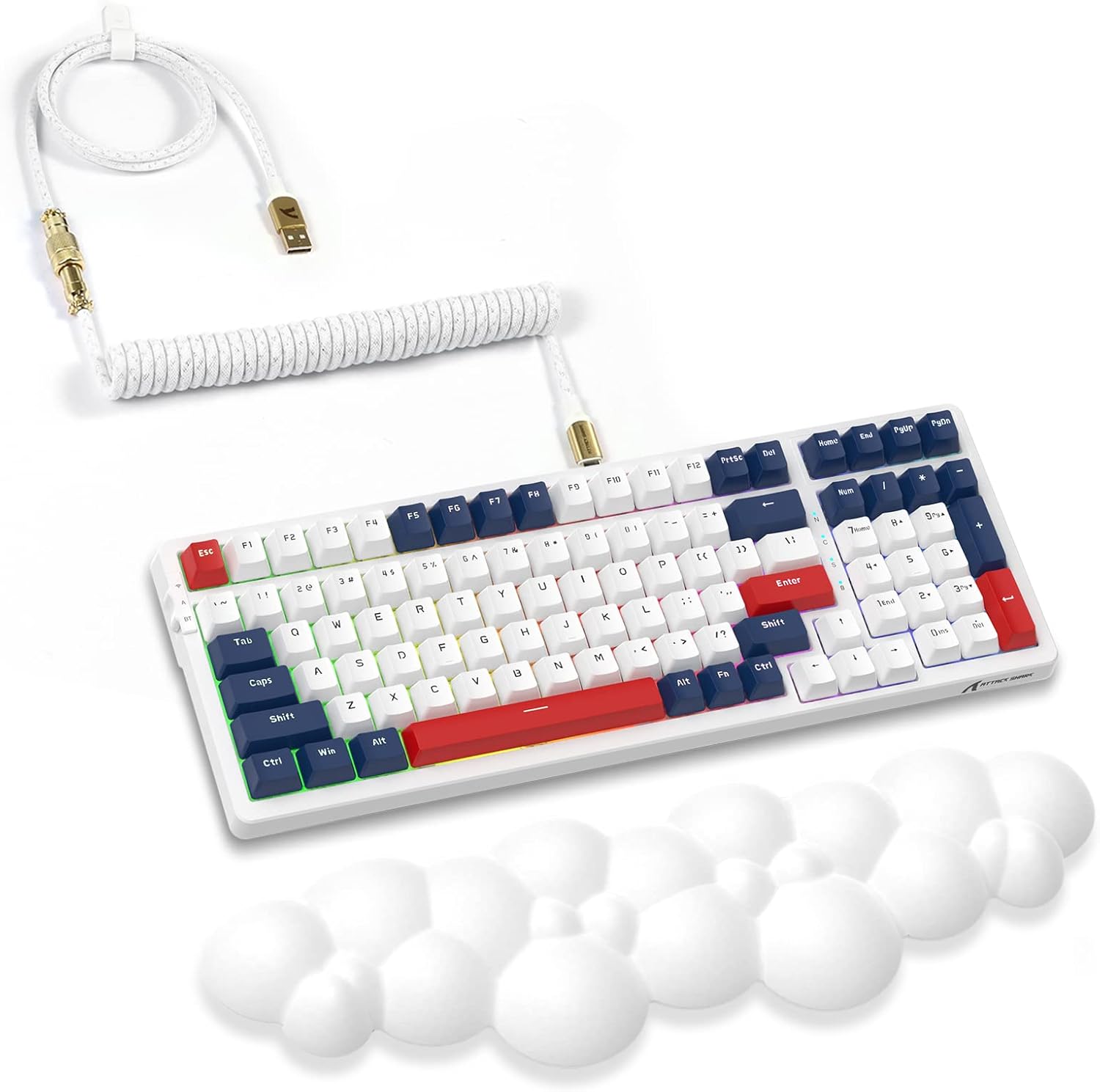
Image: The K98 mechanical keyboard shown with its included white coiled USB-C cable and the white cloud-shaped wrist rest.
3. സജ്ജീകരണ ഗൈഡ്
3.1 പ്രാരംഭ ചാർജിംഗ്
The keyboard comes with a built-in 3000mAh rechargeable battery. For optimal performance, it is recommended to fully charge the keyboard before first use.
- Connect the USB-C end of the provided coiled cable to the keyboard's USB-C port.
- Connect the USB-A end of the cable to a powered USB port on your computer or a USB wall adapter.
- The keyboard's indicator light will show charging status (refer to keyboard's specific LED indicators for details, usually red for charging, green for full).

Image: Close-up of the high-quality coiled cable, showing its Type-C plug, metal aviator connector, and standard USB-A connector.
3.2 കീബോർഡ് ബന്ധിപ്പിക്കുന്നു
The K98 keyboard supports three connectivity modes:
3.2.1 2.4G വയർലെസ് മോഡ്
- 2.4G യുഎസ്ബി റിസീവർ കണ്ടെത്തുക (സാധാരണയായി കീബോർഡിലെ ഒരു കമ്പാർട്ടുമെന്റിൽ സൂക്ഷിക്കുന്നു).
- നിങ്ങളുടെ കമ്പ്യൂട്ടറിൽ ലഭ്യമായ ഒരു USB പോർട്ടിലേക്ക് 2.4G USB റിസീവർ പ്ലഗ് ചെയ്യുക.
- Switch the keyboard's mode switch (typically on the back or side) to the 2.4G position.
- The keyboard should automatically connect. If not, press the designated pairing key combination (refer to specific keyboard instructions, often Fn + 4 for 2.4G).
3.2.2 ബ്ലൂടൂത്ത് മോഡ്
The keyboard supports Bluetooth 5.0 and can connect to multiple devices.
- Switch the keyboard's mode switch to the Bluetooth position.
- Press and hold the Bluetooth pairing key combination (e.g., Fn + 1, Fn + 2, or Fn + 3) for 3-5 seconds until the indicator light flashes rapidly, indicating pairing mode.
- നിങ്ങളുടെ ഉപകരണത്തിൽ (കമ്പ്യൂട്ടർ, ടാബ്ലെറ്റ്, സ്മാർട്ട്ഫോൺ), ബ്ലൂടൂത്ത് ക്രമീകരണങ്ങൾ തുറന്ന് പുതിയ ഉപകരണങ്ങൾക്കായി തിരയുക.
- Select "ATTACK SHARK K98" (or similar name) from the list of available devices to pair.
- കണക്ട് ചെയ്തുകഴിഞ്ഞാൽ, ഇൻഡിക്കേറ്റർ ലൈറ്റ് മിന്നുന്നത് നിർത്തും.
3.2.3 USB-C വയേർഡ് മോഡ്
- Connect the USB-C end of the provided coiled cable to the keyboard's USB-C port.
- നിങ്ങളുടെ കമ്പ്യൂട്ടറിലെ ഒരു USB പോർട്ടിലേക്ക് കേബിളിന്റെ USB-A അറ്റം ബന്ധിപ്പിക്കുക.
- Switch the keyboard's mode switch to the Wired/USB position.
- കീബോർഡ് ഒരു സാധാരണ USB കീബോർഡായി അംഗീകരിക്കപ്പെടുകയും ഉപയോഗത്തിന് തയ്യാറാകുകയും ചെയ്യും.
3.3 Attaching the Cloud Wrist Rest
The included cloud-shaped wrist rest provides ergonomic support for comfortable long-term use.
- കീബോർഡ് പരന്ന പ്രതലത്തിൽ വയ്ക്കുക.
- Position the cloud wrist rest directly in front of the keyboard, aligning its length with the keyboard's front edge.
- Ensure the non-slip base of the wrist rest is in contact with the desk surface for stability.

Image: Illustration showing the ergonomic benefits of the cloud wrist rest, demonstrating how it supports the wrist to relieve fatigue during typing. Also shows the memory foam material, ease of cleaning, cloud shape, and non-slip base.
4. പ്രവർത്തന നിർദ്ദേശങ്ങൾ
4.1 Function Keys and Multimedia Controls
The K98 keyboard utilizes a 96% layout, integrating function keys and multimedia controls via the Fn key. Specific combinations may vary slightly, but common functions include:
- എഫ്എൻ + എഫ്1-എഫ്12: Standard F-key functions or multimedia controls (e.g., volume, play/pause, mute).
- എഫ്എൻ + വിൻ: വിൻഡോസ് കീ ലോക്ക്/അൺലോക്ക് ചെയ്യുക.
- എഫ്എൻ + ബാക്ക്സ്പെയ്സ്: Delete (if Backspace is dual-function).
- Fn + അമ്പടയാള കീകൾ: Backlight brightness/speed adjustment.
Refer to the keyboard's keycap legends or a dedicated function map for precise key combinations.
4.2 RGB ബാക്ക്ലൈറ്റ് നിയന്ത്രണം
The keyboard features 18+ RGB backlighting effects and 16.8 million customizable colors.
- എഫ്എൻ + \|: വ്യത്യസ്ത RGB ലൈറ്റിംഗ് മോഡുകളിലൂടെ കടന്നുപോകുക.
- Fn + Arrow Up/Down: ബാക്ക്ലൈറ്റിന്റെ തെളിച്ചം ക്രമീകരിക്കുക.
- Fn + Arrow Left/Right: ബാക്ക്ലൈറ്റ് വേഗത/ദിശ ക്രമീകരിക്കുക.
- എഫ്എൻ + ഇൻസ്/ഹോം/പിജിഅപ്പ്/ഡെൽ/എൻഡ്/പിജിഡിഎൻ: Specific lighting effect shortcuts (check keycaps).

Image: The K98 keyboard displaying its dynamic RGB backlight, illustrating various lighting effects and the ability to customize colors.
4.3 ഹോട്ട്-സ്വാപ്പബിൾ സ്വിച്ചുകൾ
The K98 features a hot-swappable PCB, allowing users to easily change mechanical switches without soldering. This enables customization of typing feel and sound.
- ഒരു സ്വിച്ച് നീക്കംചെയ്യുന്നു: Use the provided switch puller. Gently grip the top and bottom clips of the switch and pull upwards with even pressure until the switch detaches from the PCB.
- ഒരു സ്വിച്ച് ഇൻസ്റ്റാൾ ചെയ്യുന്നു: Align the pins of the new switch with the holes on the PCB. Ensure the pins are straight. Gently push the switch down until it clicks into place. Do not force it; if resistance is met, check pin alignment.
The keyboard comes with red linear switches, known for their quiet operation and smooth keystroke.

ചിത്രം: എ view of the K98 keyboard with several keycaps and switches removed, demonstrating the hot-swappable feature. A switch puller tool is also shown.

Image: Close-up of a red linear mechanical switch, detailing its quiet and linear feeling, operation force (45g±5g), actuation travel (4.00±0.4mm), and click lifespan (50M).
4.4 പ്രോഗ്രാമബിൾ സോഫ്റ്റ്വെയർ
The K98 keyboard supports programmable software for advanced customization of key assignments, macros, and RGB lighting effects. Please visit the official ATTACK SHARK webനിങ്ങളുടെ ഓപ്പറേറ്റിംഗ് സിസ്റ്റത്തിനായുള്ള ഏറ്റവും പുതിയ സോഫ്റ്റ്വെയർ ഡൗൺലോഡ് ചെയ്യുന്നതിനുള്ള സൈറ്റ്.
5. പരിപാലനം
5.1 കീബോർഡ് വൃത്തിയാക്കൽ
കീബോർഡിന്റെ രൂപവും പ്രവർത്തനക്ഷമതയും നിലനിർത്താൻ പതിവായി വൃത്തിയാക്കൽ സഹായിക്കുന്നു.
- പൊടി നീക്കം: Use a can of compressed air to blow away dust and debris from between keycaps.
- ഉപരിതല ശുചീകരണം: കീക്യാപ്പുകളും കീബോർഡ് പ്രതലവും മൃദുവായ, ചെറുതായി ഡി-ടച്ച് ഉപയോഗിച്ച് തുടയ്ക്കുക.amp, ലിന്റ് രഹിത തുണി. അമിതമായ ഈർപ്പം ഒഴിവാക്കുക.
- ഡീപ് ക്ലീനിംഗ് (കീക്യാപ്പുകൾ): For thorough cleaning, keycaps can be removed using a keycap puller (not included, but often comes with switch pullers) and washed with mild soap and water. Ensure they are completely dry before reattaching.
5.2 ബാറ്ററി കെയർ
To prolong the life of the keyboard's 3000mAh battery:
- ബാറ്ററി ഇടയ്ക്കിടെ പൂർണ്ണമായും ഡിസ്ചാർജ് ചെയ്യുന്നത് ഒഴിവാക്കുക.
- തീവ്രമായ താപനിലയിൽ കീബോർഡ് തുറന്നുകാട്ടരുത്.
- കീബോർഡ് ദീർഘനേരം സൂക്ഷിക്കുകയാണെങ്കിൽ, സൂക്ഷിക്കുന്നതിന് മുമ്പ് ഏകദേശം 50% വരെ ചാർജ് ചെയ്യുക.
6. പ്രശ്നപരിഹാരം
| പ്രശ്നം | സാധ്യമായ കാരണം | പരിഹാരം |
|---|---|---|
| വയർലെസ്സ് മോഡിൽ കീബോർഡ് പ്രതികരിക്കുന്നില്ല. | Low battery, incorrect mode selected, receiver not plugged in (2.4G), not paired (Bluetooth), interference. | Charge the keyboard. Ensure the mode switch is set correctly. Re-plug the 2.4G receiver. Re-pair Bluetooth. Move closer to the receiver/device. |
| RGB ബാക്ക്ലൈറ്റ് പ്രവർത്തിക്കുന്നില്ല അല്ലെങ്കിൽ സ്തംഭിച്ചിരിക്കുന്നു. | Backlight turned off, software glitch, low battery. | Press Fn + \| to cycle modes. Adjust brightness with Fn + Arrow Up. Restart the keyboard. Ensure sufficient battery. |
| Specific keys not responding. | Switch not properly seated, faulty switch, software issue. | Gently press down on the keycap to ensure the switch is fully seated. If hot-swappable, remove and re-insert the switch. Try a different switch if available. Check for software conflicts. |
| കീബോർഡ് ഇടയ്ക്കിടെ വിച്ഛേദിക്കപ്പെടുന്നു. | ഇടപെടൽ, റിസീവർ/ഉപകരണത്തിൽ നിന്നുള്ള ദൂരം, കുറഞ്ഞ ബാറ്ററി. | Reduce distance to receiver/device. Remove sources of interference (other wireless devices). Charge the keyboard. |
7 സ്പെസിഫിക്കേഷനുകൾ
| ബ്രാൻഡ് | അറ്റാക്ക് സ്രാവ് |
| മോഡൽ | K98 |
| ലേഔട്ട് | 96% (100 കീകൾ) |
| കണക്റ്റിവിറ്റി | Tri-Mode (2.4Ghz Wireless, Bluetooth 5.0, USB-C Wired) |
| സ്വിച്ച് തരം | Red Linear Mechanical Switches (Hot-swappable) |
| ബാക്ക്ലൈറ്റിംഗ് | RGB (18+ effects, 16.8 million colors) |
| ബാറ്ററി ശേഷി | 3000mAh |
| അനുയോജ്യമായ ഉപകരണങ്ങൾ | Computers (Mac, Windows) |
| ഇനത്തിൻ്റെ ഭാരം | 3.3 പൗണ്ട് (ഏകദേശം 1.5 കിലോഗ്രാം) |
| പാക്കേജ് അളവുകൾ | 17.13 x 6.46 x 2.48 ഇഞ്ച് (43.5 x 16.4 x 6.3 സെ.മീ) |

Image: Detailed dimensions of the K98 keyboard (15.35 in length, 5.55 in width, 1.57 in height) and the coiled cable (39.37 in total length, 7.87 in coiled section, 0.79 in coil diameter, 1.97 in coil height).
8. വാറൻ്റിയും പിന്തുണയും
8.1 വാറൻ്റി വിവരങ്ങൾ
For detailed warranty terms and conditions, please refer to the warranty card included with your product or visit the official ATTACK SHARK website. Warranty coverage typically applies to manufacturing defects and material flaws under normal use.
8.2 ഉപഭോക്തൃ പിന്തുണ
If you encounter any issues or have questions not covered in this manual, please contact ATTACK SHARK customer support through their official website or the retailer where the product was purchased. Provide your product model (K98) and a detailed description of the issue for faster assistance.
Official ATTACK SHARK Store: ആമസോണിലെ അറ്റാക്ക് ഷാർക്ക് സ്റ്റോർ
അനുബന്ധ രേഖകൾ - K98
 |
Attack Shark X87 Mechanical Keyboard User Manual Comprehensive user manual for the Attack Shark X87 Tri-Mode Mechanical Keyboard, covering connection instructions, hot-swapping, lighting controls, and function keys. |
 |
Attack Shark M86 Triple Mode RGB Mechanical Keyboard User Manual Comprehensive user manual for the Attack Shark M86 mechanical keyboard, covering connection modes, FN key combinations, hot-swappable switch installation, and safety instructions. |
 |
Attack Shark X66 Tri-Mode RGB Mechanical Keyboard User Manual User manual for the Attack Shark X66 Tri-Mode RGB Mechanical Keyboard, covering connection methods, FN key combinations, lighting settings, and safety instructions. |
 |
Attack Shark X87 Ultra Dual 8K Tri-Mode RGB Mechanical Keyboard Operating Instructions Operating instructions for the Attack Shark X87 Ultra, a dual 8K tri-mode RGB mechanical keyboard. Learn about its features, connection modes, key combinations, and safety precautions. |
 |
Attack Shark X85PRO RGB Triple Mode Keyboard Operating Instructions User manual and operating instructions for the Attack Shark X85PRO RGB Triple Mode mechanical keyboard. Learn how to connect via Bluetooth, 2.4G, or wired mode, customize lighting, and use hot-swappable switches. |
 |
Attack Shark X85PRO RGB Triple Mode Keyboard - Operating Instructions Detailed operating instructions for the Attack Shark X85PRO RGB Triple Mode Keyboard, covering setup, connections (Bluetooth, 2.4G, Wired), indicator lights, multimedia keys, lighting controls, and hot-swappable features. |
Ask a question about this manual
Ask about setup, troubleshooting, compatibility, parts, safety, or missing instructions. Manuals+ will review the question and use this page’s manual context to help answer it.