
1. ആമുഖം
വാങ്ങിയതിന് നന്ദി.asing the AceGamer Wireless Switch Controller. This manual provides instructions for setting up, operating, and maintaining your controller. Please read this manual thoroughly before use to ensure proper functionality and a satisfying gaming experience.
This controller is compatible with all Nintendo Switch systems, including Switch, Switch OLED, and Switch Lite. It also supports PC (Windows 7+), Android, Stadia, Luna, and Steam PC gaming platforms.
2. ഉൽപ്പന്ന സവിശേഷതകൾ
- സാർവത്രിക അനുയോജ്യത: Supports Nintendo Switch (all models), PC (Windows 7+), Android, Stadia, Luna, and Steam.
- വയർലെസ് കണക്റ്റിവിറ്റി: Enjoy gaming without cables.
- മാക്രോ പ്രോഗ്രാമിംഗ്: Customize back buttons to execute complex command sequences with a single press.
- 6-ആക്സിസ് ഗൈറോ സെൻസർ: Provides precise motion control for immersive gameplay.
- HD Vibration: Built-in dual vibration motors with 4 adjustable levels for realistic feedback.
- TURBO Continuous Fire: Adjustable auto-fire function with speeds up to 20 shots/second.
- One-Key Wake-up: Quickly wake up your Switch console from sleep mode.
- എർഗണോമിക് ഡിസൈൻ: Lightweight and grip-friendly with anti-slip treatment for comfortable extended play.
- High-Precision Buttons: Enhanced D-pad recognition chip for faster and more accurate input.
- നീണ്ട ബാറ്ററി ലൈഫ്: Equipped with a 1000mAh battery for extended gaming sessions.

ചിത്രം: കഴിഞ്ഞുview of the AceGamer Wireless Switch Controller and its main features.
3. സജ്ജീകരണ നിർദ്ദേശങ്ങൾ
3.1 നിന്റെൻഡോ സ്വിച്ചിലേക്ക് കണക്റ്റുചെയ്യുന്നു
- ഹോം മെനുവിൽ നിന്ന് തിരഞ്ഞെടുക്കുക കൺട്രോളറുകൾ.
- തിരഞ്ഞെടുക്കുക ഗ്രിപ്പ്/ഓർഡർ മാറ്റുക.
- കൺട്രോളറിൽ, അമർത്തിപ്പിടിക്കുക ഹോം ബട്ടൺ (house icon) for more than 2 seconds until the LED indicators start flashing.
- Once connected successfully, the LED indicators on the controller will stop flashing and remain lit, indicating the player number.

Image: Visual guide for connecting the controller to a Nintendo Switch console.
3.2 Connecting to PC/Android
Refer to the specific connection instructions provided with your PC or Android device for Bluetooth pairing. The controller will appear as a standard Bluetooth gamepad.
4. പ്രവർത്തന നിർദ്ദേശങ്ങൾ
4.1 Macro Programming Function
The controller features programmable back buttons for macro functions. You can record a sequence of button presses and assign them to a single back button.
- സജ്ജീകരണ രീതി: അമർത്തിപ്പിടിക്കുക എം കീ കൂടാതെ + കീ simultaneously. The controller's light will flash rapidly, indicating that action memory recording has started.
- Perform the desired sequence of button presses (single keys, combination keys, or directional keys).
- അമർത്തുക എം കീ again to save the macro. The light will stop flashing.
- To use the macro, simply press the assigned back button.
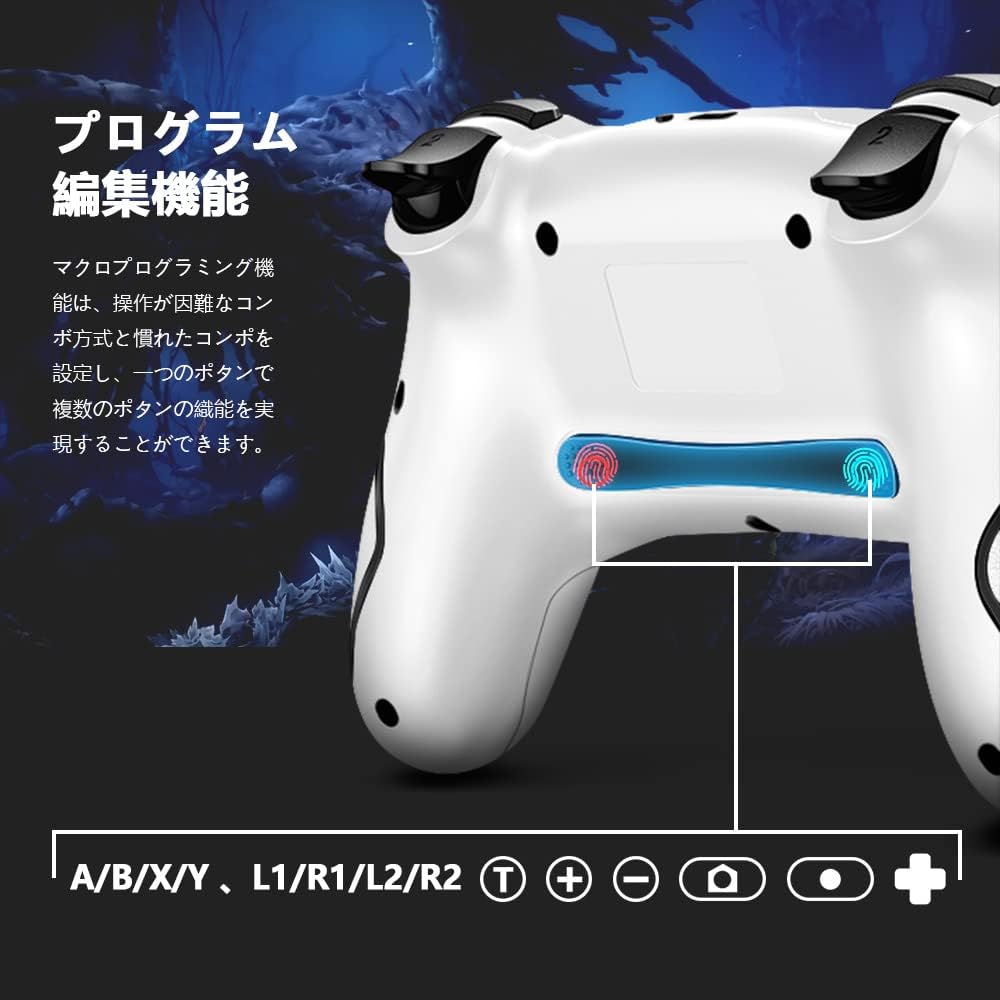
Image: Illustration of the back buttons and macro programming setup.
4.2 TURBO Continuous Fire Function
The TURBO function allows for automatic rapid firing of buttons, reducing hand fatigue during intense gameplay.
- ടർബോ സജീവമാക്കുന്നു: അമർത്തിപ്പിടിക്കുക ടി ബട്ടൺ and then press the desired action button (A/B/X/Y/L/R/ZL/ZR) to enable TURBO for that button.
- ടർബോ വേഗത ക്രമീകരിക്കുന്നു: പിടിക്കുമ്പോൾ ടി ബട്ടൺ, അമർത്തുക മുകളിലേക്ക് ദിശാസൂചന ബട്ടൺ to increase speed or the Down directional button to decrease speed. There are 3 speed levels (5 shots/sec, 12 shots/sec, 20 shots/sec).
- ടർബോ നിർജ്ജീവമാക്കുന്നു: Repeat the activation step (hold ടി ബട്ടൺ and press the action button) to turn off TURBO for that specific button.

Image: The Turbo button and speed adjustment indicators on the controller.
4.3 HD Vibration Adjustment
The controller features 4 levels of HD vibration feedback.
- To adjust vibration intensity, press and hold the വൈബ്രേഷൻ ബട്ടൺ (usually located near the HOME button) and use the Up/Down directional buttons to cycle through the vibration levels.
4.4 6-Axis Gyro Sensor
The built-in 6-axis gyro sensor allows for precise motion control in compatible games. The controller detects tilt and movement, enabling intuitive control for an enhanced gaming experience.

Image: The controller with an overlay indicating 6-axis gyro sensor functionality.
4.5 One-Key Wake-up Function
അമർത്തുക ഹോം ബട്ടൺ on the controller to wake up your Nintendo Switch console from sleep mode.

Image: The controller with a visual representation of the one-key wake-up function.
5. പരിപാലനം
- മൃദുവായതും ഉണങ്ങിയതുമായ തുണി ഉപയോഗിച്ച് തുടച്ച് കൺട്രോളർ വൃത്തിയായി സൂക്ഷിക്കുക.
- കൺട്രോളറെ തീവ്രമായ താപനില, ഈർപ്പം അല്ലെങ്കിൽ നേരിട്ടുള്ള സൂര്യപ്രകാശം എന്നിവയിൽ തുറന്നുകാട്ടുന്നത് ഒഴിവാക്കുക.
- Do not disassemble the controller, as this will void the warranty.
- കേടുപാടുകൾ തടയാൻ ഉപയോഗത്തിലില്ലാത്തപ്പോൾ കൺട്രോളർ സുരക്ഷിതമായ സ്ഥലത്ത് സൂക്ഷിക്കുക.

Image: The controller highlighting its wireless connection and anti-slip grip for comfortable use.
6. പ്രശ്നപരിഹാരം
- കൺട്രോളർ കണക്റ്റുചെയ്യുന്നില്ല: Ensure the controller is charged. Re-attempt the pairing process as described in Section 3.1. Make sure no other Bluetooth devices are interfering.
- ഇൻപുട്ട് ലാഗ് അല്ലെങ്കിൽ വിച്ഛേദിക്കൽ: Ensure the controller is within range of the console/device. Check for potential wireless interference.
- ബട്ടണുകൾ പ്രതികരിക്കുന്നില്ല: Check if the controller is properly connected. If the issue persists, try resetting the controller (refer to the manufacturer's webഈ മാനുവലിൽ ഇല്ലെങ്കിൽ, നിർദ്ദിഷ്ട റീസെറ്റ് നിർദ്ദേശങ്ങൾക്കായി സൈറ്റ് സന്ദർശിക്കുക).
- വൈബ്രേഷൻ പ്രവർത്തിക്കുന്നില്ല: Ensure vibration is enabled in your game settings and on the console. Check the vibration intensity level.
7 സ്പെസിഫിക്കേഷനുകൾ
| ബ്രാൻഡ് | AceGamer |
| മോഡൽ നമ്പർ | sw001 |
| കണക്റ്റിവിറ്റി ടെക്നോളജി | വയർലെസ് |
| അനുയോജ്യമായ ഉപകരണങ്ങൾ | Nintendo Switch, Android, iOS |
| കൺട്രോളർ തരം | ഗെയിംപാഡ് |
| പ്രത്യേക സവിശേഷതകൾ | Motion Sensor, Ergonomic |
| പാക്കേജ് അളവുകൾ | 17.4 x 11.5 x 7.2 സെ.മീ |
| ഇനത്തിൻ്റെ ഭാരം | 280 ഗ്രാം |
8. വാറൻ്റിയും പിന്തുണയും
AceGamer provides a 1 വർഷത്തെ വാറൻ്റി for this product. If any defects occur with eligible products purchased from our store within this period, we will replace the defective parts or exchange the product for a new one free of charge.
For technical support or warranty claims, please contact AceGamer customer service through the retailer where you purchased the product or visit our official webസൈറ്റ്.