
1. ആമുഖവും അവസാനവുംview
The Lexar NM790 M.2 2280 PCIe Gen 4x4 NVMe SSD is an internal solid-state drive engineered for high-performance computing environments. It is suitable for demanding applications such as gaming, professional content creation, and intensive data processing. This drive offers significant speed and efficiency improvements over previous generations, making it a versatile storage solution for compatible desktop computers, laptops, and the PlayStation 5 console.

Image 1.1: The Lexar NM790 M.2 2280 PCIe Gen4 NVMe SSD, a high-performance internal storage device.
2. ഉൽപ്പന്ന സവിശേഷതകൾ
The Lexar NM790 SSD incorporates several features designed to enhance performance and user experience:
- അസാധാരണമായ പ്രകടനം: Achieves sequential read speeds of up to 7400MB/s and sequential write speeds of up to 6500MB/s.
- ഉയർന്ന സഹിഷ്ണുത: Rated for 3000 Terabytes Written (TBW), ensuring long-term reliability for intensive workloads.
- Speed Advantage: Offers approximately 2x faster performance compared to PCIe Gen 3 SSDs.
- പവർ എഫിഷ്യൻസി: Consumes up to 40% less power than many DRAM cache-enabled PCIe Gen 4 SSDs, contributing to extended battery life in laptops.
- നൂതന സാങ്കേതികവിദ്യ: Utilizes Host Memory Buffer (HMB) 3.0 and Dynamic SLC Cache to optimize data transfer speeds and maintain consistent performance without a dedicated DRAM chip.
- വിശാലമായ അനുയോജ്യത: Designed for seamless integration with desktop computers, laptops, and the PlayStation 5 console.
- കോംപാക്റ്റ് ഡിസൈൻ: Features a single-sided NVMe SSD form factor, making it ideal for systems with limited physical space, such as thin laptops.
- വിശ്വാസ്യത: Backed by a five-year limited warranty, providing assurance of product quality and support.

Image 2.1: Illustration of the Lexar NM790's sequential read speed of 7400 MB/s and write speed of 6500 MB/s.

Image 2.2: Visual representation of the Lexar NM790's up to 40% lower power consumption compared to other PCIe Gen 4 SSDs.
3. സജ്ജീകരണവും ഇൻസ്റ്റാളേഷനും
Proper installation is crucial for optimal performance. Always ensure your device is powered off and disconnected from power before beginning installation.
3.1 General Installation (Desktop/Laptop)
- നിങ്ങളുടെ ഉപകരണം തയ്യാറാക്കുക: Power down your desktop or laptop completely and disconnect all power cables and peripherals.
- ആന്തരിക ഘടകങ്ങൾ ആക്സസ് ചെയ്യുക: Open your device's casing to access the motherboard. Refer to your device's manual for specific instructions on how to do this safely.
- M.2 സ്ലോട്ട് കണ്ടെത്തുക: Identify an available M.2 slot on your motherboard. These slots are typically labeled and may have a small screw stand-off nearby.
- SSD ചേർക്കുക: Gently insert the Lexar NM790 SSD into the M.2 slot at approximately a 30-degree angle. The gold contacts on the SSD should align with the slot.
- സുരക്ഷിത SSD: Once fully inserted, gently push the SSD down until it is parallel with the motherboard. Secure it with the small screw provided with your motherboard or the SSD.
- വീണ്ടും കൂട്ടിച്ചേർക്കുക, പവർ ഓൺ ചെയ്യുക: Close your device's casing, reconnect all cables, and power on the system.
3.2 PlayStation 5 Installation
The Lexar NM790 SSD is compatible with PlayStation 5 consoles. Ensure your PS5 system software is updated to the latest version before installation.

Image 3.1: The Lexar NM790 SSD prominently displayed with a 'PS5 Compatible' graphic, indicating its suitability for PlayStation 5 consoles.
- Update PS5 Software: Ensure your PlayStation 5 system software is updated to the latest version.
- Power Down PS5: Turn off your PS5 completely and disconnect the AC power cord and all other cables.
- Position PS5: Place the PS5 on a soft cloth on a flat surface. Position it so the PlayStation logo is facing down and the power button is facing away from you.
- Remove Console Cover: Gently lift and slide off the console cover.
- എക്സ്പാൻഷൻ സ്ലോട്ട് കണ്ടെത്തുക: Identify the expansion slot cover, which is secured by a screw. Remove this screw.
- Remove Expansion Slot Cover: Carefully remove the expansion slot cover.
- Adjust Spacer: Remove the screw and spacer from the expansion slot. Adjust the spacer to the 2280 position, which matches the length of the NM790 SSD.
- SSD ചേർക്കുക: Hold the Lexar NM790 SSD by its edge and insert it into the expansion slot connector at an angle.
- സുരക്ഷിത SSD: Push the SSD down firmly until it is level, then secure it with the screw you removed earlier.
- Reattach Covers: Replace the expansion slot cover and secure it with its screw. Then, reattach the PS5 console cover.
- Power On and Format: Reconnect all cables and power on your PS5. Follow the on-screen instructions to format the newly installed SSD.
4. പ്രവർത്തന നിർദ്ദേശങ്ങൾ
After physical installation, the Lexar NM790 SSD requires initialization and formatting before it can be used for storage.
4.1 Initialization and Formatting
- വിൻഡോസിനായി:
- സ്റ്റാർട്ട് ബട്ടണിൽ റൈറ്റ് ക്ലിക്ക് ചെയ്ത് 'ഡിസ്ക് മാനേജ്മെന്റ്' തിരഞ്ഞെടുക്കുക.
- Locate the newly installed SSD, which will likely appear as 'Unallocated' space.
- Right-click on the disk and select 'Initialize Disk'. Choose GPT (GUID Partition Table) as the partition style.
- Right-click on the 'Unallocated' space again and select 'New Simple Volume'. Follow the wizard to assign a drive letter and format the drive (NTFS file system recommended).
- MacOS-ന്:
- Open 'Disk Utility' from Applications > Utilities.
- Select the newly installed SSD from the sidebar.
- Click the 'Erase' button. Choose a name, format (APFS recommended), and scheme (GUID Partition Map). Click 'Erase' to confirm.
- For PlayStation 5: Upon powering on the PS5 after installation, the console will automatically detect the new SSD and prompt you to format it. Follow the on-screen instructions to complete the process.
4.2 Data Transfer and Usage
Once formatted, the Lexar NM790 SSD functions as a standard storage device. You can transfer files, install applications, or store games on it just like any other drive. For optimal performance, ensure your operating system and motherboard drivers are up to date.
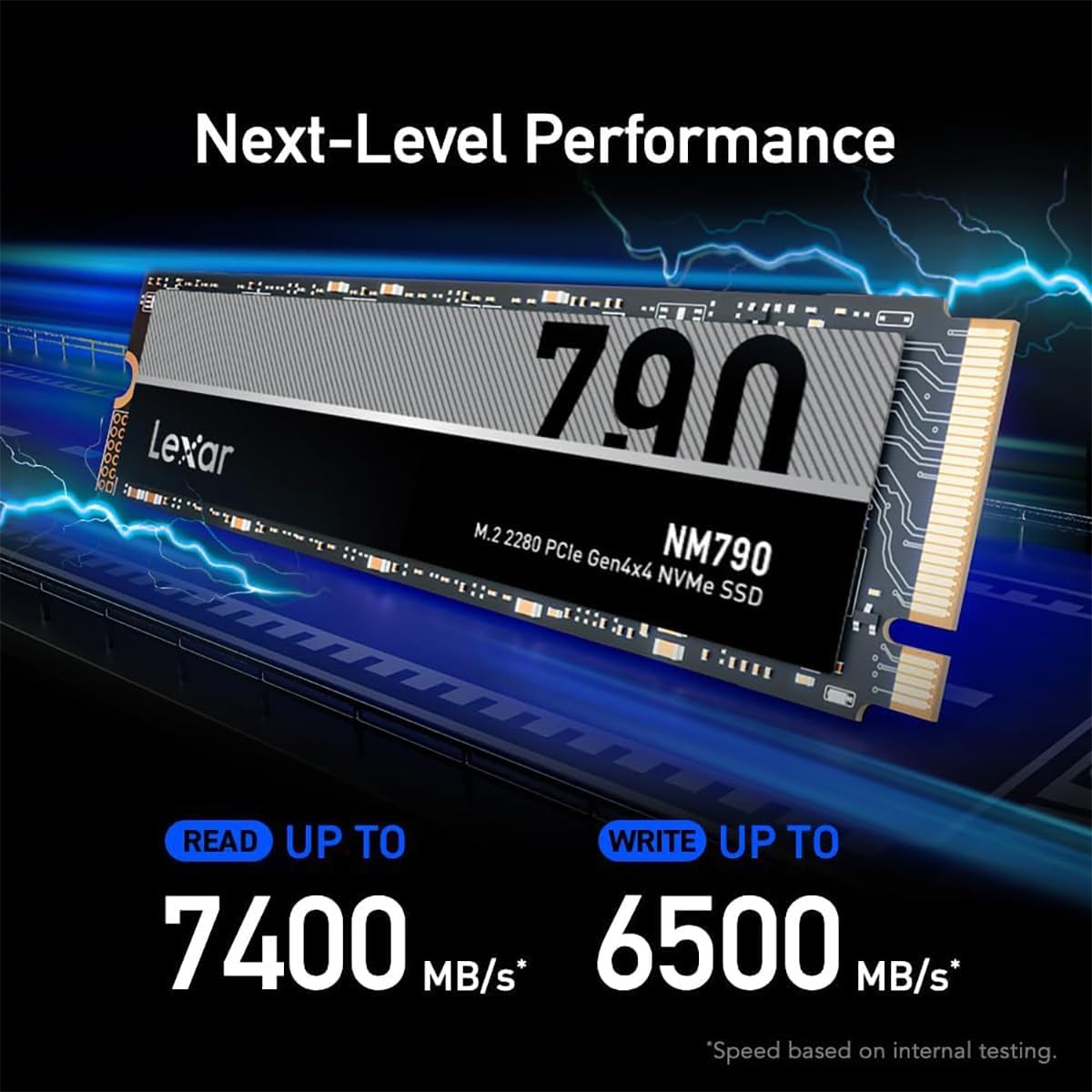
Image 4.1: The Lexar NM790 SSD integrated into a computer system, highlighting its Host Memory Buffer 3.0 technology for efficient data handling.
5. പരിപാലനം
To ensure the longevity and sustained performance of your Lexar NM790 SSD, consider the following maintenance practices:
- ഫേംവെയർ അപ്ഡേറ്റുകൾ: Regularly check the official Lexar website for any available firmware updates for the NM790 SSD. Firmware updates can provide performance enhancements, bug fixes, and improved compatibility.
- TRIM കമാൻഡ്: Verify that the TRIM command is enabled in your operating system. TRIM helps maintain SSD performance by allowing the operating system to communicate which data blocks are no longer in use and can be internally erased by the SSD. Most modern operating systems enable TRIM by default.
- ഡീഫ്രാഗ്മെന്റേഷൻ ഒഴിവാക്കുക: Unlike traditional hard disk drives, SSDs do not benefit from defragmentation. Performing defragmentation on an SSD can unnecessarily increase write cycles and potentially reduce its lifespan without any performance gain.
- ആരോഗ്യം നിരീക്ഷിക്കുക: Utilize SSD monitoring tools, often integrated into operating systems or available as third-party software, to check the drive's health status, temperature, and remaining lifespan.
- Maintain Sufficient Free Space: While not strictly maintenance, keeping a reasonable amount of free space (e.g., 10-15%) on your SSD can help maintain optimal performance, especially for drives utilizing SLC caching.
6. പ്രശ്നപരിഹാരം
If you encounter issues with your Lexar NM790 SSD, refer to the following common troubleshooting steps:
6.1 SSD കണ്ടെത്തിയില്ല
- Verify Physical Installation: Ensure the SSD is correctly seated in the M.2 slot and securely fastened with its screw. A loose connection can prevent detection.
- ബയോസ്/യുഇഎഫ്ഐ ക്രമീകരണങ്ങൾ പരിശോധിക്കുക: Access your system's BIOS/UEFI settings during startup. Confirm that the M.2 slot is enabled and configured correctly. Some motherboards may require specific settings for NVMe drives.
- Update Motherboard Drivers: Ensure your motherboard's chipset drivers are up to date. Outdated drivers can sometimes cause compatibility issues.
- Test in Another Slot/Device: If possible, test the SSD in a different compatible M.2 slot or another computer/device to determine if the issue lies with the drive or the original slot/system.
6.2 മന്ദഗതിയിലുള്ള പ്രകടനം
- Ensure PCIe Gen4 Compatibility: Verify that your motherboard and CPU fully support PCIe Gen4 speeds. If the SSD is installed in a PCIe Gen3 slot, its performance will be limited to Gen3 speeds.
- ഡ്രൈവറുകൾ പരിശോധിക്കുക: Update all relevant drivers, including chipset drivers and storage controller drivers, to their latest versions.
- Verify TRIM is Enabled: Confirm that the TRIM command is active in your operating system.
- താപനില നിരീക്ഷിക്കുക: Excessive heat can lead to thermal throttling, which reduces performance. Ensure your system has adequate airflow and cooling.
6.3 Formatting Issues
- Try Different Formatting Method: If standard formatting fails, attempt to format the drive using a different tool or method (e.g., Diskpart command-line utility in Windows).
- Check for Write Protection: Ensure the drive is not inadvertently write-protected by software or system settings.
7 സ്പെസിഫിക്കേഷനുകൾ
Detailed technical specifications for the Lexar NM790 4TB SSD:
| സ്പെസിഫിക്കേഷൻ | വിശദാംശങ്ങൾ |
|---|---|
| ബ്രാൻഡ് | ലെക്സർ |
| പരമ്പര | NM790 |
| മോഡൽ നമ്പർ | LNM790X004T-RNNNU |
| ഡിജിറ്റൽ സ്റ്റോറേജ് കപ്പാസിറ്റി | 4000 ജിബി (4 ടിബി) |
| ഹാർഡ് ഡ്രൈവ് ഇൻ്റർഫേസ് | NVMe |
| കണക്റ്റിവിറ്റി ടെക്നോളജി | എം.2 |
| ഹാർഡ് ഡിസ്ക് ഫോം ഫാക്ടർ | 2280 ഇഞ്ച് |
| ഹാർഡ് ഡിസ്ക് വിവരണം | സോളിഡ് സ്റ്റേറ്റ് ഡ്രൈവ് |
| തുടർച്ചയായ വായനാ വേഗത | 7400 MB/s വരെ |
| ക്രമാനുഗതമായ എഴുത്ത് വേഗത | 6500 MB/s വരെ |
| ആകെ എഴുതിയ ബൈറ്റുകൾ (TBW) | 3000 TBW |
| അനുയോജ്യമായ ഉപകരണങ്ങൾ | Desktop, Laptop, PS5 |
| ഇൻസ്റ്റലേഷൻ തരം | ആന്തരിക ഹാർഡ് ഡ്രൈവ് |
| പ്രത്യേക ഫീച്ചർ | Single-sided design |
| ഇനത്തിൻ്റെ ഭാരം | 0.208 ഔൺസ് |
| ഉൽപ്പന്ന അളവുകൾ | 6.5 x 4.8 x 0.5 ഇഞ്ച് |
| നിറം | കറുപ്പ് |
| നിർമ്മാതാവ് | Lexar International |
| ആദ്യ തീയതി ലഭ്യമാണ് | ജൂൺ 22, 2023 |
8. വാറൻ്റിയും പിന്തുണയും
The Lexar NM790 SSD is covered by a five-year limited warranty from the date of purchase. This warranty covers defects in materials and workmanship under normal use.
For warranty claims, technical support, or further assistance, please visit the official Lexar support website. You will typically need your proof of purchase (e.g., receipt or invoice) to validate your warranty claim.
- ലെക്സാർ ഒഫീഷ്യൽ Webസൈറ്റ്: www.lexar.com
- പിന്തുണാ ഉറവിടങ്ങൾ: Look for a 'Support' or 'Downloads' section on the website for drivers, firmware, and troubleshooting guides.


