
1. ആമുഖം
This manual provides instructions for the proper setup, operation, and maintenance of your Portronics Key6 Combo Wireless Keyboard and Mouse Set. This combo offers a seamless and efficient computing experience with its 2.4 GHz wireless connectivity, noiseless typing, and adjustable DPI settings. Please read this manual thoroughly before using the product to ensure optimal performance and longevity.

Image: The Portronics Key6 Combo Wireless Keyboard and Mouse Set positioned on a desk, ready for use.
2. പാക്കേജ് ഉള്ളടക്കം
നിങ്ങളുടെ പാക്കേജിൽ എല്ലാ ഇനങ്ങളും ഉണ്ടെന്ന് ഉറപ്പാക്കുക:
- 1 x Portronics Key6 Wireless Keyboard
- 1 x Portronics Key6 Wireless Mouse
- 1 x 2.4 GHz USB Receiver
- 1 x ഉപയോക്തൃ മാനുവൽ (ഈ പ്രമാണം)
3. സജ്ജീകരണ നിർദ്ദേശങ്ങൾ
നിങ്ങളുടെ വയർലെസ് കീബോർഡും മൗസും കോംബോ സജ്ജീകരിക്കാൻ ഈ ഘട്ടങ്ങൾ പാലിക്കുക:
- ബാറ്ററികൾ ഇൻസ്റ്റാൾ ചെയ്യുക:
- For the mouse: Open the battery compartment on the underside of the mouse. Insert one AA battery (not included), ensuring correct polarity.
- For the keyboard: Open the battery compartment on the underside of the keyboard. Insert two AAA batteries (not included), ensuring correct polarity.
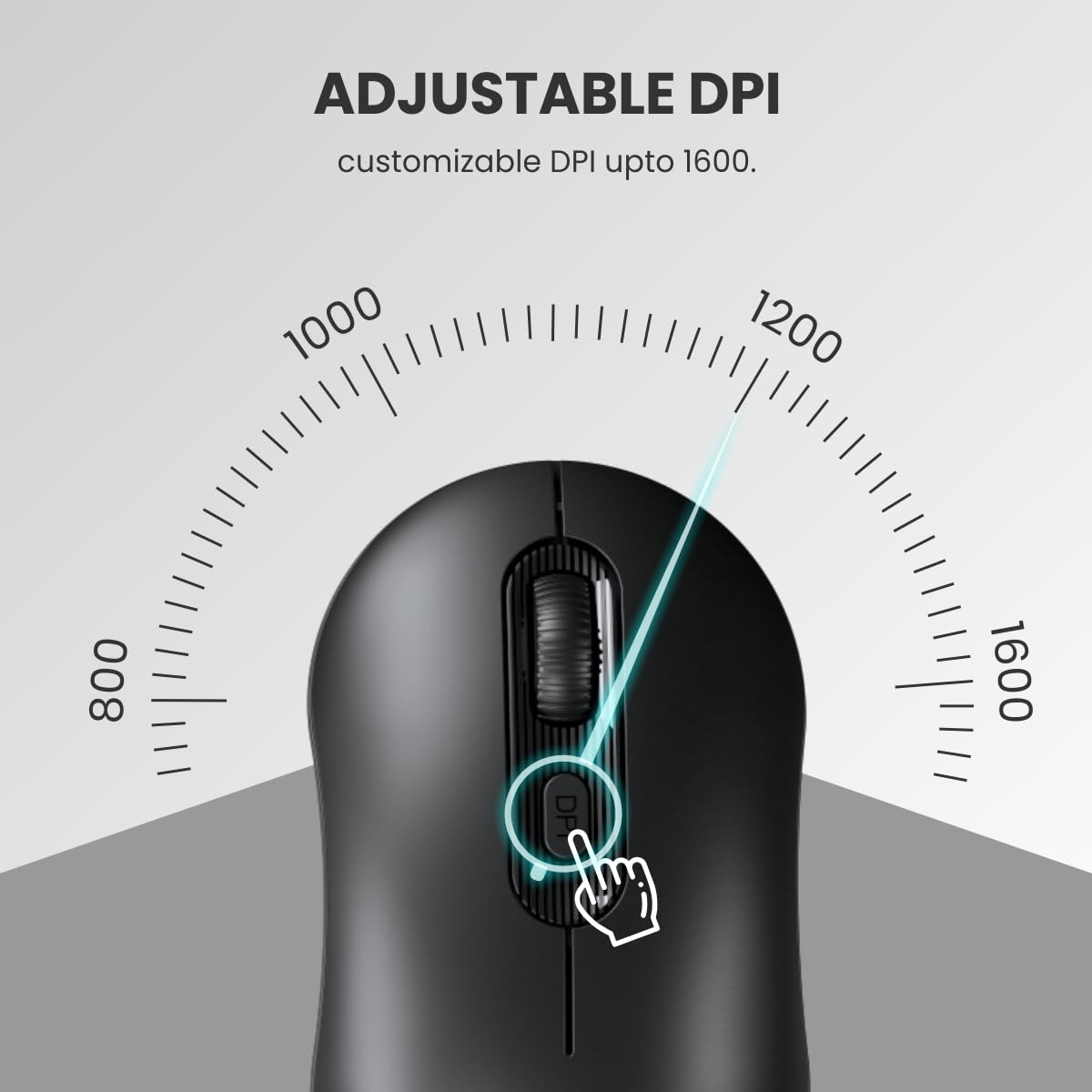
Image: The underside of the mouse, illustrating the battery compartment and the storage slot for the USB mini dongle.
- USB റിസീവർ ബന്ധിപ്പിക്കുക: Locate the 2.4 GHz USB receiver, typically stored within the mouse's battery compartment. Plug this receiver into an available USB port on your computer (PC, laptop, or MacBook).
- പവർ ഓൺ: Turn on the mouse using the power switch located on its underside. The keyboard does not typically have a separate power switch and will activate once batteries are inserted and the receiver is connected.
- യാന്ത്രിക കണക്ഷൻ: The keyboard and mouse should automatically connect to your computer. No additional drivers are usually required for basic functionality.

Image: The USB receiver connected to a laptop, demonstrating the wireless connection for the keyboard and mouse.
4. പ്രവർത്തന നിർദ്ദേശങ്ങൾ
4.1. കീബോർഡ് പ്രവർത്തനം
The keyboard functions like a standard full-size keyboard. Its soft key design ensures a quiet typing experience.

Image: Hands typing on the keyboard, highlighting the noiseless typing feature.
Function (Fn) Hot Keys
The keyboard includes Fn hot keys for multimedia control and other shortcuts. To use these functions, press and hold the Fn key, then press the corresponding F-key (F1-F12).
- എഫ്എൻ + എഫ്1-എഫ്12: Access various multimedia controls (e.g., play/pause, volume up/down, mute) and system shortcuts. Refer to the icons on the F-keys for specific functions.
4.2. മൗസ് പ്രവർത്തനം
The mouse features standard left/right click buttons, a clickable scroll wheel, and a DPI adjustment button.
DPI ക്രമീകരണം
The mouse's DPI (Dots Per Inch) can be adjusted to change cursor sensitivity. Press the DPI ബട്ടൺ (located below the scroll wheel) to cycle through available DPI settings (e.g., 800, 1200, 1600 DPI). Each press will change the sensitivity, allowing you to find your preferred cursor speed.

Image: The mouse with an overlay indicating the adjustable DPI settings from 800 to 1600.
5. സവിശേഷതകൾ
The Portronics Key6 Combo is designed with several features to enhance your productivity and comfort:
- 2.4 GHz വയർലെസ് കണക്റ്റിവിറ്റി: Provides a stable and reliable connection up to 12 meters, minimizing delays and dropouts.
- Noiseless Typing: The keyboard's soft key design reduces typing noise, ideal for quiet work environments.
- ക്രമീകരിക്കാവുന്ന DPI: The mouse offers customizable DPI settings up to 1600 for precise cursor control.
- സ്പിൽ-റെസിസ്റ്റന്റ് ഡിസൈൻ: The keyboard is designed to withstand accidental water splashes, allowing for easy cleaning.
- Anti-Fade Keys: Keycaps are designed to resist fading, ensuring long-term legibility.
- Intelligent Auto-Sleep: Both the keyboard and mouse enter sleep mode after a period of inactivity to conserve battery life.
- എർഗണോമിക് ഡിസൈൻ: The sleek and ergonomic design of both devices promotes comfortable use and portability.
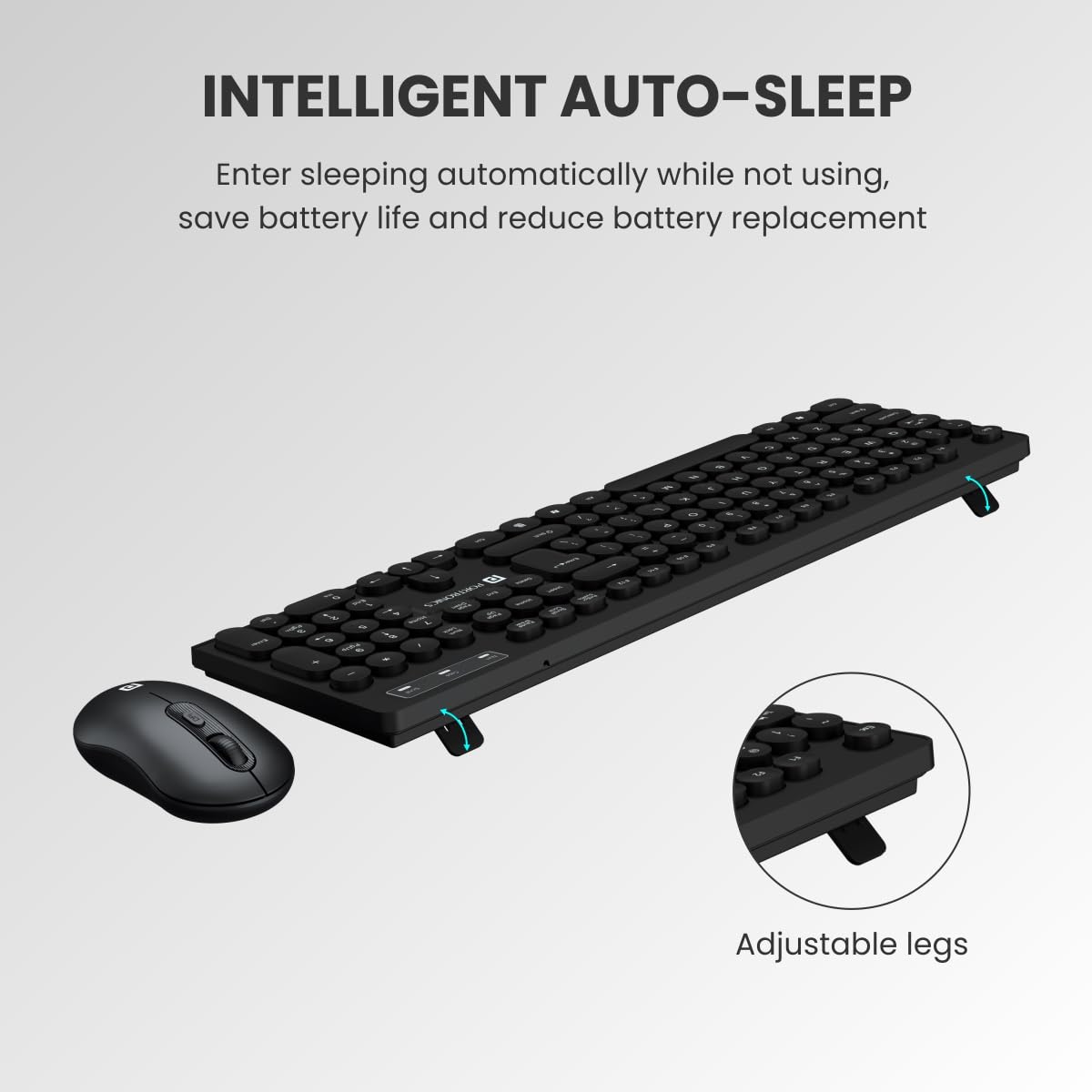
Image: The keyboard with water droplets, demonstrating its spill-resistant and durable design.

Image: The keyboard and mouse, showing the adjustable legs on the keyboard and indicating the auto-sleep function.
6. പരിപാലനം
To ensure the longevity and proper functioning of your Portronics Key6 Combo, follow these maintenance guidelines:
- വൃത്തിയാക്കൽ: ഒരു സോഫ്റ്റ് ഉപയോഗിക്കുക, ഡിamp cloth to clean the surfaces of the keyboard and mouse. Avoid using harsh chemicals or abrasive materials. For the keyboard, you can gently wipe away accidental spills due to its spill-resistant design.
- ബാറ്ററി മാറ്റിസ്ഥാപിക്കൽ: Replace batteries when performance degrades (e.g., cursor lag, unresponsive keys). Use new, high-quality AA batteries for the mouse and AAA batteries for the keyboard.
- സംഭരണം: When not in use for extended periods, store the USB receiver in the dedicated slot within the mouse's battery compartment to prevent loss.
- തീവ്രമായ അവസ്ഥകൾ ഒഴിവാക്കുക: Do not expose the devices to extreme temperatures, direct sunlight, or excessive moisture.
7. പ്രശ്നപരിഹാരം
If you encounter issues with your Portronics Key6 Combo, refer to the following troubleshooting steps:
| പ്രശ്നം | പരിഹാരം |
|---|---|
| കീബോർഡ്/മൗസ് പ്രതികരിക്കുന്നില്ല |
|
| കഴ്സർ ലാഗ് അല്ലെങ്കിൽ ക്രമരഹിതമായ ചലനം |
|
| Fn Hot Keys not working |
|
8 സ്പെസിഫിക്കേഷനുകൾ
- ബ്രാൻഡ്: പോര്ട്രോണിക്സ്
- മോഡൽ: POR-1887
- മോഡലിൻ്റെ പേര്: Key6 Combo
- കണക്റ്റിവിറ്റി ടെക്നോളജി: 2.4 GHz വയർലെസ് (USB റിസീവർ)
- അനുയോജ്യമായ ഉപകരണങ്ങൾ: PC, Laptop, MacBook, USB Supported Devices
- ഓപ്പറേറ്റിംഗ് സിസ്റ്റം: Mac OS (and generally Windows, Linux)
- മൗസ് DPI: 1600 വരെ (ക്രമീകരിക്കാവുന്നത്)
- കീബോർഡ് സവിശേഷതകൾ: Noiseless Typing, Spill-Resistant, Anti-Fade Keys, Fn Hot Keys
- ഊർജ്ജ സ്രോതസ്സ്: Battery Powered (Mouse: 1x AA, Keyboard: 2x AAA - batteries not included)
- മെറ്റീരിയൽ: പ്ലാസ്റ്റിക്
- ഇനത്തിൻ്റെ ഭാരം: 560 g (approximate, for the combo)
- പാക്കേജ് അളവുകൾ: 51.9 x 14 x 3.6 സെ.മീ
9. ഉൽപ്പന്നം കഴിഞ്ഞുview വീഡിയോ
Watch this short video for a quick overview of the Portronics Key6 Combo Wireless Keyboard and Mouse Set and its key features.
വീഡിയോ: ഒരു ചെറിയ മുന്നറിവ്view ഷോasing the Portronics Key6 Combo Wireless Keyboard and Mouse Set and its main functionalities.
10. വാറൻ്റിയും പിന്തുണയും
The Portronics Key6 Combo Wireless Keyboard and Mouse Set comes with a standard manufacturer's warranty. For detailed warranty information, technical support, or service inquiries, please refer to the warranty card included in your package or visit the official Portronics website. You can also contact Portronics customer service directly for assistance.