
IPASON Gaming PC Desktop - AMD Ryzen5 5600 / NVIDIA GeForce RTX 4060
IPASON Gaming PC Desktop User Manual
Model: AMD Ryzen5 5600 / NVIDIA GeForce RTX 4060
1. ആമുഖം
This manual provides essential information for setting up, operating, and maintaining your IPASON Gaming PC Desktop. This high-performance system features an AMD Ryzen 5 5600 processor, NVIDIA GeForce RTX 4060 graphics card, 16GB DDR4 RAM, and a 1TB NVMe SSD, designed for an excellent experience across gaming, productivity, and creative tasks.
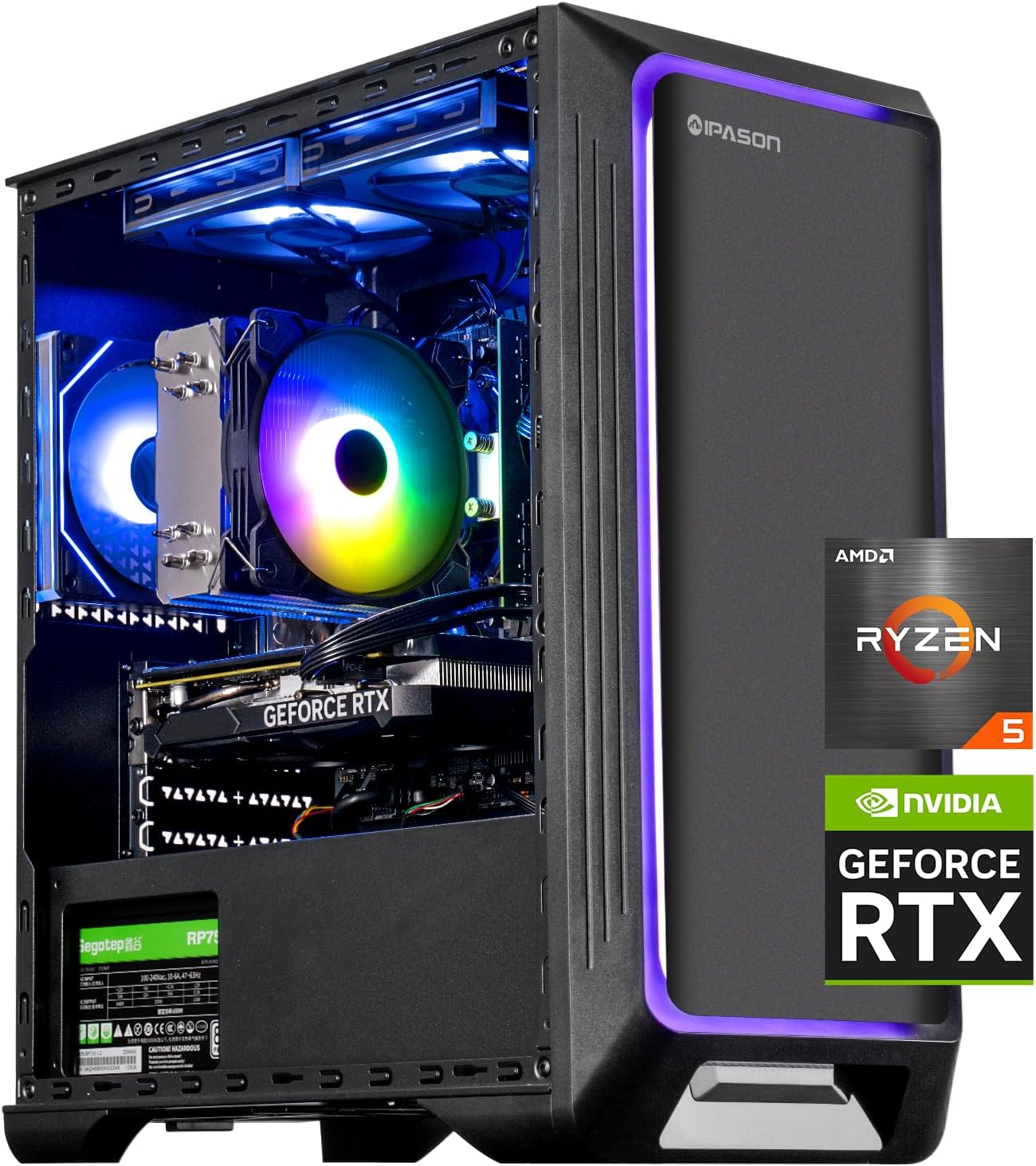
ചിത്രം: മുൻഭാഗം view of the IPASON Gaming PC Desktop, showcasing its internal components and vibrant RGB lighting.
2. സജ്ജീകരണ ഗൈഡ്
2.1 അൺബോക്സിംഗും പ്രാരംഭ പരിശോധനയും
Carefully remove the PC from its packaging. Inspect the exterior for any signs of shipping damage. Ensure all included accessories, such as the power cable and any documentation, are present.
2.2 ഗ്രാഫിക്സ് കാർഡ് ഇൻസ്റ്റാളേഷൻ
പ്രധാനപ്പെട്ടത്: The graphics card (NVIDIA GeForce RTX 4060) may be shipped separately or unseated to prevent damage during transit. You will need to install or re-seat it before first use.
- Prepare the PC: Place the PC tower on a stable, flat surface. Ensure it is powered off and unplugged from the wall outlet.
- Open the Side Panel: Locate and remove the screws securing the left side panel (when viewed from the front). Carefully slide the panel off.
- PCIe സ്ലോട്ട് കണ്ടെത്തുക: Identify the primary PCIe x16 slot on the motherboard, typically the topmost long slot.
- Install/Re-seat GPU:
- If the GPU is separate: Align the graphics card with the PCIe slot and press down firmly until it clicks into place. Ensure the retention clip on the slot engages.
- If the GPU is unseated: Gently push down on the graphics card until it is fully seated in the PCIe slot and the retention clip engages.
- Secure the GPU: Use the provided screws (typically two) to secure the graphics card to the PC case at the rear I/O panel.
- പവർ കേബിളുകൾ ബന്ധിപ്പിക്കുക: Connect the appropriate PCIe power cables from the power supply unit (PSU) to the graphics card. Refer to the GPU's power connector requirements (e.g., 8-pin, 6+2-pin).
- Close the Side Panel: Reattach the side panel and secure it with the screws.
If you encounter any issues during graphics card installation, please refer to the "Troubleshooting" section or contact customer support.

ചിത്രം: ആന്തരികം view of the PC, highlighting the graphics card and other components.
2.3 പെരിഫറലുകൾ ബന്ധിപ്പിക്കുന്നു
Connect your monitor(s) to the graphics card's display outputs (HDMI, DisplayPort). Connect your keyboard, mouse, and other USB devices to the available USB ports on the rear or front of the PC. Plug in the power cable to the PC and then to a wall outlet.

Image: Close-up of the front panel ports, including power button, audio jacks, and USB ports.
2.4 ആദ്യ ബൂട്ട്
Press the power button on the front of the PC. The system will boot into Windows 11 Home. Follow the on-screen instructions to complete the initial Windows setup, including network connection and user account creation.
3. നിങ്ങളുടെ പിസി പ്രവർത്തിപ്പിക്കൽ
Your IPASON Gaming PC is designed for versatile use across various demanding applications.
3.1 പ്രകടനം കഴിഞ്ഞുview
The AMD Ryzen 5 5600 processor and NVIDIA GeForce RTX 4060 graphics card provide robust performance for demanding tasks. The 16GB DDR4 RAM and 1TB NVMe SSD ensure fast loading times and smooth multitasking.

ചിത്രം: സ്പീഡ് അഡ്വാൻ എടുത്തുകാണിക്കുന്ന പ്രകടന താരതമ്യംtages of the NVMe SSD.
3.2 Applicable Scenarios
- ഗെയിമിംഗ്: Experience stunning visuals and smooth gameplay with the RTX 4060, capable of handling high-resolution graphics and demanding AAA titles.
- ക്രിയേറ്റീവ് ഡിസൈൻ: Process medium-sized image files and run resource-intensive software like Adobe Creative Cloud applications (Photoshop, Audition, Lightroom, Illustrator, Premiere, After Effects) with quick responses.
- Office & Productivity: Efficiently handle large volumes of documents, create presentations, and perform complex spreadsheet calculations.
- Learning & Streaming: Perfectly present high-definition teaching videos and engage in live streaming with excellent audio and video synchronization.

Image: Visual representation of the PC used for gaming and online learning.

Image: Visual representation of the PC used for office tasks and creative design.
4. പരിപാലനം
പതിവ് അറ്റകുറ്റപ്പണികൾ നിങ്ങളുടെ പിസിയുടെ ദീർഘായുസ്സും മികച്ച പ്രകടനവും ഉറപ്പാക്കാൻ സഹായിക്കുന്നു.
- പൊടി വൃത്തിയാക്കൽ: Periodically clean dust from the PC's interior, especially fans and heatsinks, using compressed air. Ensure the PC is powered off and unplugged before cleaning.
- സോഫ്റ്റ്വെയർ അപ്ഡേറ്റുകൾ: Keep your operating system (Windows 11 Home), graphics drivers (NVIDIA), and other software up to date to ensure stability and performance.
- വെൻ്റിലേഷൻ: Ensure the PC has adequate airflow. Do not block the ventilation openings.
- കേബിൾ മാനേജുമെന്റ്: Organize internal and external cables to improve airflow and prevent accidental disconnections.
5. പ്രശ്നപരിഹാരം
നിങ്ങൾ നേരിട്ടേക്കാവുന്ന പൊതുവായ പ്രശ്നങ്ങളെ ഈ വിഭാഗം അഭിസംബോധന ചെയ്യുന്നു.
5.1 പിസി ഓണാകുന്നില്ല
- പവർ കേബിൾ: Ensure the power cable is securely connected to both the PC and a working wall outlet. Verify the outlet is functional.
- പിഎസ്യു സ്വിച്ച്: Check if the power supply unit (PSU) switch on the back of the PC is in the 'ON' position.
- ആന്തരിക കണക്ഷനുകൾ: If comfortable, open the side panel and verify that all internal power cables (motherboard, CPU, GPU) are securely connected.
5.2 ഡിസ്പ്ലേ ഔട്ട്പുട്ട് ഇല്ല
- മോണിറ്റർ കണക്ഷൻ: Ensure your monitor cable is securely connected to the graphics card's output ports (not the motherboard's integrated graphics ports, if present).
- ഗ്രാഫിക്സ് കാർഡ് സീറ്റിംഗ്: Re-check the graphics card installation as described in Section 2.2. Ensure it is fully seated and secured, and its power cables are connected.
- ഇൻപുട്ട് നിരീക്ഷിക്കുക: Verify your monitor is set to the correct input source (HDMI, DisplayPort).
5.3 No Internet Connection (Ethernet)
- ഇഥർനെറ്റ് കേബിൾ: Ensure the Ethernet cable is securely connected to both the PC's Ethernet port and your router/modem.
- ഡ്രൈവർ ഇൻസ്റ്റാളേഷൻ: If the Ethernet adapter is not recognized, you may need to install or update its drivers. These can usually be found on the motherboard manufacturer's website. You might need to use a temporary internet connection (e.g., Wi-Fi adapter or mobile hotspot) to download them.
- നെറ്റ്വർക്ക് ക്രമീകരണങ്ങൾ: Check Windows network settings to ensure the Ethernet adapter is enabled and configured correctly.
5.4 System Slowdown or Freezes
- Resource Usage: Check Task Manager (Ctrl+Shift+Esc) to identify applications consuming excessive CPU, RAM, or disk resources.
- അപ്ഡേറ്റുകൾ: എല്ലാ ഡ്രൈവറുകളും വിൻഡോസ് അപ്ഡേറ്റുകളും നിലവിലുള്ളതാണെന്ന് ഉറപ്പാക്കുക.
- താപനില: Monitor CPU and GPU temperatures using third-party software. Overheating can cause performance issues. Ensure proper ventilation.
6 സ്പെസിഫിക്കേഷനുകൾ
| ഘടകം | സ്പെസിഫിക്കേഷൻ |
|---|---|
| പ്രോസസ്സർ | AMD Ryzen 5 5600 (6 Core, 3.5GHz base, 4.4GHz Max Boost) |
| ഗ്രാഫിക്സ് കാർഡ് | എൻവിഡിയ ജിഫോഴ്സ് ആർടിഎക്സ് 4060 8 ജിബി ജിഡിഡിആർ6 |
| റാം | 16GB DDR4 3200MHz |
| സംഭരണം | 1TB NVMe SSD |
| പവർ സപ്ലൈ യൂണിറ്റ് (പിഎസ്യു) | 650W |
| ഓപ്പറേറ്റിംഗ് സിസ്റ്റം | വിൻഡോസ് 11 ഹോം 64-ബിറ്റ് |
| വയർലെസ് തരം | 802.11ac |
| അളവുകൾ (LxWxH) | 15.16 x 8.07 x 17.32 ഇഞ്ച് |
| നിറം | കറുപ്പ് |

ചിത്രം: കഴിഞ്ഞുview of core components and their specifications.

Image: Physical dimensions of the PC tower.
7. വാറൻ്റിയും പിന്തുണയും
For any issues with installing the graphics card, activating the system, hardware defects, or shipping damage, please reach out to us through Amazon Seller Messages. We are committed to assisting you and ensuring your satisfaction.
കുറിപ്പ്: This product is not available for purchase in California.
Ask a question about this manual
Ask about setup, troubleshooting, compatibility, parts, safety, or missing instructions. Manuals+ will review the question and use this page’s manual context to help answer it.