
1. ആമുഖം
The ANYFAR T1 Wireless CarPlay Android Auto Decoder is designed to integrate advanced smartphone connectivity into compatible 2014-2019 Toyota vehicles equipped with Touch2 & Entune2.0 stereo systems. This device enables wireless CarPlay and Android Auto functionality, Mirror Link for screen mirroring, USB media playback, and supports backup camera input, enhancing your in-car experience while retaining original vehicle controls.
2 സുരക്ഷാ വിവരങ്ങൾ
Please read and understand all safety instructions before installation and operation. Improper installation or use may result in damage to the product or vehicle, and could void the warranty.
- Ensure the vehicle's ignition is off and the battery is disconnected before beginning installation to prevent electrical shorts or damage.
- Verify compatibility with your specific Toyota model and stereo system (Touch2 & Entune2.0) to avoid functionality issues.
- Do not attempt to modify the device or its components.
- ഇൻസ്റ്റലേഷൻ പ്രക്രിയയുടെ ഏതെങ്കിലും ഭാഗത്തെക്കുറിച്ച് നിങ്ങൾക്ക് ഉറപ്പില്ലെങ്കിൽ ഒരു പ്രൊഫഷണൽ ഇൻസ്റ്റാളറെ സമീപിക്കുക.
3. പാക്കേജ് ഉള്ളടക്കം
താഴെ ലിസ്റ്റ് ചെയ്തിരിക്കുന്ന എല്ലാ ഇനങ്ങളും നിങ്ങളുടെ പാക്കേജിൽ ഉൾപ്പെടുത്തിയിട്ടുണ്ടെന്ന് ഉറപ്പാക്കുക:
- ANYFAR T1 Decoder Unit
- പവർ കേബിൾ ഹാർനെസ്
- വീഡിയോ കേബിൾ
- ആൻ്റിന
- ഉപയോക്തൃ മാനുവൽ

4 അനുയോജ്യത
The ANYFAR T1 Decoder is specifically designed for 2014-2019 Toyota vehicles സജ്ജീകരിച്ചിരിക്കുന്നു Touch2 & Entune2.0 Stereo systems. The original stereo must be from Panasonic, Fujitsu, or Pioneer. Compatible screen sizes are 6", 7", or 8".
അനുയോജ്യമായ ടൊയോട്ട മോഡലുകൾ:
- 2014-2019 ടൊയോട്ട കൊറോള
- 2014-2019 ടൊയോട്ട ടാകോമ
- 2014-2019 Toyota Avensis
- 2014-2019 ടൊയോട്ട ടുണ്ട്ര
- 2014-2019 Toyota Auris
- 2014-2018 Toyota Yaris
- 2014-2017 Toyota Camry
- 2017-2019 Toyota 86
- 2015-2018 Toyota Avalon
- 2018 Toyota C-HR
- 2016-2019 Toyota Prius c
- 2014-2019 Toyota Verso
- 2016-2017 Toyota Prius v
- 2014-2019 Toyota Verso s
- 2014-2019 ടൊയോട്ട സെക്വോയ
- 2015-2017 Toyota Alphard
- 2015-2017 Toyota Sienna
- 2014-2019 ടൊയോട്ട ലാൻഡ് ക്രൂയിസർ
- 2014-2019 ടൊയോട്ട 4റണ്ണർ
- 2014-2019 Toyota Land Cruiser Prado
- 2014-2019 ടൊയോട്ട ഹൈലാൻഡർ
- 2016-2019 Toyota Prius
- 2014-2018 ടൊയോട്ട RAV4

5. ഉൽപ്പന്നം കഴിഞ്ഞുview
ANYFAR T1 Decoder Unit
The main decoder unit processes signals to enable CarPlay, Android Auto, and other features on your vehicle's display.

അളവുകളും തുറമുഖങ്ങളും

6. ഇൻസ്റ്റാളേഷൻ ഗൈഡ്
ഈ വിഭാഗം ഒരു പൊതു ഓവർ നൽകുന്നുview of the installation process. Refer to the detailed diagrams and your vehicle's specific wiring for precise connections.
ഘട്ടം 1: ഇൻസ്റ്റാളേഷനായി തയ്യാറെടുക്കുക
- നിങ്ങളുടെ വാഹനം നിരപ്പായ പ്രതലത്തിൽ നിർത്തി പാർക്കിംഗ് ബ്രേക്ക് ഇടുക.
- Turn off the engine and remove the key from the ignition.
- നിങ്ങളുടെ വാഹനത്തിന്റെ ബാറ്ററിയുടെ നെഗറ്റീവ് ടെർമിനൽ വിച്ഛേദിക്കുക.
- Carefully remove the vehicle's head unit (stereo) from the dashboard. Refer to your vehicle's service manual for specific instructions on head unit removal.
Step 2: Connect the Decoder Unit
The ANYFAR T1 decoder connects between your vehicle's original head unit and the factory wiring harness. This is typically a plug-and-play process using the provided power cable harness.

- Disconnect the original wiring harness from the back of your OEM head unit.
- Connect the provided ANYFAR power cable harness to the OEM head unit.
- Connect the other end of the ANYFAR power cable harness to the vehicle's original wiring harness.
- Connect the ANYFAR T1 decoder unit to the ANYFAR power cable harness.
- Attach the Wi-Fi antenna to the designated port on the decoder unit.
Step 3: Optional Connections (Backup Camera, USB)
- If installing an aftermarket backup camera or front camera, connect its video output to the designated video input on the ANYFAR T1 decoder using the provided video cable.
- The USB port on the decoder can be used for media playback from a USB drive or for charging a mobile device.

ഘട്ടം 4: വീണ്ടും കൂട്ടിച്ചേർക്കലും പരിശോധനയും
- Carefully route all cables to avoid pinching or interference.
- വാഹനത്തിന്റെ ബാറ്ററി വീണ്ടും ബന്ധിപ്പിക്കുക.
- Turn on the vehicle's ignition and test the functionality of the decoder before fully reassembling the dashboard.
- Once confirmed working, reassemble the head unit and dashboard components.
7. പ്രവർത്തന നിർദ്ദേശങ്ങൾ
7.1 വയർലെസ് കാർപ്ലേയും ആൻഡ്രോയിഡ് ഓട്ടോയും
The ANYFAR T1 enables seamless wireless connection to Apple CarPlay and Android Auto. After initial pairing, your phone will automatically connect when you start the vehicle.
- പ്രാരംഭ ജോടിയാക്കൽ: On your vehicle's screen, navigate to the CarPlay/Android Auto interface. Enable Bluetooth and Wi-Fi on your smartphone. ഇതിനായി തിരയുക the decoder's Bluetooth signal and pair your phone. Follow the on-screen prompts to complete the setup.
- പ്രവർത്തനക്ഷമത: Once connected, you can access navigation, music, calls, messaging, and voice assistant features directly from your car's display.

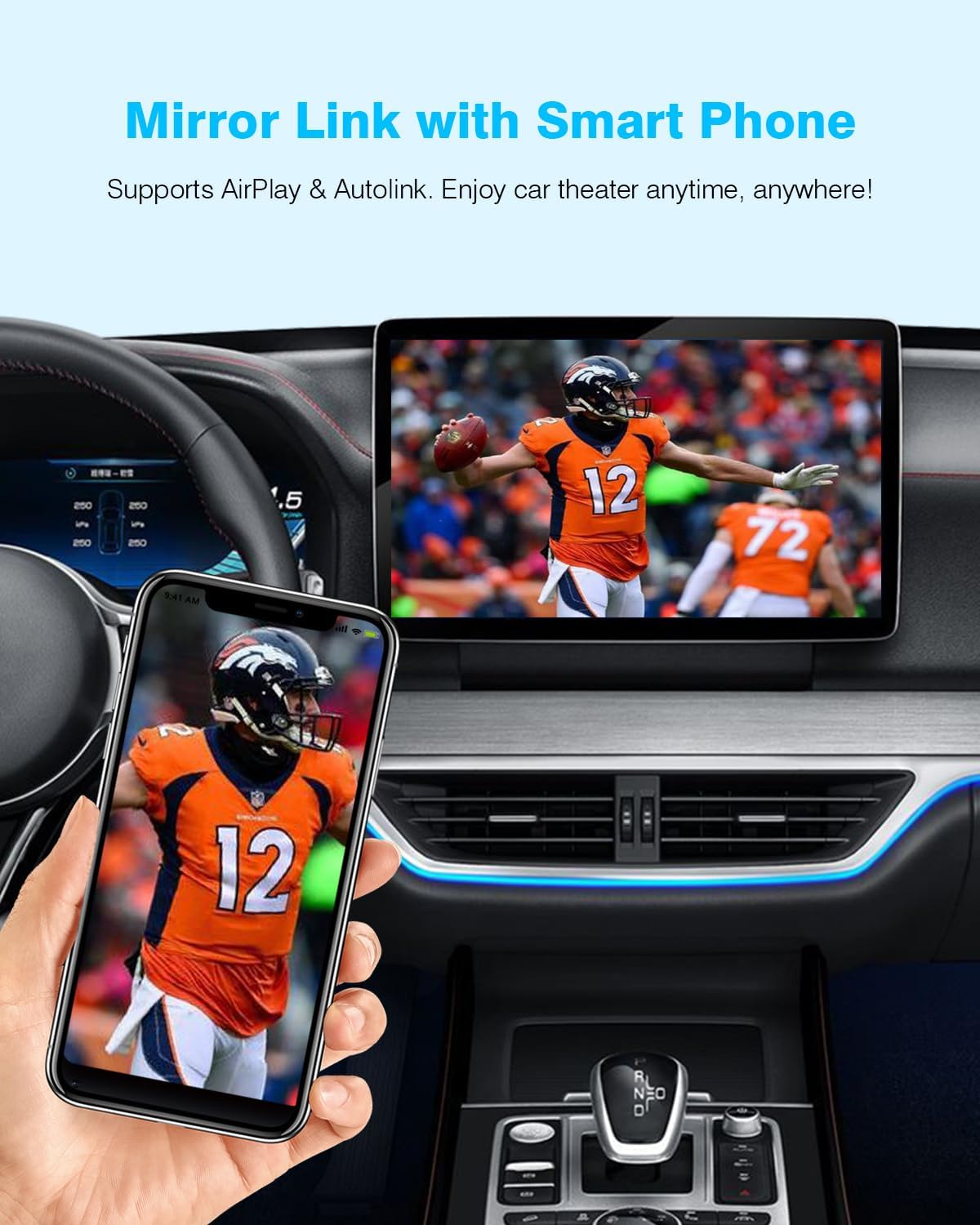
7.2 Mirror Link (AirPlay & Autolink)
Mirror Link allows you to display your smartphone's screen directly onto your car's display, supporting both AirPlay for iOS and Autolink for Android devices.
- സജീവമാക്കൽ: Select the Mirror Link option on the decoder's interface.
- കണക്ഷൻ: For iOS, use AirPlay. For Android, use the Autolink feature (may require a specific app on your phone). Follow the on-screen instructions for connection.
- ഉപയോഗം: Enjoy video playback from apps like YouTube, Netflix, or Disney+ directly on your car's screen.
7.3 യുഎസ്ബി ഡ്രൈവ് പ്ലേബാക്ക്
The decoder includes a USB port for playing videos or music directly from a USB drive. It can also be used to charge your phone.
- മീഡിയ പ്ലേബാക്ക്: Insert a USB drive containing compatible audio or video files into the USB port on the decoder. Select the USB Play option from the decoder's interface to browse and play media.
- ചാർജിംഗ്: Connect your smartphone to the USB port using a compatible cable for charging.
7.4 Backup Camera Input Support
The decoder supports connecting an aftermarket backup camera or front camera. The camera feed will automatically display on the car screen when shifting into reverse.
- കണക്ഷൻ: Connect the camera's video output to the designated input on the decoder unit.
- ഓട്ടോമാറ്റിക് ഡിസ്പ്ലേ: When the vehicle is shifted into reverse, the camera feed will automatically appear on the car's screen.

7.5 Retaining Original Car Controls
After installation, the ANYFAR T1 decoder allows you to retain full access to your car's original controls, including the touchscreen, voice control, physical buttons, and knobs.

8. പരിപാലനം
The ANYFAR T1 decoder requires minimal maintenance. Follow these guidelines to ensure optimal performance and longevity:
- Keep the decoder unit and its connections free from dust and moisture.
- അങ്ങേയറ്റത്തെ താപനിലയിലേക്ക് യൂണിറ്റ് തുറന്നുകാട്ടുന്നത് ഒഴിവാക്കുക.
- Do not use harsh chemicals or abrasive cleaners on the unit. A soft, dry cloth is sufficient for cleaning.
- Ensure all cable connections remain secure.
9. പ്രശ്നപരിഹാരം
If you encounter issues with your ANYFAR T1 decoder, refer to the following common problems and solutions:
- No Power/Unit Not Turning On:
- Check all power cable connections to ensure they are securely plugged in.
- Verify that the vehicle's battery is properly connected and charged.
- Ensure the vehicle's ignition is on. - Wireless CarPlay/Android Auto Disconnecting or Not Connecting:
- Ensure your phone's Bluetooth and Wi-Fi are enabled.
- Try forgetting the device in your phone's Bluetooth settings and re-pairing.
- Restart your smartphone and the vehicle's infotainment system.
- Ensure the decoder's Wi-Fi antenna is securely attached. - Poor Audio Quality or Reduced Volume:
- Check the audio settings on both your smartphone and the vehicle's stereo.
- Ensure the volume levels are appropriately adjusted.
- Some vehicles may experience slight audio differences; ensure all connections are firm. - Microphone Issues (Echo/Low Volume):
- The decoder utilizes the vehicle's original microphone. Ensure the microphone is not obstructed.
- Adjust microphone sensitivity settings if available in your vehicle's stereo menu. - Screen Display Issues (Poor Resolution/Flickering):
- The display quality is dependent on your vehicle's original screen resolution. The decoder outputs the best possible signal for the existing screen.
- Check video cable connections for looseness. - ബാക്കപ്പ് ക്യാമറ പ്രദർശിപ്പിക്കുന്നില്ല:
- Verify the backup camera is properly connected to the decoder's video input.
- Ensure the camera is receiving power.
- Test the camera independently if possible.
10 സ്പെസിഫിക്കേഷനുകൾ
| മോഡൽ നമ്പർ | T1 |
| ബ്രാൻഡ് | എത്ര ദൂരെ |
| അനുയോജ്യത | 2014-2019 Toyota with Touch2 & Entune2.0 Stereo |
| കണക്റ്റിവിറ്റി ടെക്നോളജി | Wireless (Wi-Fi, Bluetooth), USB |
| പ്രത്യേക സവിശേഷതകൾ | Wireless CarPlay, Wireless Android Auto, Mirror Link, Backup Camera Input, USB Playback, Built-In Microphone support |
| പവർ ഉറവിടം | കോർഡഡ് ഇലക്ട്രിക് (വെഹിക്കിൾ പവർ) |
| ഇനത്തിൻ്റെ ഭാരം | 1.87 പൗണ്ട് (0.85 കിലോഗ്രാം) |
| പാക്കേജ് അളവുകൾ | 7.44 x 4.76 x 3.7 ഇഞ്ച് |
11. വാറൻ്റിയും പിന്തുണയും
ANYFAR products are designed for reliability and performance. For warranty information, technical support, or assistance with installation and troubleshooting, please refer to the contact information provided with your purchase or visit the official ANYFAR webസൈറ്റ്. വാറന്റി ക്ലെയിമുകൾക്കായി നിങ്ങളുടെ വാങ്ങലിന്റെ തെളിവ് സൂക്ഷിക്കുക.