
1. ആമുഖം
This manual provides detailed instructions for the installation, operation, and maintenance of your Kittyhok BC5B 2K Solar Security Camera. Please read this manual thoroughly before using the product to ensure proper functionality and safety.
The Kittyhok BC5B is a 2K (4MP) wireless outdoor security camera designed for home surveillance. It features solar power for continuous operation, smart detection capabilities, color night vision, and two-way audio. The camera is weatherproof and offers local storage options.
2. ബോക്സിൽ എന്താണുള്ളത്?
നിങ്ങളുടെ പാക്കേജിൽ എല്ലാ ഘടകങ്ങളും ഉണ്ടെന്ന് ഉറപ്പാക്കുക:
- ക്യാമറ ബോഡി
- സോളാർ പാനൽ
- ചാർജിംഗ് കേബിൾ
- നിർദ്ദേശ മാനുവൽ (ഈ പ്രമാണം)
- മൗണ്ടിംഗ് സ്ക്രൂകൾ
Note: The exact components and quantities may vary slightly depending on your specific model number.
3. സജ്ജീകരണവും ഇൻസ്റ്റാളേഷനും
3.1 Initial Camera Recharge
It is recommended to fully recharge the camera before initial installation. Connect the camera to a 5V 1A or 2A DC phone charger (not included) using the provided charging cable. The indicator light will blink green during charging. It will stop blinking when fully charged. This typically takes 4-6 hours.
Note: Use only 5V DC power chargers. Chargers that do not meet the standard may damage the batteries. Please charge the battery at room temperature to avoid damage.

Image: A Kittyhok solar security camera mounted on an exterior wall next to its solar panel, highlighting its wire-free operation.
3.2 ക്യാമറയും സോളാർ പാനലും സ്ഥാപിക്കൽ
Install the camera 2-3 meters (7-10 feet) above the ground. This height maximizes the detection range of the motion sensor. For optimal motion detection, install the camera at an angle rather than directly facing the detection area.
For dome cameras (if applicable to your system), they must be installed upside down for better waterproof performance and motion sensor efficiency.
Ensure the solar panel is positioned to receive 2-3 hours of direct sunlight daily for continuous power.

Image: Illustrations demonstrating different mounting configurations for the camera, including wall, ceiling, and stand mounts, along with the adjustable solar panel.

Image: A person using a drill to install a Kittyhok security camera on a wall, emphasizing ease of installation.
3.3 Connecting Your System (NVR)
If your system includes an NVR (Network Video Recorder), follow these steps:
- Connect the NVR to power using the included power adapter. Connect a mouse to the NVR's USB port.
- Connect the NVR to a PC monitor or TV with an HDMI cable. Skip this step if your NVR has a built-in monitor. A monitor is required for initial setup. After completing the initial setup, your NVR does not need to be connected to a TV or monitor to view അല്ലെങ്കിൽ റെക്കോർഡിംഗുകൾ പിടിച്ചെടുക്കുക.
- Connect the NVR to your router with an Ethernet cable if you plan to use it remotely. You can also connect the NVR to your router via Wi-Fi through the NVR's Network Setting > Wireless network setting.
- Follow the on-screen steps of the Startup Wizard on the monitor/TV to complete the initial setup.
- Turn on the power switch on the battery cameras. You should see each camera appear on your monitor/TV.
- Bring cameras to desired mounting locations, power them on, and go back to the NVR screen. Wait 5 minutes to see if they stream fluently. If a camera does not stream well, move it to a location with less obstacles in line-of-sight from the NVR.
Note: Select a least interfered Wi-Fi channel so your NVR performs its best Wi-Fi capability. In NVR's menu System setting > Network > NVR Wi-Fi hotspot, ക്ലിക്ക് ചെയ്യുക അഡാപ്റ്റീവ് ചാനൽ.
3.4 Pairing a New Camera to the NVR
By default, each camera within your NVR kit comes pre-paired to the NVR. If you want to add more cameras, follow these steps:
- Hold the ON/OFF switch of the camera to turn it on. Make sure the camera is in ജോടിയാക്കൽ മോഡ്. If not, reset the camera to bring it to Pairing Mode.
- With the NVR connected to a TV/Monitor, click the '+' icon at the bottom and follow the on-screen guide to pair your camera to the NVR.
- വിജയകരമായി ജോടിയാക്കിയാൽ, പുതിയ ക്യാമറ ഒഴിഞ്ഞ വീഡിയോ ഫീൽഡിൽ ദൃശ്യമാകും.
Note: Pairing a replacement camera is similar to adding a new add-on camera. You need to delete the old camera from NVR first, and then start pairing the replacement camera to NVR.
3.5 Positioning Your NVR and Cameras
Camera distance from NVR can reach up to 1300 ft. wirelessly in line of sight. Proper placement of the wireless NVR in your home will help ensure you achieve maximum coverage.
Do not place near high voltagഇ വയറുകൾ അല്ലെങ്കിൽ വൈദ്യുത ഇടപെടലിന്റെ മറ്റ് ഉറവിടങ്ങൾ. വൈദ്യുത ഇടപെടൽ സിഗ്നലിന്റെ ഗുണനിലവാരം കുറയ്ക്കും.
4. Operating Your Camera System
4.1 Accessing Your System via Smartphone
ഡൗൺലോഡ് ചെയ്യുക കിറ്റിഹോക്ക് App from the App Store or Google Play and install it on your smart device.
Launch the App, register a user account, and log in.
In the App, tap the '+' button and then tap Scan to add. Scan the QR code on the NVR and follow the on-screen instructions to add the NVR.
Note: The QR code can also be found in NVR's System setting > Download the App.
4.2 Accessing Your System via PC and Mac
Download and install the CMS (Central Management Software) on your computer. Go to https://kittyhok.com/pages/download.
Login with your phone App user account; your system will be automatically synced to the CMS.
Note: You can also add your system to the CMS Client with Cloud ID manually.
4.3 പ്രധാന സവിശേഷതകൾ
- 2K (4MP) റെസല്യൂഷൻ: വ്യക്തവും വിശദവുമായ വീഡിയോ foo പകർത്തുന്നുtage.
- Color Day & Night Vision: Provides vivid color images during the day and at night with powerful spotlights.
- Smart Detection (PIR+): Minimizes false notifications by detecting persons and cars.
- ടു-വേ ഓഡിയോ: Listen and talk through the camera from anywhere using the app.
- പ്രാദേശിക സംഭരണം: Supports SD card (up to 256GB, not included) for video storage with no monthly fees.
- കാലാവസ്ഥാ പ്രതിരോധം: Designed to work in various weather conditions (IP66 rated).

Image: A Kittyhok camera facilitating a two-way audio conversation between a homeowner and a delivery driver.

Image: A side-by-side comparison demonstrating the clarity and color provided by the camera's night vision with the spotlight on, versus standard black and white night vision.
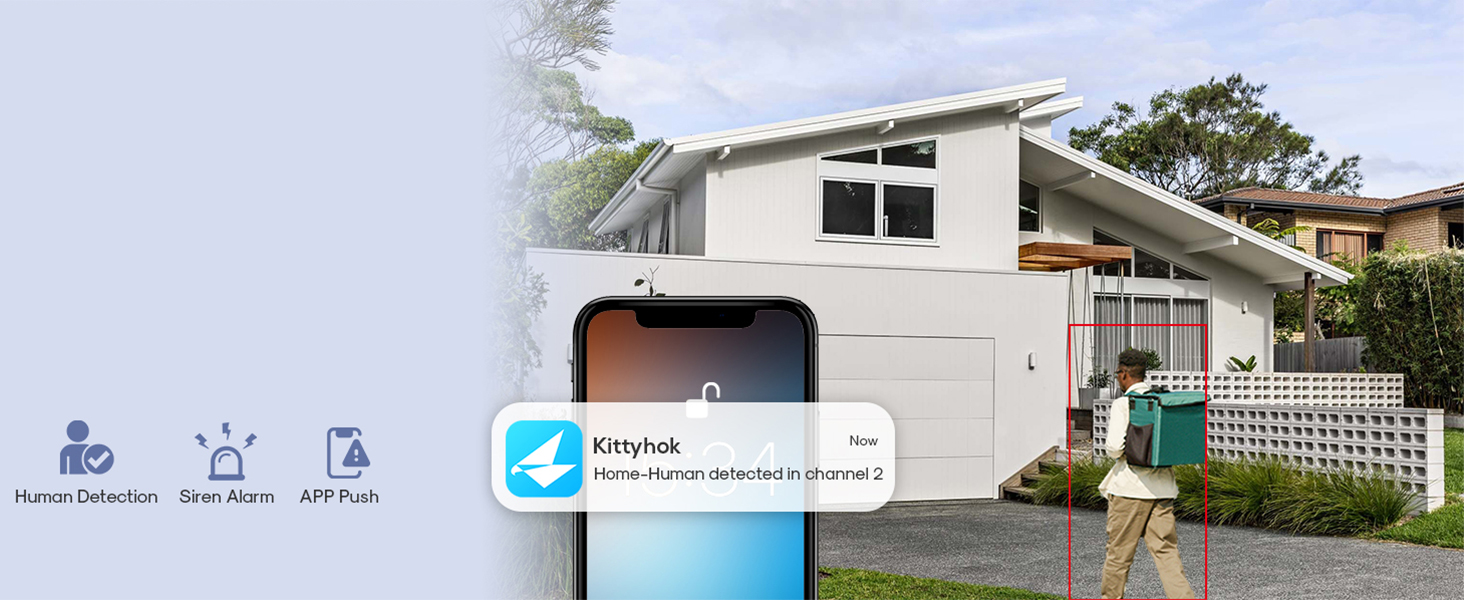
Image: A smartphone displaying a notification from the Kittyhok app, indicating human detection by the security camera.

Image: A Kittyhok camera and its solar panel shown during rainfall, illustrating its weatherproof construction.
5. പരിപാലനം
5.1 സോളാർ പാനൽ കാര്യക്ഷമത
The solar panel requires 2-3 hours of daily sunlight to maintain continuous power for the camera. Regularly clean the solar panel to ensure maximum efficiency. Dust, dirt, or debris can reduce its ability to charge the camera's battery.
5.2 ബാറ്ററി ലൈഫ്
Without the solar panel, the camera's batteries can last 45-120 days depending on activation frequency. With solar panels, batteries are replenished daily, eliminating the need for manual recharging.
5.3 കാലാവസ്ഥാ സംരക്ഷണം
The camera is designed to be weatherproof (IP66 rated). However, ensure all connections are secure and covers are properly sealed to prevent water ingress.
6. ട്രബിൾഷൂട്ടിംഗ് (പതിവ് ചോദിക്കുന്ന ചോദ്യങ്ങൾ)
6.1 Why cannot I see continuous live video on the monitor?
Because the cameras automatically enter standby mode to save power. As a thermal detection security system powered with solar and batteries, the system works when activities are detected and stands by when there is no activity.
6.2 Does the system have to be connected to a monitor all the time?
No. Connecting the NVR to your TV or monitor enables you to enter the NVR's menu. It is necessary for the initial setup. After the setup is complete, you can view the NVR from its screen and view the system on your smartphone or tablet.
If you are using a TV, you can switch the signal source to TV programs and switch back to this HDMI connection while needed.
6.3 Does the battery/solar cameras record 24/7?
Yes but not by default. All solar/battery-powered security cameras record motion-triggered activities only. If you need 24/7 cameras, please go for Wi-Fi security camera system with plug-in power.
You can also plug this camera to power with a 5V DC phone charger, then switch to തുടർച്ചയായ റെക്കോർഡിംഗ് മോഡ് to make it work 24/7.
6.4 Why my cameras run out of batteries fast?
- Make sure to fully recharge your cameras before you mount them. It shall take 4-6 hours to fully charge them.
- When you are using solar panel as the power source, make sure the camera is in Event Record Mode. If you want the cameras to work in Continuous Record Mode, plug the cameras to wall outlets with 5V power chargers.
- സോളാർ പവർ ലഭിക്കുന്നതിന് നിങ്ങളുടെ സോളാർ പാനൽ ശരിയായി ഇൻസ്റ്റാൾ ചെയ്തിട്ടുണ്ടെന്ന് ഉറപ്പാക്കുക.
6.5 Do I have to use the cameras with solar panels?
No, you can use the cameras without solar panels. The cameras' batteries last 45-120 days depending on how often they are activated. You will need to take the cameras down to recharge when battery is low.
സോളാർ പാനലുകൾ ഉപയോഗിച്ച്, അവ എല്ലാ ദിവസവും ബാറ്ററികളിലേക്ക് പവർ നിറയ്ക്കുന്നു. റീചാർജ് ചെയ്യുന്നതിനായി ക്യാമറകൾ നീക്കം ചെയ്യുന്നതിന്റെ ബുദ്ധിമുട്ട് ഇത് ഒഴിവാക്കുന്നു.
7 സ്പെസിഫിക്കേഷനുകൾ
| ഫീച്ചർ | വിശദാംശങ്ങൾ |
|---|---|
| ബ്രാൻഡ് | കിറ്റിഹോക്ക് |
| മോഡലിൻ്റെ പേര് | BC5B |
| കണക്റ്റിവിറ്റി ടെക്നോളജി | Wireless (Wi-Fi, Ethernet) |
| പ്രത്യേക സവിശേഷതകൾ | 2-Way Audio, Built-In Light, HD Resolution, Motion Sensor, Weather Proof |
| ഇൻഡോർ/ഔട്ട്ഡോർ ഉപയോഗം | ഇൻഡോർ, ഔട്ട്ഡോർ |
| കൺട്രോളർ തരം | Amazon Alexa, Android, Kittyhok NVR, KittyhokPro APP |
| മൌണ്ട് തരം | മതിൽ മൗണ്ട് |
| നിറം | കറുപ്പ് |
| ജല പ്രതിരോധ നില | വാട്ടർപ്രൂഫ് (IP66) |
| അലേർട്ട് തരം | ചലനം മാത്രം |
| ഫലപ്രദമായ സ്റ്റിൽ റെസല്യൂഷൻ | 5 എം.പി |
| ഫോട്ടോ സെൻസർ റെസല്യൂഷൻ | 5 എം.പി |
| നിയന്ത്രണ രീതി | ആപ്പ്, റിമോട്ട് |
| പവർ ഉറവിടം | സൗരോർജ്ജം |
| വീഡിയോ ക്യാപ്ചർ റെസല്യൂഷൻ | 2K (1440p) |
| ഫ്രെയിം റേറ്റ് | 15fps |
| Viewing ആംഗിൾ | 110 ഡിഗ്രി |
| ഡിജിറ്റൽ സൂം | 8x |
| ഫ്ലാഷ് മെമ്മറി പിന്തുണയ്ക്കുന്ന പരമാവധി വലുപ്പം | 256 ജിബി (മൈക്രോ എസ്ഡി) |
| നൈറ്റ് വിഷൻ റേഞ്ച് | 33 അടി |
| ഇനത്തിൻ്റെ അളവുകൾ | 3.74 x 7.78 x 7.09 ഇഞ്ച് |
| ഇനത്തിൻ്റെ ഭാരം | 1.54 പൗണ്ട് |
8. വാറൻ്റിയും പിന്തുണയും
8.1 നിർമ്മാതാവിന്റെ വാറന്റി
Your Kittyhok BC5B 2K Solar Security Camera comes with a 1 വർഷത്തെ വാറൻ്റി. This warranty typically covers manufacturing defects and ensures replacement rather than repair for eligible issues.
8.2 ഉപഭോക്തൃ പിന്തുണ
Kittyhok offers 24/7 online support. For assistance, please visit the official Kittyhok webസൈറ്റ് അല്ലെങ്കിൽ അവരുടെ ഉപഭോക്തൃ സേവനവുമായി നേരിട്ട് ബന്ധപ്പെടുക.
Additionally, Kittyhok provides a 30-Day Money Back Guarantee.
For more information and support resources, visit: www.kittyhok.com
9. Official User Manual Video Guide
For a comprehensive visual guide on setting up and operating your Kittyhok Solar Security Camera System, please watch the official user manual video below.
Video: Official User Manual for Kittyhok Solar Powered Security System. This video covers unboxing, NVR and camera introductions, system connection, camera recharging, app access, PC/Mac access, camera positioning, and pairing new cameras.