
ഉൽപ്പന്നം കഴിഞ്ഞുview
The Multilaser ZXHN H3601 ZTE RE940 is a high-performance Wi-Fi 6 Gigabit Dual Band Mesh Router designed to provide fast and reliable internet connectivity throughout your home or office. Featuring advanced Wi-Fi 6 technology, it offers improved speed, efficiency, and capacity for multiple connected devices. Its dual-band capability ensures optimal performance for various applications, from streaming 4K video to online gaming.
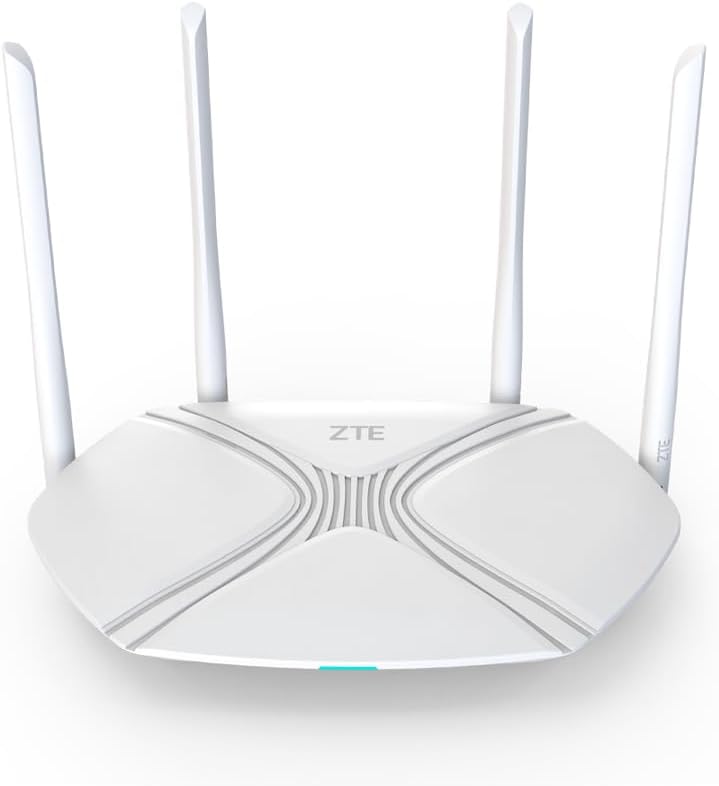
ചിത്രം 1: ഫ്രണ്ട് view of the Multilaser ZXHN H3601 ZTE RE940 Wi-Fi 6 Gigabit Dual Band Mesh Router. This image shows the sleek white design of the router with its four external antennas and the ZTE logo prominently displayed on the top surface. A small LED indicator is visible at the front base.
സജ്ജീകരണ ഗൈഡ്
Follow these steps to set up your Multilaser ZXHN H3601 ZTE RE940 router for the first time.
- റൂട്ടർ അൺപാക്ക് ചെയ്യുക: പാക്കേജിംഗിൽ നിന്ന് റൂട്ടറും എല്ലാ ആക്സസറികളും ശ്രദ്ധാപൂർവ്വം നീക്കം ചെയ്യുക. റൂട്ടർ, പവർ അഡാപ്റ്റർ, ഒരു ഇതർനെറ്റ് കേബിൾ എന്നിവ നിങ്ങളുടെ കൈവശമുണ്ടെന്ന് ഉറപ്പാക്കുക.
- പവർ അഡാപ്റ്റർ ബന്ധിപ്പിക്കുക: Plug one end of the power adapter into the router's power port and the other end into a standard electrical outlet. The power indicator light on the router should illuminate.
- ഇന്റർനെറ്റിലേക്ക് കണക്റ്റുചെയ്യുക (WAN):
- If you have a modem, connect one end of the provided Ethernet cable to the WAN port (often blue or labeled "Internet") on your router and the other end to the LAN port on your modem.
- If your internet service provider (ISP) directly provides an Ethernet cable for internet access, connect it directly to the WAN port on the router.
- Connect Devices (LAN):
- For wired connections, connect your computer or other network devices to any of the LAN ports (usually yellow) on the router using Ethernet cables.
- For wireless connections, locate the Wi-Fi network name (SSID) and password printed on a label on the bottom or back of the router. Connect your wireless devices to this network.
- റൂട്ടർ ക്രമീകരണങ്ങൾ ആക്സസ് ചെയ്യുക: എ തുറക്കുക web browser on a connected device and enter the default IP address (e.g., 192.168.1.1 or 192.168.0.1) provided on the router's label or in the quick start guide. Log in using the default username and password (also on the label).
- Configure Internet Connection: Follow the on-screen setup wizard to configure your internet connection settings (e.g., PPPoE, Dynamic IP, Static IP) as provided by your ISP.
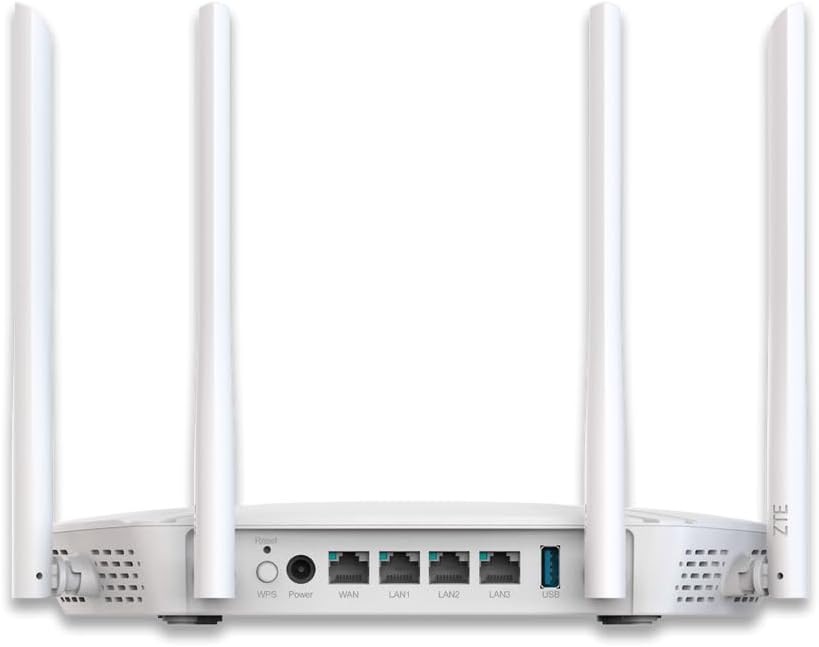
ചിത്രം 2: പിൻഭാഗം view of the Multilaser ZXHN H3601 ZTE RE940 Wi-Fi 6 Gigabit Dual Band Mesh Router. This image highlights the various ports available on the back panel, including the power input, WAN port, multiple LAN ports, a USB port, and the WPS/Reset buttons. The four external antennas are also clearly visible.
പ്രവർത്തന നിർദ്ദേശങ്ങൾ
Once your router is set up, you can manage its operations and connect your devices.
- ബന്ധിപ്പിക്കുന്ന ഉപകരണങ്ങൾ:
- വയർലെസ്: ഇതിനായി തിരയുക the Wi-Fi network name (SSID) on your device and enter the password. The router supports Wi-Fi 6 (802.11ax) for faster and more efficient wireless connections.
- വയർ: Plug an Ethernet cable from your device into any available LAN port on the router.
- ഡ്യുവൽ ബാൻഡ് പ്രവർത്തനം: The router operates on both 2.4 GHz and 5 GHz frequency bands. The 2.4 GHz band offers wider coverage and better penetration through walls, while the 5 GHz band provides faster speeds and less interference for devices closer to the router.
- സേവനത്തിൻ്റെ ഗുണനിലവാരം (QoS): The router features QoS functionality, allowing you to prioritize network traffic for specific applications or devices. This ensures smoother performance for critical activities like online gaming or video conferencing by allocating more bandwidth to them. You can configure QoS settings through the router's web ഇൻ്റർഫേസ്.
- അതിഥി നെറ്റ്വർക്ക്: For enhanced security, consider enabling a guest Wi-Fi network through the router's settings. This provides internet access to guests without giving them access to your main network resources.
മെയിൻ്റനൻസ്
നിങ്ങളുടെ റൂട്ടറിന്റെ മികച്ച പ്രകടനവും ദീർഘായുസ്സും ഉറപ്പാക്കാൻ പതിവ് അറ്റകുറ്റപ്പണികൾ സഹായിക്കുന്നു.
- പ്ലേസ്മെൻ്റ്: Place the router in a central location, away from obstructions, large metal objects, and other electronic devices that may cause interference. Elevating the router can also improve signal strength.
- ഫേംവെയർ അപ്ഡേറ്റുകൾ: Periodically check the Multilaser or ZTE support website for firmware updates. Keeping your router's firmware up-to-date can improve performance, add new features, and enhance security.
- വൃത്തിയാക്കൽ: Gently clean the router's exterior with a soft, dry cloth. Ensure ventilation holes are free from dust and debris to prevent overheating. Do not use liquid cleaners.
- പുനരാരംഭിക്കുന്നു: If you experience network issues, a simple restart of the router (unplugging the power for 10 seconds and plugging it back in) can often resolve minor glitches.

ചിത്രം 3: താഴെ view of the Multilaser ZXHN H3601 ZTE RE940 Wi-Fi 6 Gigabit Dual Band Mesh Router. This image displays the ventilation grilles designed to dissipate heat, as well as the rubber feet for stability and keyhole slots for wall mounting.
ട്രബിൾഷൂട്ടിംഗ്
നിങ്ങളുടെ റൂട്ടറിൽ നിങ്ങൾ നേരിട്ടേക്കാവുന്ന സാധാരണ പ്രശ്നങ്ങൾ ഈ വിഭാഗം അഭിസംബോധന ചെയ്യുന്നു.
- ഇൻ്റർനെറ്റ് കണക്ഷൻ ഇല്ല:
- Check if the WAN port cable is securely connected to both the router and your modem/ISP's connection.
- Restart your modem and then your router. Wait a few minutes for them to fully boot up.
- റൂട്ടറിലെ നിങ്ങളുടെ ഇന്റർനെറ്റ് കണക്ഷൻ ക്രമീകരണങ്ങൾ പരിശോധിക്കുക web ഇൻ്റർഫേസ്.
- സേവനമില്ലെന്ന് സ്ഥിരീകരിക്കാൻ നിങ്ങളുടെ ഇന്റർനെറ്റ് സേവന ദാതാവിനെ (ISP) ബന്ധപ്പെടുക അല്ലെങ്കിൽtagനിങ്ങളുടെ പ്രദേശത്താണ്.
- കുറഞ്ഞ വൈ-ഫൈ വേഗത:
- Ensure your devices are connected to the appropriate band (5 GHz for faster speeds, 2.4 GHz for better range).
- സിഗ്നൽ ശക്തി മെച്ചപ്പെടുത്താൻ റൂട്ടറിന് അടുത്തേക്ക് നീങ്ങുക.
- മറ്റ് ഇലക്ട്രോണിക് ഉപകരണങ്ങളിൽ നിന്നുള്ള (കോർഡ്ലെസ് ഫോണുകൾ, മൈക്രോവേവ്) ഇടപെടലുകൾക്കായി പരിശോധിക്കുക.
- സജീവ ഉപകരണങ്ങളുടെയോ ബാൻഡ്വിഡ്ത്ത്-ഇന്റൻസീവ് ആപ്ലിക്കേഷനുകളുടെയോ എണ്ണം കുറയ്ക്കുക.
- Consider changing Wi-Fi channels in the router settings to avoid congestion.
- റൂട്ടർ ക്രമീകരണങ്ങൾ ആക്സസ് ചെയ്യാൻ കഴിയില്ല:
- നിങ്ങളുടെ ഉപകരണം റൂട്ടറുമായി (വയർഡ് അല്ലെങ്കിൽ വയർലെസ്) ബന്ധിപ്പിച്ചിട്ടുണ്ടെന്ന് ഉറപ്പാക്കുക.
- Verify you are using the correct IP address (e.g., 192.168.1.1) and login credentials.
- നിങ്ങളുടെ ബ്രൗസറിന്റെ കാഷെ മായ്ക്കുകയോ മറ്റൊരു ബ്രൗസർ ഉപയോഗിക്കുകയോ ചെയ്യുക.
- If you forgot your password, you may need to perform a factory reset. Locate the "Reset" button on the back of the router (often a small pinhole) and press and hold it for about 10 seconds until the lights flash. കുറിപ്പ്: ഫാക്ടറി റീസെറ്റ് നിങ്ങളുടെ എല്ലാ ഇഷ്ടാനുസൃത ക്രമീകരണങ്ങളും മായ്ക്കും.
സ്പെസിഫിക്കേഷനുകൾ
| ഫീച്ചർ | വിശദാംശങ്ങൾ |
|---|---|
| ബ്രാൻഡ് | മൾട്ടിലേസർ |
| മോഡൽ | ZXHN H3601 ZTE RE940 |
| വയർലെസ് സ്റ്റാൻഡേർഡ് | 802.11ax (Wi-Fi 6) |
| ഫ്രീക്വൻസി ബാൻഡ് ക്ലാസ് | ഡ്യുവൽ-ബാൻഡ് (2.4 GHz & 5 GHz) |
| തുറമുഖങ്ങളുടെ എണ്ണം | 3 (LAN) + 1 (WAN) + 1 (USB) |
| പ്രത്യേക സവിശേഷതകൾ | QoS (സേവന നിലവാരം) |
| അനുയോജ്യമായ ഉപകരണങ്ങൾ | Gaming Consoles, Smart TVs, Tablets |
| നിറം | വെള്ള |
| ഉൽപ്പന്ന ഭാരം | 500 ഗ്രാം |
വാറൻ്റി വിവരങ്ങൾ
This product is covered by a manufacturer's warranty. For detailed information regarding warranty terms, duration, and claim procedures, please refer to the warranty card included in your product packaging or visit the official Multilaser or ZTE support webസൈറ്റ്. വാറന്റി ക്ലെയിമുകൾക്കായി നിങ്ങളുടെ വാങ്ങലിന്റെ തെളിവ് സൂക്ഷിക്കുക.
ഉപഭോക്തൃ പിന്തുണ
If you require further assistance or encounter issues not covered in this manual, please contact Multilaser customer support. Support contact details (phone numbers, email, or online chat) are typically available on the official Multilaser webസൈറ്റിലോ ഉൽപ്പന്നത്തിന്റെ ക്വിക്ക് സ്റ്റാർട്ട് ഗൈഡിലോ.
For online resources, visit the official Multilaser support page.