
1. ആമുഖം
This manual provides detailed instructions for the installation, operation, and maintenance of your Hikity 8 Core 4+64G Android 15 Car Radio. This unit is designed for compatibility with Honda Odyssey models from 2005 to 2010, offering a 10.1-inch touchscreen display with advanced features like Wireless CarPlay, Android Auto, GPS navigation, and more. Please read this manual thoroughly before installation and use to ensure proper functionality and safety.

Image: The Hikity Android Car Radio seamlessly integrated into a Honda Odyssey dashboard, demonstrating proper fitment for compatible models (2005-2010).
2. ഉൽപ്പന്ന സവിശേഷതകൾ
- High-Performance System: Equipped with an 8-core CPU, 4GB RAM, and 64GB ROM, ensuring smooth operation and ample storage for applications.
- ഡിസ്പ്ലേ: Features a 10.1-inch 1280x720 IPS capacitive touchscreen with ultra-wide 178° vertical and horizontal viewing angles, providing vivid and realistic images.
- സ്മാർട്ട്ഫോൺ സംയോജനം: Supports both wireless and wired CarPlay and Android Auto for seamless connectivity with your smartphone's apps, including navigation, music, and communication.
- Navigation & Connectivity: Integrated GPS navigation with support for online and offline maps. Built-in WiFi for internet browsing, video streaming, and app downloads.
- ഓഡിയോ മെച്ചപ്പെടുത്തൽ: Pre-installed DSP tuning software with 32-band EQ equalization settings for customized audio output.
- ബ്ലൂടൂത്ത് 5.0: Enables faster transmission speeds for hands-free calls and phone book downloads.
- Multimedia & Customization: Supports split-screen functionality, steering wheel control, 59 customizable UI themes, and allows moving frequently used software to the home screen.
- സുരക്ഷാ സവിശേഷതകൾ: Includes an external microphone and a waterproof AHD rear view camera for enhanced driving safety.

Image: Internal components highlighting the 8-core CPU, 4GB RAM, and 64GB ROM for efficient performance.

Image: The 10.1-inch 1280x720 IPS capacitive touchscreen, featuring wide viewing angles and responsive touch.
3. പാക്കേജ് ഉള്ളടക്കം
നിങ്ങളുടെ ഉൽപ്പന്ന പാക്കേജിൽ ഇനിപ്പറയുന്ന ഇനങ്ങൾ ഉൾപ്പെടുത്തിയിട്ടുണ്ട്:
- 1 x ആൻഡ്രോയിഡ് കാർ സ്റ്റീരിയോ
- 1 x പവർ കേബിൾ
- 1 x ബാക്കപ്പ് ക്യാമറ
- 2 x യുഎസ്ബി അഡാപ്റ്ററുകൾ
- 1 x റേഡിയോ ആന്റിന
- 1 x ജിപിഎസ് ആന്റിന
- 1 x CAM-VIN Cable
- 1 x ഉപയോക്തൃ മാനുവൽ
- 1 x RCA കേബിൾ
- 1 x Reverse Line
- 1 x ഇൻസ്റ്റാളേഷൻ ഉപകരണം
- 1 x മൈക്രോഫോൺ

Image: Product dimensions and a comprehensive list of all included accessories.
4. ഇൻസ്റ്റാളേഷൻ ഗൈഡ്
Professional installation is recommended for this car stereo unit. Ensure the vehicle's power is disconnected before beginning installation. Refer to your vehicle's specific wiring diagrams for accurate connections. The included installation tool can assist with removing existing trim panels.
4.1 ബാക്കപ്പ് ക്യാമറ കണക്ഷൻ
To connect the backup camera:
- Connect the red cable (labeled 2) to the backup light's positive (+) terminal.
- Connect the black cable (labeled 1) to the vehicle's ground (GND).
- Plug the yellow video cable into the CAM-VIN input on the car stereo unit.
- Ensure the WiFi and Bluetooth signal enhancer is plugged in for optimal performance.

Image: Wiring diagram for connecting the backup camera.
5. പ്രവർത്തന നിർദ്ദേശങ്ങൾ
5.1 കാർപ്ലേയും ആൻഡ്രോയിഡ് ഓട്ടോയും
The unit supports both wireless and wired CarPlay and Android Auto. Connect your smartphone via Bluetooth for wireless or a USB data cable for wired connection to access your phone's apps, navigation, music, and hands-free calling directly on the car stereo screen. Voice control via Siri or Google Assistant is also supported.
Video: Demonstration of the Hikity Android Car Stereo's CarPlay and Android Auto features, including music playback, navigation, and hands-free calling.
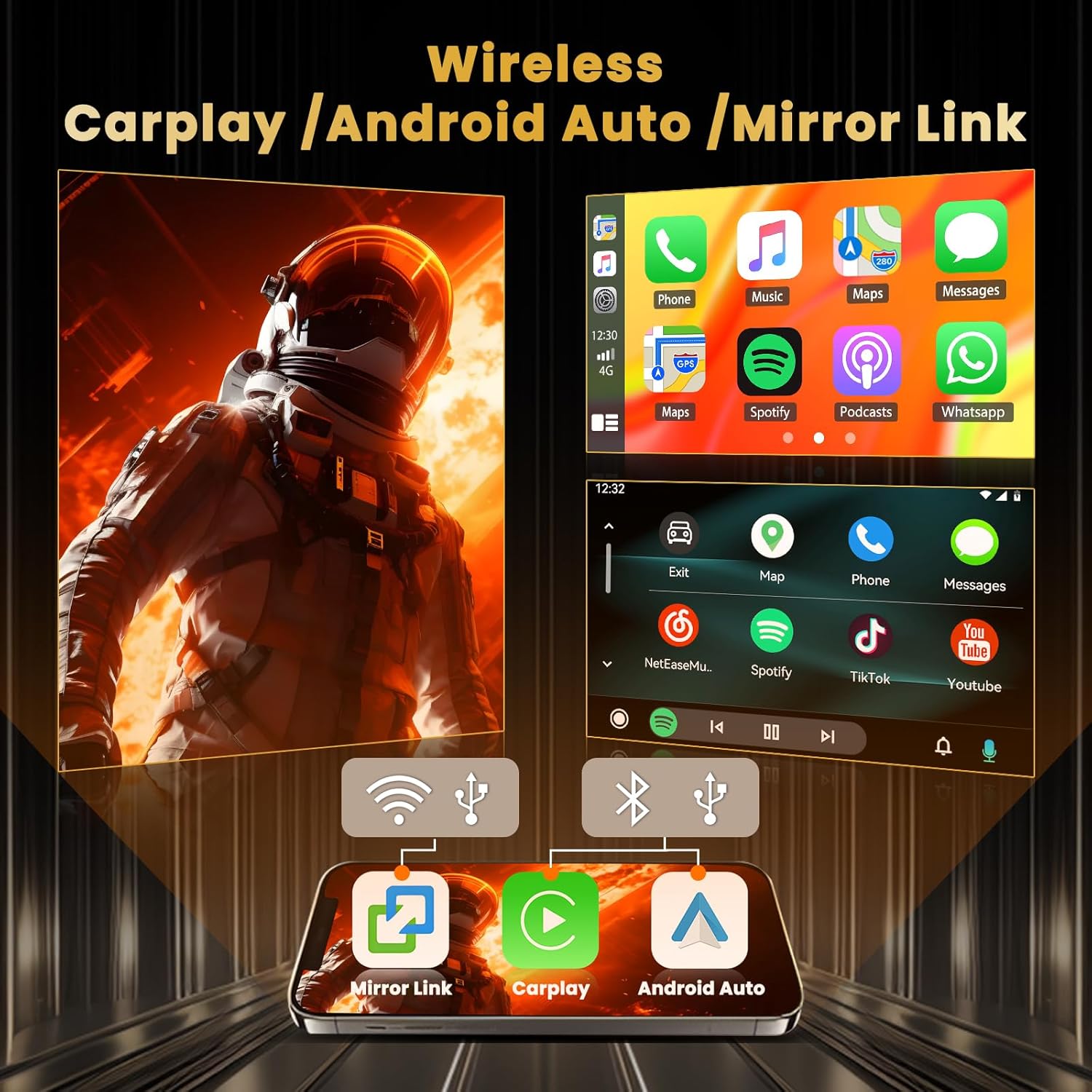
Image: Wireless CarPlay, Android Auto, and Mirror Link functionality.
5.2 GPS Navigation and WiFi
Utilize the integrated GPS for navigation with both online and offline map support. Connect to WiFi or a mobile hotspot to browse the internet, stream videos, and download additional applications from the app store. The split-screen function allows simultaneous use of navigation and other apps.

Image: GPS Navigation, 5G WiFi, AHD Backup Camera, and Steering Wheel Control features.
5.3 Audio and Radio (DSP, FM/RDS)
The pre-installed DSP tuning software allows for precise audio adjustments with a 32-band EQ. The FM/RDS radio provides access to local and network radio stations, with clear reception and station information display.

Image: FM/RDS Radio interface and 32-band DSP equalizer for audio customization.
5.4 സ്റ്റിയറിംഗ് വീൽ നിയന്ത്രണം
The unit supports integration with your vehicle's original steering wheel controls. To configure, navigate to Settings > Factory Set Up, enter password 1234, തുടർന്ന് തിരഞ്ഞെടുക്കുക Party Control Learning or സ്റ്റിയറിംഗ് വീൽ പഠനം to map functions like volume, track skip, and call controls.

Image: Instructions for configuring original steering wheel controls.
5.5 UI Customization and Voice Assistant
Personalize your experience with 59 available UI themes and a wide selection of wallpapers. Long-press on the home screen to replace or rearrange application icons. The intelligent voice assistant allows for hands-free operation of various functions.

Image: Network Radio, Weather Forecast, and Intelligent Voice Assistant features.

Image: A selection of 59 UI desktop themes for interface customization.
6 സ്പെസിഫിക്കേഷനുകൾ
| ബ്രാൻഡ് | ഹൈക്കിറ്റി |
| മോഡലിൻ്റെ പേര് | GPS Car Stereo |
| സ്ക്രീൻ വലിപ്പം | 10.1 ഇഞ്ച് |
| റെസലൂഷൻ | 1280 x 720 |
| ഓപ്പറേറ്റിംഗ് സിസ്റ്റം | Android 15 (Latest Android System) |
| സിപിയു | 8-കോർ പ്രോസസർ |
| മെമ്മറി (റാം) | 4 ജിബി |
| സംഭരണം (ROM) | 64 ജിബി |
| കണക്റ്റിവിറ്റി ടെക്നോളജി | Bluetooth 5.0, USB, FM, AUX, Wireless, WiFi |
| Supported Navigation System | GPS (Worldwide Map Type) |
| ഓഡിയോ put ട്ട്പുട്ട് മോഡ് | Stereo with 32-band EQ DSP |
| മനുഷ്യ-ഇൻ്റർഫേസ് ഇൻപുട്ട് | Microphone, Capacitive Touchscreen |
| ഇനത്തിന്റെ അളവുകൾ (L x W x H) | 14.7"L x 7.2"W x 3.1"H |
| ഇനത്തിൻ്റെ ഭാരം | 1.43 കിലോഗ്രാം |
7. പ്രശ്നപരിഹാരം
If you encounter issues with your Hikity car radio, please refer to the following common troubleshooting steps:
- ശക്തിയില്ല: Ensure all power cables are securely connected and the vehicle's fuse for the radio is intact.
- Slow Startup/Responsiveness: While the Android system may take a moment to boot, persistent slowness could indicate too many background applications. Try closing unused apps or performing a system restart.
- ടച്ച്സ്ക്രീൻ പ്രതികരിക്കുന്നില്ല: Check for any physical obstructions or debris on the screen. If the issue persists, a system restart may resolve it. If the problem continues, contact customer support for potential touch calibration or hardware issues.
- ശബ്ദമില്ല: Verify speaker connections, check volume levels on the unit and your phone (if connected via Bluetooth/CarPlay), and ensure the DSP settings are not muting output.
- ജിപിഎസ് സിഗ്നൽ പ്രശ്നങ്ങൾ: ജിപിഎസ് ആന്റിന ശരിയായി ഇൻസ്റ്റാൾ ചെയ്തിട്ടുണ്ടെന്നും വ്യക്തമായ ഒരു ലൈൻ ഉണ്ടെന്നും ഉറപ്പാക്കുക. view ആകാശത്തിന്റെ. യൂണിറ്റിനുള്ളിലെ GPS ക്രമീകരണങ്ങൾ പരിശോധിക്കുക.
- കാർപ്ലേ/ആൻഡ്രോയിഡ് ഓട്ടോ കണക്ഷൻ പ്രശ്നങ്ങൾ: For wireless connections, ensure Bluetooth and WiFi are enabled on both the unit and your phone. For wired connections, try a different USB cable and ensure it's a data-transfer cable, not just a charging cable.
- ബാക്കപ്പ് ക്യാമറ പ്രദർശിപ്പിക്കുന്നില്ല: Confirm the camera's power and video signal cables are correctly connected as per the installation guide. Check the camera type settings in the unit's factory settings (password 1234) to ensure it matches your camera (CVBS or AHD).
For further assistance, please contact Hikity customer support.