
HelloBaby B0CNL9ZGRL
HelloBaby Kids Instant Print Camera User Manual
Model: B0CNL9ZGRL
1. ആമുഖം
This manual provides comprehensive instructions for the safe and effective use of your HelloBaby Kids Instant Print Camera. Designed for children aged 3-12, this camera combines instant printing capabilities with high-definition digital photography and video recording. Please read this manual thoroughly before operating the device to ensure optimal performance and longevity.
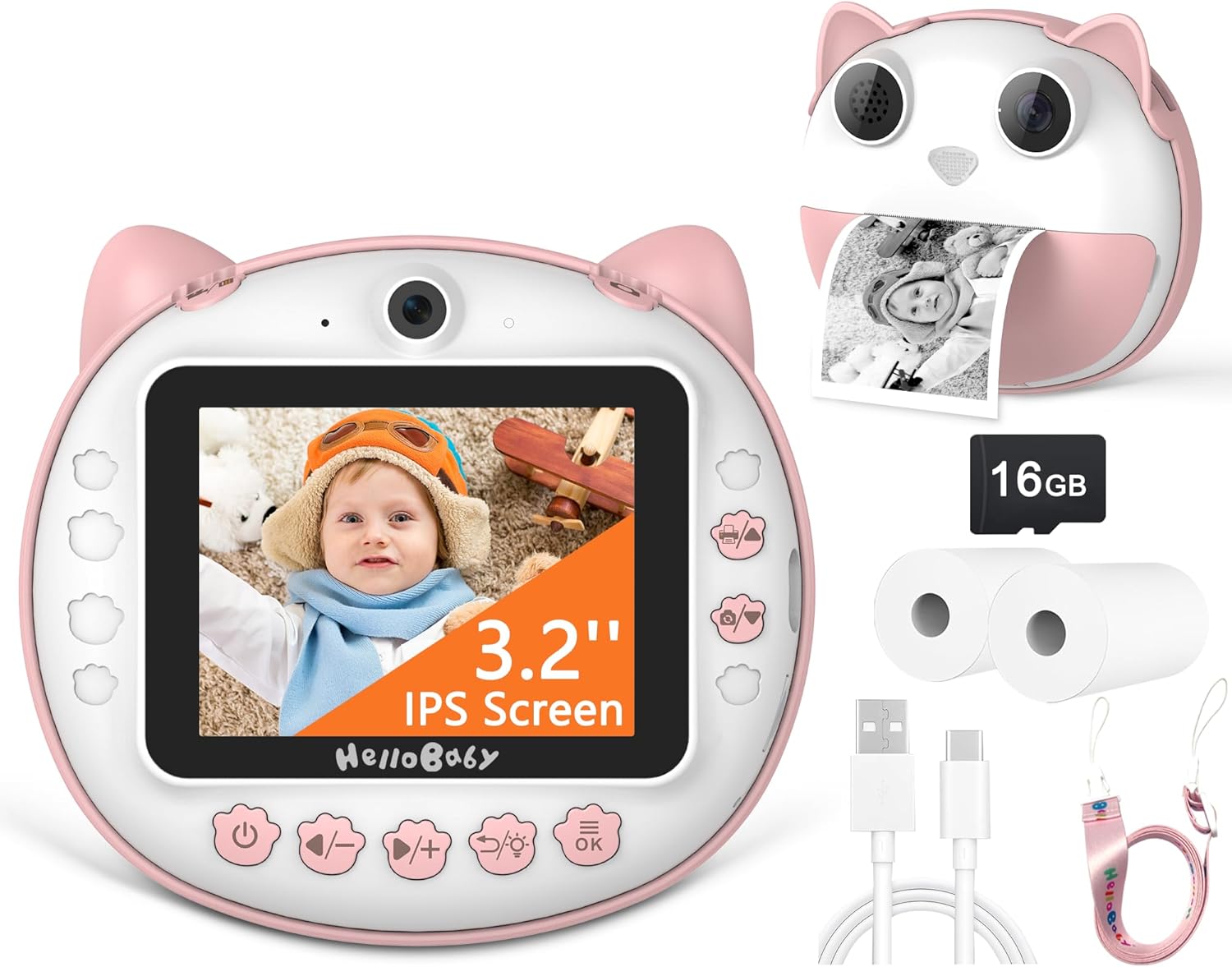
Image: The HelloBaby Kids Instant Print Camera, showcasing അതിന്റെ രൂപകൽപ്പനയും ഉൾപ്പെടുത്തിയിരിക്കുന്ന അനുബന്ധ ഉപകരണങ്ങളും.
2. പാക്കേജ് ഉള്ളടക്കം
താഴെ ലിസ്റ്റ് ചെയ്തിരിക്കുന്ന എല്ലാ ഇനങ്ങളും നിങ്ങളുടെ പാക്കേജിൽ ഉൾപ്പെടുത്തിയിട്ടുണ്ടെന്ന് ദയവായി പരിശോധിക്കുക:
- HelloBaby Kids Instant Print Camera (Pink)
- 16GB SD കാർഡ്
- 2 x Printing Paper Rolls
- ടൈപ്പ്-സി ചാർജിംഗ് കേബിൾ
- നെക്ക് സ്ട്രാപ്പ്

Image: Visual representation of the items included in the product package.
3 സുരക്ഷാ വിവരങ്ങൾ
സുരക്ഷിതമായ പ്രവർത്തനം ഉറപ്പാക്കുന്നതിനും ഉപകരണത്തിന് കേടുപാടുകൾ സംഭവിക്കാതിരിക്കുന്നതിനും അല്ലെങ്കിൽ പരിക്കേൽക്കാതിരിക്കുന്നതിനും, ദയവായി ഇനിപ്പറയുന്ന സുരക്ഷാ മാർഗ്ഗനിർദ്ദേശങ്ങൾ പാലിക്കുക:
- Do not expose the camera to water or excessive moisture.
- ക്യാമറ താഴെയിടുകയോ ശക്തമായ ആഘാതങ്ങൾക്ക് വിധേയമാക്കുകയോ ചെയ്യരുത്.
- Use only the provided Type-C charging cable and a compatible power adapter.
- Keep small parts, such as the SD card and paper rolls, out of reach of very young children to prevent choking hazards.
- The thermal printing paper is non-toxic and odorless, but avoid direct contact with eyes or mouth.
- ക്യാമറ സ്വയം വേർപെടുത്താനോ നന്നാക്കാനോ ശ്രമിക്കരുത്. സഹായത്തിനായി ഉപഭോക്തൃ പിന്തുണയുമായി ബന്ധപ്പെടുക.
4. സജ്ജീകരണ ഗൈഡ്
4.1. ക്യാമറ ചാർജ് ചെയ്യുന്നു
Before first use, fully charge the camera. A full charge typically takes approximately 2-3 hours.
- Locate the Type-C charging port on the side of the camera.
- Connect the provided Type-C charging cable to the camera and the other end to a USB power source (e.g., computer, wall adapter).
- ചാർജ് ചെയ്യുമ്പോൾ ചാർജിംഗ് ഇൻഡിക്കേറ്റർ ലൈറ്റ് പ്രകാശിക്കുകയും പൂർണ്ണമായി ചാർജ് ചെയ്യുമ്പോൾ ഓഫാകുകയും ചെയ്യും.

Image: The camera connected for Type-C charging and data transfer.
4.2. SD കാർഡ് ചേർക്കൽ
The camera comes with a 16GB SD card for storing color photos and videos.
- Locate the SD card slot on the side of the camera, next to the charging port.
- Gently insert the 16GB SD card into the slot with the gold contacts facing down until it clicks into place.
- To remove, press the SD card gently inward until it pops out.
4.3. Installing Printing Paper
The camera uses thermal printing paper for instant black-and-white prints.
- Open the paper slot: Gently push the release button or tab to open the front cover of the camera where the paper roll is inserted.
- പ്രിന്റിംഗ് പേപ്പർ ഇൻസ്റ്റാൾ ചെയ്യുക: Place a new paper roll into the compartment. Ensure the paper feeds from the bottom of the roll and the leading edge is straight. Incorrect installation direction will result in blank photos.
- Close the camera: Close the front cover firmly until it clicks into place.

Image: Step-by-step guide for installing the thermal printing paper.
5. പ്രവർത്തന നിർദ്ദേശങ്ങൾ
5.1. പവർ ഓൺ/ഓഫ്
Press and hold the power button (usually marked with a power symbol) for a few seconds to turn the camera on or off.
5.2. അടിസ്ഥാന ഫോട്ടോഗ്രാഫി
ഒരു ഫോട്ടോ എടുക്കാൻ:
- ക്യാമറ ഓണാക്കുക.
- Frame your shot using the 3.2-inch IPS screen.
- Press the shutter button (usually a prominent button on top or front) to take a picture. The camera will instantly print a black-and-white version and save a color version to the SD card.

Image: The camera's display showing a 12MP photo capture.
5.3. വീഡിയോ റെക്കോർഡിംഗ്
To record a 1080P HD video:
- Switch to video mode using the mode button (refer to camera icons).
- റെക്കോർഡിംഗ് ആരംഭിക്കാൻ ഷട്ടർ ബട്ടൺ അമർത്തുക. നിർത്താൻ വീണ്ടും അമർത്തുക.
- Videos are saved directly to the SD card.

Image: The camera's display indicating 1080P video recording mode.
5.4. തൽക്ഷണ പ്രിന്റിംഗ്
After taking a photo, the camera will automatically print a black-and-white version. You can also select a photo from the gallery and choose to print it.

Image: Illustrates the two modes: saving to SD card (color) and instant printing (black & white).
5.5. ഡിജിറ്റൽ സൂം
Use the zoom buttons (often marked with '+' and '-') to digitally zoom in or out up to 16x while in photo or video mode.

Image: Demonstrates the 16X digital zoom capability of the camera.
5.6. തുടർച്ചയായ ഷൂട്ടിംഗ്
This feature allows you to capture a series of photos in quick succession.
- Navigate to the continuous shooting setting in the camera menu.
- Activate the feature and press the shutter button to begin capturing multiple images.

Image: Illustration of the continuous shooting feature, capturing multiple moments.
5.7. Time-lapse Photography
Set a delay before the photo is taken, allowing the child to get into position.
- Access the time-lapse settings in the camera menu.
- Select a delay of 3 seconds, 5 seconds, or 10 seconds.
- Press the shutter button; the camera will count down before taking the picture.
5.8. Applying Filters and Frames
Enhance your photos with various fun filters and decorative frames.
- While in photo mode, press the dedicated button for filters/frames (refer to camera icons).
- Browse through the available options using the navigation buttons.
- Select your desired filter or frame before taking the photo.
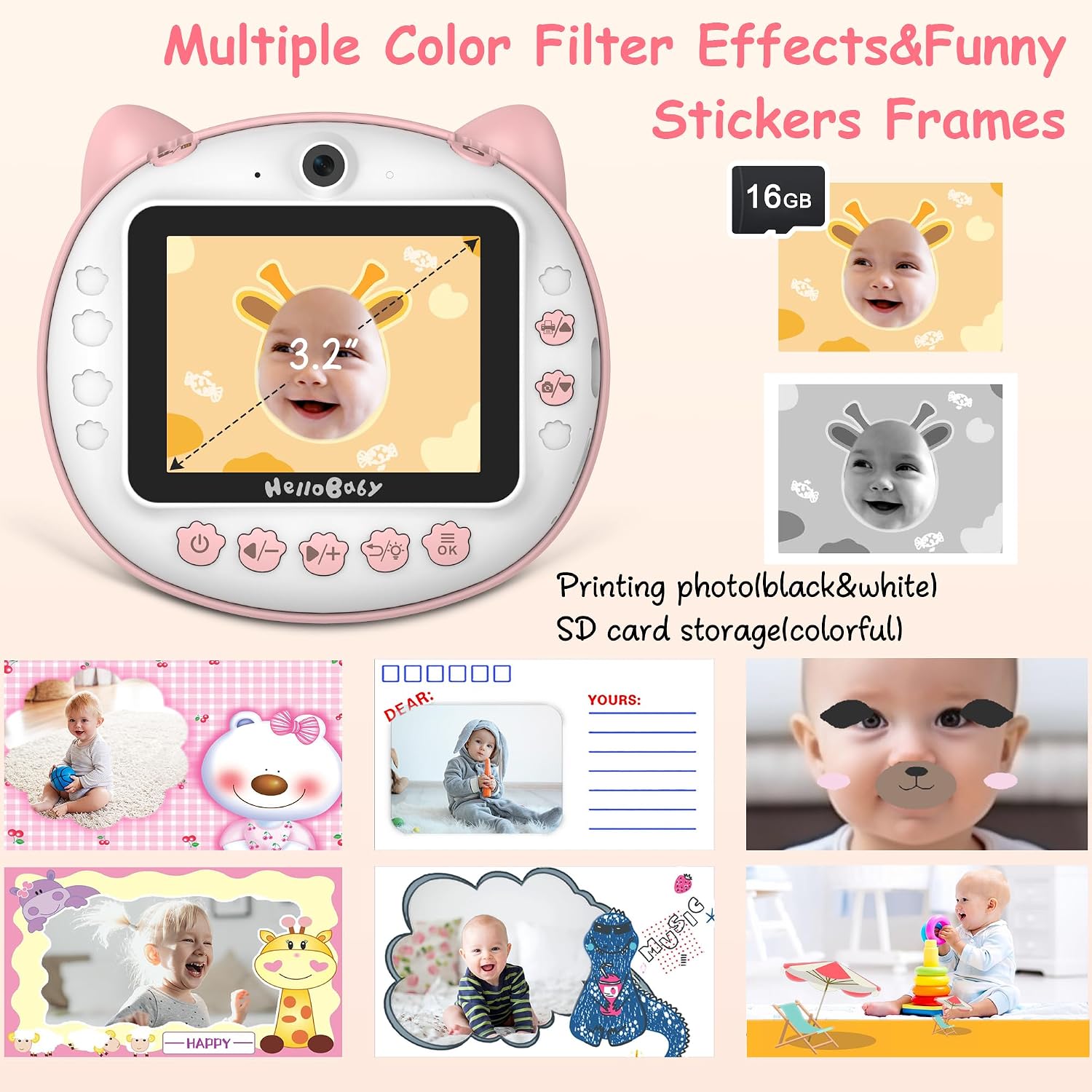
ചിത്രം: ഉദാamples of multiple color filter effects and funny sticker frames available.
5.9. പ്ലേബാക്കും റീഡുംview
View your captured photos and videos on the camera's screen.
- Press the playback button (usually an arrow icon).
- നിങ്ങളുടെ മീഡിയയിലൂടെ സ്ക്രോൾ ചെയ്യാൻ നാവിഗേഷൻ ബട്ടണുകൾ ഉപയോഗിക്കുക.
- ശരി ബട്ടൺ അമർത്തുക view ഒരു ഫോട്ടോ അല്ലെങ്കിൽ ഒരു വീഡിയോ പ്ലേ ചെയ്യുക.

Image: Demonstrates the two storage options: black and white print and color SD card storage.
5.10. Games and MP3 Player
The camera includes built-in games and an MP3 player for entertainment.
- Access the games/MP3 player menu from the main interface.
- Select a game to play or browse your music files (if loaded onto the SD card).

Image: The camera's interface showing the selection of four games and MP3 player functionality.
6. പരിപാലനം
6.1. ക്യാമറ വൃത്തിയാക്കൽ
Use a soft, dry cloth to clean the camera body and screen. Do not use liquid cleaners or abrasive materials.
6.2. Replacing Printing Paper
When the paper roll is depleted, follow the steps in Section 4.3 to install a new roll. Ensure you use compatible thermal printing paper.
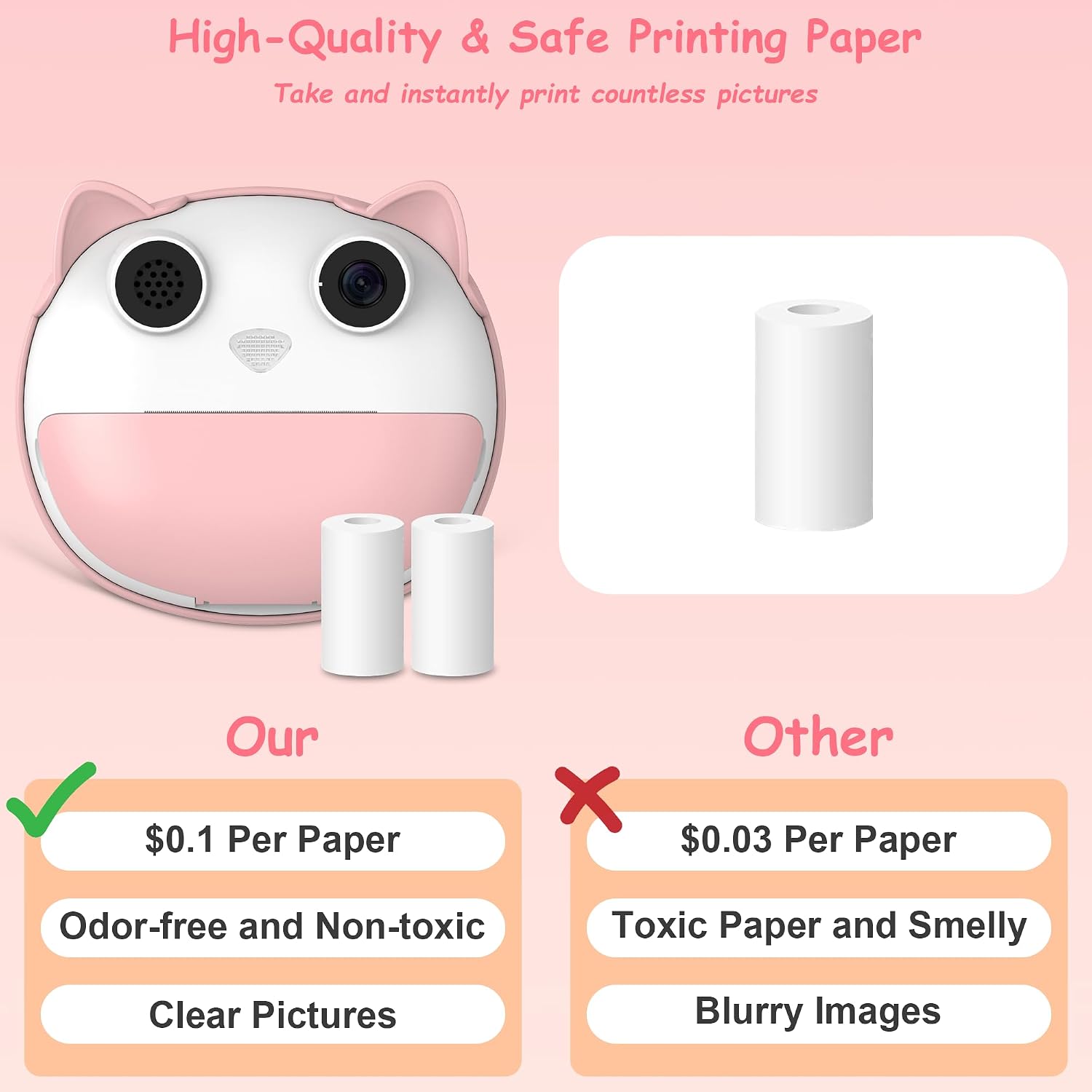
Image: Highlights the quality and safety of the recommended printing paper.
6.3. സംഭരണം
Store the camera in a cool, dry place away from direct sunlight and extreme temperatures when not in use. Remove the SD card if storing for extended periods.
7. പ്രശ്നപരിഹാരം
| പ്രശ്നം | സാധ്യമായ കാരണം / പരിഹാരം |
|---|---|
| Camera not turning on or charging. |
|
| പ്രിന്റുകൾ ശൂന്യമോ മങ്ങിയതോ ആണ്. |
|
| SD card error or not recognized. |
|
| Poor image or video quality. |
|
8 സ്പെസിഫിക്കേഷനുകൾ
| ഫീച്ചർ | വിശദാംശങ്ങൾ |
|---|---|
| മോഡൽ നമ്പർ | B0CNL9ZGRL |
| സ്ക്രീൻ വലിപ്പം | 3.2-ഇഞ്ച് IPS സ്ക്രീൻ |
| ഫോട്ടോ റെസല്യൂഷൻ | 12 MP (ഫലപ്രദമായ സ്റ്റിൽ റെസല്യൂഷൻ) |
| വീഡിയോ റെസല്യൂഷൻ | 1080P HD |
| ഡിജിറ്റൽ സൂം | 16x |
| സംഭരണം | 16GB SD കാർഡ് (ഉൾപ്പെടുന്നു) |
| പ്രിൻ്റിംഗ് ടെക്നോളജി | Thermal Printing (Black & White) |
| ബാറ്ററി ശേഷി | 1200mAh |
| ചാർജിംഗ് പോർട്ട് | ടൈപ്പ്-സി |
| ഇനത്തിൻ്റെ ഭാരം | 1.04 പൗണ്ട് |
| പാക്കേജ് അളവുകൾ | 5.83 x 5.24 x 2.52 ഇഞ്ച് |
| നിർമ്മാതാവ് | ഹലോബാബി |
9. വാറൻ്റിയും പിന്തുണയും
The HelloBaby Kids Instant Print Camera comes with a 1 വർഷത്തെ വാറൻ്റി വാങ്ങിയ തീയതി മുതൽ. സാധാരണ ഉപയോഗത്തിലുള്ള നിർമ്മാണ വൈകല്യങ്ങളും തകരാറുകളും ഈ വാറന്റി ഉൾക്കൊള്ളുന്നു. വാറന്റി ക്ലെയിമുകൾക്കായി നിങ്ങളുടെ വാങ്ങിയതിന്റെ തെളിവ് സൂക്ഷിക്കുക.
For technical support, troubleshooting assistance, or warranty inquiries, please contact HelloBaby customer service through the retailer's platform or the official HelloBaby website. Provide your model number (B0CNL9ZGRL) and a detailed description of the issue for faster service.
കൂടുതൽ വിവരങ്ങൾക്ക്, ഉദ്യോഗസ്ഥനെ സന്ദർശിക്കുക HelloBaby Store on Amazon.
Ask a question about this manual
Ask about setup, troubleshooting, compatibility, parts, safety, or missing instructions. Manuals+ will review the question and use this page’s manual context to help answer it.