
1. ആമുഖം
This manual provides essential information for the safe and efficient operation of your NETUM PDA58-02 Portable Receipt Printer. Please read it thoroughly before using the device and keep it for future reference.
The NETUM PDA58-02 is a versatile portable terminal designed for various business applications. It integrates receipt printing, 1D barcode scanning, and supports multiple connectivity options including 3G, Wi-Fi, and Bluetooth 4.0. Running on Android 6.0, it offers a stable and user-friendly experience with its 5.5-inch IPS capacitive touch screen.
2 സുരക്ഷാ വിവരങ്ങൾ
- ഉപകരണത്തെ തീവ്രമായ താപനിലയിലോ, നേരിട്ടുള്ള സൂര്യപ്രകാശത്തിലോ, ഉയർന്ന ആർദ്രതയിലോ തുറന്നുകാട്ടരുത്.
- ശക്തമായ ആഘാതങ്ങൾക്ക് ഉപകരണം ഇടുകയോ ഇടുകയോ ചെയ്യുന്നത് ഒഴിവാക്കുക.
- Use only the original charger and accessories provided with the device.
- ഉപകരണം സ്വയം വേർപെടുത്താനോ നന്നാക്കാനോ ശ്രമിക്കരുത്. യോഗ്യതയുള്ള സേവന ഉദ്യോഗസ്ഥരെ ബന്ധപ്പെടുക.
- ഉപകരണം വെള്ളത്തിൽ നിന്നും മറ്റ് ദ്രാവകങ്ങളിൽ നിന്നും അകറ്റി നിർത്തുക.
- ചാർജ് ചെയ്യുമ്പോൾ അമിതമായി ചൂടാകുന്നത് തടയാൻ ശരിയായ വായുസഞ്ചാരം ഉറപ്പാക്കുക.
3. പാക്കേജ് ഉള്ളടക്കം
പാക്കേജിൽ എല്ലാ ഇനങ്ങളും ഉണ്ടെന്ന് ഉറപ്പാക്കുക:
- NETUM PDA58-02 Portable Receipt Printer
- Charger Adapter (UK Plug)
- User Manual (English and Chinese)
- Thermal Printer Paper Roll (58 x 35mm)

Image: NETUM PDA58-02 printer and its accessories including charger, manual, and paper roll.
4. ഉൽപ്പന്നം കഴിഞ്ഞുview
The NETUM PDA58-02 features a compact design with an integrated thermal printer and a large touch screen for easy interaction. It includes a built-in barcode scanner for efficient data capture.

ചിത്രം: മുൻഭാഗം view of the NETUM PDA58-02 portable printer, showing the screen displaying time and date.

Image: NETUM PDA58-02 portable printer with the paper compartment open, showing a printed receipt.
5. സജ്ജീകരണം
5.1 ഉപകരണം ചാർജ് ചെയ്യുന്നു
Before first use, fully charge the device. Connect the provided charger adapter to the DC charging port (12V 1.5A) on the device and plug it into a power outlet. The battery indicator will show charging status.
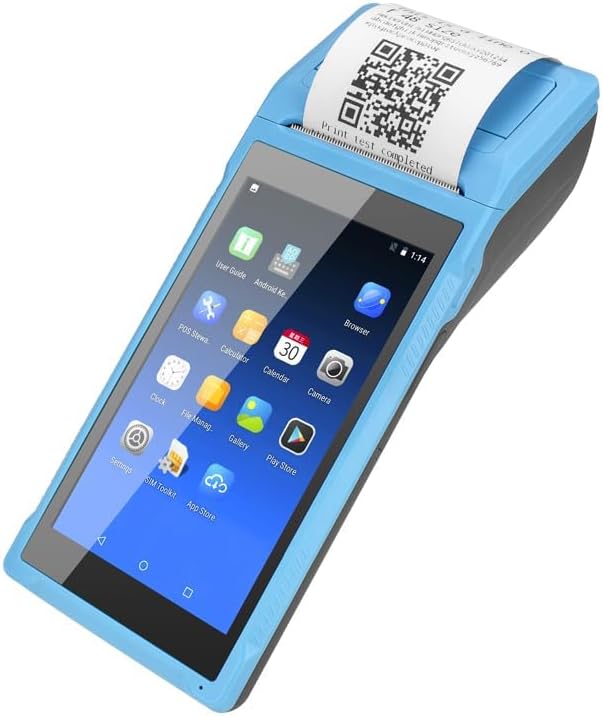
Image: Close-up of the charging port on the NETUM PDA58-02, with a charger cable connected, highlighting the 5000mAh rechargeable battery.
5.2 തെർമൽ പേപ്പർ ലോഡുചെയ്യുന്നു
- Open the printer cover by gently pushing the latch.
- Insert a 58 x 35mm thermal paper roll into the compartment, ensuring the printing side faces the print head.
- കട്ടറിന് അപ്പുറത്തേക്ക് ഒരു ചെറിയ അളവിലുള്ള പേപ്പർ പുറത്തെടുക്കുക.
- പ്രിന്റർ കവർ അതിന്റെ സ്ഥാനത്ത് ക്ലിക്ക് ആകുന്നതുവരെ ദൃഢമായി അടയ്ക്കുക.
5.3 പവർ ഓൺ/ഓഫ്
- To power on: Press and hold the power button until the screen lights up.
- To power off: Press and hold the power button, then select 'Power off' from the options on the screen.
6. പ്രവർത്തന നിർദ്ദേശങ്ങൾ
6.1 അടിസ്ഥാന നാവിഗേഷൻ
The device runs on Android 6.0. Navigate the interface using the 5.5-inch capacitive touch screen. Swipe, tap, and use gestures similar to a standard Android smartphone.

Image: NETUM PDA58-02 portable printer displaying various Android application icons on its screen, indicating its smart functionality.
6.2 കണക്റ്റിവിറ്റി
- വൈഫൈ: Go to Settings > Wi-Fi to connect to available wireless networks (802.11 b/g/n).
- ബ്ലൂടൂത്ത്: Go to Settings > Bluetooth to pair with other Bluetooth 4.0 enabled devices.
- 3G: Insert a compatible SIM card (if applicable) and configure network settings under Settings > More > Mobile networks for 3G connectivity (GSM850/900/1800/1900, WCDMA B1).
- USB: Connect the device to a computer using the Micro USB 2.0 port for data transfer or charging.
6.3 രസീതുകൾ അച്ചടിക്കൽ
The integrated thermal printer allows for fast receipt printing. Use compatible POS applications or built-in printing functions to generate receipts. Ensure paper is loaded correctly.
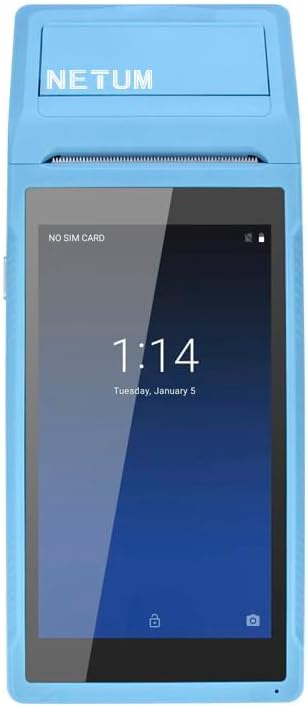
Image: NETUM PDA58-02 portable printer showing a receipt with a QR code being printed, demonstrating its receipt printing capability.
6.4 ബാർകോഡ് സ്കാനിംഗ്
The device supports 1D barcode scanning. Open the scanning application or a compatible POS application that utilizes the scanner. Point the scanner at the barcode to capture the data.
7. പരിപാലനം
7.1 ഉപകരണം വൃത്തിയാക്കുന്നു
Wipe the exterior of the device with a soft, dry cloth. For stubborn dirt, use a slightly damp cloth and then dry immediately. Do not use harsh chemicals or abrasive cleaners.
7.2 പ്രിന്റ് ഹെഡ് ക്ലീനിംഗ്
If print quality degrades, the thermal print head may need cleaning. Use a cotton swab lightly dampപ്രിന്റ് ഹെഡ് സൌമ്യമായി തുടയ്ക്കാൻ ഐസോപ്രോപൈൽ ആൽക്കഹോൾ ഉപയോഗിച്ച് തുടയ്ക്കുക. ഉപയോഗിക്കുന്നതിന് മുമ്പ് ഇത് പൂർണ്ണമായും ഉണങ്ങാൻ അനുവദിക്കുക.
7.3 ബാറ്ററി കെയർ
To prolong battery life, avoid fully discharging the battery frequently. Charge the device regularly. If storing the device for an extended period, charge it to about 50% and store in a cool, dry place.
8. പ്രശ്നപരിഹാരം
- ഉപകരണം ഓണാക്കുന്നില്ല: ബാറ്ററി ചാർജ്ജ് ചെയ്തിട്ടുണ്ടെന്ന് ഉറപ്പാക്കുക. ചാർജർ കണക്റ്റ് ചെയ്ത് വീണ്ടും ശ്രമിക്കുക. പ്രശ്നം നിലനിൽക്കുകയാണെങ്കിൽ, പിന്തുണയെ ബന്ധപ്പെടുക.
- പ്രിന്റർ പ്രിന്റ് ചെയ്യുന്നില്ല: Check if thermal paper is loaded correctly and if the printer cover is closed. Verify that the application is sending print commands.
- മോശം പ്രിന്റ് നിലവാരം: Clean the thermal print head as described in the Maintenance section. Ensure you are using suitable thermal paper.
- കണക്റ്റിവിറ്റി പ്രശ്നങ്ങൾ (ബ്ലൂടൂത്ത്/വൈ-ഫൈ): Ensure Bluetooth/Wi-Fi is enabled in settings. Check if the device is within range of the network/paired device. Restart the device and try reconnecting.
- ടച്ച് സ്ക്രീൻ പ്രതികരിക്കുന്നില്ല: Restart the device. If the problem continues, contact support.
9 സ്പെസിഫിക്കേഷനുകൾ
| ഫീച്ചർ | വിശദാംശങ്ങൾ |
|---|---|
| മോഡൽ | PDA58-02 |
| നിറം | നീല |
| കോൺഫിഗറേഷൻ | 3G + Camera |
| സിപിയു | Quad-core 1.3GHz MT6580V/WA |
| റാം | 1 ജിബി |
| NAND ഫ്ലാഷ് | 8 ജിബി |
| ഓപ്പറേറ്റിംഗ് സിസ്റ്റം | ആൻഡ്രോയിഡ് 6.0 |
| പ്രധാന സ്ക്രീൻ | 5.5 inch IPS Capacitive Touch Screen 1280*720 |
| ആശയവിനിമയ രീതി | 3G (supports all network types) |
| പിൻ ക്യാമറ | 8എംപി |
| ബാറ്ററി | 7.4V, 5000mAh |
| ചാർജിംഗ് ഇൻ്റർഫേസ് | DC Charging, 12V 1.5A |
| ഹെഡ്ഫോൺ ഇന്റർഫേസ് | Standard 3.5mm Headphone |
| OTG പിന്തുണ | അതെ |
| യുഎസ്ബി ഇൻ്റർഫേസ് | Micro USB 2.0 x 1 |
| ഓഡിയോ സിസ്റ്റം | Built-in Speaker, Buzzer, Microphone |
| വൈഫൈ | 802.11 b/g/n |
| ജി.എസ്.എം | 850/900/1800/1900 |
| WCDMA | B1 |
| ബ്ലൂടൂത്ത് | ബ്ലൂടൂത്ത് 4.0 |
| പ്രിൻ്റിംഗ് ടെക്നോളജി | തെർമൽ പ്രിൻ്റർ |
| Paper Roll Size | 58 x 35 മിമി (ഉൾപ്പെടുന്നു) |
| Printer Dimensions (L x W x H) | 21.5 x 8.6 x 5.3 സെ.മീ / 8.46 x 3.39 x 2.1 ഇഞ്ച് |
| പ്രിൻ്റർ ഭാരം | 462g / 16.3oz |
| ഔട്ട്പുട്ട് തരം | മോണോക്രോം |
| Max Mono Print Speed | 1 (unit not specified, likely pages/minute or lines/second) |
| നിയന്ത്രണ തരം | Android, Touch |
| മീഡിയ തരം | ലേബലുകൾ |
| സ്കാനർ തരം | പോർട്ടബിൾ |
| ഡിസ്പ്ലേ തരം | എൽസിഡി |
| അനുയോജ്യമായ ഉപകരണങ്ങൾ | സ്മാർട്ട്ഫോണുകൾ |
| അധിക പ്രിന്റർ പ്രവർത്തനങ്ങൾ | സ്കാൻ ചെയ്യുക |
| പ്രോസസ്സറുകളുടെ എണ്ണം | 4 |
| പരമാവധി മീഡിയ വലുപ്പം | 5.5 x 8.5 ഇഞ്ച് |
| ഡ്യൂപ്ലക്സ് പ്രിൻ്റിംഗ് | ഇല്ല |
| ഹാർഡ്വെയർ ഇന്റർഫേസ് | USB, USB 2.0 |
| മൊത്തം USB പോർട്ടുകൾ | 1 |
10. വാറൻ്റി വിവരങ്ങൾ
NETUM products are covered by a manufacturer's warranty. Please refer to the warranty card included in your package or visit the official NETUM webവിശദമായ വാറന്റി നിബന്ധനകൾക്കും വ്യവസ്ഥകൾക്കും സൈറ്റ് സന്ദർശിക്കുക. വാറന്റി ക്ലെയിമുകൾക്കുള്ള വാങ്ങലിന്റെ തെളിവായി നിങ്ങളുടെ വാങ്ങൽ രസീത് സൂക്ഷിക്കുക.
11. പിന്തുണ
For technical assistance, troubleshooting, or product inquiries, please contact NETUM customer support. Contact information can typically be found on the official NETUM webസൈറ്റ് അല്ലെങ്കിൽ വാറന്റി ഡോക്യുമെന്റേഷനിൽ.
ഓൺലൈൻ ഉറവിടങ്ങൾ: Visit the NETUM official website for FAQs, software updates, and additional support materials.