
MOKIBO MKB420
MOKIBO Fusion Keyboard Instruction Manual
Model: MKB420
ആമുഖം
The MOKIBO Fusion Keyboard is a revolutionary universal keyboard designed for ultimate portability and versatility. It seamlessly integrates a full-size keyboard with an innovative invisible touchpad, allowing you to navigate and type with unparalleled efficiency across multiple operating systems. This manual provides comprehensive instructions to help you get the most out of your Fusion Keyboard.

ചിത്രം 1: MOKIBO Fusion Keyboard with its protective folio cover.
This image displays the sleek, black MOKIBO Fusion Keyboard alongside its protective folio cover, highlighting its compact and portable design.
സജ്ജമാക്കുക
ബോക്സിൽ എന്താണുള്ളത്
- MOKIBO Touchpad Portable Fusion Keyboard
- Protective Folio Cover
- USB-C Charging Cable (not explicitly listed but implied by USB-C port)
പ്രാരംഭ ചാർജിംഗ്
Before first use, fully charge your MOKIBO Fusion Keyboard. Locate the USB-C port on the side of the keyboard. Connect the provided USB-C cable to the keyboard and the other end to a compatible USB power adapter (not included).
ചിത്രം 2: USB-C ചാർജിംഗ് പോർട്ട്.
The image shows the USB-C port for charging, indicating a full charge takes less than 2 hours and provides up to 60 hours of non-stop use.
- ചാർജിംഗ് സമയം: Less than 2 hours for a full charge.
- ബാറ്ററി ലൈഫ്: Up to 60 hours of active use, up to 3 months in sleep mode.
ബ്ലൂടൂത്ത് ജോടിയാക്കൽ
The MOKIBO Fusion Keyboard supports multi-device Bluetooth pairing, allowing connection to up to three devices simultaneously.
- Turn on the keyboard by opening the protective folio cover. The keyboard will automatically wake up.
- അമർത്തിപ്പിടിക്കുക Fn കീയും ബ്ലൂടൂത്ത് കീകളിൽ ഒന്ന് (F9, F10, or F11) for 3 seconds to enter pairing mode. The corresponding LED indicator will blink.
- On your device (iPad, Mac, Windows PC, Android, Chrome OS), go to Bluetooth settings and select "MOKIBO Fusion Keyboard" from the list of available devices.
- Once paired, the LED indicator will stop blinking and remain solid.
- Repeat for up to two additional devices using the other Bluetooth keys.

ചിത്രം 3: Multi-Device Bluetooth Pairing.
This image illustrates the keyboard's ability to connect to three different devices (e.g., iPad, desktop, smartphone) via Bluetooth, with dedicated function keys for switching between them.
Operating the Fusion Keyboard
കീബോർഡ് പ്രവർത്തനം
The MOKIBO Fusion Keyboard features a standard QWERTY layout with 80 keys, providing a comfortable typing experience similar to a laptop keyboard.

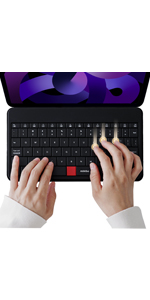
ചിത്രം 4: Smooth and Accurate Typing.
This image shows hands actively typing on the keyboard, emphasizing the smooth and accurate key presses.
Invisible Touchpad Functionality
The unique feature of the MOKIBO Fusion Keyboard is its integrated touchpad, which utilizes the entire key surface. Touch sensors beneath the keycaps recognize your intent, automatically transforming the keyboard into a large, responsive touchpad when you are not typing.

ചിത്രം 5: Touchpad Area.
The image clearly outlines the entire keyboard surface as the functional touchpad area, demonstrating its expansive size compared to traditional trackpads.
ടച്ച്പാഡ് ആംഗ്യങ്ങൾ
- ഒറ്റ വിരൽ ടാപ്പ്: ഇടത് ക്ലിക്ക്.
- രണ്ട് വിരലുകളുടെ സ്ക്രോൾ: മുകളിലേക്കും/താഴേക്കും അല്ലെങ്കിൽ ഇടത്തോട്ടും/വലത്തോട്ടും സ്ക്രോൾ ചെയ്യുക.
- മൂന്ന് വിരലുകൾ ഉപയോഗിച്ച് സ്വൈപ്പ് ചെയ്യുക: Navigate between applications or bring up the Dock (OS dependent).
- പിഞ്ച്-ടു-സൂം: Supported in some applications, primarily web browsers (functions as Ctrl+ or Ctrl-).
- Drag & Drop: Select an item with one finger and drag it.
- Paragraph Selection & Movement: Select a paragraph and drag it to another application for pasting.
വീഡിയോ 1: MOKIBO Fusion Keyboard Folio Universal 2nd Gen Overview.
This video demonstrates the various features of the MOKIBO Fusion Keyboard, including its integrated touchpad functionality, multi-device connectivity, and versatile usage modes.
വീഡിയോ 2: MOKIBO Keyboard with Invisible Touchpad in Action.
This video showcases the innovative invisible touchpad feature of the MOKIBO keyboard, demonstrating how the entire key surface functions as a responsive trackpad for seamless navigation.
മൾട്ടിമീഡിയ കീകൾ
The keyboard includes a row of multimedia and function keys (F1-F12) that provide quick access to various controls when used in conjunction with the Fn key. These include volume control, screen brightness, media playback, and more.

ചിത്രം 6: Multimedia Keys and Functions.
This detailed diagram labels the multimedia keys and their corresponding functions, such as home, mic off, camera off, speaker mute, volume control, screenshot, battery check, virtual keyboard, Bluetooth channel switching, and OS selection.
Versatile Usage Modes
The protective folio cover doubles as a smart device stand, offering multiple viewവിവിധ പ്രവർത്തനങ്ങൾക്കുള്ള കോണുകൾ.
- ടൈപ്പിംഗ് മോഡ്: Positions your device at an optimal angle for comfortable typing (e.g., 55°).
- Pencil Mode / Drawing Mode: Provides a lower, more stable angle ideal for drawing or writing with a stylus (e.g., 26.5°).
- ബ്രൗസിംഗ് മോഡ്: എളുപ്പത്തിൽ അനുവദിക്കുന്നു viewing and interaction with content.

ചിത്രം 7: Transformative Modes Support.
The image illustrates the keyboard's ability to support different modes, such as Typing Mode (55°) and Pencil Mode (26.5°), along with a convenient magnetic pencil holder.

ചിത്രം 8: Powerful Versatility.
This composite image demonstrates the keyboard's powerful versatility across Typing, Drawing, and Browsing modes, adapting to various user needs.
മെയിൻ്റനൻസ്
To ensure the longevity and optimal performance of your MOKIBO Fusion Keyboard, follow these maintenance guidelines:
- വൃത്തിയാക്കൽ: ഒരു സോഫ്റ്റ് ഉപയോഗിക്കുക, ഡിamp cloth to wipe the surface of the keyboard. Avoid harsh chemicals or abrasive materials.
- ചോർച്ച പ്രതിരോധം: The keyboard is designed with some spill resistance. In case of spills, immediately power off the device and wipe it dry. Do not immerse the keyboard in water.
- സംഭരണം: When not in use, keep the keyboard in its protective folio cover to prevent dust and scratches. Store in a cool, dry place.

ചിത്രം 9: Spill Resistance.
This image shows water droplets on the keyboard surface, illustrating its spill-resistant design for added durability.
ട്രബിൾഷൂട്ടിംഗ്
- കീബോർഡ് ബ്ലൂടൂത്ത് വഴി ബന്ധിപ്പിക്കുന്നില്ല:
- കീബോർഡ് ചാർജ് ചെയ്തിട്ടുണ്ടെന്ന് ഉറപ്പാക്കുക.
- നിങ്ങളുടെ ഉപകരണത്തിൽ ബ്ലൂടൂത്ത് പ്രവർത്തനക്ഷമമാക്കിയിട്ടുണ്ടെന്ന് ഉറപ്പാക്കുക.
- Put the keyboard into pairing mode (Fn + F9/F10/F11 for 3 seconds).
- Forget the device on your host system's Bluetooth settings and re-pair.
- ടച്ച്പാഡ് പ്രതികരിക്കുന്നില്ല:
- കീബോർഡ് ഓണാണെന്ന് ഉറപ്പാക്കുക.
- Verify that the touchpad is not accidentally disabled (check multimedia keys for a touchpad toggle).
- Restart the keyboard by closing and reopening the folio cover.
- പ്രതികരിക്കാത്ത കീകൾ:
- ബാറ്ററി നില പരിശോധിക്കുക.
- കീബോർഡ് ബ്ലൂടൂത്ത് വഴി ശരിയായി ബന്ധിപ്പിച്ചിട്ടുണ്ടെന്ന് ഉറപ്പാക്കുക.
- താക്കോലുകൾക്ക് ചുറ്റുമുള്ള അവശിഷ്ടങ്ങൾ വൃത്തിയാക്കുക.
- ഇടവിട്ടുള്ള കണക്ഷൻ:
- ഇടപെടൽ കുറയ്ക്കുന്നതിന് കീബോർഡ് നിങ്ങളുടെ ഉപകരണത്തിന് അടുത്തേക്ക് നീക്കുക.
- മറ്റ് ശക്തമായ വയർലെസ് സിഗ്നലുകളൊന്നും തടസ്സപ്പെടുത്തുന്നില്ലെന്ന് ഉറപ്പാക്കുക.
- Update your device's operating system and Bluetooth drivers.
സ്പെസിഫിക്കേഷനുകൾ
| ഫീച്ചർ | വിശദാംശങ്ങൾ |
|---|---|
| മോഡൽ നമ്പർ | MKB420 |
| ഉൽപ്പന്ന അളവുകൾ | 5.6 x 10 x 0.37 ഇഞ്ച് |
| ഇനത്തിൻ്റെ ഭാരം | 9.3 ഔൺസ് |
| കണക്റ്റിവിറ്റി ടെക്നോളജി | ബ്ലൂടൂത്ത് ലോ എനർജി |
| അനുയോജ്യമായ ഉപകരണങ്ങൾ | Smart TV, Tablet PC, Laptop PC, iPad, Smartphone |
| കീകളുടെ എണ്ണം | 80 |
| ബാറ്ററി തരം | 1 ലിഥിയം പോളിമർ ബാറ്ററി (ഉൾപ്പെടുത്തിയിരിക്കുന്നു) |
| ചാർജിംഗ് പോർട്ട് | USB-C |
| നിറം | കറുപ്പ് |
വാറൻ്റിയും പിന്തുണയും
For warranty information and customer support, please refer to the official MOKIBO website or contact their customer service directly. Details regarding product registration, troubleshooting, and warranty claims can typically be found on the manufacturer's support pages.
MOKIBO Official Store: Visit MOKIBO Store on Amazon
Ask a question about this manual
Ask about setup, troubleshooting, compatibility, parts, safety, or missing instructions. Manuals+ will review the question and use this page’s manual context to help answer it.