
1. ആമുഖം
Thank you for choosing the KOBANOICA 7-inch Wireless CarPlay and Android Auto Screen. This portable car display is designed to enhance your driving experience by integrating smartphone functionalities such as navigation, music, and communication directly into your vehicle's dashboard. It supports wireless Apple CarPlay and Android Auto, Mirror Link, voice control, and multiple audio output options.
Please read this manual thoroughly before use to ensure proper installation and operation. Keep this manual for future reference.
2. പാക്കേജ് ഉള്ളടക്കം
താഴെ ലിസ്റ്റ് ചെയ്തിരിക്കുന്ന എല്ലാ ഇനങ്ങളും നിങ്ങളുടെ പാക്കേജിൽ ഉൾപ്പെടുത്തിയിട്ടുണ്ടെന്ന് ഉറപ്പാക്കുക. ഏതെങ്കിലും ഇനങ്ങൾ നഷ്ടപ്പെട്ടിട്ടുണ്ടെങ്കിലോ കേടായിട്ടുണ്ടെങ്കിലോ, ദയവായി ഉപഭോക്തൃ പിന്തുണയുമായി ബന്ധപ്പെടുക.
- കാർപ്ലേ സ്ക്രീൻ
- പവർ കേബിൾ
- AUX കേബിൾ
- Suction Mount Bracket
- Self-adhesive Bracket
- ഉപയോക്തൃ മാനുവൽ
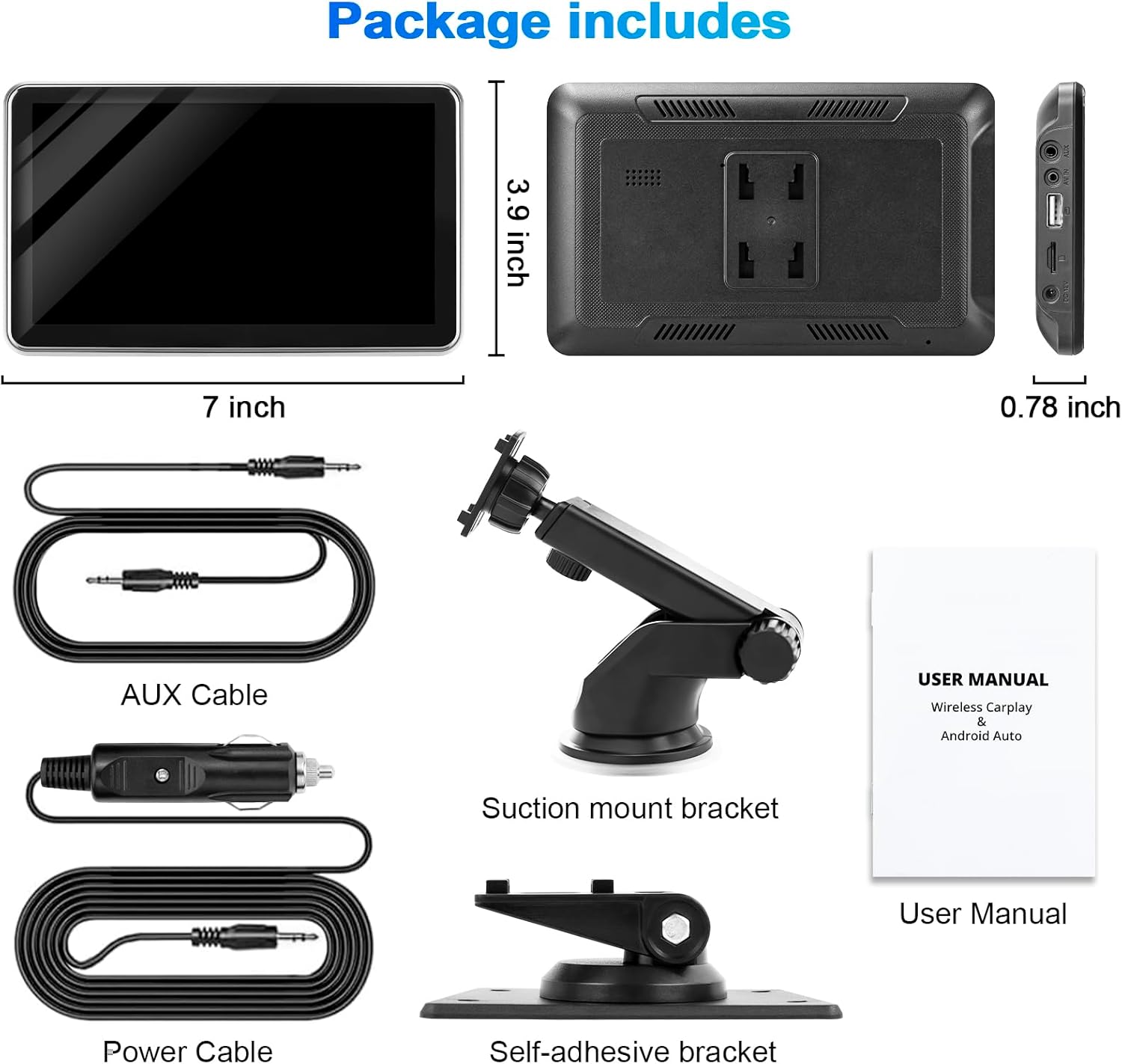
ചിത്രം 2.1: പാക്കേജ് ഉള്ളടക്കം
3. സജ്ജീകരണവും ഇൻസ്റ്റാളേഷനും
3.1 ഉപകരണം മൌണ്ട് ചെയ്യുന്നു
The KOBANOICA screen offers two mounting options: a suction cup mount for windshields or smooth dashboards, and a self-adhesive bracket for dashboard consoles.
- ഒരു ലൊക്കേഷൻ തിരഞ്ഞെടുക്കുക: Select a position on your dashboard or windshield that does not obstruct your view or interfere with airbags. Ensure the surface is clean and dry.
- ബ്രാക്കറ്റ് അറ്റാച്ചുചെയ്യുക:
- സക്ഷൻ മൗണ്ട്: Press the suction cup firmly onto the chosen surface and engage the lever to secure it. The mount is 360-degree rotatable for optimal viewകോണുകൾ.
- Self-adhesive Bracket: Peel off the protective film from the adhesive base and firmly press it onto the dashboard for at least 30 seconds. Allow the adhesive to cure for a few hours before attaching the screen.
- Attach the Screen: Slide the CarPlay screen onto the chosen bracket until it clicks securely into place.

Figure 3.1: Mounting Options and Installation
3.2 പവർ കണക്ഷൻ
- Insert the small end of the provided power cable into the DC IN port on the side of the CarPlay screen.
- Plug the cigarette lighter adapter end of the power cable into your vehicle's 12V-24V power outlet.
- The screen will power on automatically.
4. ഓപ്പറേഷൻ
4.1 വയർലെസ് ആപ്പിൾ കാർപ്ലേ കണക്ഷൻ
- On the CarPlay screen, navigate to the Apple CarPlay icon and tap it.
- On your iPhone, turn on Wi-Fi and Bluetooth.
- Go to your iPhone's Bluetooth settings, find the CarPlay screen's Bluetooth name (e.g., "CarPlay-XXXX"), and tap to connect.
- രണ്ട് ഉപകരണങ്ങളിലും പ്രദർശിപ്പിച്ചിരിക്കുന്ന ജോടിയാക്കൽ കോഡ് സ്ഥിരീകരിക്കുക.
- A prompt will appear on your iPhone asking to "Use CarPlay". Tap "Use CarPlay".
- Wait for a moment; your iPhone will connect wirelessly, and the CarPlay interface will appear on the screen.

Figure 4.1: Wireless Apple CarPlay Connection Steps
4.2 വയർലെസ് ആൻഡ്രോയിഡ് ഓട്ടോ കണക്ഷൻ
- On the CarPlay screen, navigate to the Android Auto icon and tap it.
- On your Android phone, turn on Wi-Fi and Bluetooth.
- Go to your Android phone's Bluetooth settings, find the CarPlay screen's Bluetooth name, and tap to connect.
- രണ്ട് ഉപകരണങ്ങളിലും പ്രദർശിപ്പിച്ചിരിക്കുന്ന ജോടിയാക്കൽ കോഡ് സ്ഥിരീകരിക്കുക.
- Wait for a moment; your Android phone will connect wirelessly, and the Android Auto interface will appear on the screen.

Figure 4.2: Wireless Android Auto Connection Steps
4.3 മിറർ ലിങ്ക് പ്രവർത്തനം
The Mirror Link function allows you to display your smartphone's screen directly onto the CarPlay screen. This is useful for viewing videos or other content.
4.3.1 iOS Mirror Link (Wireless AirPlay)
- On the CarPlay screen, select the iOS Mirror Link option.
- Ensure your iPhone's Wi-Fi is on and connected to the CarPlay screen's Wi-Fi network (if prompted). Bluetooth should be off for this function.
- On your iPhone, open Control Center and tap "Screen Mirroring".
- Select the CarPlay screen's name (e.g., "8369u-AirPlay") from the list.
- Your iPhone screen will now be mirrored on the CarPlay display.

Figure 4.3: iOS Mirror Link Connection Steps
4.3.2 Android AutoLink (Wired)
- On the CarPlay screen, select the Android AutoLink option.
- Connect your Android phone to the CarPlay screen using a USB data cable.
- Download and install the "AutoLink Pro" application on your Android phone if prompted.
- Open "AutoLink Pro" and grant necessary permissions.
- Your Android phone screen will now be mirrored on the CarPlay display.

Figure 4.4: Wired Android AutoLink Connection Steps
4.4 ഓഡിയോ ഔട്ട്പുട്ട് ഓപ്ഷനുകൾ
The device offers several ways to output audio to your car's sound system:
- ബിൽറ്റ്-ഇൻ സ്പീക്കർ: The screen has an integrated speaker for direct audio output.
- ബ്ലൂടൂത്ത് ഓഡിയോ: Connect your phone to the CarPlay screen via Bluetooth. The screen can then transmit audio wirelessly to your car's Bluetooth-enabled stereo system for a lossless experience.
- എഫ്എം ട്രാൻസ്മിറ്റർ: Select an unused FM frequency on the CarPlay screen and tune your car's radio to the same frequency. Audio will be transmitted wirelessly to your car speakers. Experiment with different frequencies for optimal clarity.
- AUX കേബിൾ: Connect the provided 3.5mm AUX cable from the CarPlay screen's AUX output to your car's AUX input jack. Select AUX input on your car stereo.

Figure 4.5: Multiple Audio Output Methods
4.5 വോയ്സ് കൺട്രോൾ (സിരി/ഗൂഗിൾ അസിസ്റ്റന്റ്)
Once connected via CarPlay or Android Auto, you can use voice commands for hands-free operation.
- Activate Siri (for Apple CarPlay) or Google Assistant (for Android Auto) by saying "Hey Siri" or "Hey Google", or by tapping the voice assistant icon on the screen.
- Issue commands such as:
- "സംഗീതം പ്ലേ ചെയ്യുക"
- "Navigate to [address/destination]"
- "Call [contact name]"
- "Send a message to [contact name]"
- "ഇന്നത്തെ കാലാവസ്ഥ എങ്ങനെയുണ്ട്?"

Figure 4.6: Voice Control Features
4.6 നാവിഗേഷൻ
Utilize your smartphone's navigation apps (e.g., Apple Maps, Google Maps, Waze) directly on the CarPlay screen for real-time directions and traffic updates.
- Access your preferred navigation app from the CarPlay or Android Auto interface.
- Enter your destination using the touchscreen or voice commands.
- Follow the on-screen directions and audio prompts.

Figure 4.7: Navigation Display
5. പരിപാലനം
- വൃത്തിയാക്കൽ: Use a soft, dry, lint-free cloth to clean the screen. For stubborn smudges, lightly dampതുണിയിൽ വെള്ളം അല്ലെങ്കിൽ സ്ക്രീൻ-സേഫ് ക്ലീനർ ഉപയോഗിക്കുക. ഉരച്ചിലുകൾ ഉള്ള വസ്തുക്കളോ കഠിനമായ രാസവസ്തുക്കളോ ഒഴിവാക്കുക.
- താപനില: Avoid exposing the device to extreme temperatures (hot or cold) for extended periods, as this can affect its performance and lifespan.
- സംഭരണം: ഉപകരണം ദീർഘനേരം സൂക്ഷിക്കുകയാണെങ്കിൽ, അത് വൈദ്യുതിയിൽ നിന്ന് വിച്ഛേദിച്ച് തണുത്തതും വരണ്ടതുമായ സ്ഥലത്ത് സൂക്ഷിക്കുക.
- കേബിൾ കെയർ: Handle all cables gently. Avoid sharp bends or excessive pulling to prevent damage.
6. പ്രശ്നപരിഹാരം
| പ്രശ്നം | സാധ്യമായ കാരണം | പരിഹാരം |
|---|---|---|
| ഉപകരണം പവർ ഓണാക്കുന്നില്ല. | No power connection; faulty power cable/outlet. | Ensure the power cable is securely plugged into both the screen and the car's 12V-24V outlet. Check if the car outlet is functional. |
| Wireless CarPlay/Android Auto fails to connect. | Bluetooth/Wi-Fi issues; incorrect pairing; phone settings. |
|
| ഓഡിയോ ഇല്ല അല്ലെങ്കിൽ മോശം ഓഡിയോ നിലവാരം. | Incorrect audio output setting; FM interference; loose AUX cable. |
|
| Mirror Link not working. | Incorrect connection type (wired/wireless); app not installed (Android); Wi-Fi/Bluetooth conflicts. |
|
| Mounting bracket does not hold securely. | Surface not clean/smooth; adhesive worn out; extreme heat. |
|
7 സ്പെസിഫിക്കേഷനുകൾ
| ഫീച്ചർ | വിശദാംശങ്ങൾ |
|---|---|
| ബ്രാൻഡ് | കൊബനോയിക്ക |
| മോഡൽ നമ്പർ | KOBANOICA-XXX |
| സ്ക്രീൻ വലിപ്പം | 7 ഇഞ്ച് |
| കണക്റ്റിവിറ്റി ടെക്നോളജി | വയർലെസ് (ബ്ലൂടൂത്ത്, വൈ-ഫൈ) |
| പ്രത്യേക സവിശേഷതകൾ | Apple CarPlay, Android Auto, Mirror Link, Voice Control (Siri/Google Assistant), FM Transmitter |
| അനുയോജ്യമായ ഉപകരണങ്ങൾ | സ്മാർട്ട്ഫോണുകൾ (iOS, Android) |
| പവർ ഇൻപുട്ട് | 12V-24V (Vehicle cigarette lighter) |
| ഓഡിയോ put ട്ട്പുട്ട് മോഡ് | സ്റ്റീരിയോ |
| കണക്റ്റർ തരം | 3.5mm Jack (AUX) |
| ഇനത്തിൻ്റെ ഭാരം | 9.6 ഔൺസ് (ഏകദേശം 0.6 പൗണ്ട്) |
| പാക്കേജ് അളവുകൾ | 8.62 x 5.35 x 3.82 ഇഞ്ച് |
8. വാറൻ്റിയും പിന്തുണയും
KOBANOICA products are designed and manufactured to the highest quality standards. For information regarding warranty coverage, please refer to the warranty card included in your package or visit the official KOBANOICA webസൈറ്റ്.
If you encounter any issues or have questions about your product, please contact KOBANOICA customer support. Details for contacting support can typically be found on the product packaging, the official webസൈറ്റ്, അല്ലെങ്കിൽ നിങ്ങളുടെ വാങ്ങൽ പ്ലാറ്റ്ഫോം വഴി.
Please have your model number (KOBANOICA-XXX) and purchase date ready when contacting support.