
1. ഉൽപ്പന്നം കഴിഞ്ഞുview
The ATTACK SHARK RK86 is a compact 75% layout mechanical keyboard designed for gaming and office use. It features an 82-key layout, triple connectivity modes (USB-C wired, 2.4GHz wireless, Bluetooth 5.0), hot-swappable switches, a 1.2-inch HD OLED display, and a multi-function CNC knob. The keyboard includes a 4000 mAh battery and full RGB backlighting.
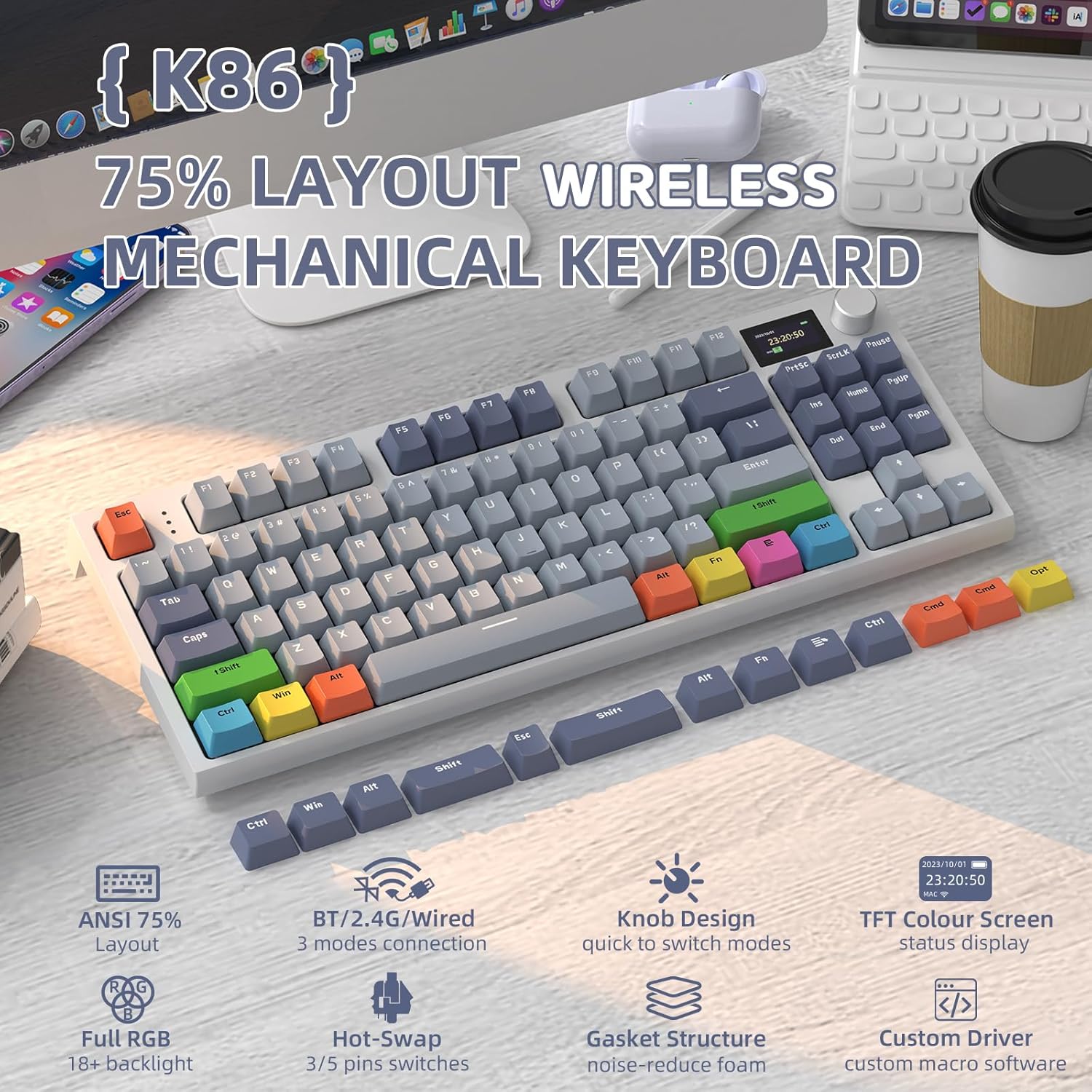
Image: The ATTACK SHARK RK86 75% Wireless Mechanical Keyboard, showcasing its compact layout and design.
പാക്കേജ് ഉള്ളടക്കം:
- ATTACK SHARK RK86 Mechanical Keyboard
- കോയിൽഡ് USB-C കേബിൾ
- 2.4G USB റിസീവർ
- 2-in-1 Switch Puller / Keycap Puller
- Extra Colored PBT Keycaps
- ഉപയോക്തൃ മാനുവൽ
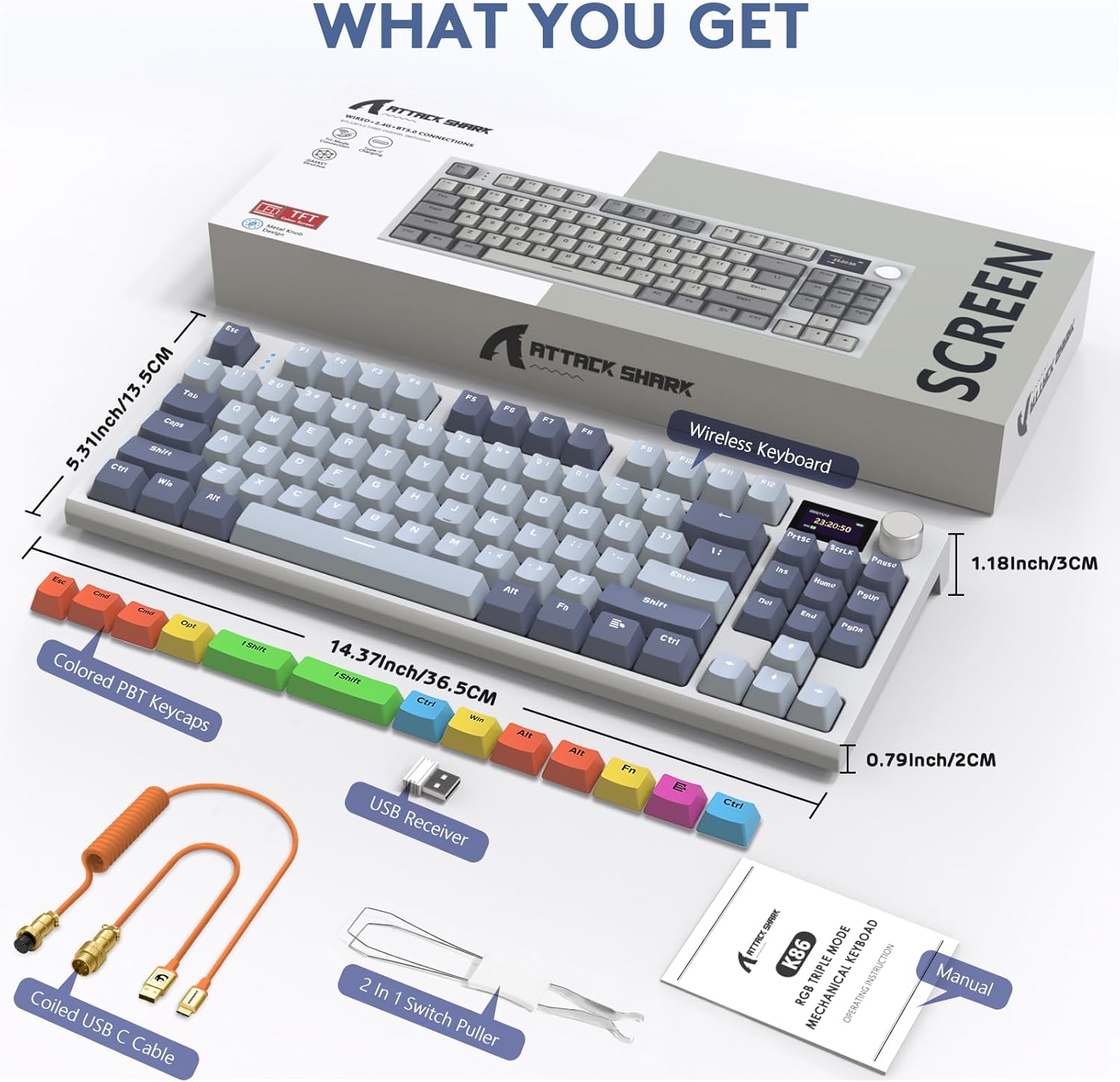
Image: Contents of the ATTACK SHARK RK86 package, including the keyboard, coiled USB-C cable, USB receiver, switch/keycap puller, extra keycaps, and manual.
2. സജ്ജീകരണം
2.1 കീബോർഡ് ചാർജ് ചെയ്യുന്നു
Before first use, it is recommended to fully charge the keyboard. Connect the provided USB-C cable to the keyboard's USB-C port and the other end to a powered USB port on your computer or a USB wall adapter. The OLED display will show the charging status.
2.2 കണക്ഷൻ മോഡുകൾ
The RK86 keyboard supports three connection methods:
- USB-C വയേർഡ് മോഡ്: For a direct and stable connection.
- 2.4GHz വയർലെസ് മോഡ്: For low-latency wireless performance using the included USB receiver.
- ബ്ലൂടൂത്ത് 5.0 വയർലെസ് മോഡ്: For connecting to up to three devices simultaneously.

Image: Diagram illustrating the three connection methods: USB-C wired, 2.4GHz wireless with a USB receiver, and Bluetooth wireless.
2.2.1 2.4GHz വയർലെസ് കണക്ഷൻ
- Locate the 2.4G USB receiver, typically stored in a compartment on the keyboard.
- നിങ്ങളുടെ കമ്പ്യൂട്ടറിൽ ലഭ്യമായ ഒരു USB പോർട്ടിലേക്ക് 2.4G USB റിസീവർ പ്ലഗ് ചെയ്യുക.
- Switch the keyboard to 2.4G mode using the mode switch or the multi-function knob (refer to Section 3.1). The keyboard will automatically connect.
2.2.2 ബ്ലൂടൂത്ത് വയർലെസ് കണക്ഷൻ
- Switch the keyboard to Bluetooth mode using the mode switch or the multi-function knob (refer to Section 3.1).
- On your device (computer, tablet, etc.), open Bluetooth settings.
- The keyboard will appear as 'RK86' or similar. Select it to pair.
- The keyboard can store up to three Bluetooth connections. Switch between them using the multi-function knob or designated key combinations.
2.3 സോഫ്റ്റ്വെയർ ഇൻസ്റ്റാളേഷൻ (ഓപ്ഷണൽ)
To customize the 1.2-inch HD OLED display with static or dynamic pictures, and to adjust key sensitivity or lighting settings, download the official driver software from the ATTACK SHARK website. This software allows for advanced customization of keyboard functions and display content.

Image: Screenshot of the keyboard's customization software, highlighting key sensitivity adjustment options.
3. പ്രവർത്തന നിർദ്ദേശങ്ങൾ
3.1 Multi-function CNC Knob and OLED Display
The keyboard features a multi-function CNC rotary knob and a 1.2-inch HD OLED display for quick adjustments and status monitoring.
- വോളിയം നിയന്ത്രണം: Rotate the knob clockwise to increase volume, counter-clockwise to decrease. Press the knob to mute/unmute.
- മോഡ് സ്വിച്ചിംഗ്: ഷോർട്ട് പ്രസ്സ് എഫ്എൻ + നോബ് to enter mode switching options. Rotate the knob to select the desired connection mode (BT1, BT2, BT3, 2.4G, Wired), then short press the knob to confirm.
- OLED ഡിസ്പ്ലേ: Shows battery level, current connection mode (WIN/MAC), date, and time.

Image: Close-up of the multi-function knob and OLED display, detailing volume control, mode switching, and information displayed.
3.2 RGB ബാക്ക്ലൈറ്റിംഗ് നിയന്ത്രണം
The RK86 keyboard offers 27 main backlight effects and 15 side light effects.
- Switch Main Light Mode: അമർത്തുക Fn + \|
- Switch Sidelight Mode: അമർത്തുക Fn + C
- തെളിച്ചം/വേഗത ക്രമീകരിക്കുക: Use specific Fn key combinations (refer to the full manual for detailed combinations).
- ബാക്ക്ലൈറ്റ് ഓൺ/ഓഫ് ചെയ്യുക: Use specific Fn key combinations.

Image: The keyboard displaying its full RGB backlighting, with indicators for Fn + \| to switch light mode and Fn + C for sidelight mode.
3.3 ഹോട്ട്-സ്വാപ്പബിൾ സ്വിച്ചുകൾ
The RK86 supports 3/5-pin hot-swappable switches, allowing users to change switches without soldering.
- Use the included keycap puller to remove the desired keycap.
- Use the included switch puller to carefully remove the switch from the PCB.
- Align the pins of the new switch with the holes on the PCB and gently press it into place until it clicks. Ensure pins are not bent.
- കീക്യാപ്പ് മാറ്റിസ്ഥാപിക്കുക.

ചിത്രം: എ view of the keyboard with several keycaps and switches removed, demonstrating the hot-swappable feature and custom linear switches.
3.4 ബാറ്ററി നില പരിശോധന
വയർലെസ് മോഡിൽ ബാറ്ററി ലെവൽ പരിശോധിക്കാൻ, അമർത്തുക Fn + ബാക്ക്സ്പേസ്. The OLED display will show the current battery percentage, and the number row keys will illuminate to indicate charge level (e.g., 25%, 50%, 75%, 100%).

Image: The keyboard illustrating how to check battery status by pressing Fn + Backspace, with the OLED display and illuminated number keys showing charge levels.
3.5 Adjustable Keyboard Feet
The keyboard features 2-in-1 adjustable feet, allowing for three different typing angles to enhance ergonomic comfort.

ചിത്രം: സൈഡ് പ്രോfile of the keyboard demonstrating the three adjustable height settings provided by the integrated feet.
4. പരിപാലനം
4.1 കീബോർഡ് വൃത്തിയാക്കൽ
- കീബോർഡ് വൃത്തിയാക്കുന്നതിന് മുമ്പ് എല്ലാ വൈദ്യുതി സ്രോതസ്സുകളിൽ നിന്നും വിച്ഛേദിക്കുക.
- മൃദുവായ, ലിൻ്റ് രഹിത തുണി ഉപയോഗിക്കുകampകീക്യാപ്പുകളും ഷാസികളും തുടയ്ക്കാൻ വെള്ളമോ നേരിയ ക്ലീനിംഗ് ലായനിയോ ഉപയോഗിച്ച് നനയ്ക്കുക. അമിതമായ ഈർപ്പം ഒഴിവാക്കുക.
- For deeper cleaning, remove keycaps using the provided keycap puller and use compressed air to clear debris from underneath.
- Do not use harsh chemicals, abrasives, or solvents as they may damage the keyboard's finish or components.
4.2 സ്വിച്ച് ആൻഡ് കീക്യാപ്പ് കെയർ
- When removing switches, use the switch puller carefully to avoid bending the pins.
- Store extra keycaps and switches in a safe, dry place.
- The PBT keycaps are durable but can still be scratched or damaged by sharp objects.
5. പ്രശ്നപരിഹാരം
5.1 കണക്റ്റിവിറ്റി പ്രശ്നങ്ങൾ
- 2.4GHz വഴി കീബോർഡ് കണക്റ്റ് ചെയ്യുന്നില്ല: Ensure the USB receiver is securely plugged in and the keyboard is switched to 2.4G mode. Try a different USB port.
- കീബോർഡ് ബ്ലൂടൂത്ത് വഴി ബന്ധിപ്പിക്കുന്നില്ല: Ensure Bluetooth is enabled on your device and the keyboard is in pairing mode for the correct BT channel. Forget the device on your computer and try pairing again. Ensure the keyboard is sufficiently charged.
- ഇടവിട്ടുള്ള കണക്ഷൻ: Move the keyboard closer to the receiver/device. Avoid interference from other wireless devices. Ensure the keyboard battery is not low.
5.2 കീ ഇൻപുട്ട് പ്രശ്നങ്ങൾ
- Keys not registering or double typing: This can sometimes be resolved by performing a factory reset (see Section 5.4). If the issue persists for a specific key, the switch may be faulty. Utilize the hot-swappable feature to replace the switch.
- Incorrect key output (e.g., Alt key acting as Windows key): This often indicates the keyboard is in the wrong operating system mode (e.g., Mac mode instead of Windows mode). Check the manual for key combinations to switch between Windows and Mac layouts.
5.3 ബാക്ക്ലൈറ്റ് പ്രശ്നങ്ങൾ
- ബാക്ക്ലൈറ്റ് പ്രവർത്തിക്കുന്നില്ല: Ensure the backlight is turned on using the appropriate Fn key combination. Check battery level if in wireless mode.
- Backlight not visible through keycaps: The RK86 uses PBT keycaps which may not be shine-through. Consider replacing keycaps with shine-through options if backlight visibility is critical.
5.4 ഫാക്ടറി റീസെറ്റ്
To restore the keyboard to its factory settings, long press Fn + ESC. This can resolve various software-related issues or unexpected behavior.
6 സ്പെസിഫിക്കേഷനുകൾ
| ഫീച്ചർ | വിശദാംശങ്ങൾ |
|---|---|
| മോഡൽ | RK86 |
| ലേഔട്ട് | 75% (82 കീകൾ) |
| കണക്റ്റിവിറ്റി | യുഎസ്ബി-സി വയേർഡ്, 2.4GHz വയർലെസ്, ബ്ലൂടൂത്ത് 5.0 |
| ബാറ്ററി ശേഷി | 4000 mAh |
| പ്രദർശിപ്പിക്കുക | 1.2-inch HD OLED Color Display |
| സ്വിച്ചുകൾ | Hot-Swappable (3/5-pin compatible), Custom Linear Switches |
| കീകാപ്പുകൾ | പി.ബി.ടി |
| ബാക്ക്ലൈറ്റിംഗ് | Full RGB (27 main, 15 side effects) |
| അനുയോജ്യമായ ഉപകരണങ്ങൾ | Laptop, PC (Windows & Mac compatible) |
| ഇനത്തിൻ്റെ ഭാരം | 2.66 പൗണ്ട് (ഏകദേശം 1.21 കിലോഗ്രാം) |
| പാക്കേജ് അളവുകൾ | 15.35 x 7.52 x 2.13 ഇഞ്ച് (ഏകദേശം 39 x 19.1 x 5.4 സെ.മീ) |
7. വാറൻ്റിയും പിന്തുണയും
7.1 വാറൻ്റി വിവരങ്ങൾ
Please refer to the warranty card included with your product or visit the official ATTACK SHARK website for detailed warranty terms and conditions. Warranty coverage typically includes manufacturing defects for a specified period from the date of purchase.
7.2 ഉപഭോക്തൃ പിന്തുണ
For technical assistance, troubleshooting, or any product-related inquiries, please contact ATTACK SHARK customer support through their official website or the contact information provided in your product packaging. When contacting support, please have your product model (RK86) and purchase details ready.