
1. ആമുഖം
This manual provides essential information for the proper setup, operation, and maintenance of your DPVR P2 All-in-One Virtual Reality Headset. The DPVR P2 is designed for professional applications such as arcades, educational environments, corporate training, and medical simulations. It is not intended for personal consumer use or VR gaming.
2. ഉൽപ്പന്നം കഴിഞ്ഞുview
2.1 ഘടകങ്ങൾ
- DPVR P2 VR Headset
- 3DoF Controller
- ചാർജിംഗ് കേബിൾ
- ഉപയോക്തൃ മാനുവൽ
2.2 പ്രധാന സവിശേഷതകൾ
- 4K Resolution Display: Experience clear visuals with a 3664 x 1920 AMOLED display.
- Adjustable IPD: Hardware adjustment for Interpupillary Distance (IPD) at 58mm, 64mm, and 70mm for optimal visual comfort.
- ദീർഘകാല ബാറ്ററി: Equipped with a 5700 mAh large capacity battery, suitable for extended use.
- ഉപയോക്തൃ സൗഹൃദ പ്രവർത്തനം: Control options include a 3DoF controller and an integrated touchpad for intuitive navigation.
- കംഫർട്ട് ഡിസൈൻ: Features a bracket to prevent friction with eyeglasses and an ergonomic design for balanced weight distribution and comfort.
- വികസിപ്പിക്കാവുന്ന സംഭരണം: Includes 6GB RAM and 128GB internal storage, expandable up to 1TB via an SD card slot.
- ഡാറ്റ സുരക്ഷ: Incorporates unique encryption and decryption methods to protect data.

Image: The DPVR P2 headset features a 4K resolution display for ultra-clear visuals.

Image: The DPVR P2 offers large storage with an extended SD card slot for up to 1TB expansion.

Image: The DPVR P2 incorporates a Qualcomm chip with data security protection.
3. സജ്ജീകരണം
3.1 Initial Unboxing and Inspection
Carefully remove all components from the packaging. Inspect the headset and controller for any visible damage. Ensure all listed components are present.
3.2 ഹെഡ്സെറ്റ് ചാർജ് ചെയ്യുന്നു
Connect the provided charging cable to the headset's charging port and a suitable power adapter. The LED indicator will show charging status. Ensure the headset is fully charged before first use.
3.3 സുഖസൗകര്യങ്ങൾക്കായി ക്രമീകരിക്കൽ
- Headstrap Adjustment: Place the headset on your head. Adjust the headstrap to achieve a snug yet comfortable fit. The strap should distribute weight evenly across your head.
- IPD ക്രമീകരണം: Rotate the lens cups to adjust the Interpupillary Distance (IPD) until the image appears clear and comfortable for your eyes. The P2 supports IPD settings of 58mm, 64mm, and 70mm.
- Eyeglass Compatibility: The headset includes a bracket designed to prevent friction between eyeglasses and the VR lenses.
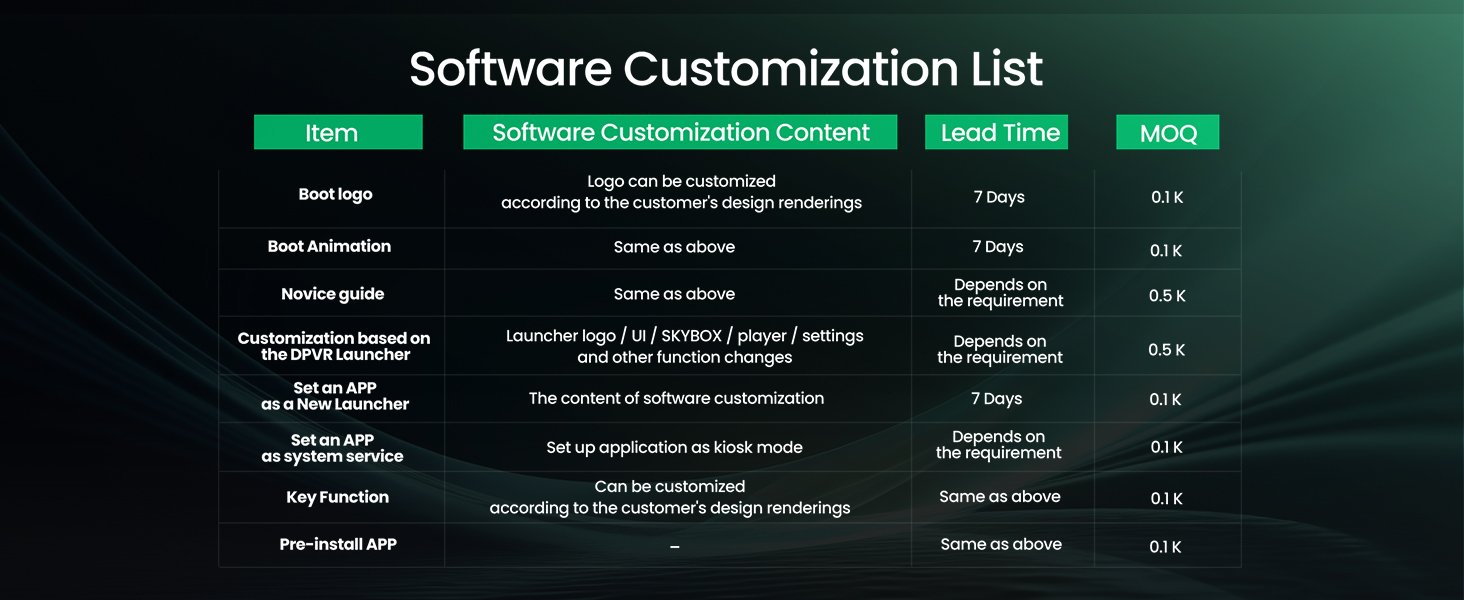
Image: Adjust the headstrap and IPD for ultimate comfort and clear viewing.
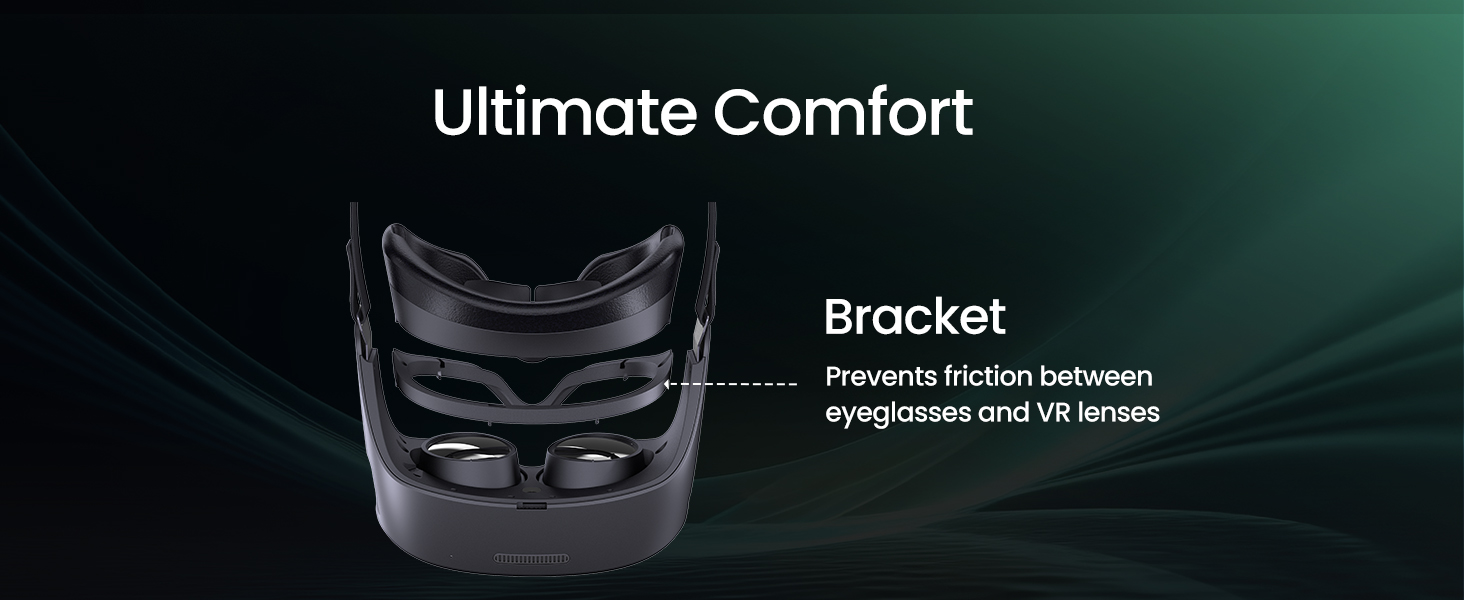
Image: Hardware IPD adjustment by rotating the lens cups to achieve a clear image.
3.4 പവറിംഗ് ഓണും പ്രാരംഭ കോൺഫിഗറേഷനും
Press and hold the power button on the headset to turn it on. Follow the on-screen prompts for initial setup. If the initial language is not English, navigate to the settings menu to change the language preference.
4. പ്രവർത്തന നിർദ്ദേശങ്ങൾ
4.1 Using the 3DoF Controller
The 3DoF controller allows for basic interaction within the VR environment. Use the trigger button for selection and the touchpad for navigation and scrolling. Ensure the controller is paired with the headset before use.
4.2 Using the Touchpad on the Headset
For simpler interactions, the headset features a touchpad. This can be used to select options directly, providing an alternative to the controller, especially useful for users who prefer direct input.
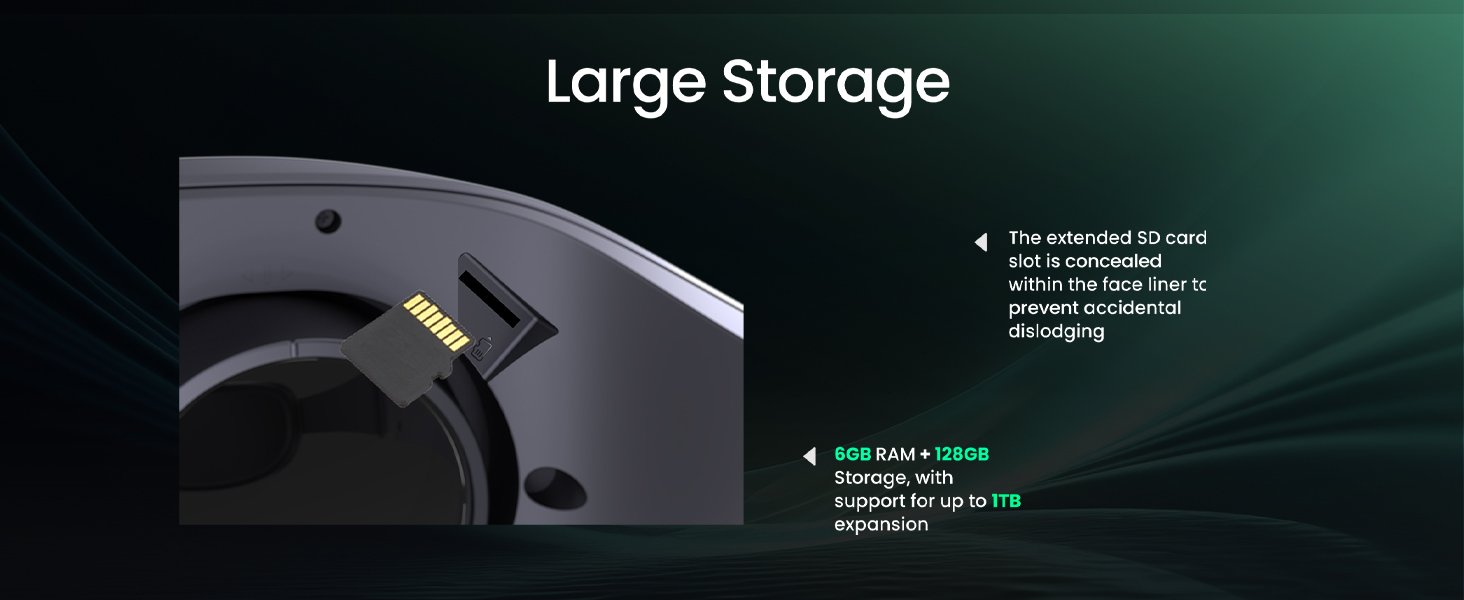
Image: The DPVR P2 offers easy operation via its 3DoF controller and integrated touchpad.
4.3 ബാഹ്യ ഉപകരണങ്ങളിലേക്ക് ബന്ധിപ്പിക്കുന്നു
The DPVR P2 supports HDMI connectivity for integration with personal computers or other compatible devices. Connect the HDMI cable to the headset and your external device to mirror content or extend your VR experience.
5. പരിപാലനം
5.1 ലെൻസുകൾ വൃത്തിയാക്കൽ
Use a microfiber cloth specifically designed for optical lenses to gently wipe the headset lenses. Do not use abrasive materials, chemical cleaners, or excessive force, as this can scratch or damage the lenses.
5.2 Cleaning the Headset and Face Liner
Wipe the exterior of the headset with a soft, damp cloth. The face liner and cushions are replaceable and can be cleaned according to their specific material instructions (leather and fabric surfaces). Ensure the headset is powered off and disconnected from power before cleaning.
5.3 ബാറ്ററി കെയർ
To prolong battery life, avoid fully discharging the headset frequently. Store the headset in a cool, dry place when not in use. The P2 contains one battery, with options for replacement batteries and external power accessories (sold separately) for extended use.
Image: The Marathon Kit includes a large capacity battery and options for charger and DC supply accessories.
6. പ്രശ്നപരിഹാരം
6.1 ഹെഡ്സെറ്റ് ഓണാക്കുന്നില്ല
- ഹെഡ്സെറ്റ് പൂർണ്ണമായും ചാർജ് ചെയ്തിട്ടുണ്ടെന്ന് ഉറപ്പാക്കുക. ഒരു പവർ സ്രോതസ്സിലേക്ക് കണക്റ്റ് ചെയ്ത് വീണ്ടും പവർ ഓൺ ചെയ്യാൻ ശ്രമിക്കുന്നതിന് മുമ്പ് കുറച്ച് മിനിറ്റ് കാത്തിരിക്കുക.
- ചാർജിംഗ് കേബിളും അഡാപ്റ്ററും ശരിയായി പ്രവർത്തിക്കുന്നുണ്ടെന്ന് ഉറപ്പാക്കുക.
6.2 Unresponsive Controller
- Check the controller's battery level and replace if necessary.
- Ensure the controller is properly paired with the headset. Refer to the pairing instructions in the initial setup guide.
- If tracking is poor or jittery, try resetting the controller's alignment by holding down the designated button (usually the home or menu button) for a few seconds.
6.3 Display Issues (Blurry, No Image)
- Adjust the IPD settings by rotating the lens cups until the image is clear.
- Ensure the headset is worn correctly and securely on your head.
- Clean the lenses with a microfiber cloth to remove any smudges or dust.
- If connected via HDMI, check the cable connection and ensure the external device is outputting a signal.
6.4 Performance Issues (Slow Loading, Lag)
- Close any unnecessary applications running in the background on the headset.
- Ensure the headset's software is up to date.
- If using a network connection, verify the Wi-Fi signal strength and stability.
6.5 Incorrect Initial Language
- During initial setup, carefully follow the prompts to select your preferred language.
- If already set, navigate to the headset's system settings menu and locate the language option to change it to English or your desired language.
7 സ്പെസിഫിക്കേഷനുകൾ
| ഫീച്ചർ | സ്പെസിഫിക്കേഷൻ |
|---|---|
| മോഡൽ നമ്പർ | P2 |
| ഡിസ്പ്ലേ റെസല്യൂഷൻ | 3664 x 1920 |
| ഡിസ്പ്ലേ തരം | അമോലെഡ് |
| കണക്റ്റിവിറ്റി ടെക്നോളജി | HDMI |
| കൺട്രോളർ തരം | 3DoF, Button Control |
| ബാറ്ററി ശേഷി | 5700 mAh |
| റാം | 6 ജിബി |
| ആന്തരിക സംഭരണം | 128 ജിബി |
| വികസിപ്പിക്കാവുന്ന സംഭരണം | Up to 1TB (via SD card) |
| IPD അഡ്ജസ്റ്റ്മെൻ്റ് | 58mm / 64mm / 70mm (Hardware Adjustable) |
| അനുയോജ്യമായ ഉപകരണങ്ങൾ | പേഴ്സണൽ കമ്പ്യൂട്ടർ |
| പ്ലാറ്റ്ഫോം | PlayStation 4 (as per product specifications) |
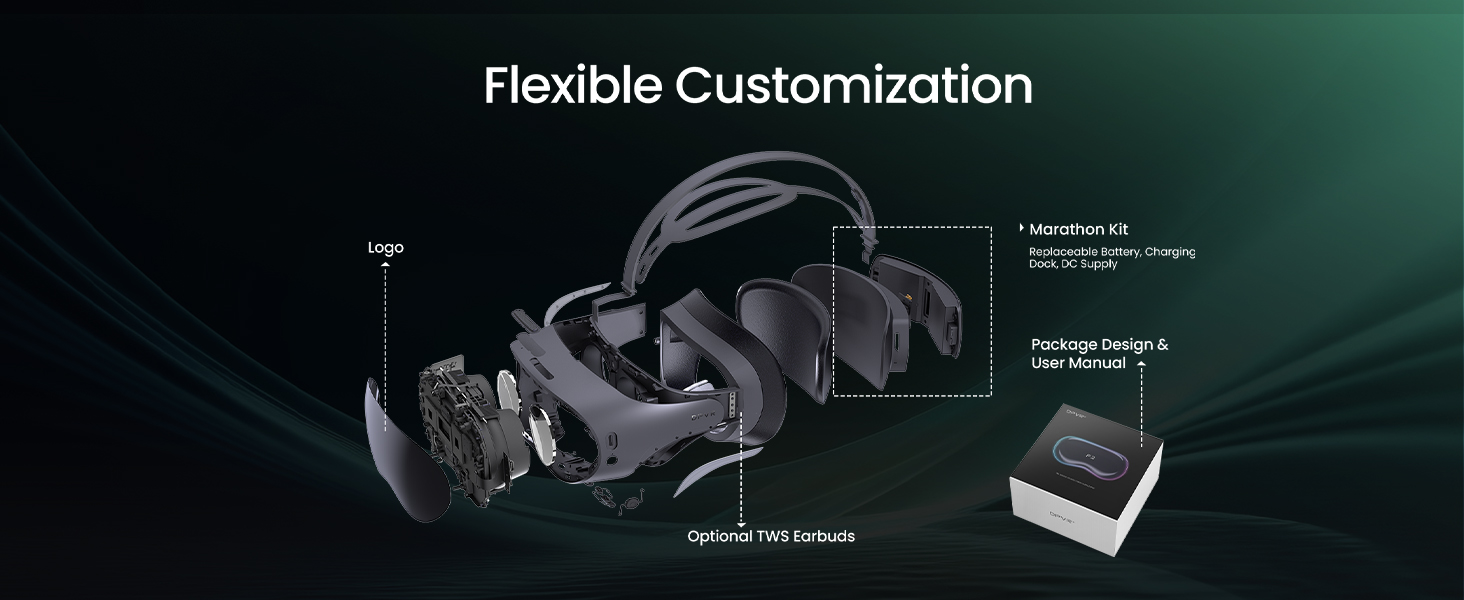
Image: Detailed specifications for the DPVR P2 headset.
8. വാറൻ്റിയും പിന്തുണയും
8.1 വാറൻ്റി വിവരങ്ങൾ
The DPVR P2 Virtual Reality Headset comes with a പരിമിത വാറൻ്റി. Please refer to the warranty card included with your product for specific terms, conditions, and duration of coverage. Keep your proof of purchase for warranty claims.
8.2 ഉപഭോക്തൃ പിന്തുണ
For technical assistance, troubleshooting beyond this manual, or warranty inquiries, please contact DPVR customer support. Visit the official DPVR webബന്ധപ്പെടാനുള്ള വിവരങ്ങൾക്കും പിന്തുണാ ഉറവിടങ്ങൾക്കുമുള്ള സൈറ്റ്.