
ആമുഖം
This manual provides detailed instructions for the setup, operation, and maintenance of your Prechen 10.1 inch Portable Touchscreen Monitor, Model HD-101. Please read this manual thoroughly before using the device to ensure proper functionality and to prevent damage.
ഉൽപ്പന്ന സവിശേഷതകൾ
- Portable Touchscreen: This 10.1-inch monitor is compact and lightweight, designed for portability. The touchscreen functionality allows for intuitive navigation and interaction, enhancing productivity on the go.
- High-Resolution IPS Display: Features a 1920x1200 resolution with a 16:10 aspect ratio, delivering clear and vibrant visuals. IPS technology provides wide viewing angles and accurate color reproduction, suitable for various applications.
- ബഹുമുഖ കണക്റ്റിവിറ്റി: Equipped with HDMI and USB-C ports, offering flexible connection options. It can be easily connected to Windows PCs, laptops, and gaming consoles like Xbox. Note: USB-C is for touch functionality and power.
- സംയോജിത സ്പീക്കറുകൾ: Built-in speakers provide clear and dynamic audio, eliminating the need for external speakers during media consumption, gaming, or virtual meetings.
- വെസ മൗണ്ട് അനുയോജ്യമാണ്: The monitor supports VESA mounting standards, allowing for attachment to compatible stands or arms for customized workspace setups and comfortable viewകോണുകൾ.
സജ്ജമാക്കുക
പാക്കേജ് ഉള്ളടക്കം
പാക്കേജിൽ എല്ലാ ഇനങ്ങളും ഉണ്ടെന്ന് ഉറപ്പാക്കുക:
- Prechen 10.1 inch Portable Touchscreen Monitor
- HDMI കേബിൾ
- USB-C മുതൽ USB-C കേബിൾ വരെ
- USB-A to USB-C Cable (for power/touch)
- പവർ അഡാപ്റ്റർ
- ഉപയോക്തൃ മാനുവൽ (ഈ പ്രമാണം)
മോണിറ്റർ ബന്ധിപ്പിക്കുന്നു
- പവർ കണക്ഷൻ: Connect the provided power adapter to the DC Power Port on the monitor and plug it into a power outlet. Alternatively, if your device supports power delivery, connect a USB-C to USB-C cable to the USB-C (Power & Touch) port for both power and signal.
- വീഡിയോ കണക്ഷൻ:
- എച്ച്ഡിഎംഐ: Connect one end of the HDMI cable to the HDMI port on the monitor and the other end to the HDMI output of your computer or device.
- USB-C (DisplayPort Alternate Mode): If your device supports DisplayPort Alternate Mode over USB-C, connect a USB-C to USB-C cable to the USB-C (Power & Touch) port on the monitor and your device. This single cable can provide video, power, and touch functionality.
- ടച്ച് പ്രവർത്തനം: For touch functionality, ensure the USB-C (Power & Touch) port is connected to your device. If using HDMI for video, you will also need to connect a USB-A to USB-C cable from your device's USB-A port to the monitor's USB-C (Power & Touch) port.
- ഓഡിയോ ഔട്ട്പുട്ട്: If you wish to use external headphones or speakers, connect them to the 3.5mm Audio Port on the monitor.
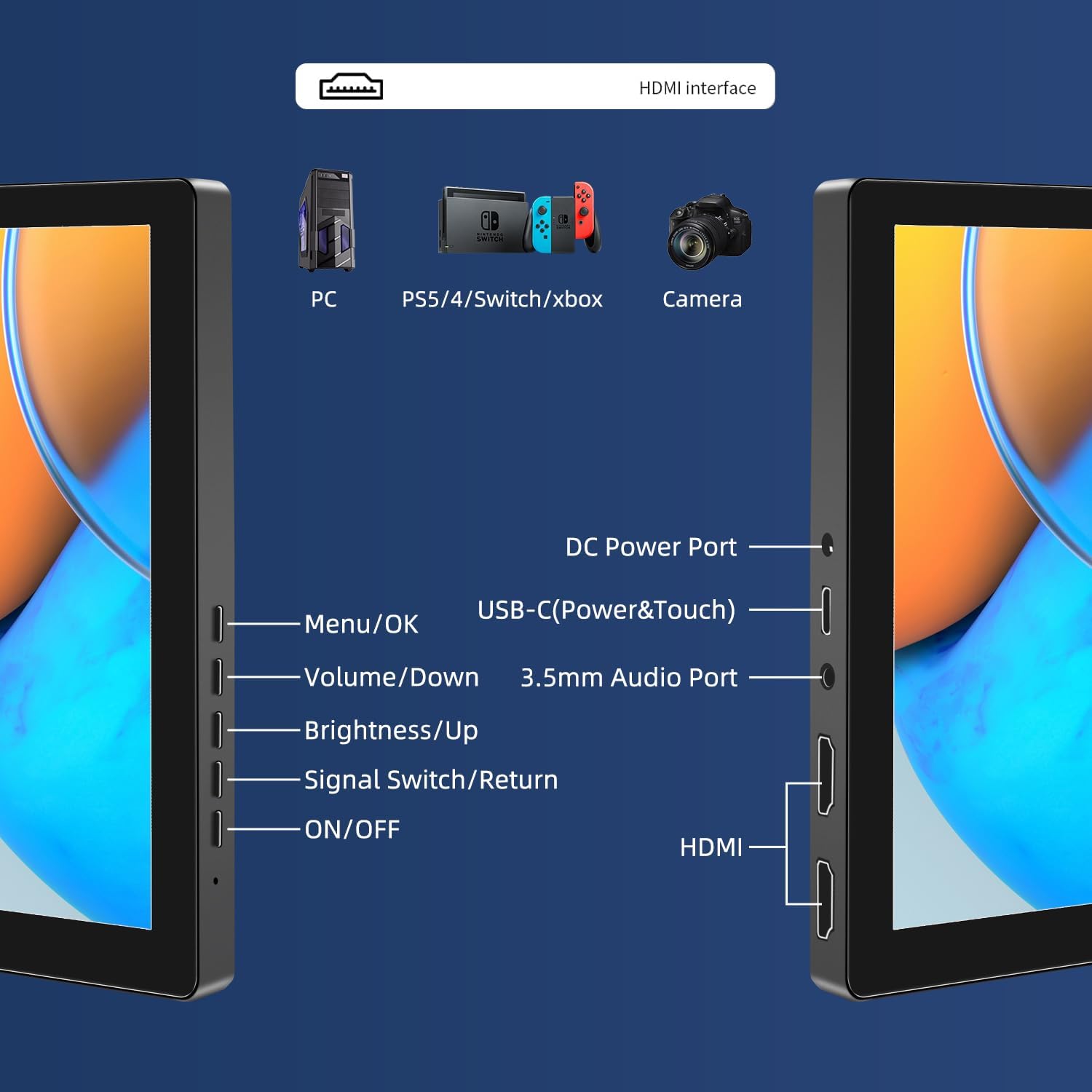
ചിത്രം: കഴിഞ്ഞുview of the monitor's ports including DC Power, USB-C (Power & Touch), 3.5mm Audio, HDMI, and control buttons.
പ്രവർത്തന നിർദ്ദേശങ്ങൾ
പവർ ചെയ്യുന്നത് ഓൺ/ഓഫ്
- To power on the monitor, press the ഓൺ/ഓഫ് ബട്ടൺ.
- പവർ ഓഫ് ചെയ്യുന്നതിന്, അമർത്തിപ്പിടിക്കുക ഓൺ/ഓഫ് സ്ക്രീൻ ഓഫാകുന്നത് വരെ കുറച്ച് സെക്കൻഡ് നേരത്തേക്ക് ബട്ടൺ അമർത്തിപ്പിടിക്കുക.
ഓൺ-സ്ക്രീൻ ഡിസ്പ്ലേ (ഒഎസ്ഡി) മെനു ഉപയോഗിക്കുന്നു
The OSD menu allows you to adjust various display settings.
- അമർത്തുക മെനു / ശരി OSD മെനു തുറക്കാൻ ബട്ടൺ.
- ഉപയോഗിക്കുക വോളിയം/കുറവ് ഒപ്പം തെളിച്ചം/ഉയർച്ച മെനു ഓപ്ഷനുകളിലൂടെ നാവിഗേറ്റ് ചെയ്യാനുള്ള ബട്ടണുകൾ.
- അമർത്തുക മെനു / ശരി ഒരു ഓപ്ഷൻ തിരഞ്ഞെടുക്കുന്നതിനോ ഒരു ക്രമീകരണം സ്ഥിരീകരിക്കുന്നതിനോ.
- അമർത്തുക Signal Switch/Return button to go back to the previous menu or exit the OSD.
Adjusting Display Modes
The monitor supports multiple display modes when connected to a computer:
- ഡ്യൂപ്ലിക്കേറ്റ് മോഡ്: Displays the same content on both your primary screen and the portable monitor.
- വിപുലീകരണ മോഡ്: കൂടുതൽ വർക്ക്സ്പെയ്സ് നൽകിക്കൊണ്ട് നിങ്ങളുടെ ഡെസ്ക്ടോപ്പ് രണ്ട് സ്ക്രീനുകളിലേക്കും വ്യാപിപ്പിക്കുന്നു.
- രണ്ടാമത്തെ സ്ക്രീൻ മോഡ്: ഡിസ്പ്ലേ ആയി പോർട്ടബിൾ മോണിറ്റർ മാത്രമേ ഉപയോഗിക്കുന്നുള്ളൂ.
These modes are typically configured through your operating system's display settings (e.g., Windows Display Settings, macOS System Preferences).
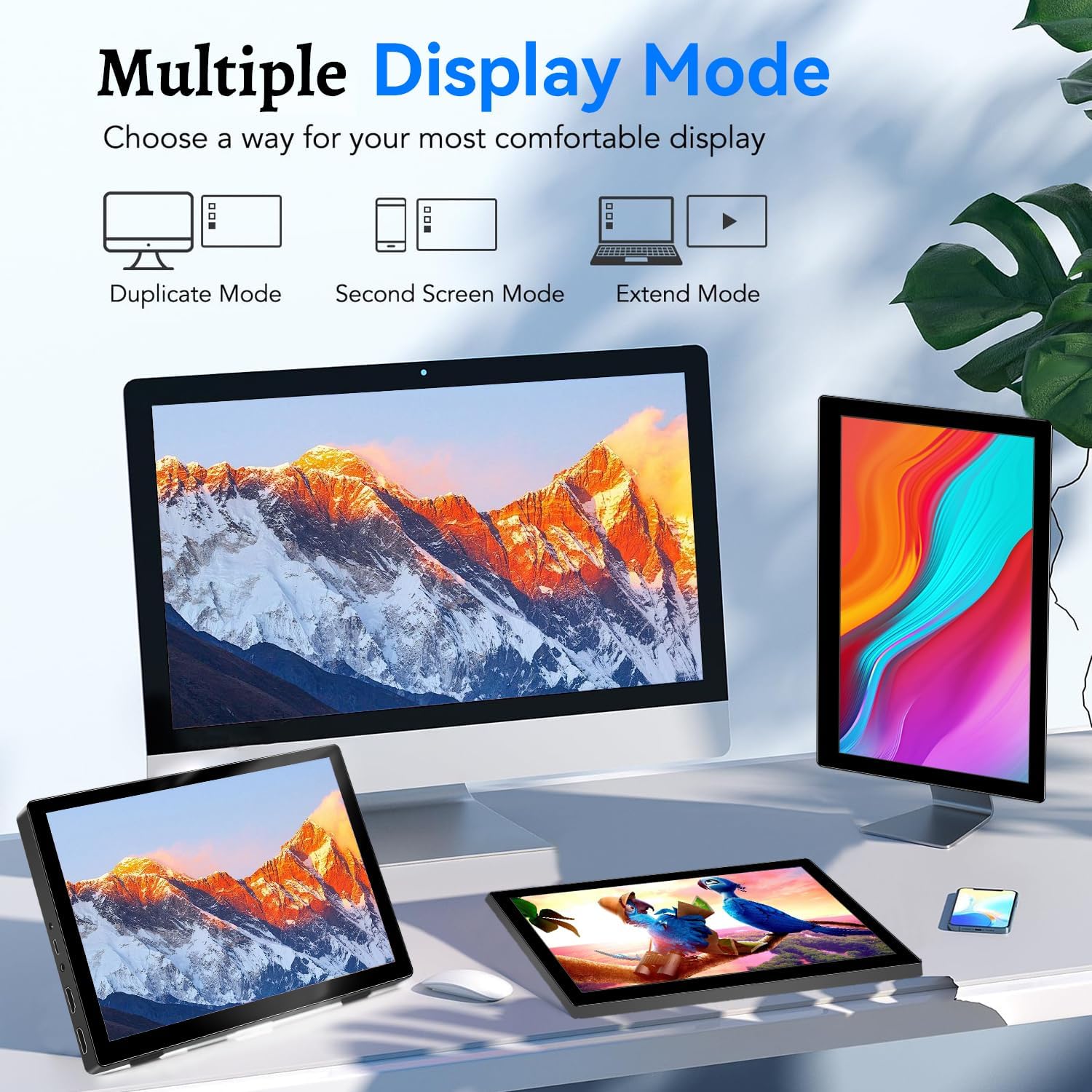
Image: Visual representation of Duplicate, Second Screen, and Extend display modes.
Using Touchscreen Functionality
The monitor supports 10-point touchscreen technology. Ensure the USB-C (Power & Touch) port is correctly connected to your device for touch input to function.

ചിത്രം: ഉദാamples of 10-point touchscreen gestures for interaction.
മെയിൻ്റനൻസ്
- സ്ക്രീൻ വൃത്തിയാക്കൽ: മൃദുവായ, ലിൻ്റ് രഹിത തുണി ഉപയോഗിക്കുകampened with water or a non-abrasive screen cleaner. Do not spray cleaner directly onto the screen.
- സി വൃത്തിയാക്കൽasing: മോണിറ്റർ തുടയ്ക്കുക casing with a soft, dry cloth. Avoid using strong detergents or solvents.
- സംഭരണം: When not in use, store the monitor in a cool, dry place, away from direct sunlight and extreme temperatures.
- കൈകാര്യം ചെയ്യൽ: മോണിറ്റർ താഴെയിടുകയോ ശക്തമായ ആഘാതങ്ങൾക്ക് വിധേയമാക്കുകയോ ചെയ്യുന്നത് ഒഴിവാക്കുക. ഭാരമുള്ള വസ്തുക്കൾ മോണിറ്ററിന് മുകളിൽ വയ്ക്കരുത്.
ട്രബിൾഷൂട്ടിംഗ്
| പ്രശ്നം | സാധ്യമായ കാരണം | പരിഹാരം |
|---|---|---|
| ഡിസ്പ്ലേ ഇല്ല/കറുത്ത സ്ക്രീൻ |
|
|
| ടച്ച്സ്ക്രീൻ പ്രതികരിക്കുന്നില്ല |
|
|
| സ്പീക്കറുകളിൽ നിന്ന് ഓഡിയോ ഇല്ല. |
|
|
| ചിത്ര ഗുണനിലവാര പ്രശ്നങ്ങൾ (മങ്ങൽ, വികലമായത്) |
|
|
സ്പെസിഫിക്കേഷനുകൾ
| ഫീച്ചർ | വിശദാംശങ്ങൾ |
|---|---|
| ബ്രാൻഡ് | പ്രീചെൻ |
| മോഡൽ നമ്പർ | HD-101 |
| സ്ക്രീൻ വലിപ്പം | 10.1 ഇഞ്ച് |
| റെസലൂഷൻ | 1920 x 1200 (UXGA Wide) |
| വീക്ഷണാനുപാതം | 16:10 |
| പാനൽ തരം | ഐ.പി.എസ് |
| പുതുക്കിയ നിരക്ക് | 60 Hz |
| പ്രതികരണ സമയം | 1 എം.എസ് |
| കണക്റ്റിവിറ്റി | 1x HDMI, 1x USB-C (Power & Touch), 1x 3.5mm Audio Jack, 1x DC Power Port |
| അളവുകൾ (L x W x H) | 21.8 x 15.8 x 1.4 സെ.മീ |
| ഭാരം | 990 ഗ്രാം |
| നിർമ്മാതാവ് | Shenzhen Kenowa Electronics Co., LTD |
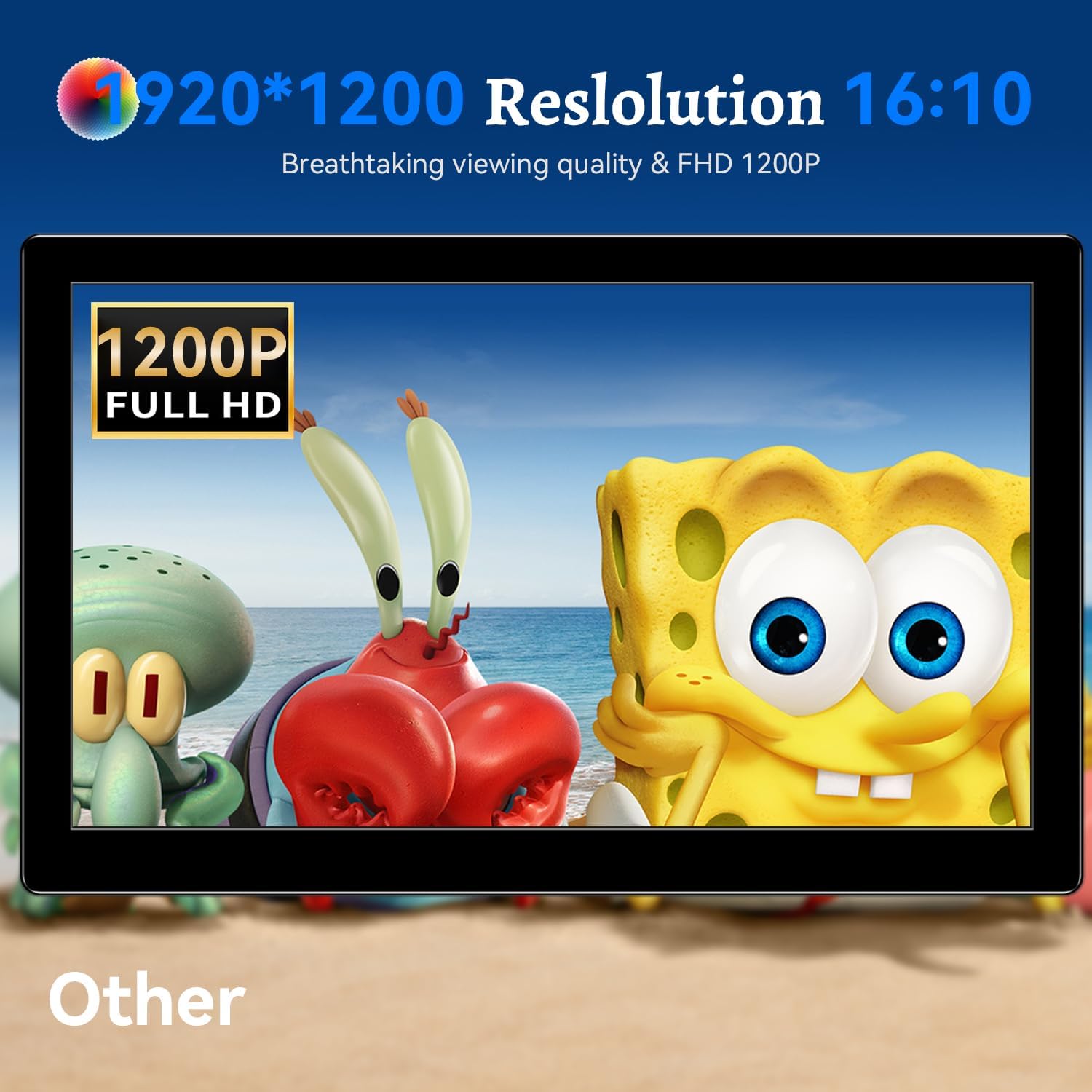
ചിത്രം: മോണിറ്റർ ഷോasing its 1920x1200 Full HD resolution.

Image: The monitor's IPS panel offering wide viewing angles and rich colors.
വാറൻ്റിയും പിന്തുണയും
For warranty information and technical support, please refer to the warranty card included with your product or contact Prechen customer service through their official website. Please have your model number (HD-101) and purchase details ready when contacting support.