
1. ആമുഖം
This manual provides detailed instructions for the installation, operation, and maintenance of your Xprinter XP-370B Thermal Barcode Sticker Printer. Please read this manual thoroughly before using the printer to ensure proper functionality and to prevent damage.
2 സുരക്ഷാ വിവരങ്ങൾ
- പ്രിന്റർ എപ്പോഴും ഒരു ഗ്രൗണ്ടഡ് പവർ ഔട്ട്ലെറ്റിലേക്ക് ബന്ധിപ്പിക്കുക.
- Do not expose the printer to water or high humidity.
- പ്രിന്റർ നേരിട്ട് സൂര്യപ്രകാശം ഏൽക്കുന്ന സ്ഥലത്തോ താപ സ്രോതസ്സുകൾക്ക് സമീപമോ വയ്ക്കുന്നത് ഒഴിവാക്കുക.
- Use only Xprinter approved accessories and power adapters.
- പ്രിന്റർ കുട്ടികളിൽ നിന്ന് അകറ്റി നിർത്തുക.
- Do not attempt to disassemble or repair the printer yourself. Contact qualified service personnel for assistance.
3. പാക്കേജ് ഉള്ളടക്കം
പാക്കേജിൽ എല്ലാ ഇനങ്ങളും ഉണ്ടെന്ന് ഉറപ്പാക്കുക:
- Xprinter XP-370B Thermal Barcode Sticker Printer
- പവർ അഡാപ്റ്റർ
- USB കേബിൾ
- ക്വിക്ക് സ്റ്റാർട്ട് ഗൈഡ് (ഉൾപ്പെടുത്തിയിട്ടുണ്ടെങ്കിൽ)
4. ഉൽപ്പന്നം കഴിഞ്ഞുview
The Xprinter XP-370B is a compact and efficient thermal printer designed for barcode and sticker printing. It features high-speed printing capabilities and supports various connectivity options.

ചിത്രം 4.1: മുൻ-വലത് view of the Xprinter XP-370B Thermal Barcode Sticker Printer.

ചിത്രം 4.2: വശം view illustrating the power button and top cover key for accessing the media compartment.
5. സജ്ജീകരണം
5.1 അൺപാക്കിംഗും പ്ലേസ്മെന്റും
- പ്രിന്റർ അതിന്റെ പാക്കേജിംഗിൽ നിന്ന് ശ്രദ്ധാപൂർവ്വം നീക്കം ചെയ്യുക.
- പ്രിന്റർ ആവശ്യത്തിന് വായുസഞ്ചാരമുള്ള ഒരു സ്ഥിരതയുള്ള, പരന്ന പ്രതലത്തിൽ സ്ഥാപിക്കുക.
- Ensure there is enough space around the printer for cable connections and media loading.
5.2 പ്രിന്റർ ബന്ധിപ്പിക്കുന്നു
- പവർ അഡാപ്റ്റർ പ്രിന്ററിന്റെ പവർ പോർട്ടുമായി ബന്ധിപ്പിച്ച് ഒരു പവർ ഔട്ട്ലെറ്റിലേക്ക് പ്ലഗ് ചെയ്യുക.
- Connect the printer to your computer using the provided USB cable. The printer also supports Serial, Ethernet, and Bluetooth connectivity options depending on the model.
- Turn on the printer using the power button located on the side (refer to Figure 4.2).
5.3 പ്രിന്റ് മീഡിയ ലോഡ് ചെയ്യുന്നു
- Press the top cover key (refer to Figure 4.2) to open the printer's top cover.
- Place the roll of thermal labels into the media compartment. The maximum label diameter supported is 100mm.
- Adjust the paper guide to fit the width of your labels securely.
- Pull a small length of labels past the print head.
- Close the top cover until it clicks into place.
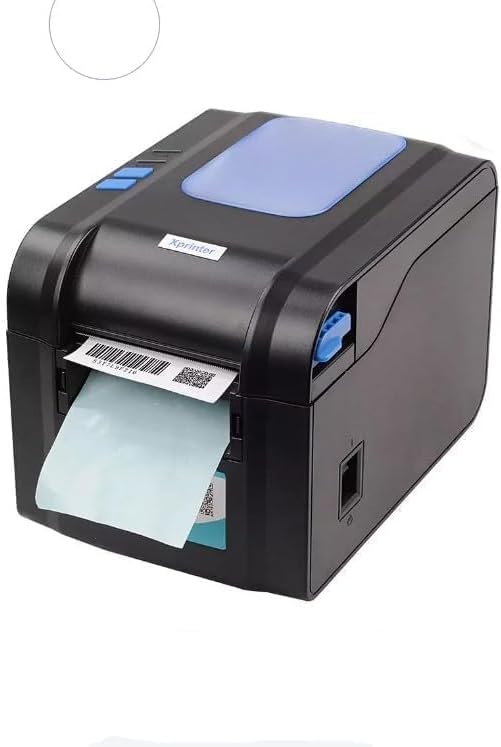
Figure 5.3: The printer demonstrating a label being fed out after printing.
5.4 ഡ്രൈവർ ഇൻസ്റ്റലേഷൻ
- For Windows systems, insert the driver CD (if provided) or download the latest drivers from the official Xprinter webസൈറ്റ്. ഇൻസ്റ്റാളേഷനായി ഓൺ-സ്ക്രീൻ നിർദ്ദേശങ്ങൾ പാലിക്കുക.
- For Android and iOS devices, download the appropriate printing application from your device's app store.
6. പ്രവർത്തന നിർദ്ദേശങ്ങൾ
6.1 അടിസ്ഥാന പ്രിന്റിംഗ്
- പ്രിന്റർ ഓണാക്കിയിട്ടുണ്ടെന്നും നിങ്ങളുടെ ഉപകരണവുമായി ബന്ധിപ്പിച്ചിട്ടുണ്ടെന്നും ഉറപ്പാക്കുക.
- നിങ്ങൾ പ്രിന്റ് ചെയ്യാൻ ആഗ്രഹിക്കുന്ന ഡോക്യുമെന്റ് അല്ലെങ്കിൽ ആപ്ലിക്കേഷൻ തുറക്കുക.
- Select the Xprinter XP-370B from your list of available printers.
- Adjust print settings such as label size, orientation, and density as needed.
- Initiate the print command. The printer will begin printing at speeds up to 152mm/s.
7. പരിപാലനം
7.1 പ്രിന്റർ വൃത്തിയാക്കുന്നു
- വൃത്തിയാക്കുന്നതിന് മുമ്പ് പ്രിന്റർ ഓഫ് ചെയ്ത് അൺപ്ലഗ് ചെയ്യുക.
- മൃദുവായ, ലിന്റ് രഹിത തുണി ഉപയോഗിക്കുകampened with isopropyl alcohol to gently clean the print head.
- Clean the exterior of the printer with a soft, dry cloth.
- ഉരച്ചിലുകളുള്ള ക്ലീനറുകളോ ലായകങ്ങളോ ഉപയോഗിക്കരുത്.
8. പ്രശ്നപരിഹാരം
- പ്രിന്റർ പ്രതികരിക്കുന്നില്ല: Check power connection, USB/Serial/Ethernet/Bluetooth connection, and ensure drivers are correctly installed.
- മോശം പ്രിന്റ് നിലവാരം: Clean the print head, ensure correct media type is used, and check print density settings.
- പേപ്പർ ജാം: Open the top cover, carefully remove any jammed labels, and re-load the media correctly.
- ഭക്ഷണം നൽകാത്ത ലേബലുകൾ: Ensure labels are loaded correctly and the paper guide is adjusted properly. Check for any obstructions.
9 സ്പെസിഫിക്കേഷനുകൾ
| ഫീച്ചർ | സ്പെസിഫിക്കേഷൻ |
|---|---|
| ബ്രാൻഡ് | എക്സ്പ്രിൻറർ |
| മോഡൽ നമ്പർ | എക്സ്പി-370ബി |
| പ്രിന്റർ സാങ്കേതികവിദ്യ | തെർമൽ |
| കണക്റ്റിവിറ്റി ടെക്നോളജി | USB, Serial, Bluetooth, Ethernet (options vary) |
| പരമാവധി പ്രിന്റ് വേഗത | 152 mm/s വരെ |
| പരമാവധി മീഡിയ വലുപ്പം | 4 x 6 ഇഞ്ച് |
| Maximum Label Diameter | 100 മി.മീ |
| അച്ചടി മാധ്യമം | ലേബലുകൾ |
| പ്രിൻ്റർ ഔട്ട്പുട്ട് | മോണോക്രോം |
| ഇനത്തിൻ്റെ അളവുകൾ (D x W x H) | 15D x 7W x 10H സെന്റീമീറ്റർ |
| ഇനത്തിൻ്റെ ഭാരം | 300 ഗ്രാം |
| പിന്തുണയ്ക്കുന്ന ഓപ്പറേറ്റിംഗ് സിസ്റ്റങ്ങൾ | വിൻഡോസ്, ആൻഡ്രോയിഡ്, ഐഒഎസ് |
10. വാറൻ്റിയും പിന്തുണയും
For warranty information and technical support, please refer to the documentation provided with your purchase or visit the official Xprinter webവാറന്റി ക്ലെയിമുകൾക്കുള്ള വാങ്ങലിന്റെ തെളിവായി നിങ്ങളുടെ വാങ്ങൽ രസീത് സൂക്ഷിക്കുക.