
1. ആമുഖം
This manual provides essential information for the safe and efficient operation of your Next YE-43020GG4 43-inch Full HD Google Android TV. Please read this manual thoroughly before using the product and retain it for future reference.

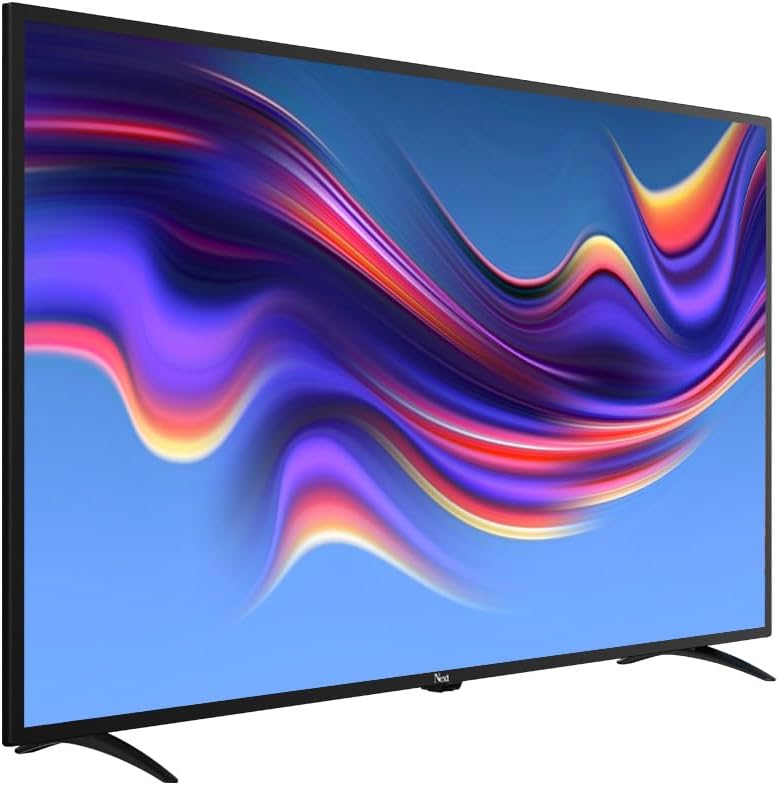
ചിത്രം 1.1: ഫ്രണ്ട് view of the Next YE-43020GG4 43-inch Full HD Google Android TV, showcasing its sleek design and the Google Android TV interface.
The Next YE-43020GG4 is a 43-inch Full HD (1920x1080p) LED television featuring the Google Android TV operating system. It offers a dynamic contrast enhancer for improved picture quality and integrated Wi-Fi for seamless internet connectivity. This model is designed for ease of use and provides access to a wide range of applications and streaming services.
2 സുരക്ഷാ വിവരങ്ങൾ
ടിവിക്ക് കേടുപാടുകൾ സംഭവിക്കാതിരിക്കാനും വ്യക്തിഗത സുരക്ഷ ഉറപ്പാക്കാനും ഇനിപ്പറയുന്ന സുരക്ഷാ മുൻകരുതലുകൾ പാലിക്കുക:
- വൈദ്യുതി വിതരണം: Connect the TV only to an AC 100-240V, 50/60Hz power source. Ensure the power cord is not damaged or pinched.
- വെൻ്റിലേഷൻ: വെന്റിലേഷൻ ദ്വാരങ്ങൾ അടയ്ക്കരുത്. ടിവിക്ക് ചുറ്റും ശരിയായ വായുസഞ്ചാരം ഉറപ്പാക്കാൻ മതിയായ ഇടം നൽകുക, അതുവഴി അമിതമായി ചൂടാകുന്നത് തടയുക.
- ജലവും ഈർപ്പവും: ടിവിയിൽ മഴ പെയ്യുകയോ ഈർപ്പം അടിക്കുകയോ ചെയ്യരുത്, അല്ലെങ്കിൽ ദ്രാവകങ്ങൾ നിറച്ച വസ്തുക്കൾ ടിവിയിലോ സമീപത്തോ വയ്ക്കരുത്.
- വൃത്തിയാക്കൽ: വൃത്തിയാക്കുന്നതിന് മുമ്പ് ടിവി പ്ലഗ് ഊരിയിടുക. മൃദുവായതും ഉണങ്ങിയതുമായ തുണി ഉപയോഗിക്കുക. ലിക്വിഡ് ക്ലീനറുകളോ എയറോസോൾ സ്പ്രേകളോ ഉപയോഗിക്കരുത്.
- പ്ലേസ്മെൻ്റ്: Place the TV on a stable, level surface. If wall-mounting, ensure the mount is compatible and installed by qualified personnel.
- മിന്നൽ: During lightning storms or when unused for long periods, unplug the TV from the power outlet and disconnect the antenna cable.
- സേവനം: ടിവി സ്വയം സർവീസ് ചെയ്യാൻ ശ്രമിക്കരുത്. എല്ലാ സർവീസിംഗും യോഗ്യതയുള്ള സർവീസ് ഉദ്യോഗസ്ഥരെ ഏൽപ്പിക്കുക.
3. പാക്കേജ് ഉള്ളടക്കം
പാക്കേജിൽ എല്ലാ ഇനങ്ങളും ഉണ്ടെന്ന് ഉറപ്പാക്കുക:
- Next YE-43020GG4 43-inch Full HD Google Android TV Unit
- റിമോട്ട് കൺട്രോൾ
- ടിവി സ്റ്റാൻഡ് (2 കഷണങ്ങൾ)
- പവർ കോർഡ്
- ഉപയോക്തൃ മാനുവൽ (ഈ പ്രമാണം)
- റിമോട്ട് കൺട്രോളിനുള്ള ബാറ്ററികൾ (പ്രദേശമനുസരിച്ച് വ്യത്യാസപ്പെടാം)
4. Physical Features and Connections
Familiarize yourself with the physical layout and connection ports of your television.

ചിത്രം 4.1: പിൻഭാഗം view of the TV with labeled connection ports.
4.1. പിൻ പാനൽ കണക്ഷനുകൾ
| തുറമുഖം | വിവരണം |
|---|---|
| എച്ച്ഡിഎംഐ 1 (ARC) | High-Definition Multimedia Interface with Audio Return Channel support. Connect external devices like Blu-ray players or soundbars. |
| HDMI 2 | High-Definition Multimedia Interface. Connect external devices. |
| USB (2x) | Universal Serial Bus ports for connecting USB storage devices (e.g., flash drives) to play media or for software updates. |
| എതർനെറ്റ് | RJ45 port for wired internet connection. |
| DVB-S / DVB-S2 | Satellite input for connecting a satellite dish. |
| DVB-T / DVB-T2 | Terrestrial antenna input for connecting a digital terrestrial antenna. |
| ഡിവിബി-സി | Cable input for connecting to a cable TV network. |
| CI MODULE | Common Interface slot for inserting a CI+ module and smart card, typically used for encrypted digital TV services. |
| MINI AV-IN | Mini Audio/Video input for connecting older devices using an adapter cable (not always included). |
4.2. Side Profile

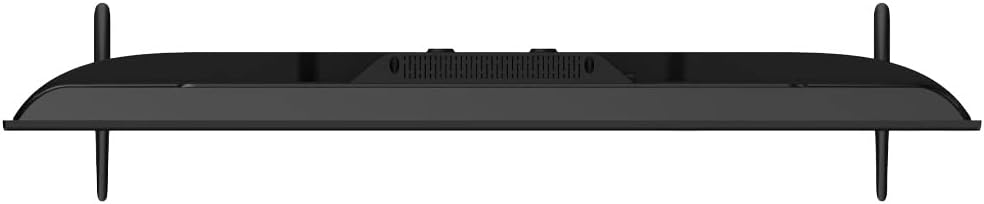
ചിത്രം 4.2: ഇടതുവശത്തെ പ്രോfile ടിവിയുടെ.

ചിത്രം 4.3: വലതുവശത്തുള്ള പ്രോfile ടിവിയുടെ.
The slim design of the television allows for versatile placement options, whether on a stand or wall-mounted. The side profiles illustrate the minimal depth of the unit.
5. സജ്ജീകരണം
5.1. ടിവി സ്റ്റാൻഡ് ഘടിപ്പിക്കൽ
- Carefully place the TV face down on a soft, flat surface (e.g., a blanket or foam) to prevent screen damage.
- ഇടതും വലതും സ്റ്റാൻഡ് പീസുകൾ തിരിച്ചറിയുക.
- ടിവിയുടെ അടിയിലുള്ള അനുബന്ധ സ്ക്രൂ ദ്വാരങ്ങൾ ഉപയോഗിച്ച് ഓരോ സ്റ്റാൻഡ് പീസും വിന്യസിക്കുക.
- നൽകിയിരിക്കുന്ന സ്ക്രൂകൾ ഉപയോഗിച്ച് സ്റ്റാൻഡുകൾ ഉറപ്പിക്കുക. അമിതമായി മുറുക്കരുത്.
- Carefully lift the TV to an upright position and place it on a stable surface.
5.2. വാൾ മൗണ്ടിംഗ് (ഓപ്ഷണൽ)
If you choose to wall-mount your TV, ensure you use a VESA-compatible wall mount kit (not included) and follow the instructions provided with the wall mount. It is recommended to have this installation performed by a qualified professional.
5.3. പവർ, ബാഹ്യ ഉപകരണങ്ങൾ ബന്ധിപ്പിക്കുന്നു
- പവർ കോർഡ് ടിവിയുടെ പവർ ഇൻപുട്ടിലേക്കും തുടർന്ന് ഒരു വാൾ ഔട്ട്ലെറ്റിലേക്കും ബന്ധിപ്പിക്കുക.
- Connect your antenna, satellite dish, or cable TV source to the appropriate input ports (DVB-T/T2, DVB-S/S2, DVB-C).
- Connect any external devices (e.g., game consoles, Blu-ray players) to the HDMI ports.
- For wired internet, connect an Ethernet cable to the ETHERNET port. For Wi-Fi, ensure your router is on and within range.
5.4. പ്രാരംഭ സജ്ജീകരണ വിസാർഡ്
- വിദൂര നിയന്ത്രണത്തിലോ ടിവിയിലോ ഉള്ള പവർ ബട്ടൺ ഉപയോഗിച്ച് ടിവി ഓണാക്കുക.
- നിങ്ങളുടെ ഭാഷ, രാജ്യം, നെറ്റ്വർക്ക് ക്രമീകരണങ്ങൾ (വൈ-ഫൈ അല്ലെങ്കിൽ ഇതർനെറ്റ്) എന്നിവ തിരഞ്ഞെടുക്കാൻ ഓൺ-സ്ക്രീൻ നിർദ്ദേശങ്ങൾ പാലിക്കുക.
- Sign in with your Google Account to access Google Play Store, Google Assistant, and other Google services.
- Complete the channel scan for terrestrial, satellite, or cable broadcasts.
6. പ്രവർത്തന നിർദ്ദേശങ്ങൾ
6.1 റിമോട്ട് കൺട്രോൾ ഓവർview

ചിത്രം 6.1: The remote control for your Next Google Android TV, featuring quick access buttons for popular streaming services and voice control.
The remote control provides access to all TV functions. Insert two AAA batteries (not included) into the battery compartment, observing polarity.
- പവർ ബട്ടൺ: ടിവി ഓണാക്കുകയോ ഓഫാക്കുകയോ ചെയ്യുന്നു.
- നാവിഗേഷൻ പാഡ് (മുകളിലേക്ക്/താഴേക്ക്/ഇടത്/വലത്/ശരി): മെനുകളിലൂടെ നാവിഗേറ്റ് ചെയ്ത് തിരഞ്ഞെടുപ്പുകൾ സ്ഥിരീകരിക്കുന്നു.
- ബാക്ക് ബട്ടൺ: മുമ്പത്തെ സ്ക്രീനിലേക്ക് മടങ്ങുന്നു.
- ഹോം ബട്ടണ്: Android TV ഹോം സ്ക്രീൻ ആക്സസ് ചെയ്യുന്നു.
- വോളിയം കൂട്ടുക/താഴ്ത്തുക: വോളിയം ലെവൽ ക്രമീകരിക്കുന്നു.
- ചാനൽ മുകളിലേക്കും താഴേക്കും: ടിവി ചാനലുകൾ മാറ്റുന്നു.
- Netflix, YouTube, Prime Video, Google Play Buttons: ഈ ആപ്ലിക്കേഷനുകളിലേക്കുള്ള നേരിട്ടുള്ള പ്രവേശനം.
- Google Assistant Button (Microphone Icon): ശബ്ദ നിയന്ത്രണം സജീവമാക്കുന്നു.
6.2. Google അസിസ്റ്റന്റ് ഉപയോഗിക്കുന്നു

ചിത്രം 6.2: Voice search functionality via the remote control, activated by the Google Assistant button.
നിങ്ങളുടെ റിമോട്ടിലെ Google അസിസ്റ്റന്റ് ബട്ടൺ അമർത്തി മൈക്രോഫോണിൽ സംസാരിക്കുക:
- ഇതിനായി തിരയുക movies, TV shows, or information.
- സ്മാർട്ട് ഹോം ഉപകരണങ്ങൾ നിയന്ത്രിക്കുക.
- ആപ്ലിക്കേഷനുകൾ തുറക്കുക.
- ചോദ്യങ്ങൾക്ക് ഉത്തരം നേടുക.
6.3. Accessing Applications and Streaming Services
From the Android TV home screen, you can access pre-installed applications or download new ones from the Google Play Store. Use the dedicated buttons on the remote for quick access to popular streaming platforms.
ചിത്രം 6.3: The Next Google Android TV provides access to a wide range of streaming applications, enhancing your entertainment options.
7. പരിപാലനം
7.1. ടിവി വൃത്തിയാക്കൽ
- സ്ക്രീൻ: മൃദുവായ, ലിന്റ് രഹിത തുണി ഉപയോഗിച്ച് സ്ക്രീൻ സൌമ്യമായി തുടയ്ക്കുക. കഠിനമായ പാടുകൾക്ക്, ചെറുതായി dampവെള്ളം അല്ലെങ്കിൽ ഒരു പ്രത്യേക സ്ക്രീൻ ക്ലീനർ ഉപയോഗിച്ച് തുണിയിൽ തടവുക (എൽഇഡി സ്ക്രീനുകൾക്ക് സുരക്ഷിതമാണെന്ന് ഉറപ്പാക്കുക) എന്നിട്ട് സൌമ്യമായി തുടയ്ക്കുക. സ്ക്രീനിലേക്ക് നേരിട്ട് ദ്രാവകം സ്പ്രേ ചെയ്യരുത്.
- മന്ത്രിസഭ: മൃദുവായതും ഉണങ്ങിയതുമായ തുണി ഉപയോഗിച്ച് ടിവി കാബിനറ്റ് തുടയ്ക്കുക. അബ്രസീവ് ക്ലീനറുകൾ, മെഴുക് അല്ലെങ്കിൽ ലായകങ്ങൾ ഉപയോഗിക്കുന്നത് ഒഴിവാക്കുക.
- വൃത്തിയാക്കുന്നതിന് മുമ്പ്: വൃത്തിയാക്കുന്നതിന് മുമ്പ് എല്ലായ്പ്പോഴും പവർ ഔട്ട്ലെറ്റിൽ നിന്ന് ടിവി അഴിക്കുക.
7.2. സോഫ്റ്റ്വെയർ അപ്ഡേറ്റുകൾ
Your Android TV may receive software updates periodically. It is recommended to keep your TV's software updated to ensure optimal performance and access to the latest features and security patches. You can usually check for updates in the TV's settings menu under "About" or "System Update."
8. പ്രശ്നപരിഹാരം
പൊതുവായ പ്രശ്നങ്ങളും അവയുടെ പരിഹാരങ്ങളും അറിയാൻ താഴെ കൊടുത്തിരിക്കുന്ന പട്ടിക കാണുക:
| പ്രശ്നം | സാധ്യമായ കാരണം / പരിഹാരം |
|---|---|
| പവർ ഇല്ല |
|
| ചിത്രമില്ല, പക്ഷേ ശബ്ദം ഉണ്ട് |
|
| ശബ്ദമില്ല, പക്ഷേ ചിത്രം നിലവിലുണ്ട് |
|
| റിമോട്ട് കൺട്രോൾ പ്രവർത്തിക്കുന്നില്ല |
|
| Wi-Fi കണക്ഷൻ പ്രശ്നങ്ങൾ |
|
| ആപ്പുകൾ ക്രാഷാകുന്നു അല്ലെങ്കിൽ മരവിക്കുന്നു |
|
9 സ്പെസിഫിക്കേഷനുകൾ
Technical specifications for the Next YE-43020GG4 43-inch Full HD Google Android TV:
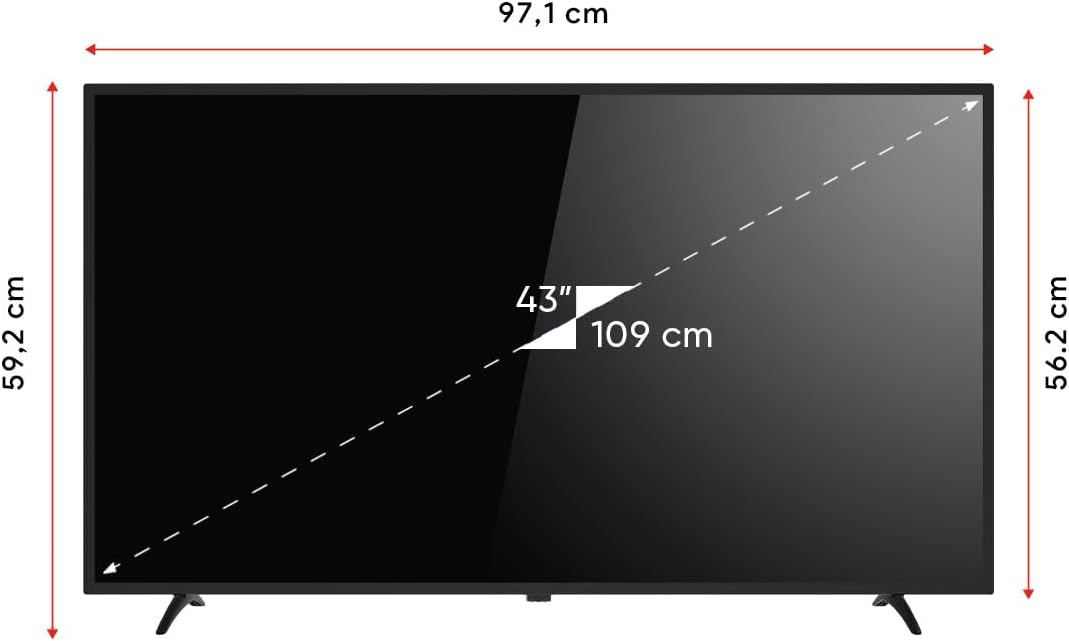
ചിത്രം 9.1: Dimensions of the Next YE-43020GG4 TV.
| ഫീച്ചർ | വിശദാംശങ്ങൾ |
|---|---|
| മോഡലിൻ്റെ പേര് | YE-43020GG4 |
| ബ്രാൻഡ് | അടുത്തത് |
| സ്ക്രീൻ വലിപ്പം | 43 ഇഞ്ച് (109 സെ.മീ) |
| ഡിസ്പ്ലേ ടെക്നോളജി | എൽഇഡി |
| റെസലൂഷൻ | ഫുൾ HD (1920x1080p) |
| പുതുക്കിയ നിരക്ക് | 60 Hz |
| ഓപ്പറേറ്റിംഗ് സിസ്റ്റം | Google Android ടിവി |
| കണക്റ്റിവിറ്റി | വൈഫൈ, ഇഥർനെറ്റ് |
| HDMI പോർട്ടുകൾ | 2 (1x ARC) |
| USB പോർട്ടുകൾ | 2 |
| വീക്ഷണാനുപാതം | 16:9 |
| കോൺട്രാസ്റ്റ് റേഷ്യോ | 3000:1 |
| പ്രത്യേക സവിശേഷതകൾ | Dynamic Contrast Enhancer, Google Assistant |
| ഉൽപ്പന്ന അളവുകൾ (WxDxH) | 97.1 x 19.4 x 59.2 സെ.മീ |
| ഉൽപ്പന്ന ഭാരം | 5.9 കിലോഗ്രാം |
| മോഡൽ വർഷം | 2024 |
ചിത്രം 9.2: EU Energy Label for the Next YE-43020GG4, indicating its energy efficiency rating and consumption.
10. വാറൻ്റിയും പിന്തുണയും
10.1. വാറൻ്റി വിവരങ്ങൾ
Your Next YE-43020GG4 television comes with a manufacturer's warranty. Please refer to the warranty card included in your product packaging for specific terms, conditions, and duration of the warranty. Keep your purchase receipt as proof of purchase for warranty claims.
10.2. ഉപഭോക്തൃ പിന്തുണ
For technical assistance, troubleshooting beyond this manual, or warranty service, please contact Next customer support. Contact details can typically be found on the manufacturer's official webസൈറ്റ് അല്ലെങ്കിൽ വാറന്റി കാർഡിൽ.
പിന്തുണയുമായി ബന്ധപ്പെടുമ്പോൾ, ദയവായി ഇനിപ്പറയുന്ന വിവരങ്ങൾ തയ്യാറാക്കി വയ്ക്കുക:
- മോഡലിൻ്റെ പേര്: YE-43020GG4
- Serial Number (located on the back of the TV)
- വാങ്ങിയ തീയതി
- പ്രശ്നത്തിന്റെ വ്യക്തമായ വിവരണം