
1. ആമുഖം
Thank you for choosing the Sharp 50FQ5EG 50-inch QLED 4K Google TV. This manual provides essential information for setting up, operating, maintaining, and troubleshooting your new television. Please read it thoroughly before use and keep it for future reference.
പ്രധാന സവിശേഷതകൾ:
- 50-inch QLED 4K Ultra HD Display with 144 Hz Refresh Rate
- Google TV Operating System with Google Assistant and Chromecast built-in
- Harman/Kardon Hybrid Speaker System with Dolby Atmos
- Dolby Vision IQ, HDR10, HLG Support
- Multiple Connectivity Options: 4 x HDMI 2.1, 2 x USB, Bluetooth 5.3, Wi-Fi, Ethernet
- Frameless Aluminum Design
ഉൾപ്പെടുത്തിയ ഘടകങ്ങൾ:
- Sharp 50FQ5EG Television
- പെഡസ്റ്റൽ സ്റ്റാൻഡ്
- റിമോട്ട് കൺട്രോൾ (2 AAA ബാറ്ററികൾ ആവശ്യമാണ്, ഉൾപ്പെടുത്തിയിരിക്കുന്നു)
- ഇൻസ്ട്രക്ഷൻ മാനുവൽ
- പവർ കേബിൾ
2 സുരക്ഷാ വിവരങ്ങൾ
സുരക്ഷിതമായ പ്രവർത്തനം ഉറപ്പാക്കുന്നതിനും കേടുപാടുകൾ തടയുന്നതിനും, ദയവായി ഇനിപ്പറയുന്ന സുരക്ഷാ മുൻകരുതലുകൾ പാലിക്കുക:
- വൈദ്യുതി വിതരണം: Connect the TV only to an AC 220V, 50Hz power outlet. Do not overload power outlets.
- വെൻ്റിലേഷൻ: ടിവിക്ക് ചുറ്റും മതിയായ വായുസഞ്ചാരം ഉറപ്പാക്കുക. വെന്റിലേഷൻ ദ്വാരങ്ങൾ അടയ്ക്കരുത്.
- ദ്രാവകവും ഈർപ്പവും: Do not expose the TV to rain, moisture, or dripping/splashing liquids. Do not place objects filled with liquids on the TV.
- താപ സ്രോതസ്സുകൾ: റേഡിയേറ്ററുകൾ, ഹീറ്റ് രജിസ്റ്ററുകൾ, സ്റ്റൗകൾ അല്ലെങ്കിൽ മറ്റ് ചൂട് ഉൽപ്പാദിപ്പിക്കുന്ന ഉപകരണങ്ങൾ പോലുള്ള താപ സ്രോതസ്സുകളിൽ നിന്ന് ടിവി അകറ്റി നിർത്തുക.
- വൃത്തിയാക്കൽ: വൃത്തിയാക്കുന്നതിന് മുമ്പ് ടിവി വാൾ ഔട്ട്ലെറ്റിൽ നിന്ന് പ്ലഗ് ഊരിയിടുക. മൃദുവായതും ഉണങ്ങിയതുമായ തുണി ഉപയോഗിക്കുക. ലിക്വിഡ് ക്ലീനറുകളോ എയറോസോൾ ക്ലീനറുകളോ ഉപയോഗിക്കരുത്.
- സേവനം: ഈ ഉൽപ്പന്നം സ്വയം സേവിക്കാൻ ശ്രമിക്കരുത്. യോഗ്യതയുള്ള സേവന ഉദ്യോഗസ്ഥർക്ക് എല്ലാ സേവനങ്ങളും റഫർ ചെയ്യുക.
- കുട്ടികൾ: കുട്ടികൾ ടിവിയോ റിമോട്ട് കൺട്രോളോ ഉപയോഗിച്ച് കളിക്കുന്നില്ലെന്ന് ഉറപ്പാക്കാൻ മേൽനോട്ടം വഹിക്കുക.
3. സജ്ജീകരണം
3.1 അൺപാക്കിംഗ്
ടിവിയും എല്ലാ അനുബന്ധ ഉപകരണങ്ങളും പാക്കേജിംഗിൽ നിന്ന് ശ്രദ്ധാപൂർവ്വം നീക്കം ചെയ്യുക. ഭാവിയിലെ ഗതാഗതത്തിനോ അറ്റകുറ്റപ്പണിക്കോ വേണ്ടി പാക്കേജിംഗ് വസ്തുക്കൾ സൂക്ഷിക്കുക.
3.2 Attaching the Pedestal Stand
If you are not wall-mounting the TV, attach the included pedestal stand:
- സ്ക്രീൻ കേടുപാടുകൾ തടയുന്നതിന് ടിവി മുഖം മൃദുവായതും പരന്നതുമായ പ്രതലത്തിൽ വയ്ക്കുക.
- ടിവിയുടെ അടിയിലുള്ള മൗണ്ടിംഗ് ദ്വാരങ്ങൾ ഉപയോഗിച്ച് സ്റ്റാൻഡ് ഘടകങ്ങൾ വിന്യസിക്കുക.
- നൽകിയിരിക്കുന്ന സ്ക്രൂകൾ ഉപയോഗിച്ച് സ്റ്റാൻഡ് ഉറപ്പിക്കുക. ടിവി നേരെ വയ്ക്കുന്നതിന് മുമ്പ് സ്റ്റാൻഡ് ദൃഢമായി ഘടിപ്പിച്ചിട്ടുണ്ടെന്ന് ഉറപ്പാക്കുക.

ചിത്രം: ക്ലോസ്-അപ്പ് view of the TV's pedestal stand and integrated Harman/Kardon speakers.
3.3 വാൾ മൗണ്ടിംഗ് (ഓപ്ഷണൽ)
The Sharp 50FQ5EG supports VESA wall mounts with a standard of 200 x 200 മി.മീ. Use M6 screws (not included) with a length appropriate for your wall mount bracket. Consult a professional for wall mounting to ensure safety and proper installation.
3.4 പെരിഫറലുകൾ ബന്ധിപ്പിക്കുന്നു
Connect your external devices to the TV's ports. The TV features 4 HDMI 2.1 ports, 2 USB ports, Ethernet, and an optical audio output.
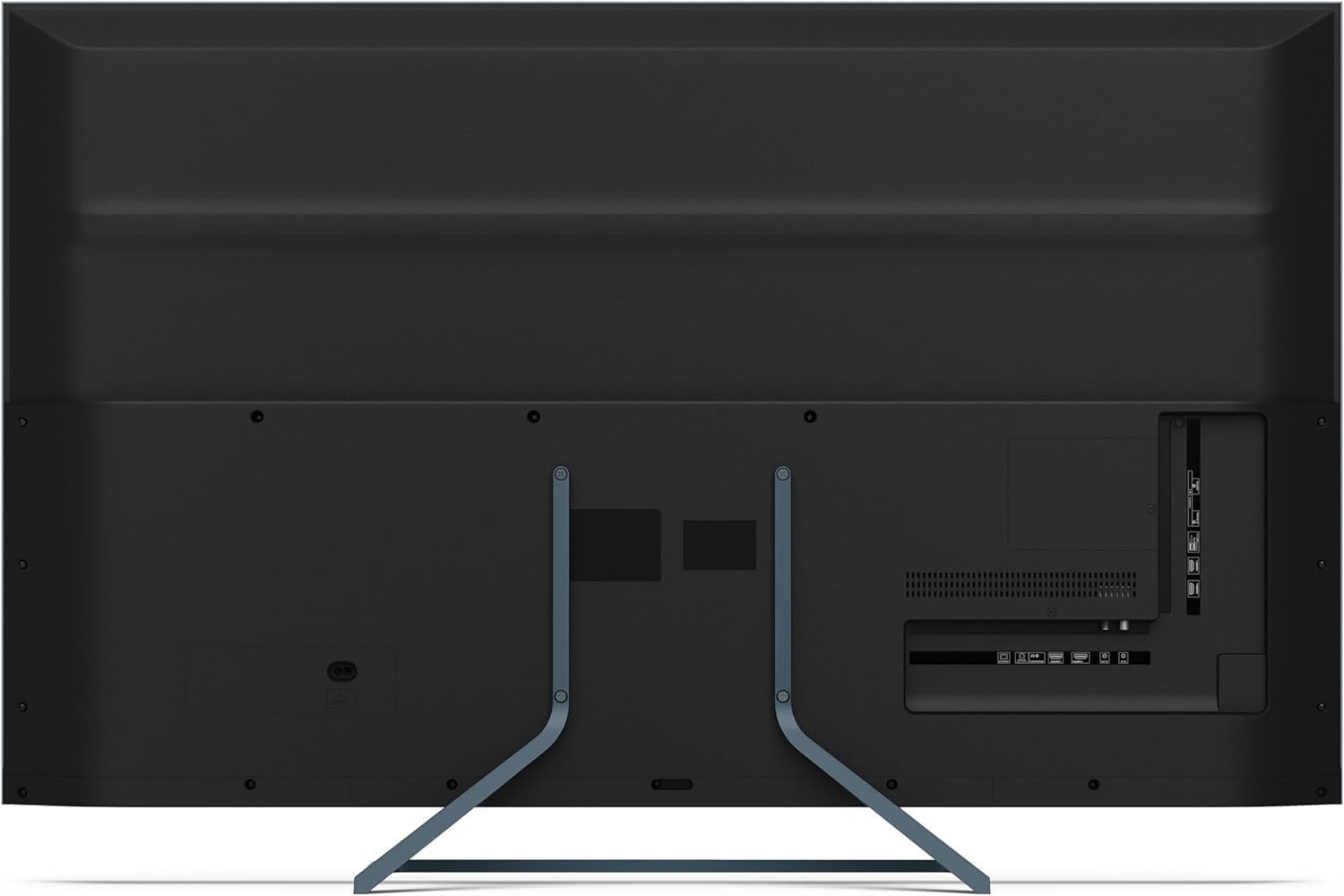
ചിത്രം: പിൻഭാഗം view of the television displaying the arrangement of HDMI, USB, and other connectivity ports.
- എച്ച്ഡിഎംഐ: Connect Blu-ray players, game consoles, or set-top boxes. HDMI 2.1 supports eARC and ALLM for enhanced audio and gaming.
- USB: മീഡിയ പ്ലേബാക്കിനായി USB സംഭരണ ഉപകരണങ്ങൾ ബന്ധിപ്പിക്കുക.
- ഇഥർനെറ്റ്: വയർഡ് ഇന്റർനെറ്റ് കണക്ഷന് വേണ്ടി.
- ശക്തി: പവർ കേബിൾ ടിവിയിലേക്കും തുടർന്ന് ഒരു വാൾ ഔട്ട്ലെറ്റിലേക്കും ബന്ധിപ്പിക്കുക.
3.5 പ്രാരംഭ പവർ-ഓണും ഗൂഗിൾ ടിവി സജ്ജീകരണവും
- ടിവി ഒരു പവർ ഔട്ട്ലെറ്റിൽ പ്ലഗ് ചെയ്യുക.
- റിമോട്ട് കൺട്രോളിലോ ടിവിയിലോ പവർ ബട്ടൺ അമർത്തുക.
- The TV will guide you through the initial setup process, including language selection, network connection (Wi-Fi or Ethernet), and Google account sign-in.
- റിമോട്ട് കൺട്രോൾ ജോടിയാക്കൽ: During initial setup, you may need to pair the Bluetooth remote control. Follow the on-screen instructions, typically involving pressing specific buttons on the remote simultaneously.
4. ടിവി പ്രവർത്തിപ്പിക്കൽ
4.1 വിദൂര നിയന്ത്രണം
The included remote control uses Bluetooth for enhanced functionality. It allows navigation, voice control via Google Assistant, and quick access to various features.
4.2 ഗൂഗിൾ ടിവി ഇന്റർഫേസ്
The Google TV interface organizes your content from various streaming services and apps. Use the remote's directional pad to navigate through menus, select apps, and browse content.

Image: The television screen showing the Google TV home interface with recommended content and installed applications.
4.3 ചിത്ര ക്രമീകരണങ്ങൾ
Your Sharp 50FQ5EG TV features advanced picture technologies:
- QLED Q-Colour: Provides vibrant and accurate color reproduction.
- 4K അൾട്രാ HD: Delivers sharp and detailed images.
- 144 Hz പുതുക്കൽ നിരക്ക്: Ensures smooth motion, especially beneficial for gaming and fast-paced content.
- Dolby Vision IQ, HDR10, HLG: Supports various High Dynamic Range formats for enhanced contrast and brightness.
- AQUOS Motion: Improves motion clarity by reducing blur.
- Eco Sensor: ആംബിയൻ്റ് ലൈറ്റ് അവസ്ഥകളെ അടിസ്ഥാനമാക്കി തെളിച്ചം യാന്ത്രികമായി ക്രമീകരിക്കുന്നു.
Access picture settings through the TV's menu to customize brightness, contrast, color, and other display options.
4.4 ശബ്ദ ക്രമീകരണങ്ങൾ
The TV is equipped with a Harman/Kardon Hybrid Speaker System and supports Dolby Atmos for immersive audio.
- ഹാർമാൻ/കാർഡൺ സ്പീക്കറുകൾ: Delivers clear sound with powerful bass.
- ഡോൾബി അറ്റ്മോസ്: Provides a three-dimensional audio experience.
Adjust sound modes, equalizer settings, and volume levels via the TV's audio menu.
4.5 കണക്റ്റിവിറ്റി
- വൈഫൈ/ഇഥർനെറ്റ്: ഇന്റർനെറ്റ് ആക്സസിനും സ്ട്രീമിംഗിനും നിങ്ങളുടെ ഹോം നെറ്റ്വർക്കിലേക്ക് കണക്റ്റുചെയ്യുക.
- ബ്ലൂടൂത്ത് 5.3: വയർലെസ് ഹെഡ്ഫോണുകൾ, സൗണ്ട്ബാറുകൾ അല്ലെങ്കിൽ മറ്റ് ബ്ലൂടൂത്ത് പ്രവർത്തനക്ഷമമാക്കിയ ഉപകരണങ്ങൾ ബന്ധിപ്പിക്കുക.
- Google Cast: Cast content from your mobile devices or computer directly to the TV.
4.6 ആപ്ലിക്കേഷനുകൾ ഉപയോഗിക്കൽ
The Google TV platform provides access to a wide range of applications from the Google Play Store, including:
- Netflix, Amazon Prime Video, HBO, Disney+, Movistar+, DAZN, Atresmedia
- KODI, IPTV, Steamlink, Twitch, VLC, YouTube
- Puffin TV Browser, Spotify, Deezer, TuneIn Radio
Navigate to the 'Apps' section on the Google TV home screen to browse, download, and manage your applications.
5. പരിപാലനം
5.1 ടിവി വൃത്തിയാക്കൽ
- സ്ക്രീൻ: മൃദുവായ, ലിന്റ് രഹിത തുണി ഉപയോഗിച്ച് സ്ക്രീൻ സൌമ്യമായി തുടയ്ക്കുക. കഠിനമായ പാടുകൾക്ക്, ചെറുതായി dampവെള്ളം അല്ലെങ്കിൽ ഒരു പ്രത്യേക സ്ക്രീൻ ക്ലീനർ ഉപയോഗിച്ച് തുണി വൃത്തിയാക്കുക (തുണിയിൽ പ്രയോഗിക്കുക, സ്ക്രീനിൽ നേരിട്ട് പ്രയോഗിക്കരുത്).
- ശരീരം: ടിവിയുടെ ഫ്രെയിം തുടച്ച് മൃദുവായതും ഉണങ്ങിയതുമായ തുണി ഉപയോഗിച്ച് വയ്ക്കുക.
- ഉപയോഗിക്കരുത്: Abrasive cleaners, alcohol, benzene, or thinners, as these can damage the TV's surface.
5.2 സോഫ്റ്റ്വെയർ അപ്ഡേറ്റുകൾ
പ്രകടനം മെച്ചപ്പെടുത്തുന്നതിനും പുതിയ സവിശേഷതകൾ ചേർക്കുന്നതിനുമായി നിങ്ങളുടെ ടിവിയിൽ സോഫ്റ്റ്വെയർ അപ്ഡേറ്റുകൾ ലഭിച്ചേക്കാം. ഈ അപ്ഡേറ്റുകൾ സ്വയമേവ ലഭിക്കുന്നതിന് നിങ്ങളുടെ ടിവി ഇന്റർനെറ്റുമായി കണക്റ്റുചെയ്തിട്ടുണ്ടെന്ന് ഉറപ്പാക്കുക അല്ലെങ്കിൽ ക്രമീകരണ മെനുവിൽ അവ നേരിട്ട് പരിശോധിക്കുക.
6. പ്രശ്നപരിഹാരം
നിങ്ങളുടെ ടിവിയിൽ പ്രശ്നങ്ങൾ നേരിടുകയാണെങ്കിൽ, ഇനിപ്പറയുന്ന പൊതുവായ പ്രശ്നങ്ങളും പരിഹാരങ്ങളും പരിശോധിക്കുക:
| പ്രശ്നം | സാധ്യമായ പരിഹാരം |
|---|---|
| പവർ ഇല്ല | പവർ കേബിൾ ടിവിയുമായും വാൾ ഔട്ട്ലെറ്റുമായും സുരക്ഷിതമായി ബന്ധിപ്പിച്ചിട്ടുണ്ടോയെന്ന് പരിശോധിക്കുക. ഔട്ട്ലെറ്റിൽ പവർ ഉണ്ടെന്ന് ഉറപ്പാക്കുക. മറ്റൊരു ഔട്ട്ലെറ്റ് പരീക്ഷിക്കുക. |
| ചിത്രമില്ല, പക്ഷേ ശബ്ദം ഉണ്ട് | ഇൻപുട്ട് ഉറവിടം പരിശോധിക്കുക. ബാഹ്യ ഉപകരണങ്ങൾ ഓണാണെന്നും ശരിയായി കണക്റ്റ് ചെയ്തിട്ടുണ്ടെന്നും ഉറപ്പാക്കുക. മറ്റൊരു HDMI കേബിൾ പരീക്ഷിക്കുക. |
| ശബ്ദമില്ല, പക്ഷേ ചിത്രം നിലവിലുണ്ട് | Check the volume level. Ensure mute is not activated. Check audio output settings (e.g., internal speakers, external soundbar). |
| റിമോട്ട് കൺട്രോൾ പ്രതികരിക്കുന്നില്ല | Replace the batteries. Ensure there are no obstructions between the remote and the TV. Re-pair the Bluetooth remote if necessary (refer to initial setup). |
| വൈഫൈയിലേക്ക് കണക്റ്റുചെയ്യാൻ കഴിയില്ല | നിങ്ങളുടെ റൂട്ടറും മോഡവും പരിശോധിക്കുക. വൈഫൈ പാസ്വേഡ് ശരിയാണെന്ന് ഉറപ്പാക്കുക. ടിവിയും റൂട്ടറും പുനരാരംഭിക്കാൻ ശ്രമിക്കുക. |
| Apps Not Working/Freezing | Ensure the TV has a stable internet connection. Try clearing the app's cache or reinstalling the app. Restart the TV. |
ഈ പരിഹാരങ്ങൾ പരീക്ഷിച്ചതിന് ശേഷവും പ്രശ്നം നിലനിൽക്കുകയാണെങ്കിൽ, ദയവായി ഉപഭോക്തൃ പിന്തുണയുമായി ബന്ധപ്പെടുക.
7 സ്പെസിഫിക്കേഷനുകൾ

Image: Technical drawing illustrating the width, height, and depth of the television with and without its stand.
| ഫീച്ചർ | സ്പെസിഫിക്കേഷൻ |
|---|---|
| മോഡൽ നമ്പർ | 50FQ5EG |
| സ്ക്രീൻ വലിപ്പം | 50 ഇഞ്ച് |
| ഡിസ്പ്ലേ ടെക്നോളജി | ക്യുഎൽഇഡി, എൽഇഡി |
| റെസലൂഷൻ | 4K അൾട്രാ HD (3840 x 2160) |
| പുതുക്കിയ നിരക്ക് | 144 Hz |
| HDR പിന്തുണ | ഡോൾബി വിഷൻ ഐക്യു, എച്ച്ഡിആർ 10, എച്ച്എൽജി |
| ഓപ്പറേറ്റിംഗ് സിസ്റ്റം | Google TV |
| ഓഡിയോ ഔട്ട്പുട്ട് | 2.1 Channel Harman/Kardon Speakers, 15W Max Power, Dolby Atmos |
| കണക്റ്റിവിറ്റി | 4 x HDMI 2.1, 2 x USB 2.0, Bluetooth 5.3, Wi-Fi, Ethernet |
| VESA മൗണ്ടിംഗ് സ്റ്റാൻഡേർഡ് | 200 x 200 മി.മീ |
| സ്റ്റാൻഡോടുകൂടിയ അളവുകൾ (W x H x D) | 113.22 x 73.89 x 23.2 സെ.മീ |
| സ്റ്റാൻഡ് ഇല്ലാത്ത അളവുകൾ (W x H x D) | 113.22 x 66.87 x 6.0 സെ.മീ |
| ഭാരം (സ്റ്റാൻഡ് ഇല്ലാതെ) | 11.5 കി.ഗ്രാം |
| വൈദ്യുതി ഉപഭോഗം (പ്രവർത്തനം) | 84 വാട്ട്സ് |
| വാർഷിക ഊർജ്ജ ഉപഭോഗം | 64 kWh/വർഷം |
| നിയന്ത്രണ രീതി | Voice (Google Assistant), Remote Control |
| നിറം | Anthracite Grey Aluminum |
8. വാറൻ്റിയും പിന്തുണയും
8.1 വാറൻ്റി വിവരങ്ങൾ
This Sharp 50FQ5EG television comes with a പരിമിത വാറൻ്റി. Please refer to the warranty card included with your product or visit the official Sharp webകവറേജ്, ദൈർഘ്യം, സേവന നടപടിക്രമങ്ങൾ എന്നിവയെക്കുറിച്ചുള്ള വിശദമായ നിബന്ധനകൾക്കും വ്യവസ്ഥകൾക്കും സൈറ്റ്.
8.2 ഉപഭോക്തൃ പിന്തുണ
For technical assistance, troubleshooting beyond this manual, or warranty claims, please contact Sharp customer support. Contact details can typically be found on the Sharp official webസൈറ്റ് അല്ലെങ്കിൽ നിങ്ങളുടെ ടിവിയിൽ നൽകിയിരിക്കുന്ന ഡോക്യുമെന്റേഷനിൽ.