
Auusda T152A
Auusda Windows Laptop Computer User Manual
മോഡൽ: T152A
ആമുഖം
Welcome to the user manual for your new Auusda Windows Laptop Computer. This manual provides essential information to help you set up, operate, maintain, and troubleshoot your device. Please read it thoroughly to ensure optimal performance and longevity of your laptop.

ചിത്രം: മുൻഭാഗം view of the Auusda Windows Laptop Computer, showcasing അതിന്റെ മിനുസമാർന്ന രൂപകൽപ്പനയും ഊർജ്ജസ്വലമായ ഡിസ്പ്ലേയും.
ബോക്സിൽ എന്താണുള്ളത്
Upon unboxing your Auusda laptop, please verify that all the following items are included:
- Auusda Windows Laptop Computer
- Laptop Charger (Power Adapter)
- Laptop Manual (this document)
- (Optional) Transparent Keyboard Cover
- (Optional) Spanish Keyboard Cover
ഉൽപ്പന്നം കഴിഞ്ഞുview
പ്രധാന സവിശേഷതകൾ
The Auusda T152A laptop is designed for efficiency and performance, featuring:
Fast & Secure Fingerprint Reader
Enjoy instant and secure access to your laptop with the integrated fingerprint recognition technology, allowing login within 1 second.

Image: Detail of the laptop's fingerprint reader, highlighting its quick and secure login capability.
Ultimate Performance: RAM, SSD, and CPU
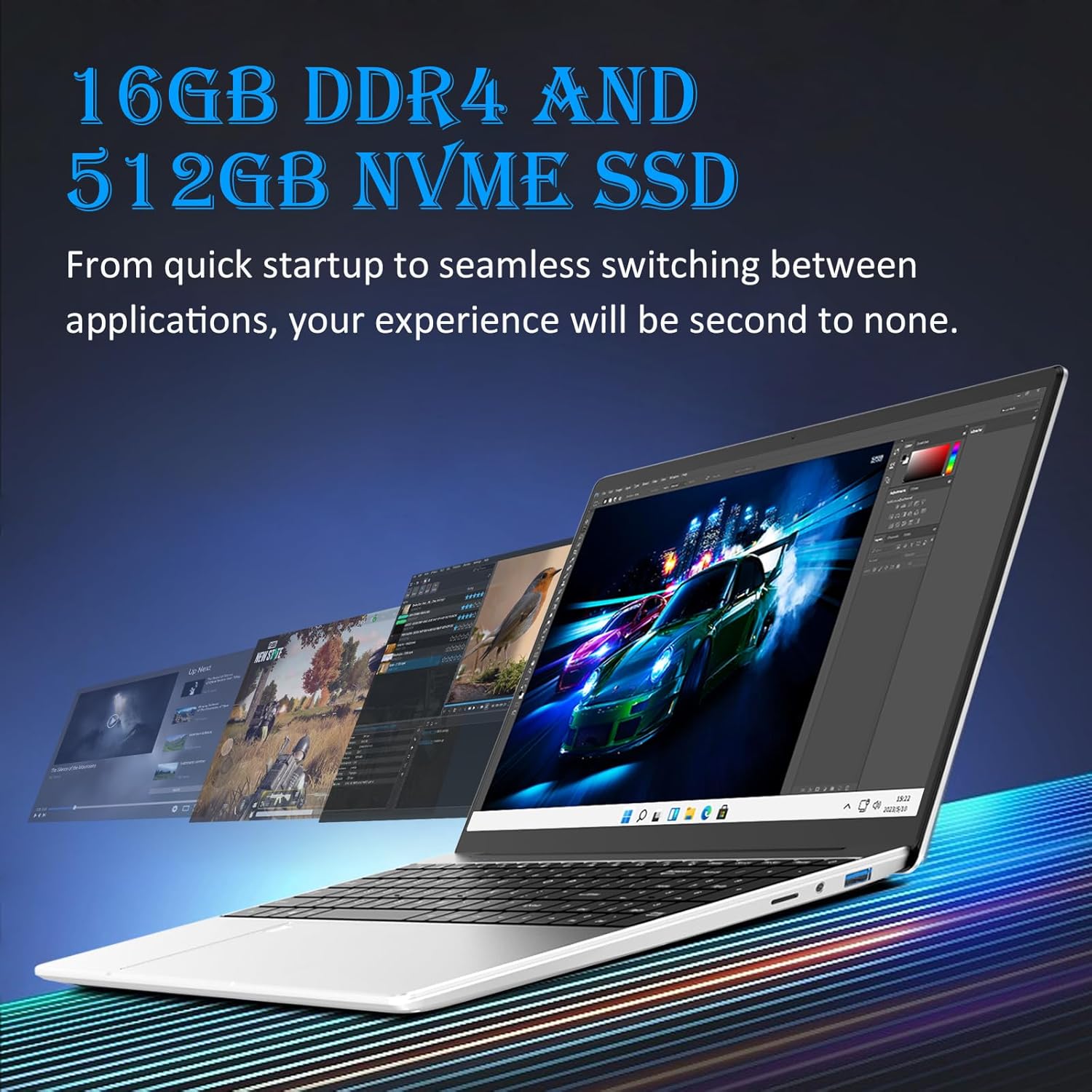
കൊണ്ട് സജ്ജീകരിച്ചിരിക്കുന്നു 16GB DDR4 റാം for seamless multitasking and a 512GB M.2 PCIe NVMe SSD for rapid data transfer and application loading. The 1.7-3.4GHz Intel N95 processor provides enhanced processing power, suitable for various computing tasks including video editing.

Image: Visual representation of the laptop's performance, showcasing multiple applications running smoothly, enabled by its 16GB DDR4 RAM and 512GB NVMe SSD.

Image: A chart comparing the Intel N95 processor's performance, emphasizing its 3.40GHz burst frequency and 4 cores.
Visual Masterpiece: Display
The laptop features a stunning 15.6" Full HD (1920x1080) IPS LCD display, offering vibrant colors and wide viewകോണുകൾ. ദി 180-degree hinge provides flexibility for various viewing and sharing scenarios.

ചിത്രം: ലാപ്ടോപ്പിന്റെ ഡിസ്പ്ലേ കാണിക്കുന്നുasing its 15.6-inch Full HD IPS screen with vivid visuals.

Image: The laptop's 180-degree hinge in action, illustrating its flexibility for diverse viewകോണുകൾ.
Efficient Typing & Long-Lasting Power: Keyboard and Battery
ദി ബാക്ക്ലിറ്റ് കീബോർഡ് allows comfortable typing in low-light conditions, complemented by a numeric keypad for efficient data entry. Quick-access shortcut keys are available, and brightness can be adjusted with Fn+F5. A robust 44892mWh battery ensures extended use.

Image: A user typing on the laptop's backlit keyboard, demonstrating its visibility in low-light settings.
Comprehensive Connectivity & Expansion
The laptop offers a versatile array of ports including dual USB-A 3.0, മിനി HDMI for video output, and a മൈക്രോ എസ്ഡി സ്ലോട്ട്. It also features a 3.5mm charging port and a 3.5mm audio jack. Storage can be expanded with up to 1.5TB MicroSD cards ഒപ്പം ഒരു 8TB M.2 SSD.
ചിത്രം: വിശദമായ ഒരു വശം view of the laptop, illustrating its comprehensive connectivity options including USB-A, Mini HDMI, and MicroSD ports.

Image: A visual demonstrating the laptop's connectivity, including its ability to connect to external displays via Mini HDMI.
സജ്ജീകരണ ഗൈഡ്
- ലാപ്ടോപ്പ് അൺപാക്ക് ചെയ്യുക: ലാപ്ടോപ്പും എല്ലാ അനുബന്ധ ഉപകരണങ്ങളും പാക്കേജിംഗിൽ നിന്ന് ശ്രദ്ധാപൂർവ്വം നീക്കം ചെയ്യുക.
- പവർ ബന്ധിപ്പിക്കുക: Plug the laptop charger into the charging port (3.5mm x 1.35mm round 12V 3A) on the laptop and then into a power outlet.
- പ്രാരംഭ പവർ ഓൺ: Open the laptop lid and press the power button. The laptop will typically power on automatically or prompt you to press the power button.
- വിൻഡോസ് സജ്ജീകരണം: Follow the on-screen instructions to complete the Windows 11 setup process. This includes selecting your region, language, connecting to a Wi-Fi network, accepting terms, and creating a user account.
- ഫിംഗർപ്രിന്റ് സജ്ജീകരണം (ഓപ്ഷണൽ): During or after Windows setup, you can configure the fingerprint reader for quick and secure login. Navigate to ക്രമീകരണങ്ങൾ > അക്കൗണ്ടുകൾ > സൈൻ-ഇൻ ഓപ്ഷനുകൾ to set up Windows Hello Fingerprint.
- അപ്ഡേറ്റുകൾ ഇൻസ്റ്റാൾ ചെയ്യുക: After initial setup, it is recommended to check for and install any pending Windows updates to ensure your system is secure and up-to-date. Go to ക്രമീകരണങ്ങൾ > വിൻഡോസ് അപ്ഡേറ്റ്.
പ്രവർത്തന നിർദ്ദേശങ്ങൾ
അടിസ്ഥാന പ്രവർത്തനം
- പവർ ഓൺ/ഓഫ്: ഓണാക്കാൻ പവർ ബട്ടൺ അമർത്തുക. ഷട്ട് ഡൗൺ ചെയ്യാൻ, സ്റ്റാർട്ട് ബട്ടൺ ക്ലിക്ക് ചെയ്യുക, തുടർന്ന് പവർ ബട്ടൺ ക്ലിക്ക് ചെയ്ത് "ഷട്ട് ഡൗൺ" തിരഞ്ഞെടുക്കുക.
- സ്ലീപ്പ് മോഡ്: Close the lid or click the Start button, then Power, and select "Sleep."
- കീബോർഡ് ബാക്ക്ലൈറ്റ്: Adjust brightness using the Fn + F5 key combination.
- ബന്ധിപ്പിക്കുന്ന പെരിഫറലുകൾ: Use the USB-A 3.0 ports for external devices like mice, keyboards, or external drives.
- ബാഹ്യ പ്രദർശനം: Connect an external monitor using the Mini HDMI port.
- ഓഡിയോ: Use the 3.5mm audio jack for headphones or external speakers.
സംഭരണ വിപുലീകരണം
Your laptop supports storage expansion:
- മൈക്രോ എസ്ഡി കാർഡ്: Insert a MicroSD card into the dedicated slot for additional storage, supporting up to 1.5TB.
- M.2 SSD: The laptop allows for an additional M.2 SSD upgrade, supporting up to 8TB for significant storage capacity. Consult a qualified technician for M.2 SSD installation if you are unsure.
മെയിൻ്റനൻസ്
Proper maintenance ensures the longevity and optimal performance of your Auusda laptop:
- വൃത്തിയാക്കൽ: സ്ക്രീനും പുറംഭാഗവും വൃത്തിയാക്കാൻ മൃദുവായ, ലിന്റ് രഹിത തുണി ഉപയോഗിക്കുക. കഠിനമായ പാടുകൾക്ക്, ചെറുതായി dampതുണിയിൽ വെള്ളം അല്ലെങ്കിൽ സ്ക്രീൻ-സേഫ് ക്ലീനർ ഉപയോഗിക്കുക. കഠിനമായ രാസവസ്തുക്കൾ ഒഴിവാക്കുക.
- വെൻ്റിലേഷൻ: ലാപ്ടോപ്പിന്റെ വെന്റിലേഷൻ ഓപ്പണിംഗുകൾ അടഞ്ഞിട്ടില്ലെന്ന് ഉറപ്പാക്കുക, അങ്ങനെ അമിതമായി ചൂടാകുന്നത് തടയുക. ലാപ്ടോപ്പ് കട്ടിയുള്ളതും പരന്നതുമായ പ്രതലത്തിൽ ഉപയോഗിക്കുക.
- ബാറ്ററി കെയർ: ബാറ്ററി ഇടയ്ക്കിടെ പൂർണ്ണമായും ഡിസ്ചാർജ് ചെയ്യുന്നത് ഒഴിവാക്കുക. ദീർഘകാല സംഭരണത്തിനായി, ബാറ്ററി ഏകദേശം 50-60% വരെ ചാർജ് ചെയ്യുക.
- സോഫ്റ്റ്വെയർ അപ്ഡേറ്റുകൾ: Regularly install Windows updates and driver updates to maintain system stability and security.
- ഡാറ്റ ബാക്കപ്പ്: ഡാറ്റ നഷ്ടപ്പെടുന്നത് തടയാൻ, പ്രധാനപ്പെട്ട ഡാറ്റ ഇടയ്ക്കിടെ ഒരു ബാഹ്യ ഡ്രൈവിലേക്കോ ക്ലൗഡ് സ്റ്റോറേജിലേക്കോ ബാക്കപ്പ് ചെയ്യുക.

Image: Illustration of the laptop's cooling system, emphasizing the importance of clear ventilation for optimal performance.
ട്രബിൾഷൂട്ടിംഗ്
നിങ്ങൾ നേരിട്ടേക്കാവുന്ന പൊതുവായ പ്രശ്നങ്ങൾക്കുള്ള പരിഹാരങ്ങൾ ഇതാ:
| പ്രശ്നം | സാധ്യമായ കാരണം | പരിഹാരം |
|---|---|---|
| ലാപ്ടോപ്പ് പവർ ഓൺ ആകുന്നില്ല. | ബാറ്ററി കുറവാണ്, പവർ അഡാപ്റ്റർ പ്രശ്നം. | Ensure charger is properly connected and power outlet is working. Allow laptop to charge for at least 30 minutes before attempting to power on again. |
| മന്ദഗതിയിലുള്ള പ്രകടനം. | വളരെയധികം ആപ്ലിക്കേഷനുകൾ പ്രവർത്തിക്കുന്നു, കുറഞ്ഞ ഡിസ്ക് സ്ഥലം, കാലഹരണപ്പെട്ട ഡ്രൈവറുകൾ. | ആവശ്യമില്ലാത്ത ആപ്ലിക്കേഷനുകൾ അടയ്ക്കുക. ഡിസ്ക് സ്ഥലം ശൂന്യമാക്കുക. വിൻഡോസും ഉപകരണ ഡ്രൈവറുകളും അപ്ഡേറ്റ് ചെയ്യുക. |
| വൈഫൈ കണക്റ്റിവിറ്റി പ്രശ്നങ്ങൾ. | Router issues, incorrect Wi-Fi settings, driver problems. | Restart your router and laptop. Check Wi-Fi settings in Windows. Update Wi-Fi drivers. |
| Fingerprint reader not working. | Finger dirty, sensor dirty, software glitch. | Ensure your finger and the sensor are clean and dry. Restart the laptop. Re-register your fingerprint in Windows Hello settings. |
| കീബോർഡ് ബാക്ക്ലൈറ്റ് പ്രവർത്തിക്കുന്നില്ല. | Disabled or brightness set to minimum. | Press Fn + F5 to adjust backlight brightness. Ensure the feature is enabled in system settings if applicable. |
സ്പെസിഫിക്കേഷനുകൾ
| ഫീച്ചർ | വിശദാംശങ്ങൾ |
|---|---|
| ബ്രാൻഡ് | ഔസ്ദ |
| മോഡലിൻ്റെ പേര് | T152A |
| ഓപ്പറേറ്റിംഗ് സിസ്റ്റം | വിൻഡോസ് 11 |
| സ്ക്രീൻ വലിപ്പം | 15.6 ഇഞ്ച് |
| സ്ക്രീൻ റെസല്യൂഷൻ | 1920 x 1080 പിക്സലുകൾ (ഫുൾ എച്ച്ഡി ഐപിഎസ്) |
| പ്രോസസ്സർ | Intel N95 (1.7-3.4GHz) |
| റാം | 16 GB DDR4 |
| ഹാർഡ് ഡ്രൈവ് | 512 GB M.2 PCIe NVMe SSD |
| ഗ്രാഫിക്സ് കോപ്രൊസസർ | ഇന്റൽ യുഎച്ച്ഡി ഗ്രാഫിക്സ് (ഇന്റഗ്രേറ്റഡ്) |
| വയർലെസ് തരം | 5 GHz Radio Frequency (Wi-Fi) |
| USB പോർട്ടുകൾ | 2 x USB 3.0 |
| വീഡിയോ ഔട്ട്പുട്ട് | മിനി HDMI |
| ഓഡിയോ ജാക്ക് | 3.5 മി.മീ |
| മൈക്രോ എസ്ഡി സ്ലോട്ട് | Yes (supports up to 1.5TB) |
| ബാറ്ററി | 44892mWh Lithium Ion |
| ഇനത്തിൻ്റെ ഭാരം | 5.09 പൗണ്ട് (ഏകദേശം 2.31 കിലോഗ്രാം) |
| ഉൽപ്പന്ന അളവുകൾ | 14.17 x 9.06 x 0.71 ഇഞ്ച് |
| നിറം | Silver Denarius |
| പ്രത്യേക സവിശേഷതകൾ | ബാക്ക്ലിറ്റ് കീബോർഡ്, ഫിംഗർപ്രിന്റ് റീഡർ |
വാറൻ്റിയും പിന്തുണയും
Your Auusda laptop comes with a 2-year assured performance and safety warranty. This product has been thoroughly tested and is UL certified, ensuring reliable operation and superior safety measures.
For technical support, warranty claims, or any inquiries, please refer to the contact information provided on the Auusda official website or your purchase documentation. Please have your model number (T152A) and purchase date ready when contacting support.
Ask a question about this manual
Ask about setup, troubleshooting, compatibility, parts, safety, or missing instructions. Manuals+ will review the question and use this page’s manual context to help answer it.