
DOOGEE T30MAX
DOOGEE T30MAX ടാബ്ലെറ്റ്
ഉപയോക്തൃ മാനുവൽ
1. ഉൽപ്പന്നം കഴിഞ്ഞുview
The DOOGEE T30MAX is a high-performance tablet designed for versatile use, from entertainment to productivity. It features a large 12.4-inch display, robust processing capabilities, and ample storage, making it suitable for various applications.
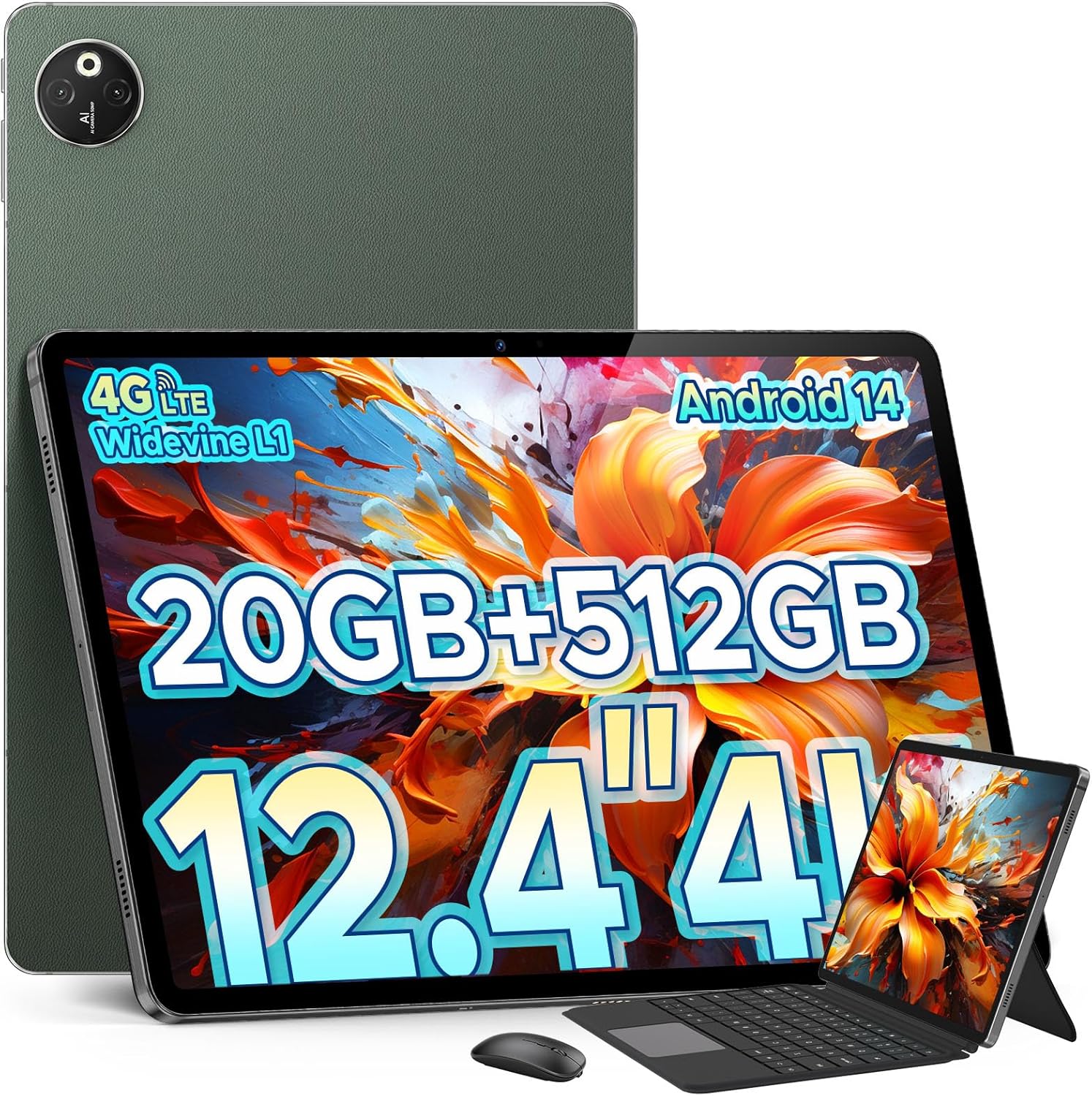
Image: The DOOGEE T30MAX Tablet showcasing its design, screen, and included accessories like a keyboard and mouse.
Key features include a 12.4-inch 4K Ultra HD display, 512 GB of internal storage expandable up to 2TB, 20GB (8GB+12GB virtual) RAM, an Octa-Core processor, and a large 10800mAh battery. It supports 4G Dual SIM, 2.4G/5G Wi-Fi, and Bluetooth 5.0. The tablet is equipped with a 50MP+2MP AI Dual Camera on the rear and a 20MP front camera.
2. പാക്കേജ് ഉള്ളടക്കം
അൺബോക്സിംഗ് ചെയ്യുമ്പോൾ എല്ലാ ഇനങ്ങളും ഉണ്ടെന്ന് ഉറപ്പാക്കാൻ പാക്കേജ് ഉള്ളടക്കങ്ങൾ പരിശോധിക്കുക:
- DOOGEE T30MAX ടാബ്ലെറ്റ്
- Power Adapter (Wall Plug)
- USB-C ചാർജിംഗ് കേബിൾ
- സംരക്ഷണ കേസ്
- സ്ക്രീൻ പ്രൊട്ടക്ടർ (മുമ്പ് പ്രയോഗിച്ചതോ ബോക്സിൽ ഉള്ളതോ)
- സിം എജക്ടർ ഉപകരണം
- ഉപയോക്തൃ മാനുവൽ (ഈ പ്രമാണം)
3. സജ്ജീകരണ ഗൈഡ്
3.1 ടാബ്ലെറ്റ് ചാർജ് ചെയ്യുന്നു
Before first use, fully charge the tablet. Connect the USB-C charging cable to the tablet's charging port and the other end to the power adapter. Plug the adapter into a wall outlet. The charging indicator will show the charging status.

Image: Illustration of the DOOGEE T30MAX Tablet's large 10800mAh battery and 33W fast charging capability, showing estimated usage times.
3.2 പവർ ഓൺ/ഓഫ്
- പവർ ഓണാക്കാൻ: Press and hold the Power button (usually on the side) until the DOOGEE logo appears on the screen.
- പവർ ഓഫ് ചെയ്യാൻ: പവർ ഓപ്ഷൻ മെനു ദൃശ്യമാകുന്നതുവരെ പവർ ബട്ടൺ അമർത്തിപ്പിടിക്കുക. "പവർ ഓഫ്" തിരഞ്ഞെടുത്ത് സ്ഥിരീകരിക്കുക.
- പുനരാരംഭിക്കാൻ: പവർ ഓപ്ഷനുകൾ മെനുവിൽ നിന്ന്, "പുനരാരംഭിക്കുക" തിരഞ്ഞെടുത്ത് സ്ഥിരീകരിക്കുക.
3.3 പ്രാരംഭ സജ്ജീകരണം
ആദ്യമായി പവർ-ഓൺ ചെയ്യുമ്പോൾ, ടാബ്ലെറ്റ് പ്രാരംഭ സജ്ജീകരണ പ്രക്രിയയിലൂടെ നിങ്ങളെ നയിക്കും:
- നിങ്ങൾ ഇഷ്ടപ്പെടുന്ന ഭാഷ തിരഞ്ഞെടുക്കുക.
- ഒരു Wi-Fi നെറ്റ്വർക്കിലേക്ക് കണക്റ്റുചെയ്യുക.
- നിബന്ധനകളും വ്യവസ്ഥകളും അംഗീകരിക്കുക.
- നിങ്ങളുടെ Google അക്കൗണ്ട് ഉപയോഗിച്ച് സൈൻ ഇൻ ചെയ്യുക അല്ലെങ്കിൽ പുതിയൊരെണ്ണം സൃഷ്ടിക്കുക.
- സ്ക്രീൻ ലോക്ക് (പിൻ, പാറ്റേൺ, പാസ്വേഡ്) സജ്ജീകരിക്കുക.
- Review ആവശ്യപ്പെടുമ്പോൾ മറ്റ് ക്രമീകരണങ്ങൾ ക്രമീകരിക്കുക.
3.4 സിം കാർഡും മൈക്രോ എസ്ഡി കാർഡും ഇൻസ്റ്റാൾ ചെയ്യൽ
The DOOGEE T30MAX supports dual SIM cards and a MicroSD card for expanded storage.
- ടാബ്ലെറ്റിന്റെ വശത്ത് സിം കാർഡ് ട്രേ കണ്ടെത്തുക.
- ട്രേയുടെ അടുത്തുള്ള ചെറിയ ദ്വാരത്തിലേക്ക് സിം എജക്റ്റർ ഉപകരണം തിരുകുക, ട്രേ പുറത്തേക്ക് വരുന്നത് വരെ സൌമ്യമായി അമർത്തുക.
- Place your Nano-SIM cards and/or MicroSD card into the designated slots on the tray, ensuring correct orientation.
- ട്രേ അതിന്റെ സ്ഥാനത്ത് ക്ലിക്കായി വരുന്നത് വരെ ശ്രദ്ധാപൂർവ്വം ടാബ്ലെറ്റിലേക്ക് തിരികെ തള്ളുക.
4. പ്രവർത്തന നിർദ്ദേശങ്ങൾ
4.1 അടിസ്ഥാന നാവിഗേഷൻ
നാവിഗേഷനായി ടാബ്ലെറ്റ് ടച്ച് ജെസ്റ്ററുകൾ ഉപയോഗിക്കുന്നു:
- ടാപ്പ് ചെയ്യുക: ഒരു ഇനം തിരഞ്ഞെടുക്കാനോ ഒരു ആപ്പ് തുറക്കാനോ.
- സ്പർശിച്ച് പിടിക്കുക: സന്ദർഭോചിത മെനുകൾ ആക്സസ് ചെയ്യുന്നതിനോ ഐക്കണുകൾ നീക്കുന്നതിനോ.
- സ്വൈപ്പ്: സ്ക്രീനുകളിലൂടെയോ ലിസ്റ്റുകളിലൂടെയോ സ്ക്രോൾ ചെയ്യാൻ.
- പിഞ്ച്: ചിത്രങ്ങൾ സൂം ഇൻ ചെയ്യാനോ ഔട്ട് ചെയ്യാനോ അല്ലെങ്കിൽ web പേജുകൾ.
4.2 വൈ-ഫൈ, ബ്ലൂടൂത്ത് കണക്റ്റിവിറ്റി
- വൈഫൈ: പോകുക ക്രമീകരണങ്ങൾ > നെറ്റ്വർക്കും ഇന്റർനെറ്റും > വൈ-ഫൈ. Turn on Wi-Fi, select your network, and enter the password if required.
- ബ്ലൂടൂത്ത്: പോകുക ക്രമീകരണങ്ങൾ > കണക്റ്റുചെയ്ത ഉപകരണങ്ങൾ > ബ്ലൂടൂത്ത്. Turn on Bluetooth, then select "Pair new device" to connect to Bluetooth accessories.

Image: The DOOGEE T30MAX Tablet highlighting Android 14 features such as Smarter AI, Stronger Security, More Privacy, and Richer Multitasking, along with connectivity options like 4G Dual SIM, Wi-Fi, and Bluetooth 5.0.
4.3 ക്യാമറകൾ ഉപയോഗിക്കുന്നത്
The tablet features a 50MP+2MP AI dual rear camera and a 20MP front camera.
- Open the "Camera" app from the home screen or app drawer.
- ക്യാമറ ഐക്കൺ ഉപയോഗിച്ച് മുൻ ക്യാമറയും പിൻ ക്യാമറയും തമ്മിൽ മാറുക.
- Tap the shutter button to take a photo or the record button to start/stop video recording.
- Explore different modes like Portrait, Panorama, or Pro mode if available.

Image: Visual representation of the DOOGEE T30MAX Tablet's 50MP+2MP AI Dual Camera and 20MP Front Camera, with exampഉപകരണം എടുത്ത ഫോട്ടോകൾ.
4.4 സ്റ്റോറേജ് മാനേജ്മെൻ്റ്
With 512GB ROM and support for up to 2TB expansion, managing storage is important.
- പോകുക ക്രമീകരണങ്ങൾ > സംഭരണം വരെ view സംഭരണ ഉപയോഗം.
- അനാവശ്യമായതും കാഷെ പതിവായി മായ്ക്കുക files.
- വലുതായി നീക്കുക files to the MicroSD card to free up internal storage.

Image: The DOOGEE T30MAX Tablet's internal components, highlighting 512GB ROM, 20GB RAM (8GB+12GB Virtual), Octa-Core Processor, 2.2GHz Frequency, and 6nm Process Tech.
5. പരിപാലനം
5.1 ടാബ്ലെറ്റ് വൃത്തിയാക്കൽ
- സ്ക്രീനും ബോഡിയും വൃത്തിയാക്കാൻ മൃദുവായ, ലിന്റ് രഹിത തുണി ഉപയോഗിക്കുക.
- കഠിനമായ പാടുകൾക്ക്, ചെറുതായി dampen വെള്ളമുള്ള തുണി അല്ലെങ്കിൽ ഒരു സ്ക്രീൻ ക്ലീനർ.
- കഠിനമായ രാസവസ്തുക്കൾ, ഉരച്ചിലുകൾ ഉള്ള വസ്തുക്കൾ, അല്ലെങ്കിൽ അമിതമായ ഈർപ്പം എന്നിവ ഉപയോഗിക്കുന്നത് ഒഴിവാക്കുക.
5.2 ബാറ്ററി കെയർ
- ബാറ്ററിയുടെ ആയുസ്സ് കുറയ്ക്കുമെന്നതിനാൽ തീവ്രമായ താപനില ഒഴിവാക്കുക.
- ഒറിജിനൽ ചാർജറോ സാക്ഷ്യപ്പെടുത്തിയ അനുയോജ്യമായ ചാർജറോ മാത്രം ഉപയോഗിക്കുക.
- ബാറ്ററി ഇടയ്ക്കിടെ പൂർണ്ണമായും തീർന്നുപോകാൻ അനുവദിക്കരുത്.
5.3 സോഫ്റ്റ്വെയർ അപ്ഡേറ്റുകൾ
ഒപ്റ്റിമൽ പ്രകടനം, സുരക്ഷ, പുതിയ സവിശേഷതകളിലേക്കുള്ള ആക്സസ് എന്നിവ ഉറപ്പാക്കാൻ സോഫ്റ്റ്വെയർ അപ്ഡേറ്റുകൾ പതിവായി പരിശോധിച്ച് ഇൻസ്റ്റാൾ ചെയ്യുക.
- പോകുക ക്രമീകരണങ്ങൾ > സിസ്റ്റം > സിസ്റ്റം അപ്ഡേറ്റ്.
- ലഭ്യമായ എല്ലാ അപ്ഡേറ്റുകളും ഡൗൺലോഡ് ചെയ്ത് ഇൻസ്റ്റാൾ ചെയ്യാൻ ഓൺ-സ്ക്രീൻ നിർദ്ദേശങ്ങൾ പാലിക്കുക.
6. പ്രശ്നപരിഹാരം
This section addresses common issues you might encounter with your DOOGEE T30MAX Tablet.
| പ്രശ്നം | പരിഹാരം |
|---|---|
| ടാബ്ലെറ്റ് ഓണാകുന്നില്ല. | Ensure the battery is charged. Connect the charger and wait a few minutes before attempting to power on again. If still unresponsive, try holding the power button for 10-15 seconds. |
| വൈഫൈ കണക്ഷൻ പ്രശ്നങ്ങൾ. | Restart the tablet and your Wi-Fi router. Forget the network in tablet settings and reconnect. Ensure you are within range of the Wi-Fi signal. |
| മന്ദഗതിയിലുള്ള പ്രകടനം അല്ലെങ്കിൽ ആപ്പുകൾ ക്രാഷാകൽ. | Close unused apps. Clear app caches (Settings > Apps > [App Name] > Storage > Clear cache). Restart the tablet. If issues persist, consider a factory reset (backup data first). |
| സ്ക്രീൻ പ്രതികരിക്കുന്നില്ല. | Restart the tablet by holding the power button until it reboots. Ensure the screen is clean and free of debris. |
| ബ്ലൂടൂത്ത് ഉപകരണത്തിലേക്ക് കണക്റ്റുചെയ്യാൻ കഴിയുന്നില്ല. | Ensure Bluetooth is enabled on both devices. Make sure the other device is in pairing mode. Restart both devices and try pairing again. |
7 സ്പെസിഫിക്കേഷനുകൾ
Detailed technical specifications for the DOOGEE T30MAX Tablet:
| ഫീച്ചർ | വിശദാംശങ്ങൾ |
|---|---|
| ബ്രാൻഡ് | ഡോഗി |
| മോഡലിൻ്റെ പേര് | T30MAX |
| സ്റ്റാൻഡിംഗ് സ്ക്രീൻ ഡിസ്പ്ലേ വലുപ്പം | 12.4 ഇഞ്ച് |
| സ്ക്രീൻ റെസല്യൂഷൻ | 2560*1600 (4K Ultra HD) |
| പ്രോസസ്സർ | Octa-Core, 2.2GHz Frequency |
| റാം | 8 GB (expandable with 12GB Virtual RAM for 20GB total) |
| ഫ്ലാഷ് മെമ്മറി വലുപ്പം (റോം) | 512 ജിബി |
| വികസിപ്പിക്കാവുന്ന സംഭരണം | മൈക്രോഎസ്ഡി കാർഡ് വഴി 2TB വരെ |
| പിൻഭാഗം Webക്യാം റെസല്യൂഷൻ | 50 MP + 2 MP (AI Dual Camera) |
| ഫ്രണ്ട് ക്യാമറ റെസല്യൂഷൻ | 20 എം.പി |
| വയർലെസ് തരം | 802.11ac (Wi-Fi), Bluetooth 5.0 |
| സെല്ലുലാർ കണക്റ്റിവിറ്റി | 4ജി ഡ്യുവൽ സിം |
| ബാറ്ററി | 10800mAh ലിഥിയം പോളിമർ (ഉൾപ്പെടുത്തിയിരിക്കുന്നു) |
| ചാർജിംഗ് | 33W ഫാസ്റ്റ് ചാർജ് |
| ഓപ്പറേറ്റിംഗ് സിസ്റ്റം | ആൻഡ്രോയിഡ് 14 |
| ഇനത്തിൻ്റെ ഭാരം | 3.43 പൗണ്ട് |
| പാക്കേജ് അളവുകൾ | 12.6 x 8.86 x 2.11 ഇഞ്ച് |
| ആദ്യ തീയതി ലഭ്യമാണ് | ഓഗസ്റ്റ് 1, 2024 |
8. വാറൻ്റിയും പിന്തുണയും
DOOGEE products are designed for reliability and performance. For warranty information, technical support, or service inquiries, please refer to the official DOOGEE webസൈറ്റിൽ ബന്ധപ്പെടുകയോ അവരുടെ ഉപഭോക്തൃ സേവനവുമായി നേരിട്ട് ബന്ധപ്പെടുകയോ ചെയ്യുക. വാറന്റി ക്ലെയിമുകൾക്കുള്ള വാങ്ങലിന്റെ തെളിവായി നിങ്ങളുടെ വാങ്ങൽ രസീത് സൂക്ഷിക്കുക.
For further assistance, you may visit the official DOOGEE store on Amazon: DOOGEE Store
Ask a question about this manual
Ask about setup, troubleshooting, compatibility, parts, safety, or missing instructions. Manuals+ will review the question and use this page’s manual context to help answer it.