
HXSJ V700BW+X100
User Manual: HXSJ V700BW+X100 Wired Keyboard and Mouse Combo
Model: HXSJ V700BW+X100 | Brand: Generic
1. ആമുഖം
Thank you for choosing the HXSJ V700BW+X100 Wired Keyboard and Mouse Combo. This product is designed to provide a reliable and responsive experience for both office work and gaming. This manual will guide you through the setup, operation, and maintenance of your new device.

Figure 1: HXSJ V700BW+X100 Wired Keyboard and Mouse Combo. The image displays the compact 61-key keyboard with RGB backlighting and the ergonomic gaming mouse with 7-color breathing light.
2. സജ്ജീകരണ നിർദ്ദേശങ്ങൾ
The HXSJ V700BW+X100 combo is a plug-and-play device, requiring no additional driver installation for basic functionality on compatible operating systems.
2.1 സിസ്റ്റം അനുയോജ്യത
This device is compatible with IBM PC systems running the following operating systems:
- Windows 98SE
- വിൻഡോസ് മീ
- വിൻഡോസ് 2000
- Windows XP
- വിൻഡോസ് വിസ്ത
- വിൻഡോസ് 7
- വിൻഡോസ് 10
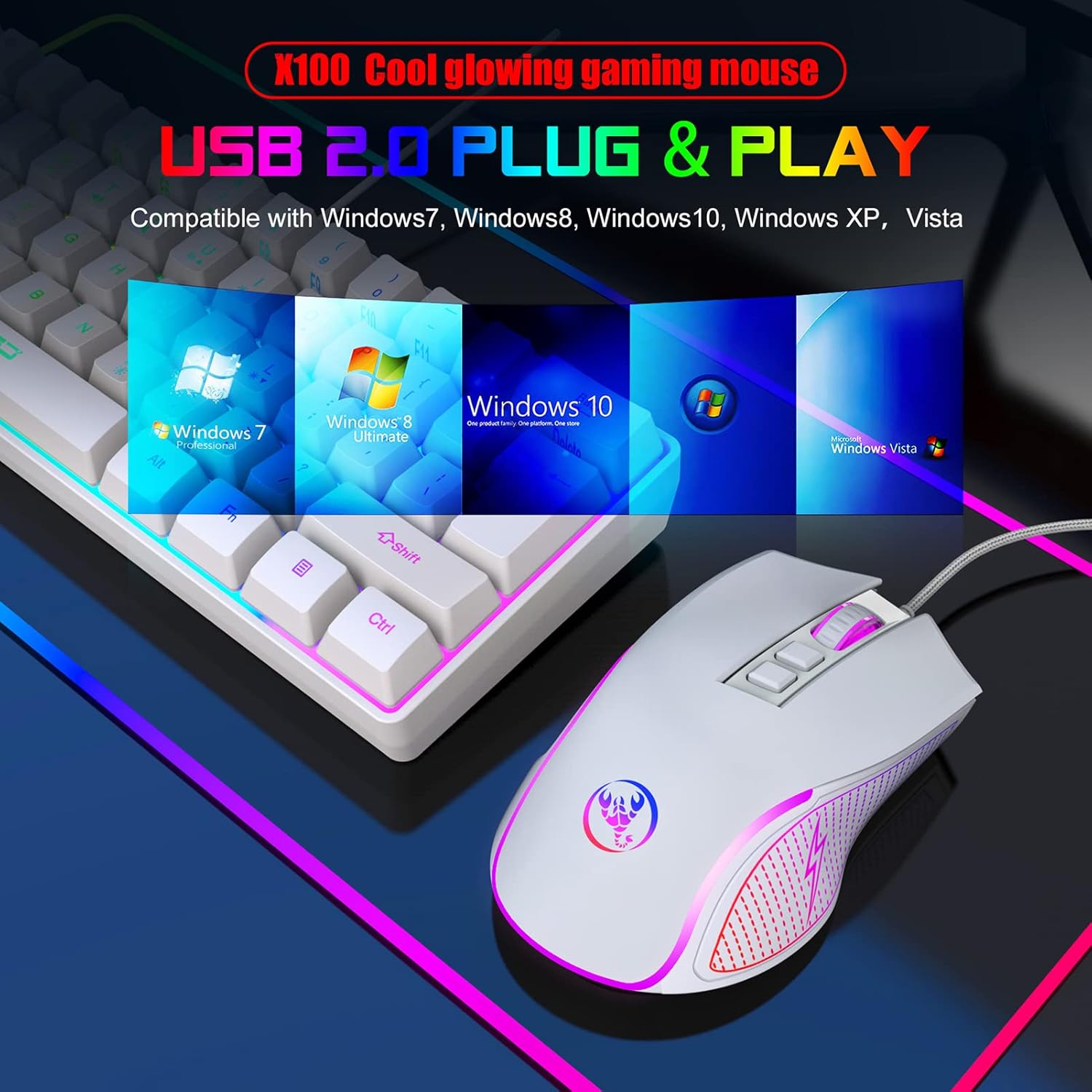
Figure 2: USB 2.0 Plug & Play functionality. The image shows the keyboard and mouse connected via USB, with icons representing compatibility with Windows 7, 8, 10, XP, and Vista.
2.2 ഉപകരണങ്ങൾ ബന്ധിപ്പിക്കുന്നു
- നിങ്ങളുടെ കമ്പ്യൂട്ടറിൽ ലഭ്യമായ ഒരു USB 2.0 പോർട്ട് കണ്ടെത്തുക.
- കീബോർഡിന്റെ USB കണക്റ്റർ USB പോർട്ടിലേക്ക് പ്ലഗ് ചെയ്യുക.
- Plug the USB connector of the mouse into another available USB port.
- നിങ്ങളുടെ ഓപ്പറേറ്റിംഗ് സിസ്റ്റം ആവശ്യമായ ഡ്രൈവറുകൾ സ്വയമേവ കണ്ടെത്തി ഇൻസ്റ്റാൾ ചെയ്യും. ഈ പ്രക്രിയയ്ക്ക് കുറച്ച് നിമിഷങ്ങൾ എടുത്തേക്കാം.
- Once installation is complete, the keyboard and mouse are ready for use.
3. ഓപ്പറേഷൻ
3.1 കീബോർഡ് പ്രവർത്തനങ്ങൾ
The HXSJ V700BW+X100 keyboard features a 61-key layout with various multimedia and backlight control functions accessible via the FN key.
- ബാക്ക്ലൈറ്റ് ക്രമീകരണം: The keyboard features RGB cool horse racing effects with 6 backlight effects and 8 backlight color switching options. Specific key combinations for these adjustments are typically found in the product's quick start guide or through experimentation with FN key combinations.
- സംയുക്ത പ്രവർത്തന കീകൾ: The FN key combined with the first line of keyboard keys (1-0, -, =) provides access to F1-F12 functions, ESC, and Delete.
- വോളിയം നിയന്ത്രണം:
- FN + R key: Volume Reduction
- FN + T key: Volume Increase
- FN + Y key: Mute
- Game Arrow Keys: FN + W/A/S/D can be used as arrow keys for gaming.
- വിൻ ലോക്ക്: FN + WIN key to lock the Windows key, preventing accidental presses during gaming.

Figure 3: Keyboard Compound Function Key Switch. This image illustrates the FN key combinations for multimedia control (volume up/down/mute), game arrow keys (W/A/S/D), and Windows key lock.
3.2 മൗസ് പ്രവർത്തനങ്ങൾ
The HXSJ X100 mouse is equipped with an optical gaming engine and adjustable DPI settings for precise control.
- ബട്ടണുകൾ: The mouse features Left Click, Right Click, Middle Click (scroll wheel), Forward, Back, DPI+ and DPI- buttons.
- DPI ക്രമീകരണം: The mouse has 4 adjustable DPI settings: 1200, 1800, 2400, and 3600 DPI. Use the DPI+ and DPI- buttons to cycle through these settings to match your preference for speed and precision.
- 7-Color Breathing Light: The mouse features a dynamic 7-color breathing light effect, cycling through Red, Yellow, Green, Light Blue, Dark Blue, Pink, and Purple.
- സ്വിച്ചിംഗ് ലൈറ്റ് മോഡ്:
- രീതി 1: Press the DPI- button for 3 seconds to turn the LED light on or off.
- രീതി 2: Use the Forward / Back button + DPI- button combination to switch light modes.

Figure 4: Mouse Button Layout. This image labels the Left Click, Right Click, Middle Click, Forward, Backward, DPI+ and DPI- buttons on the mouse, along with the transparent logo area.

Figure 5: Mouse Light Mode Switching. The image shows a hand interacting with the mouse, highlighting the DPI- button for turning the light on/off and the Forward/Back + DPI- combination for switching light modes.

Figure 6: X100 Cool Glowing Gaming Mouse with 7-Color Breathing Light Effect. This image displays multiple mice, each showcasing a different color from the 7-color cycle breathing effect (Red, Yellow, Green, Light Blue, Dark Blue, Pink, Purple).
4 സ്പെസിഫിക്കേഷനുകൾ
4.1 കീബോർഡ് സ്പെസിഫിക്കേഷനുകൾ
| ഫീച്ചർ | വിശദാംശങ്ങൾ |
|---|---|
| ഇൻ്റർഫേസ് തരം | USB |
| ഉൽപ്പന്ന പരിഹാരം | SK9708 |
| കീകളുടെ എണ്ണം | 61 കീ |
| മൾട്ടിമീഡിയ കീകൾ | അതെ |
| ബട്ടൺ ലൈഫ് | 10 ദശലക്ഷമോ അതിലധികമോ തവണ |
| ഓപ്പറേറ്റിംഗ് വോളിയംtage | 5.0V + 5% DC |
| പ്രവർത്തിക്കുന്ന കറൻ്റ് | 150mA (പരമാവധി) |
| കീക്യാപ് മെറ്റീരിയൽ | എബിഎസ് ടു-കളർ ഇഞ്ചക്ഷൻ |
| കേബിൾ നീളം | 1.7 മി |
| Keyboard Size (L*W*H) | 29.2 * 10.2 * 4.0 സെ.മീ (11.5 * 4 * 1.6 ഇഞ്ച്) |
| കീബോർഡ് ഭാരം | 359.3 ഗ്രാം (12.7 ഔൺസ്) |

Figure 7: Keyboard Dimensions. The image shows the top and side views of the keyboard with measurements: 292mm (length), 102mm (width), and 40mm (height).
4.2 മൗസ് സ്പെസിഫിക്കേഷനുകൾ
| ഫീച്ചർ | വിശദാംശങ്ങൾ |
|---|---|
| വർണ്ണ ഓപ്ഷനുകൾ | Black / White / Pink (Optional) |
| ട്രാക്കിംഗ് രീതി | ഒപ്റ്റിക്കൽ സെൻസർ ടെക്നോളജി |
| കണക്ഷൻ | USB 2.0 |
| കേബിൾ നീളം | 1.5M with Toroidal ring braided cable |
| മെറ്റീരിയൽ | എബിഎസ് |
| ബട്ടൺ ലൈഫ് | 10 ദശലക്ഷം ക്ലിക്കുകൾ |
| LED ബാക്ക്ലൈറ്റ് | 7 Colours breathing light |
| ബട്ടണുകൾ | Left, Right, Middle, Forward, Back, DPI+, DPI- |
| ഡിപിഐ ക്രമീകരണങ്ങൾ | 1200-1800-2400-3600 DPI (4 stagഎസ്) |
| ഇൻപുട്ട് പവർ | 5V |
| വൈദ്യുതി ഉപഭോഗം | 100mA |
| പോളിംഗ് നിരക്ക് | 125Hz |
| FPS | Max. 4000Fps |
| Accelerated Speed | 8G |
| ഐ.പി.എസ് | 30 ഇഞ്ച്/സെക്കൻഡ് |
| ഇനത്തിന്റെ വലുപ്പം (L*W*H) | 12.4 * 7.1 * 3.9 സെ.മീ (4.88 * 2.8 * 1.54 ഇഞ്ച്) |
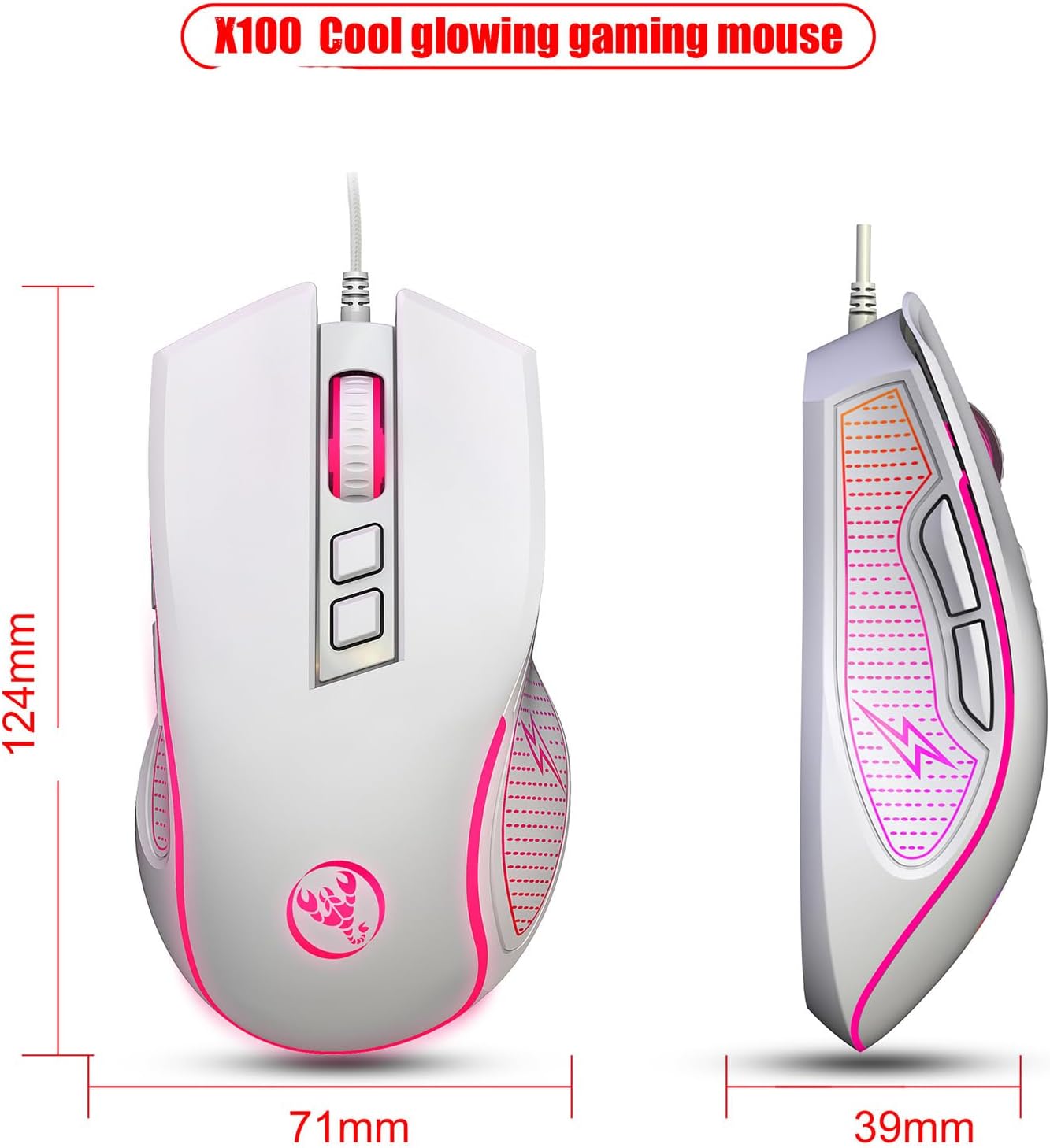
Figure 8: Mouse Dimensions. The image shows the top and side views of the mouse with measurements: 124mm (length), 71mm (width), and 39mm (height).

Figure 9: Mouse Durability and Ergonomic Design. This image highlights the mouse's 10,000,000 click test for durability and its ergonomic design for comfortable, stress-free use.
5. പ്രശ്നപരിഹാരം
If you encounter issues with your HXSJ V700BW+X100 combo, please refer to the following common solutions:
- ഉപകരണം പ്രതികരിക്കുന്നില്ല:
- Ensure both the keyboard and mouse USB cables are securely plugged into your computer's USB ports.
- നിങ്ങളുടെ കമ്പ്യൂട്ടറിലെ വ്യത്യസ്ത USB പോർട്ടുകളിലേക്ക് ഉപകരണങ്ങൾ പ്ലഗ് ചെയ്യാൻ ശ്രമിക്കുക.
- നിങ്ങളുടെ കമ്പ്യൂട്ടർ പുനരാരംഭിക്കുക.
- Check Device Manager (Windows) to see if the devices are recognized and if there are any driver issues.
- Backlight Not Working (Keyboard):
- കീബോർഡ് ശരിയായി ബന്ധിപ്പിച്ചിട്ടുണ്ടെന്ന് ഉറപ്പാക്കുക.
- Check if the backlight has been turned off using a FN key combination. Refer to the "Keyboard Functions" section for backlight adjustment.
- മൗസ് കഴ്സർ ചാടുന്നു അല്ലെങ്കിൽ ക്രമരഹിതമാണ്:
- മൗസിന്റെ അടിയിലുള്ള ഒപ്റ്റിക്കൽ സെൻസർ വൃത്തിയുള്ളതും പൊടിയോ അവശിഷ്ടങ്ങളോ ഇല്ലാത്തതുമാണെന്ന് ഉറപ്പാക്കുക.
- വൃത്തിയുള്ളതും, പ്രതിഫലിക്കാത്തതും, ഏകതാനവുമായ ഒരു പ്രതലത്തിൽ (ഉദാ: മൗസ് പാഡ്) മൗസ് ഉപയോഗിക്കുക.
- Adjust the DPI setting using the DPI buttons on the mouse.
- Keys or Buttons Not Registering:
- യുഎസ്ബി കണക്ഷൻ സ്ഥിരതയുള്ളതാണെന്ന് ഉറപ്പാക്കുക.
- സിസ്റ്റം-നിർദ്ദിഷ്ട പ്രശ്നം ഒഴിവാക്കാൻ മറ്റൊരു കമ്പ്യൂട്ടറിൽ ഉപകരണങ്ങൾ പരിശോധിക്കുക.
6. പരിപാലനവും പരിചരണവും
Proper care will extend the lifespan of your keyboard and mouse combo:
- വൃത്തിയാക്കൽ:
- വൃത്തിയാക്കുന്നതിനുമുമ്പ് നിങ്ങളുടെ കമ്പ്യൂട്ടറിൽ നിന്ന് ഉപകരണങ്ങൾ വിച്ഛേദിക്കുക.
- മൃദുവായ, ചെറുതായി ഡി ഉപയോഗിക്കുകamp cloth to wipe down the surfaces. Avoid harsh chemicals or abrasive cleaners.
- കീബോർഡിൽ, കീകൾക്കിടയിലുള്ള പൊടിയും അവശിഷ്ടങ്ങളും നീക്കം ചെയ്യാൻ കംപ്രസ് ചെയ്ത വായു ഉപയോഗിക്കുക.
- For the mouse, ensure the optical sensor area on the bottom is kept clean.
- സംഭരണം: ഉപകരണങ്ങൾ നേരിട്ട് സൂര്യപ്രകാശം ഏൽക്കാത്തതും ഉയർന്ന താപനില ഏൽക്കാത്തതുമായ തണുത്തതും വരണ്ടതുമായ സ്ഥലത്ത് സൂക്ഷിക്കുക.
- കൈകാര്യം ചെയ്യൽ: Avoid dropping the devices or exposing them to excessive force, liquids, or dust.
7. വാറൻ്റിയും പിന്തുണയും
This product is manufactured by Generic. For specific warranty information and technical support, please refer to the documentation included with your purchase or contact the retailer where the product was acquired. Keep your purchase receipt as proof of purchase for warranty claims.
കൂടുതൽ സഹായത്തിന്, നിങ്ങൾക്ക് നിർമ്മാതാവിന്റെ ഉദ്യോഗസ്ഥനെയും സന്ദർശിക്കാവുന്നതാണ്. webസൈറ്റ് ചെയ്യുക അല്ലെങ്കിൽ ലഭ്യമെങ്കിൽ അവരുടെ ഉപഭോക്തൃ സേവനവുമായി ബന്ധപ്പെടുക.
Ask a question about this manual
Ask about setup, troubleshooting, compatibility, parts, safety, or missing instructions. Manuals+ will review the question and use this page’s manual context to help answer it.