
1. ആമുഖം
Thank you for choosing the UHURU UM2S Gaming USB Microphone. This manual provides detailed instructions for setting up, operating, and maintaining your microphone to ensure optimal performance. The UM2S is designed for gamers, streamers, and podcasters, offering features like noise cancellation, RGB lighting, and broad compatibility.
2. പാക്കേജ് ഉള്ളടക്കം
താഴെ ലിസ്റ്റ് ചെയ്തിരിക്കുന്ന എല്ലാ ഇനങ്ങളും നിങ്ങളുടെ പാക്കേജിൽ ഉൾപ്പെടുത്തിയിട്ടുണ്ടെന്ന് ദയവായി പരിശോധിക്കുക:
- UHURU UM2S Gaming Microphone
- ബൂം ആം സ്റ്റാൻഡ്
- ഷോക്ക് മൗണ്ട്
- പോപ്പ് ഫിൽട്ടർ
- 5.9ft USB A&C to USB-C 2-in-1 Cable
- ഉപയോക്തൃ മാനുവൽ (ഈ പ്രമാണം)

Image: All components included in the UHURU UM2S microphone package, laid out neatly.
3. സജ്ജീകരണ നിർദ്ദേശങ്ങൾ
Follow these steps to set up your UHURU UM2S Gaming USB Microphone:
- ബൂം ആം സ്റ്റാൻഡ് ഘടിപ്പിക്കുക: സുരക്ഷിതമായി clamp the boom arm stand to your desk. Ensure the desk thickness is less than 2 inches for proper fit.
- ഷോക്ക് മൗണ്ട് ഇൻസ്റ്റാൾ ചെയ്യുക: Mount the shock mount onto the boom arm.
- മൈക്രോഫോൺ ചേർക്കുക: Carefully place the UHURU UM2S microphone into the shock mount.
- പോപ്പ് ഫിൽട്ടർ ഘടിപ്പിക്കുക: Connect the pop filter to the boom arm or microphone stand to reduce plosive sounds.
- USB കേബിൾ ബന്ധിപ്പിക്കുക: Use the provided 5.9ft USB A&C to USB-C 2-in-1 Cable. Connect the USB-C end to the microphone and the USB-A or USB-C end to an available port on your computer (PC/Laptop), PS4, or PS5.
- പ്ലഗ് ആൻഡ് പ്ലേ: The microphone is plug-and-play, requiring no additional drivers for Windows, macOS, PS4, or PS5. (Note: Not compatible with Xbox).

Image: The UHURU UM2S microphone mounted on its boom arm stand, ready for connection.

Image: Diagram illustrating the boom arm's reach and the maximum desk thickness for clamping.

Image: Visual representation of the microphone connected to a PC, highlighting compatibility with Windows, macOS, PS4/PS5, and PC/Laptop, and incompatibility with Xbox.
Video: Demonstrates the plug-and-play setup and connection of the UHURU UM2S microphone to a computer.
4. പ്രവർത്തന നിർദ്ദേശങ്ങൾ
The UHURU UM2S microphone offers several features for enhanced audio control and user experience:
4.1. നോയ്സ് റദ്ദാക്കൽ
The microphone features a professional chipset for Environmental Noise Cancellation (ENC). To activate noise reduction, simply tap the dedicated noise reduction button on the microphone. This will isolate ambient noise, providing a clearer sound.

Image: Visual representation of the noise cancellation feature, showing sound waves before and after activation, with the noise reduction button highlighted.
4.2. RGB ലൈറ്റിംഗ് നിയന്ത്രണം
The microphone includes 3 RGB lighting modes:
- 7 solid color static
- Mix-color breathing
- Mix-color gradient
Tap the lighting icon to cycle through the modes. To turn off the lighting, long-press the lighting icon.

Image: The UHURU UM2S microphone displaying various RGB lighting modes, with a diagram showing the different patterns.
4.3. Tap-to-Mute Function
Tap the top of the microphone to instantly mute or unmute. An LED indicator shows the microphone's status:
- ഗ്രീൻ ലൈറ്റ്: മൈക്രോഫോൺ സജീവമാണ്.
- ചുവന്ന വെളിച്ചം: മൈക്രോഫോൺ നിശബ്ദമാക്കി.

Image: Close-up of the microphone's top, showing the tap-to-mute button and the LED indicator displaying red for muted and green for active.
4.4. Gain Control and Real-time Monitoring
Adjust the microphone's gain by turning the dial located at the bottom of the unit. This allows you to control the input sensitivity for optimal voice capture. The integrated 3.5mm headphone jack enables real-time audio monitoring, allowing you to hear your output directly.

ചിത്രം: വിശദമായത് view of the microphone's bottom, showing the gain control knob and the 3.5mm headphone jack for real-time monitoring.
4.5. Cardioid Polar Pattern
The UM2S features a cardioid polar pattern, which primarily captures sound from the front of the microphone while suppressing unwanted background noise from the sides and rear. For best results, position the microphone 6-12 inches from your mouth.
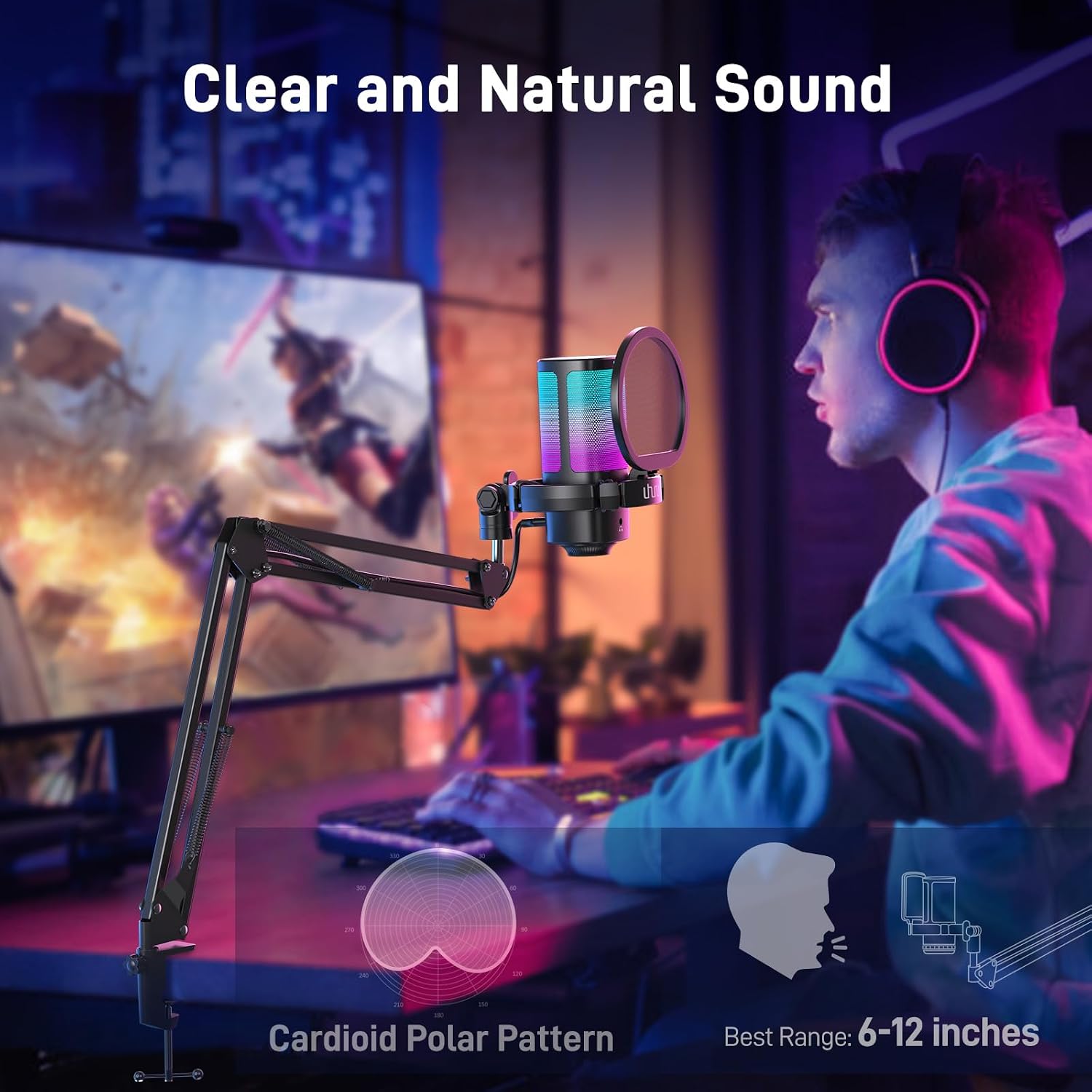
Image: Diagram illustrating the cardioid polar pattern of the microphone, showing its directional sound pickup, along with the recommended best range of 6-12 inches.
5. പരിപാലനം
To ensure the longevity and optimal performance of your UHURU UM2S microphone, follow these maintenance guidelines:
- വൃത്തിയാക്കൽ: Use a soft, dry cloth to wipe the microphone body and stand. Avoid using liquid cleaners or abrasive materials, as they may damage the finish or internal components.
- സംഭരണം: ഉപയോഗത്തിലില്ലാത്തപ്പോൾ, ഉയർന്ന താപനിലയും ഈർപ്പവും ഇല്ലാത്ത വൃത്തിയുള്ളതും വരണ്ടതുമായ ഒരു സ്ഥലത്ത് മൈക്രോഫോൺ സൂക്ഷിക്കുക.
- കേബിൾ കെയർ: Avoid sharp bends or kinks in the USB cable. Always grasp the plug, not the cable, when disconnecting.
6. പ്രശ്നപരിഹാരം
If you encounter issues with your UHURU UM2S microphone, please refer to the following common solutions:
- No Sound Output/Input:
- യുഎസ്ബി കേബിൾ മൈക്രോഫോണിലേക്കും നിങ്ങളുടെ ഉപകരണത്തിലേക്കും സുരക്ഷിതമായി ബന്ധിപ്പിച്ചിട്ടുണ്ടെന്ന് ഉറപ്പാക്കുക.
- Check your device's sound settings to confirm the UHURU UM2S is selected as the input and output device.
- Verify the microphone is not muted (red LED indicator).
- Adjust the gain knob on the microphone.
- മോശം ശബ്ദ നിലവാരം:
- Ensure the microphone is positioned 6-12 inches from your mouth.
- Activate noise cancellation if you are in a noisy environment.
- Check for any obstructions between you and the microphone.
- Adjust the gain knob to prevent clipping or low volume.
- RGB ലൈറ്റുകൾ പ്രവർത്തിക്കുന്നില്ല:
- മൈക്രോഫോൺ ഓണാക്കിയിട്ടുണ്ടെന്ന് ഉറപ്പാക്കുക.
- Tap the lighting icon to cycle through modes. If off, long-press to turn on.
If the problem persists, please contact UHURU customer support for further assistance.
7 സ്പെസിഫിക്കേഷനുകൾ
| ഫീച്ചർ | വിശദാംശങ്ങൾ |
|---|---|
| ബ്രാൻഡ് | UHURU |
| മോഡലിൻ്റെ പേര് | ഉം൯൮൧സ് |
| കണക്റ്റിവിറ്റി ടെക്നോളജി | USB |
| കണക്റ്റർ തരം | യുഎസ്ബി ടൈപ്പ്-സി |
| പ്രത്യേക സവിശേഷതകൾ | Controllable RGB, Mute Function, Noise Reduction, Plug and Play, Volume Control |
| അനുയോജ്യമായ ഉപകരണങ്ങൾ | MAC OS, PS4/PS5, Personal Computer, Tablet, WINDOWS (Xbox not included) |
| നിറം | കറുപ്പ് |
| പോളാർ പാറ്റേൺ | ഏകദിശയിലുള്ള (കാർഡിയോയിഡ്) |
| മൈക്രോഫോൺ ഫോം ഫാക്ടർ | Gooseneck (with Boom Arm) |
| പവർ ഉറവിടം | കോർഡഡ് ഇലക്ട്രിക് (USB) |
| സിഗ്നൽ-ടു-നോയിസ് അനുപാതം | 78 ഡി.ബി |
| ഹാർഡ്വെയർ പ്ലാറ്റ്ഫോം | PC |
| എൻക്ലോഷർ മെറ്റീരിയൽ | ലോഹം |
8. വാറൻ്റിയും പിന്തുണയും
8.1. വാറൻ്റി വിവരങ്ങൾ
The UHURU UM2S Gaming USB Microphone comes with a 12 മാസ വാറൻ്റി from the date of purchase. This warranty covers manufacturing defects and issues arising from normal use. It does not cover damage caused by misuse, accidents, unauthorized modifications, or improper installation. Please retain your proof of purchase for warranty claims.
8.2. ഉപഭോക്തൃ പിന്തുണ
For any questions, technical assistance, or warranty claims, please contact UHURU customer support. You can typically find contact information on the official UHURU webസൈറ്റ് അല്ലെങ്കിൽ നിങ്ങൾ ഉൽപ്പന്നം വാങ്ങിയ റീട്ടെയിലർ വഴി.
- ഓൺലൈൻ പിന്തുണ: Visit the official UHURU webപതിവുചോദ്യങ്ങൾക്കും പിന്തുണാ ഉറവിടങ്ങൾക്കുമുള്ള സൈറ്റ്.
- ഇമെയിൽ പിന്തുണ: Refer to your product packaging or the UHURU webഉപഭോക്തൃ സേവന ഇമെയിൽ വിലാസത്തിനായുള്ള സൈറ്റ്.
- പ്രതികരണ സമയം: UHURU aims to reply to inquiries within 24 hours.