
1. ആമുഖം
Thank you for choosing the ESSGOO 9-inch Wireless CarPlay & Android Auto Car Display. This device is designed to enhance your driving experience by integrating your smartphone's features directly into your vehicle's dashboard. It supports wireless Apple CarPlay and Android Auto, Mirror Link, hands-free calls, voice control via Siri and Google Assistant, and offers multiple audio output options. Please read this manual carefully before use to ensure proper installation and operation.
2 സുരക്ഷാ വിവരങ്ങൾ
- ഉപകരണം എപ്പോഴും ഉത്തരവാദിത്തത്തോടെയും പ്രാദേശിക ഗതാഗത നിയമങ്ങൾക്കനുസൃതമായും പ്രവർത്തിപ്പിക്കുക. ശ്രദ്ധ തെറ്റിയുള്ള ഡ്രൈവിംഗ് അപകടങ്ങൾക്ക് കാരണമാകും.
- ഉപകരണം വേർപെടുത്താനോ പരിഷ്ക്കരിക്കാനോ ശ്രമിക്കരുത്. ഇത് കേടുപാടുകൾക്ക് കാരണമായേക്കാം, വാറന്റി അസാധുവാക്കിയേക്കാം.
- ഉപകരണം സുരക്ഷിതമായി ഘടിപ്പിച്ചിട്ടുണ്ടെന്നും നിങ്ങളുടെ ഉപകരണത്തിന് തടസ്സമാകുന്നില്ലെന്നും ഉറപ്പാക്കുക. view അല്ലെങ്കിൽ വാഹന നിയന്ത്രണങ്ങളിൽ ഇടപെടുക.
- ഉപകരണത്തെ തീവ്രമായ താപനിലയിലോ, ദീർഘനേരം നേരിട്ടുള്ള സൂര്യപ്രകാശത്തിലോ, അമിതമായ ഈർപ്പത്തിലോ തുറന്നുകാട്ടുന്നത് ഒഴിവാക്കുക.
- Use only the provided power cable and accessories. Using unauthorized accessories may cause damage or malfunction.
3. പാക്കേജ് ഉള്ളടക്കം
പാക്കേജിൽ ഇനിപ്പറയുന്ന ഇനങ്ങൾ ഉണ്ടോ എന്ന് പരിശോധിക്കുക:
- ESSGOO 9-inch Wireless Car Display
- Adjustable Suction Cup Mount
- Cigarette Lighter Power Cable (2.5m)
- AUX Cable (1.5m)
- പശ മ Mount ണ്ട്
- റൗണ്ട് ഗാസ്കറ്റ്
- ഉപയോക്തൃ മാനുവൽ
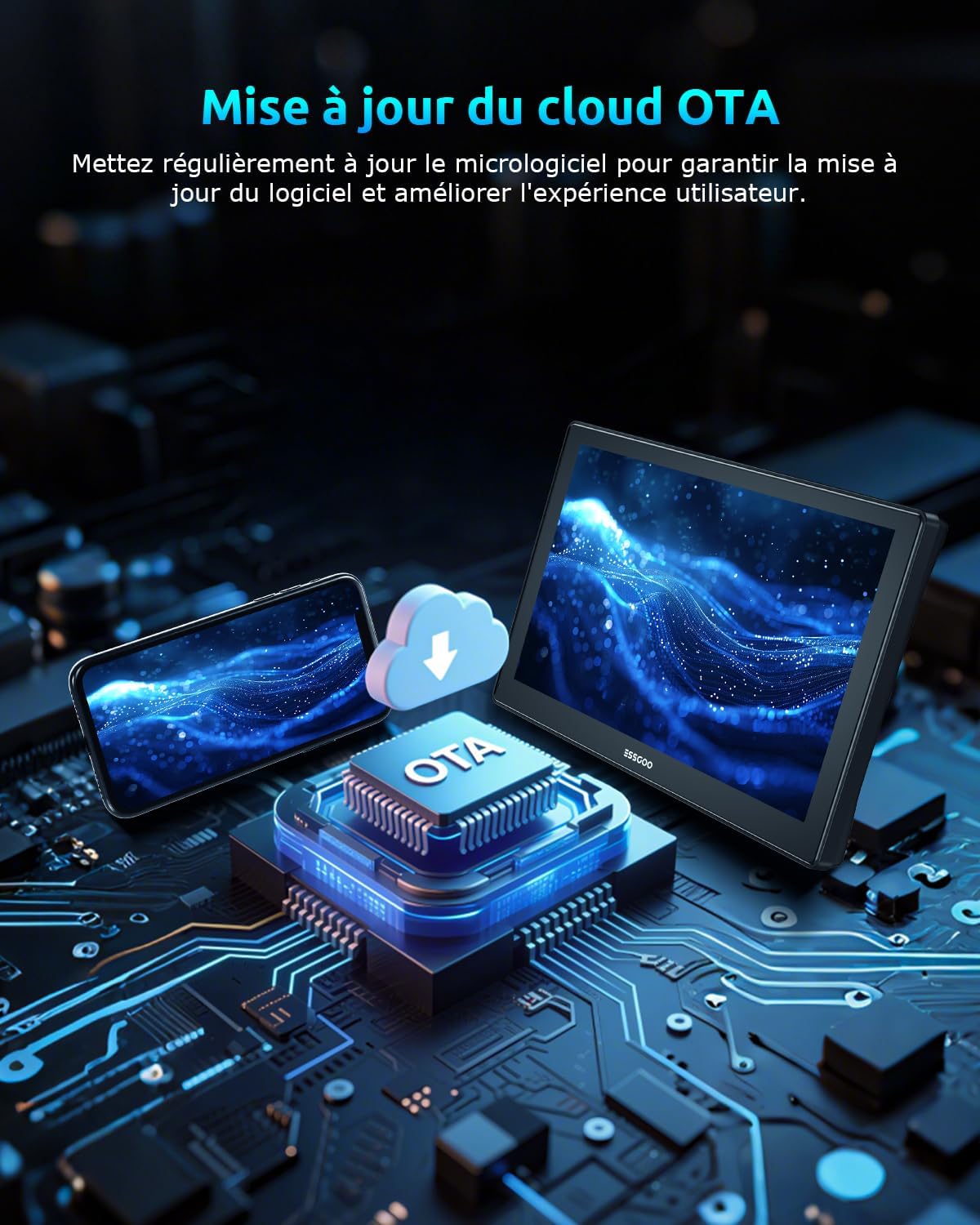
Image: All items included in the ESSGOO 9-inch Wireless Car Display package.
Important: Do not use your own charger. Only use the original charger provided. Otherwise, the device may restart due to voltagഇ അസ്ഥിരത.
4 അനുയോജ്യത
The ESSGOO car display is widely compatible with various applications and vehicles (12-24V). Before purchasing or using, please verify if your preferred applications or car are compatible with the CarPlay screen.

Image: Compatibility information for Apple CarPlay and Android Auto, including QR codes for checking vehicle and app compatibility.
For detailed compatibility information, please visit:
5. സജ്ജീകരണം
5.1 ഡിസ്പ്ലേ മൌണ്ട് ചെയ്യൽ
The device comes with an adjustable suction cup mount and an adhesive mount. Choose the most suitable option for your vehicle's dashboard or windshield.
- ഉപരിതലം വൃത്തിയാക്കുക: Ensure the mounting surface (dashboard or windshield) is clean and dry.
- മൗണ്ട് ഘടിപ്പിക്കുക:
- സക്ഷൻ കപ്പ് മൗണ്ട്: Press the suction cup firmly onto the desired surface and engage the locking lever.
- പശ മൗണ്ട്: Peel off the protective film from the adhesive pad and firmly press the mount onto the surface for at least 30 seconds.
- Attach the Display: Slide the car display onto the mount until it clicks into place. Adjust the angle for optimal viewing.
5.2 പവർ കണക്ഷൻ
Connect the provided cigarette lighter power cable to the device and then plug it into your vehicle's 12V/24V cigarette lighter socket.
5.3 പ്രാരംഭ പവർ-ഓൺ
Once connected to power, the device should automatically power on. If not, press the power button (if available) on the unit.

Image: Illustration highlighting the easy and quick installation of the wireless CarPlay display compared to complex traditional car stereo wiring.
6. പ്രവർത്തന നിർദ്ദേശങ്ങൾ
6.1 വയർലെസ് കാർപ്ലേ & ആൻഡ്രോയിഡ് ഓട്ടോ കണക്ഷൻ
This device supports seamless wireless connection for both Apple CarPlay and Android Auto.
- നിങ്ങളുടെ സ്മാർട്ട്ഫോണിൽ ബ്ലൂടൂത്തും വൈഫൈയും പ്രവർത്തനക്ഷമമാക്കിയിട്ടുണ്ടെന്ന് ഉറപ്പാക്കുക.
- On the car display, navigate to the CarPlay or Android Auto icon.
- On your smartphone, search for the device's Bluetooth name (usually 'ESSGOO_XXXX') and pair with it.
- Confirm the pairing request on both your phone and the car display.
- Once paired via Bluetooth, the device will automatically establish a Wi-Fi connection for CarPlay or Android Auto.
6.2 മിറർ ലിങ്ക് ഫംഗ്ഷൻ
The wireless Mirror Link function allows you to cast your iOS or Android device's screen to the 9-inch car display.
- On the car display, select the 'Mirror Link' option.
- Follow the on-screen instructions to connect your smartphone. This typically involves connecting to a specific Wi-Fi network broadcast by the car display and/or enabling screen mirroring on your phone.
- Once connected, your phone's screen will be mirrored on the car display, allowing you to view videos, browse social media, or use other apps.

Image: The Mirror Link feature in action, showing content from both iOS and Android devices mirrored onto the car display.
6.3 ഓഡിയോ ഔട്ട്പുട്ട് ഓപ്ഷനുകൾ
The device offers multiple ways to output audio to your car's sound system:
- ബ്ലൂടൂത്ത് 5.3: Connect your phone via Bluetooth to the car display for high-quality audio streaming.
- AUX കണക്ഷൻ: Use the provided 3.5mm AUX cable to connect the car display to your vehicle's AUX input.
- എഫ്എം ട്രാൻസ്മിറ്റർ: Tune the car display to an unused FM frequency, then tune your car's radio to the same frequency to transmit audio wirelessly.
- ബിൽറ്റ്-ഇൻ സ്പീക്കർ: The device has an integrated speaker for direct audio output.

Image: Visual representation of the four audio output methods available: Bluetooth 5.3, AUX connection, FM transmitter, and the device's built-in speaker.
6.4 Voice Control & Navigation
Utilize Siri or Google Assistant for hands-free control and navigation.
- വോയ്സ് കമാൻഡുകൾ: Activate Siri or Google Assistant (e.g., by saying "Hey Siri" or "Hey Google" or pressing the voice command button on the display/steering wheel if supported) to make calls, send messages, play music, or get directions.
- നാവിഗേഷൻ: Use popular navigation apps like Google Maps or Waze directly on the car display for real-time route guidance.

Image: Display illustrating voice control capabilities with Siri and Google Assistant, alongside various navigation and communication applications.
7. പരിപാലനം
7.1 വൃത്തിയാക്കൽ
Wipe the screen and device body with a soft, dry cloth. Do not use abrasive cleaners or solvents.
7.2 സോഫ്റ്റ്വെയർ അപ്ഡേറ്റുകൾ (OTA)
The device supports Over-The-Air (OTA) cloud updates. Regularly check for and install firmware updates to ensure optimal performance and access to new features.

Image: Representation of the OTA cloud update feature, indicating regular firmware updates for improved user experience.
8. പ്രശ്നപരിഹാരം
If you encounter issues with your ESSGOO car display, please refer to the following common problems and solutions:
| പ്രശ്നം | സാധ്യമായ കാരണം | പരിഹാരം |
|---|---|---|
| ഉപകരണം പവർ ഓണാക്കുന്നില്ല. | No power, loose connection, faulty power cable. | Check if the cigarette lighter socket is working. Ensure the power cable is securely connected. Use only the original power cable. |
| വയർലെസ് കാർപ്ലേ/ആൻഡ്രോയിഡ് ഓട്ടോയിലേക്ക് കണക്റ്റ് ചെയ്യാൻ കഴിയുന്നില്ല. | Bluetooth/Wi-Fi off, incorrect pairing, phone compatibility issue. | Ensure Bluetooth and Wi-Fi are on your phone. Forget previous pairings and try reconnecting. Check phone compatibility. |
| ശബ്ദമില്ല അല്ലെങ്കിൽ മോശം ഓഡിയോ നിലവാരം. | Incorrect audio output setting, loose AUX cable, FM interference. | Verify the selected audio output method (Bluetooth, AUX, FM). Ensure AUX cable is fully inserted. If using FM, try a different frequency. |
| Mirror Link not working. | Wi-Fi connection issue, phone settings. | Ensure your phone is connected to the device's Wi-Fi for Mirror Link. Check your phone's screen mirroring settings. |
| Device restarts unexpectedly. | Unstable power supply, non-original charger. | Use only the original cigarette lighter power cable. Ensure stable power from the vehicle. |
9 സ്പെസിഫിക്കേഷനുകൾ
| ഫീച്ചർ | വിശദാംശങ്ങൾ |
|---|---|
| ബ്രാൻഡ് | എസ്.എസ്.ഗു |
| കണക്റ്റിവിറ്റി ടെക്നോളജി | Auxiliary, Bluetooth, Wi-Fi |
| കൺട്രോളർ തരം | ആപ്പിൾ സിരി |
| പ്രത്യേക സവിശേഷതകൾ | Apple CarPlay, Android Auto, Mirror Link, Siri Voice Assistant |
| അനുയോജ്യമായ ഉപകരണങ്ങൾ | സ്മാർട്ട്ഫോൺ |
| ആകെ HDMI പോർട്ടുകൾ | 2 |
| കണക്റ്റർ തരം | HDMI, 3.5 mm Jack |
| ഓഡിയോ put ട്ട്പുട്ട് മോഡ് | സ്റ്റീരിയോ |
| സറൗണ്ട് സൗണ്ട് ചാനൽ കോൺഫിഗറേഷൻ | 2.0 |
| നിറം | കറുപ്പ് |
10. ഉപഭോക്തൃ പിന്തുണ
For any questions regarding installation, operation, or other inquiries, please do not hesitate to contact our customer service team via Amazon. We are committed to providing comprehensive after-sales support and will be happy to assist you.