
1. ആമുഖം
The AVer VC520 Pro3 is an advanced conferencing system designed for mid-to-large room meetings. It features a 36X total zoom Pan-Tilt-Zoom (PTZ) camera, enhanced AVer SmartFrame technology, Preset Framing, and a Sony Wide Dynamic Range (WDR) sensor. The system offers 3-way outputs, including HDMI connectivity, for versatile streaming options and a superior video and audio experience. A key feature is Smart Composition, an embedded AI function that swiftly captures high-quality close-up images of meeting participants. Coupled with an extended speakerphone solution, the VC520 Pro3 delivers a comprehensive video conferencing experience.
2. ബോക്സിൽ എന്താണുള്ളത്?
പാക്കേജിൽ എല്ലാ ഘടകങ്ങളും ഉണ്ടെന്ന് ഉറപ്പാക്കുക:
- VC520 Pro3 Camera
- USB 2.0 ടൈപ്പ്-ബി മുതൽ ടൈപ്പ്-എ കേബിൾ വരെ
- VC520 Pro3 Speakerphone
- Camera to Speakerphone Cable (33ft/10m)
- റിമോട്ട് കൺട്രോൾ
- Power Adapter and Power Cord (6ft/1.8m)
- വാൾ-മൗണ്ട് ബ്രാക്കറ്റ്
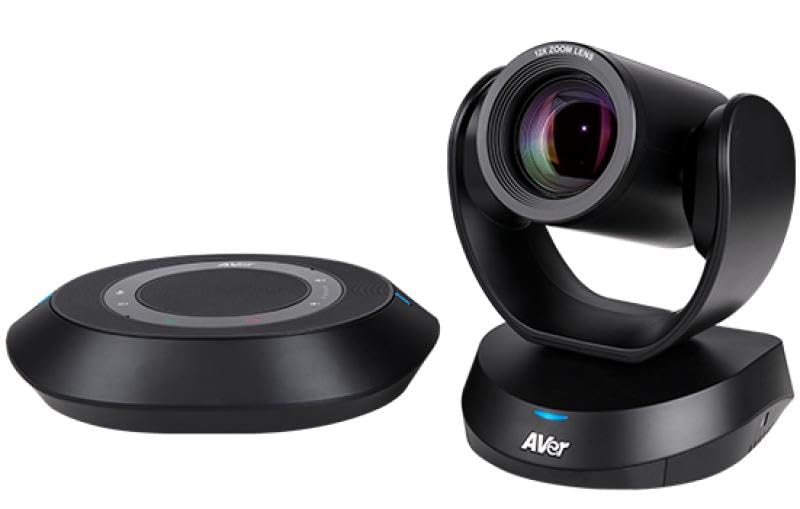
Image: The AVer VC520 Pro3 Conference Camera and Speakerphone components.
3. സജ്ജീകരണ നിർദ്ദേശങ്ങൾ
- ക്യാമറയുടെ സ്ഥാനം: Place the VC520 Pro3 Camera on a stable surface or mount it to a wall using the provided wall-mount bracket. Ensure it has a clear view മീറ്റിംഗ് ഏരിയയുടെ.
- Connect the Speakerphone: Connect the VC520 Pro3 Speakerphone to the camera using the Camera to Speakerphone Cable. This cable is 33 feet (10 meters) long, allowing flexible placement.
- പവർ ബന്ധിപ്പിക്കുക: Plug the power adapter into the camera and then into an electrical outlet.
- കമ്പ്യൂട്ടറുമായി ബന്ധിപ്പിക്കുക: Connect the camera to your computer using the supplied USB 2.0 Type-B to Type-A Cable. The system is designed for simplified connectivity with a single USB cable.
- കണക്ഷനുകൾ പരിശോധിക്കുക: Ensure all cables are securely connected. The system should power on automatically.
4. പ്രവർത്തന നിർദ്ദേശങ്ങൾ
4.1 ക്യാമറ പ്രവർത്തനം
- Pan-Tilt-Zoom (PTZ): Use the remote control to adjust the camera's pan, tilt, and 36X total zoom (12x optical zoom).
- SmartFrame: The integrated AVer SmartFrame technology automatically frames participants, ensuring everyone is visible.
- പ്രീസെറ്റ് ഫ്രെയിമിംഗ്: Configure and recall specific camera positions for quick adjustments during meetings.
- സ്മാർട്ട് കോമ്പോസിഷൻ: This AI-enhanced feature automatically adjusts the camera to focus on participants, providing high-quality close-up images.
4.2 Speakerphone Operation
- Audio Clarity: The speakerphone is engineered with echo cancellation and noise suppression technologies for clear audio.
- വോളിയം നിയന്ത്രണം: Adjust the speakerphone volume using the controls on the unit or the remote control.
- നിശബ്ദ പ്രവർത്തനം: Use the mute button on the speakerphone or remote control to mute the microphone.
4.3 സോഫ്റ്റ്വെയർ അനുയോജ്യത
The AVer VC520 Pro3 is compatible with a wide range of video conferencing applications, including:
- സൂം ചെയ്യുക
- മൈക്രോസോഫ്റ്റ് ടീമുകൾ
- Skype for Business, Skype
- ഗൂഗിൾ മീറ്റ്
- Intel Unite
- റിംഗ്സെൻട്രൽ
- V-Cube, LiveOn
- CyberLink U Meeting
- TrueConf
- Adobe Connect
- സിസ്കോ WebEx
- ഫ്യൂസ്
- GoToMeeting
- Vidyo
- vMix
- Webആർ.ടി.സി
- വയർകാസ്റ്റ്
- XSplit
5. പരിപാലനം
To ensure the longevity and optimal performance of your AVer VC520 Pro3, follow these maintenance guidelines:
- വൃത്തിയാക്കൽ: Gently wipe the camera lens and exterior surfaces with a soft, dry, lint-free cloth. Avoid using abrasive cleaners, solvents, or harsh chemicals, as these can damage the finish or optical components.
- സംഭരണം: ദീർഘനേരം ഉപയോഗിക്കാത്തപ്പോൾ, നേരിട്ടുള്ള സൂര്യപ്രകാശത്തിൽ നിന്നും കടുത്ത താപനിലയിൽ നിന്നും മാറി തണുത്തതും വരണ്ടതുമായ സ്ഥലത്ത് ഉപകരണം സൂക്ഷിക്കുക.
- കേബിൾ മാനേജുമെന്റ്: കേടുപാടുകൾ സംഭവിക്കുന്നത് തടയാൻ എല്ലാ കേബിളുകളും വൃത്തിയായി റൂട്ട് ചെയ്തിട്ടുണ്ടെന്നും ടെൻഷനിൽ അല്ലെന്നും ഉറപ്പാക്കുക.
6. പ്രശ്നപരിഹാരം
If you encounter issues with your VC520 Pro3, refer to the following common troubleshooting steps:
- വീഡിയോ ഔട്ട്പുട്ട് ഇല്ല:
- Check all cable connections, especially the USB cable to your computer and the power cable to the camera.
- Ensure the camera is powered on (check indicator lights).
- Verify that the correct camera is selected in your video conferencing software settings.
- നിങ്ങളുടെ കമ്പ്യൂട്ടറിലെ മറ്റൊരു USB പോർട്ടിലേക്ക് ക്യാമറ ബന്ധിപ്പിക്കാൻ ശ്രമിക്കുക.
- No Audio from Speakerphone:
- Ensure the speakerphone is properly connected to the camera.
- Check the volume level on the speakerphone and in your computer's audio settings.
- Verify that the speakerphone is not muted.
- Confirm that the VC520 Pro3 speakerphone is selected as the audio output device in your conferencing software.
- കമ്പ്യൂട്ടർ ക്യാമറ തിരിച്ചറിയുന്നില്ല:
- നിങ്ങളുടെ കമ്പ്യൂട്ടർ പുനരാരംഭിക്കുക.
- മറ്റൊരു USB കേബിൾ പരീക്ഷിക്കുക.
- Ensure your operating system and conferencing software are up to date.
For further assistance, please refer to the official AVer support webസൈറ്റ് അല്ലെങ്കിൽ അവരുടെ ഉപഭോക്തൃ സേവനവുമായി ബന്ധപ്പെടുക.
7 സ്പെസിഫിക്കേഷനുകൾ
| ബ്രാൻഡ് | AVer |
| മോഡൽ നമ്പർ | COMVCPRO3 (VC520 Pro3) |
| വീഡിയോ ക്യാപ്ചർ റെസല്യൂഷൻ | 1080p ഫുൾ എച്ച്ഡി |
| ഒപ്റ്റിക്കൽ സൂം | 12x (36x Total Zoom) |
| കണക്റ്റിവിറ്റി ടെക്നോളജി | USB |
| ലെൻസ് തരം | വൈഡ് ആംഗിൾ |
| ഫോക്കസ് തരം | ഓട്ടോ ഫോക്കസ് |
| ഫീച്ചറുകൾ | Bundled Camera, Speakerphone and Remote; Enterprise Grade PTZ Camera with SmartFrame; Tabletop Speakerphone; Certified for Zoom; Certified for Microsoft Teams |
| പിന്തുണയ്ക്കുന്ന ഓഡിയോ ഫോർമാറ്റ് | MP2, AAC |
| നിറം | കറുപ്പ് |
| യു.പി.സി | 848090009653 |
8. വാറൻ്റിയും പിന്തുണയും
വാറൻ്റി: The AVer VC520 Pro3 Conference Camera comes with a 3 വർഷത്തെ വാറൻ്റി വാങ്ങിയ തീയതി മുതൽ. വാറന്റി ക്ലെയിമുകൾക്കായി നിങ്ങളുടെ വാങ്ങിയതിന്റെ തെളിവ് സൂക്ഷിക്കുക.
സാങ്കേതിക സഹായം: For technical assistance, product inquiries, or warranty service, please visit the official AVer website or contact their customer support department. Detailed contact information and support resources can typically be found on the AVer webസൈറ്റ്.