
1. ആമുഖം
This user manual provides comprehensive instructions for the operation, maintenance, and troubleshooting of your DOOGEE T20 Ultra 12 Inch Tablet. Please read this manual thoroughly before using your device to ensure optimal performance and longevity.
2. ബോക്സിൽ എന്താണുള്ളത്?
Upon unboxing your DOOGEE T20 Ultra tablet, verify that all components are present:
- DOOGEE T20 Ultra Tablet
- പവർ അഡാപ്റ്റർ
- യുഎസ്ബി-സി കേബിൾ
- സിം കാർഡ് എജക്റ്റർ ടൂൾ
- Protective Case (if included with specific package)
- Screen Protector (if included with specific package)

Image: The DOOGEE T20 Ultra tablet displayed with its accessories, including a power adapter, USB-C cable, and a protective case.
3. ഉൽപ്പന്നം കഴിഞ്ഞുview
3.1 ഡിസ്പ്ലേ
The DOOGEE T20 Ultra features a 12-inch 2.4K BOE display with a resolution of 2000x1200 pixels, offering an immersive viewing experience. It boasts an 87.2% screen-to-body ratio and a slim 7mm narrow bezel. The display is also TUV certified for eye protection, reducing blue light emission.

ചിത്രം: ഒരു ക്ലോസ്-അപ്പ് view of the DOOGEE T20 Ultra's 12-inch 2.4K display, highlighting its narrow bezels and high screen-to-body ratio.

Image: A person using the DOOGEE T20 Ultra tablet, demonstrating its eye-care display with TUV certification for low blue light.
3.2 പ്രോസസർ
The tablet is powered by the MediaTek Helio G99 Octa-Core processor, clocked at 2.2GHz and built on a 6nm process. This powerful chip ensures smooth performance for gaming, multitasking, and various applications.

Image: A visual representation of the Helio G99 Octa-Core processor chip, highlighting its core components and specifications.
3.3 മെമ്മറിയും സംഭരണവും
The DOOGEE T20 Ultra comes with 32GB of RAM (12GB physical + 20GB expandable virtual memory) and 256GB of internal ROM. Storage can be further expanded up to 2TB using a microSD card.

Image: The tablet screen displaying multiple applications, with icons indicating 256GB ROM, 2TB storage expansion, and Android 13 OS.
3.4 ബാറ്ററി
Equipped with a large 10800mAh battery, the tablet provides extended usage time. It supports 18W fast charging and OTG (On-The-Go) functionality for connecting external devices.

Image: A visual emphasizing the 10800mAh battery capacity, along with icons for OTG support and 18W fast charging.
3.5 ഓഡിയോ
For an enhanced audio experience, the T20 Ultra features Hi-Res Audio certification and four Smart PA stereo speakers, delivering rich and immersive sound.

Image: The tablet shown with sound waves emanating from its speakers, indicating Hi-Res Audio certification and quad-speaker setup.
3.6 ക്യാമറകൾ
Capture moments with the 16MP AI rear camera and conduct high-quality video calls with the 8MP front camera. The front camera also supports face unlocking.

Image: Split image showing the rear camera module and the front camera view, alongside example photos taken with the tablet's cameras.
3.7 കണക്റ്റിവിറ്റിയും നാവിഗേഷനും
The tablet supports 4G Dual SIM for cellular connectivity, 2.4G/5GHz dual-band Wi-Fi for fast internet, and Bluetooth 5.0 for wireless accessories. For navigation, it utilizes A-GPS, GPS, BeiDou, GLONASS, and Galileo systems.

Image: The tablet displaying network icons for 2.4G/5G Dual Band WiFi, 4G Dual SIM, and Bluetooth 5.0, with an inset showing the SIM tray.

Image: A person holding the tablet displaying a navigation map, illustrating its GPS capabilities.
3.8 Design and Operating System
The T20 Ultra features a 7.6mm ultra-thin full metal design with curved edges, providing a premium feel. It runs on the Android 13 operating system, offering a personalized, secure, and efficient user experience. The tablet also supports Widevine L1 for high-definition streaming from platforms like Amazon Prime Video, Disney+, HBO Max, and Hulu.
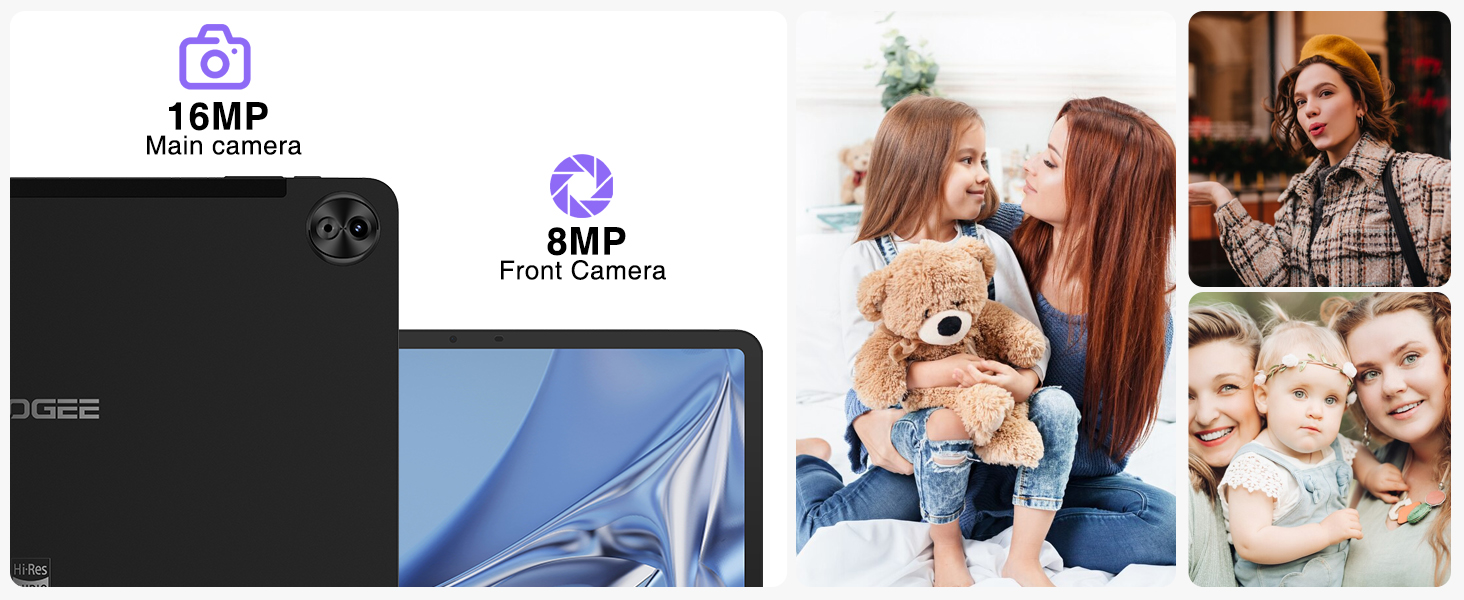
Image: A screenshot of the Android 13 interface on the tablet, showcasing its clean design and notification panel.
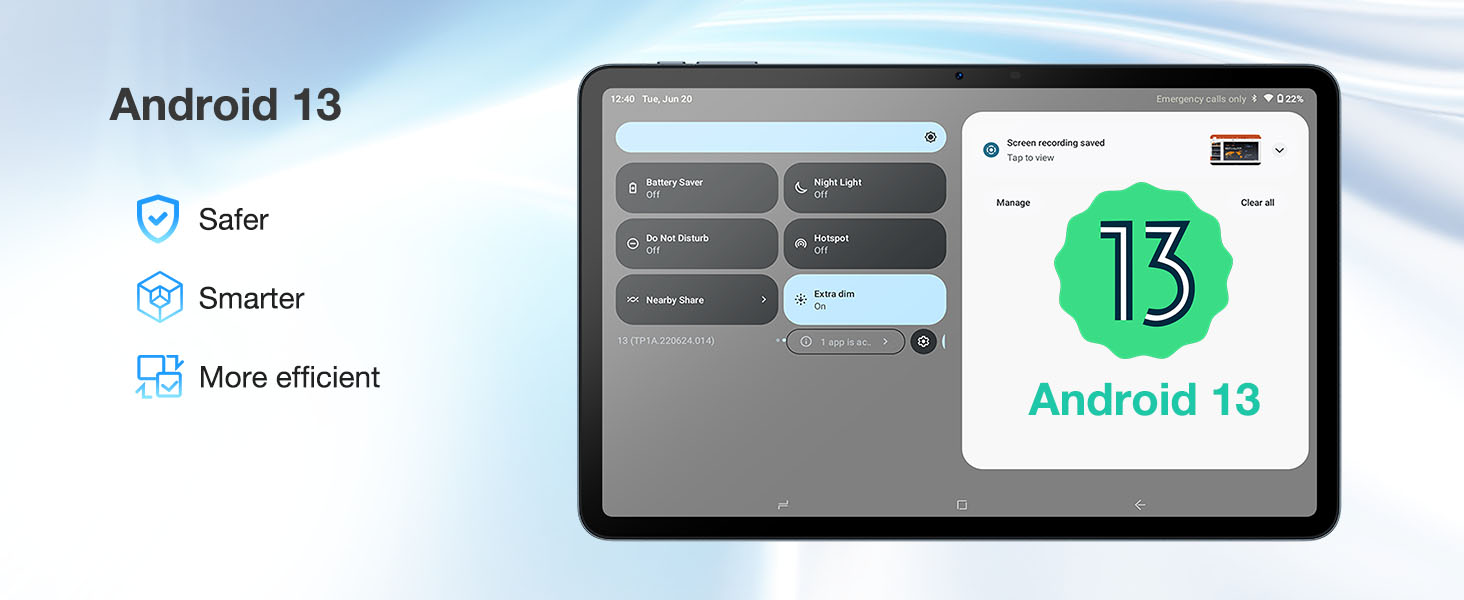
Image: The tablet screen displaying "Widevine L1 Support" with logos of popular streaming services like Disney+, HBO Max, Amazon Prime Video, and Hulu.
4. സജ്ജീകരണം
- ടാബ്ലെറ്റ് ചാർജ് ചെയ്യുന്നു: Connect the provided USB-C cable to the tablet's charging port and the power adapter. Plug the adapter into a wall outlet. The battery indicator will show charging status. For optimal battery life, fully charge the tablet before first use.
- പവർ ഓൺ/ഓഫ്: Press and hold the Power button (located on the side) until the DOOGEE logo appears to power on. To power off, press and hold the Power button, then select "Power off" from the options.
- പ്രാരംഭ സജ്ജീകരണം: Follow the on-screen prompts to complete the initial setup, including language selection, Wi-Fi connection, Google account login, and setting up security features like face unlock.
- Inserting SIM/MicroSD Card: Use the provided SIM ejector tool to open the SIM tray. Carefully insert your 4G SIM card(s) and/or microSD card into the designated slots. Ensure the tray is fully reinserted.
5. പ്രവർത്തന നിർദ്ദേശങ്ങൾ
5.1 അടിസ്ഥാന നാവിഗേഷൻ
- സ്പർശന ആംഗ്യങ്ങൾ: തിരഞ്ഞെടുക്കാൻ ടാപ്പ് ചെയ്യുക, സ്ക്രോൾ ചെയ്യാൻ സ്വൈപ്പ് ചെയ്യുക, സൂം ചെയ്യാൻ പിഞ്ച് ചെയ്യുക.
- ഹോം സ്ക്രീൻ: ആപ്പുകൾ, വിജറ്റുകൾ, അറിയിപ്പുകൾ എന്നിവ ആക്സസ് ചെയ്യുക.
- അറിയിപ്പ് പാനൽ: ദ്രുത ക്രമീകരണങ്ങളും അറിയിപ്പുകളും ആക്സസ് ചെയ്യുന്നതിന് സ്ക്രീനിന്റെ മുകളിൽ നിന്ന് താഴേക്ക് സ്വൈപ്പ് ചെയ്യുക.
- മൾട്ടിടാസ്കിംഗ്: Use the recent apps button (square icon) to switch between open applications. The tablet supports split-screen mode for enhanced productivity.

Image: A person using the tablet in split-screen mode, demonstrating multitasking capabilities.
5.2 കണക്റ്റിവിറ്റി
- വൈഫൈ: ലഭ്യമായ നെറ്റ്വർക്കുകളിലേക്ക് കണക്റ്റുചെയ്യാൻ ക്രമീകരണങ്ങൾ > നെറ്റ്വർക്കും ഇന്റർനെറ്റും > വൈ-ഫൈ എന്നതിലേക്ക് പോകുക.
- മൊബൈൽ നെറ്റ്വർക്ക്: If using a SIM card, configure mobile data settings in Settings > Network & internet > Mobile network.
- ബ്ലൂടൂത്ത്: Pair with Bluetooth devices (headphones, keyboards) via Settings > Connected devices > Bluetooth.
5.3 മീഡിയ ഉപഭോഗം
- സ്ട്രീമിംഗ്: Utilize Widevine L1 support for high-definition streaming on compatible platforms.
- ഓഡിയോ: Enjoy high-fidelity audio through the quad speakers or connected Hi-Res audio devices.
6. പരിപാലനം
- വൃത്തിയാക്കൽ: സ്ക്രീനും ബോഡിയും വൃത്തിയാക്കാൻ മൃദുവായ, ലിന്റ് രഹിത തുണി ഉപയോഗിക്കുക. ഉരച്ചിലുകളുള്ള വസ്തുക്കളോ കഠിനമായ രാസവസ്തുക്കളോ ഒഴിവാക്കുക.
- സോഫ്റ്റ്വെയർ അപ്ഡേറ്റുകൾ: മികച്ച പ്രകടനവും സുരക്ഷയും ഉറപ്പാക്കാൻ ക്രമീകരണങ്ങൾ > സിസ്റ്റം > സിസ്റ്റം അപ്ഡേറ്റ് എന്നതിൽ സിസ്റ്റം അപ്ഡേറ്റുകൾക്കായി പതിവായി പരിശോധിക്കുക.
- ബാറ്ററി കെയർ: ബാറ്ററി ആയുസ്സ് വർദ്ധിപ്പിക്കുന്നതിന്, ഉയർന്ന താപനില ഒഴിവാക്കുക, ബാറ്ററി ഇടയ്ക്കിടെ പൂർണ്ണമായും തീർന്നുപോകാൻ അനുവദിക്കരുത്.
- സ്റ്റോറേജ് മാനേജ്മെന്റ്: അനാവശ്യമായത് ഇടയ്ക്കിടെ നീക്കം ചെയ്യുക files and apps to maintain sufficient storage space and system speed.
7. പ്രശ്നപരിഹാരം
| പ്രശ്നം | സാധ്യമായ കാരണം / പരിഹാരം |
|---|---|
| ടാബ്ലെറ്റ് ഓണാക്കുന്നില്ല | Ensure the battery is charged. Connect to charger for at least 30 minutes. If still unresponsive, perform a forced restart by holding the Power button for 10-15 seconds. |
| Slow performance / Lag | Close unused applications. Clear cache of frequently used apps. Check for system updates. Consider a factory reset if issues persist (backup data first). |
| ബാറ്ററി പെട്ടെന്ന് തീരുന്നു | Reduce screen brightness. Disable Wi-Fi/Bluetooth when not in use. Close background apps. Limit location services. Check battery usage in settings to identify power-hungry apps. |
| Wi-Fi-യിലേക്ക് കണക്റ്റുചെയ്യാൻ കഴിയില്ല | Ensure Wi-Fi is enabled. Restart the tablet and router. Forget the network and reconnect. Check Wi-Fi password. |
| സിം കാർഡ് കണ്ടെത്തിയില്ല | Ensure the SIM card is correctly inserted. Restart the tablet. Check if the SIM card is active with your carrier. |
8 സ്പെസിഫിക്കേഷനുകൾ
| ഫീച്ചർ | വിശദാംശങ്ങൾ |
|---|---|
| ബ്രാൻഡ് | ഡോഗി |
| മോഡലിൻ്റെ പേര് | T20ULTRA |
| ഓപ്പറേറ്റിംഗ് സിസ്റ്റം | ആൻഡ്രോയിഡ് 13 |
| സ്ക്രീൻ വലിപ്പം | 12 ഇഞ്ച് |
| സ്ക്രീൻ റെസല്യൂഷൻ | 2.4K (2000x1200 പിക്സലുകൾ) |
| പ്രോസസ്സർ | MediaTek Helio G99 Octa-Core (2.2GHz) |
| റാം | 32GB (12GB ഫിസിക്കൽ + 20GB വെർച്വൽ) |
| ആന്തരിക സംഭരണം (ROM) | 256 ജിബി |
| വികസിപ്പിക്കാവുന്ന സംഭരണം | 2TB വരെ (മൈക്രോഎസ്ഡി) |
| പിൻ ക്യാമറ | 16MP AI ക്യാമറ |
| മുൻ ക്യാമറ | 8എംപി ക്യാമറ |
| ബാറ്ററി ശേഷി | 10800mAh |
| ചാർജിംഗ് | 18W Fast Charge, Type-C |
| ഓഡിയോ | Hi-Res Audio, 4 Smart PA Stereo Speakers |
| കണക്റ്റിവിറ്റി | 4G Dual SIM, 2.4G/5GHz Dual-Band Wi-Fi, Bluetooth 5.0 |
| നാവിഗേഷൻ | A-GPS/GPS/BeiDou/GLONASS/Galileo |
| അളവുകൾ | 12.2 x 12.2 x 2.1 inches (Product), 278.8 x 174.3 x 7.6mm (Tablet) |
| ഭാരം | 3.08 pounds (Product), 568g (Tablet) |
| പ്രത്യേക സവിശേഷതകൾ | TUV Eye-Care Display, Widevine L1 Support, OTG Support |
9. വാറൻ്റിയും പിന്തുണയും
DOOGEE provides a 2-Year Limited Warranty for the T20 Ultra tablet, covering manufacturing defects. For any technical assistance, product inquiries, or warranty claims, please contact DOOGEE customer support. Online support is available 24/7.
- വാറൻ്റി കാലയളവ്: 2 വർഷത്തെ പരിമിത വാറന്റി
- തിരികെ നൽകൽ നയം: 30-Day Money Back Guarantee and Free Return (check retailer policy)
- പിന്തുണ: 24/7 ഓൺലൈൻ പിന്തുണ

Image: Icons representing 30-day money back guarantee, 2-year limited warranty, and 24/7 online support.