
ആമുഖം
This manual provides essential instructions for setting up, operating, and maintaining your Plimpton PlimPad Kids20 tablet. This device is designed for children, featuring Android 14, an Octa-core processor, 8GB RAM (expandable), 64GB ROM (expandable to 1TB), and a durable EVA shockproof case. It includes pre-installed Google Kids Space and parental control features to ensure a safe and educational experience.
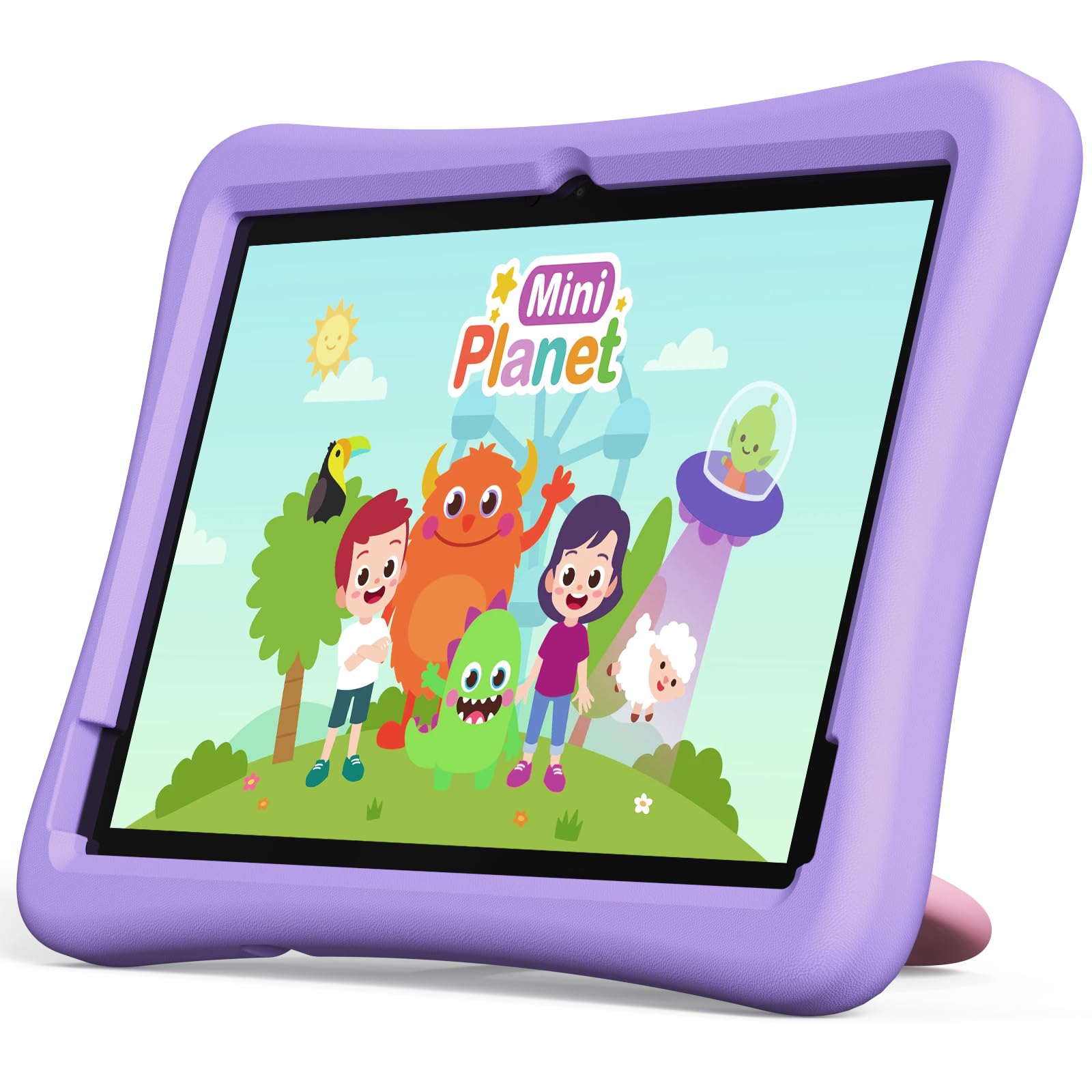
Image: The Plimpton PlimPad Kids20 tablet in its violet shockproof EVA case.
ബോക്സിൽ എന്താണുള്ളത്
സജ്ജീകരണവുമായി മുന്നോട്ടുപോകുന്നതിനുമുമ്പ് എല്ലാ ഇനങ്ങളും പാക്കേജിൽ ഉണ്ടെന്ന് ഉറപ്പാക്കുക.
- 1x Plimpton PlimPad Kids20 Tablet
- 1x യുഎസ്ബി അഡാപ്റ്റർ
- 1x 1.8m Charging Cable
- 1x ഉപയോക്തൃ മാനുവൽ
സജ്ജമാക്കുക
1. ടാബ്ലെറ്റ് ചാർജ് ചെയ്യുന്നു
ആദ്യ ഉപയോഗത്തിന് മുമ്പ്, ടാബ്ലെറ്റ് പൂർണ്ണമായും ചാർജ് ചെയ്യുക.
- Connect the USB charging cable to the tablet's USB Type-C port.
- യുഎസ്ബി അഡാപ്റ്റർ ഒരു പവർ letട്ട്ലെറ്റിലേക്ക് പ്ലഗ് ചെയ്യുക.
- The charging indicator will illuminate. Allow several hours for a full charge.
2. പവർ ഓൺ/ഓഫ്
- പവർ ഓണാക്കാൻ: സ്ക്രീൻ പ്രകാശിക്കുന്നതുവരെ പവർ ബട്ടൺ അമർത്തിപ്പിടിക്കുക.
- പവർ ഓഫ് ചെയ്യാൻ: പവർ ബട്ടൺ അമർത്തിപ്പിടിക്കുക, തുടർന്ന് സ്ക്രീനിലെ ഓപ്ഷനുകളിൽ നിന്ന് "പവർ ഓഫ്" തിരഞ്ഞെടുക്കുക.
- പുനരാരംഭിക്കാൻ: പവർ ബട്ടൺ അമർത്തിപ്പിടിക്കുക, തുടർന്ന് ഓപ്ഷനുകളിൽ നിന്ന് "പുനരാരംഭിക്കുക" തിരഞ്ഞെടുക്കുക.
3. പ്രാരംഭ സജ്ജീകരണം
Upon first power-on, follow the on-screen prompts to configure your tablet. This typically includes:
- നിങ്ങളുടെ ഭാഷ തിരഞ്ഞെടുക്കുന്നു.
- Connecting to a Wi-Fi network (supports Wi-Fi 6, 2.4GHz + 5.0GHz).
- Setting up a Google account. This is crucial for accessing Google Kids Space and downloading apps.
- Configuring date and time.
4. ഒരു മൈക്രോ എസ്ഡി കാർഡ് ചേർക്കൽ
The tablet supports Micro SD cards up to 1TB for expanded storage.
- ടാബ്ലെറ്റിന്റെ വശത്ത് മൈക്രോ എസ്ഡി കാർഡ് സ്ലോട്ട് കണ്ടെത്തുക.
- Carefully insert the Micro SD card into the slot until it clicks into place.
- The tablet will detect the new storage. You may be prompted to format it for use as portable or internal storage.
ടാബ്ലെറ്റ് പ്രവർത്തിപ്പിക്കുന്നു
1. അടിസ്ഥാന നാവിഗേഷൻ
The PlimPad Kids20 uses a capacitive touchscreen for interaction.
- ടാപ്പ് ചെയ്യുക: ഒരു ഇനം തിരഞ്ഞെടുക്കുകയോ ഒരു ആപ്ലിക്കേഷൻ തുറക്കുകയോ ചെയ്യുക.
- ടാപ്പുചെയ്ത് പിടിക്കുക: സന്ദർഭോചിത മെനുകൾ ആക്സസ് ചെയ്യുക അല്ലെങ്കിൽ ഐക്കണുകൾ നീക്കുക.
- സ്വൈപ്പ്: Navigate through screens or scroll within applications.
- പിഞ്ച്-ടു-സൂം: Enlarge or reduce content (e.g., photos, web പേജുകൾ).
2. Google Kids Space
The tablet comes with Google Kids Space pre-installed, offering a curated selection of educational and entertaining content.

Image: A child and adult interacting with the tablet, showing the Google Kids Space interface.
- Access Kids Space from the home screen or app drawer.
- Content includes interactive educational apps, books, games, and videos.
- Content is teacher-approved and designed to promote learning and creativity.
3. രക്ഷാകർതൃ നിയന്ത്രണങ്ങൾ (Google ഫാമിലി ലിങ്ക്)
Manage your child's tablet usage and ensure a safe online environment using Google Family Link.

Image: A child using the tablet, with an overlay indicating Google Family Link for parental control.
- Download the Google Family Link app on your own device.
- Link your child's Google account on the tablet to your Family Link account.
- Through Family Link, you can:
- Set screen time limits.
- Approve or block app downloads.
- കൈകാര്യം ചെയ്യുക webസൈറ്റ് ആക്സസ്.
- Track device location.
4. കണക്റ്റിവിറ്റി
- വൈഫൈ: Connect to wireless networks via Settings > Network & internet > Wi-Fi. The tablet supports dual-band Wi-Fi (2.4/5 GHz) for fast and stable connections.
- ബ്ലൂടൂത്ത് 5.3: ക്രമീകരണങ്ങൾ > കണക്റ്റഡ് ഉപകരണങ്ങൾ > ബ്ലൂടൂത്ത് വഴി ഹെഡ്ഫോണുകൾ അല്ലെങ്കിൽ സ്പീക്കറുകൾ പോലുള്ള ബ്ലൂടൂത്ത് ഉപകരണങ്ങളുമായി ജോടിയാക്കുക.
5. ക്യാമറ ഉപയോഗം
5എംപി പിൻ ക്യാമറയും 2എംപി ഫ്രണ്ട് ക്യാമറയുമാണ് ടാബ്ലെറ്റിൻ്റെ പ്രത്യേകതകൾ.
- ഹോം സ്ക്രീനിൽ നിന്നോ ആപ്പ് ഡ്രോയറിൽ നിന്നോ ക്യാമറ ആപ്പ് തുറക്കുക.
- Switch between front and rear cameras as needed.
- Tap the shutter button to take photos or record videos.
മെയിൻ്റനൻസ്
1. ടാബ്ലെറ്റ് വൃത്തിയാക്കൽ
- സ്ക്രീനും ബോഡിയും വൃത്തിയാക്കാൻ മൃദുവായ, ലിന്റ് രഹിത തുണി ഉപയോഗിക്കുക.
- കഠിനമായ പാടുകൾക്ക്, ചെറുതായി dampen വെള്ളമുള്ള തുണി അല്ലെങ്കിൽ ഒരു സ്ക്രീൻ ക്ലീനർ.
- കഠിനമായ രാസവസ്തുക്കളോ ഉരച്ചിലുകളോ ഉള്ള വസ്തുക്കളോ ഒഴിവാക്കുക.
2. സോഫ്റ്റ്വെയർ അപ്ഡേറ്റുകൾ
മികച്ച പ്രകടനവും സുരക്ഷയും ഉറപ്പാക്കാൻ സോഫ്റ്റ്വെയർ അപ്ഡേറ്റുകൾ പതിവായി പരിശോധിച്ച് ഇൻസ്റ്റാൾ ചെയ്യുക.
- ക്രമീകരണങ്ങൾ > സിസ്റ്റം > സിസ്റ്റം അപ്ഡേറ്റ് എന്നതിലേക്ക് പോകുക.
- ലഭ്യമായ എല്ലാ അപ്ഡേറ്റുകളും ഡൗൺലോഡ് ചെയ്ത് ഇൻസ്റ്റാൾ ചെയ്യാൻ ഓൺ-സ്ക്രീൻ നിർദ്ദേശങ്ങൾ പാലിക്കുക.
3. സ്റ്റോറേജ് മാനേജ്മെൻ്റ്
To maintain performance, periodically manage the tablet's storage.
- ക്രമീകരണം > സംഭരണം എന്നതിലേക്ക് പോകുക view സംഭരണ ഉപയോഗം.
- ഉപയോഗിക്കാത്ത ആപ്പുകൾ അൺഇൻസ്റ്റാൾ ചെയ്യുക.
- അനാവശ്യമായി ഇല്ലാതാക്കുക files, photos, or videos.
- വലുതായി നീക്കുക files to an inserted Micro SD card.
ട്രബിൾഷൂട്ടിംഗ്
If you encounter issues, try the following solutions before contacting support.
| പ്രശ്നം | പരിഹാരം |
|---|---|
| ടാബ്ലെറ്റ് ഓണാക്കുന്നില്ല. | Ensure the tablet is fully charged. Connect it to the charger for at least 30 minutes, then try powering on again. |
| വൈഫൈ കണക്ഷൻ പ്രശ്നങ്ങൾ. | Restart the tablet and your Wi-Fi router. Check Wi-Fi settings to ensure the correct network is selected and the password is entered correctly. |
| ആപ്പുകൾ ക്രാഷ് ചെയ്യുകയോ മരവിക്കുകയോ ചെയ്യുന്നു. | Close and reopen the app. Clear the app's cache (Settings > Apps > [App Name] > Storage & cache > Clear cache). If the problem persists, uninstall and reinstall the app. |
| മന്ദഗതിയിലുള്ള പ്രകടനം. | ഉപയോഗിക്കാത്ത ആപ്പുകൾ അടയ്ക്കുക. കാഷെ മായ്ക്കുക, താൽക്കാലികമായി ഉപയോഗിക്കുക files. Consider uninstalling large, unused applications or moving data to an SD card. Restart the tablet. |
| സ്ക്രീൻ പ്രതികരിക്കുന്നില്ല. | Perform a forced restart by holding the Power button for approximately 10-15 seconds until the tablet restarts. |
സ്പെസിഫിക്കേഷനുകൾ
Key technical specifications for the Plimpton PlimPad Kids20 tablet.
| ഫീച്ചർ | വിശദാംശങ്ങൾ |
|---|---|
| മോഡലിൻ്റെ പേര് | Plimpad Kids20 |
| ഓപ്പറേറ്റിംഗ് സിസ്റ്റം | ആൻഡ്രോയിഡ് 14 |
| പ്രോസസ്സർ | Allwinner A523 Octa-core (up to 2.0 GHz) |
| റാം | 8 GB (4 GB + 4 GB extended virtual memory) |
| ആന്തരിക സംഭരണം (ROM) | 64 ജിബി |
| വികസിപ്പിക്കാവുന്ന സംഭരണം | Up to 1 TB via Micro SD card |
| സ്ക്രീൻ വലിപ്പം | 10.1 ഇഞ്ച് |
| ഡിസ്പ്ലേ റെസല്യൂഷൻ | 1280 x 800 പിക്സലുകൾ (HD IPS) |
| ഡിസ്പ്ലേ തരം | LCD, G+G wear-resistant glass |
| ബാറ്ററി ശേഷി | 6000 mAh Lithium-ion (22.8 Wh) |
| പിൻ ക്യാമറ | 5 മെഗാപിക്സലുകൾ |
| മുൻ ക്യാമറ | 2 മെഗാപിക്സലുകൾ |
| വൈഫൈ | Wi-Fi 6 (802.11ax), Dual-band (2.4 GHz + 5.0 GHz) |
| ബ്ലൂടൂത്ത് | ബ്ലൂടൂത്ത് 5.3 |
| തുറമുഖങ്ങൾ | USB Type-C, 3.5mm Headphone Jack, Micro SD slot |
| പ്രത്യേക സവിശേഷതകൾ | Stereo Speakers, USB OTG support, Eye-care screen, EVA shockproof case with 360-degree rotating handle |
| അളവുകൾ | 24L x 16.1W x 0.9H സെ.മീ |
വാറൻ്റിയും പിന്തുണയും
The Plimpton PlimPad Kids20 tablet comes with a 2 വർഷത്തെ സൗജന്യ റീപ്ലേസ്മെന്റ് വാറന്റി.
For any issues, including screen damage or operational problems, please contact our professional after-sales customer service. Refer to the contact information provided with your purchase or on the official Plimpton webസൈറ്റ്.
പ്രധാനപ്പെട്ടത്: Do not attempt to repair the device yourself, as this may void your warranty.