
neculogy G9
neculogy G9 Gaming Audio Mixer User Manual
മോഡൽ: G9
1. ആമുഖം
The neculogy G9 Gaming Audio Mixer is a versatile audio interface designed for content creators, gamers, podcasters, and streamers. It offers comprehensive control over audio inputs and outputs, featuring various sound effects, voice modulation, and customizable sound pads to enhance your live broadcasts and recordings. This manual provides essential information for setting up, operating, maintaining, and troubleshooting your G9 mixer.
2 സുരക്ഷാ വിവരങ്ങൾ
- ഉപകരണം വെള്ളത്തിലോ അമിതമായ ഈർപ്പത്തിലോ തുറന്നുകാട്ടരുത്.
- താപ സ്രോതസ്സുകൾക്ക് സമീപം അല്ലെങ്കിൽ നേരിട്ട് സൂര്യപ്രകാശത്തിൽ ഉപകരണം സ്ഥാപിക്കുന്നത് ഒഴിവാക്കുക.
- നൽകിയിരിക്കുന്ന കേബിളുകളും പവർ അഡാപ്റ്ററും മാത്രം ഉപയോഗിക്കുക.
- ഉപകരണം സ്വയം വേർപെടുത്താനോ നന്നാക്കാനോ ശ്രമിക്കരുത്. യോഗ്യതയുള്ള സേവന ഉദ്യോഗസ്ഥരെ ബന്ധപ്പെടുക.
- കുട്ടികൾക്ക് ലഭ്യമാകാതെ സൂക്ഷിക്കുക.
3. പാക്കേജ് ഉള്ളടക്കം
താഴെ പറയുന്ന ഇനങ്ങൾക്കായി ബോക്സ് ചെക്ക് ചെയ്യുക:
- neculogy G9 Gaming Audio Mixer
- 2 x 3.5mm Audio Cables
- യുഎസ്ബി-സി കേബിൾ
- Split USB-C / Lightning Cable
- ഉപയോക്തൃ മാനുവൽ (ഈ പ്രമാണം)
4. ഉൽപ്പന്നം കഴിഞ്ഞുview
The G9 mixer features an intuitive layout with dedicated controls for microphone input, music, monitoring, and output. It includes a display screen for visual feedback on levels and settings, along with various buttons for sound effects and voice modulation.

ചിത്രം 4.1: മുൻഭാഗം view of the G9 Gaming Audio Mixer.
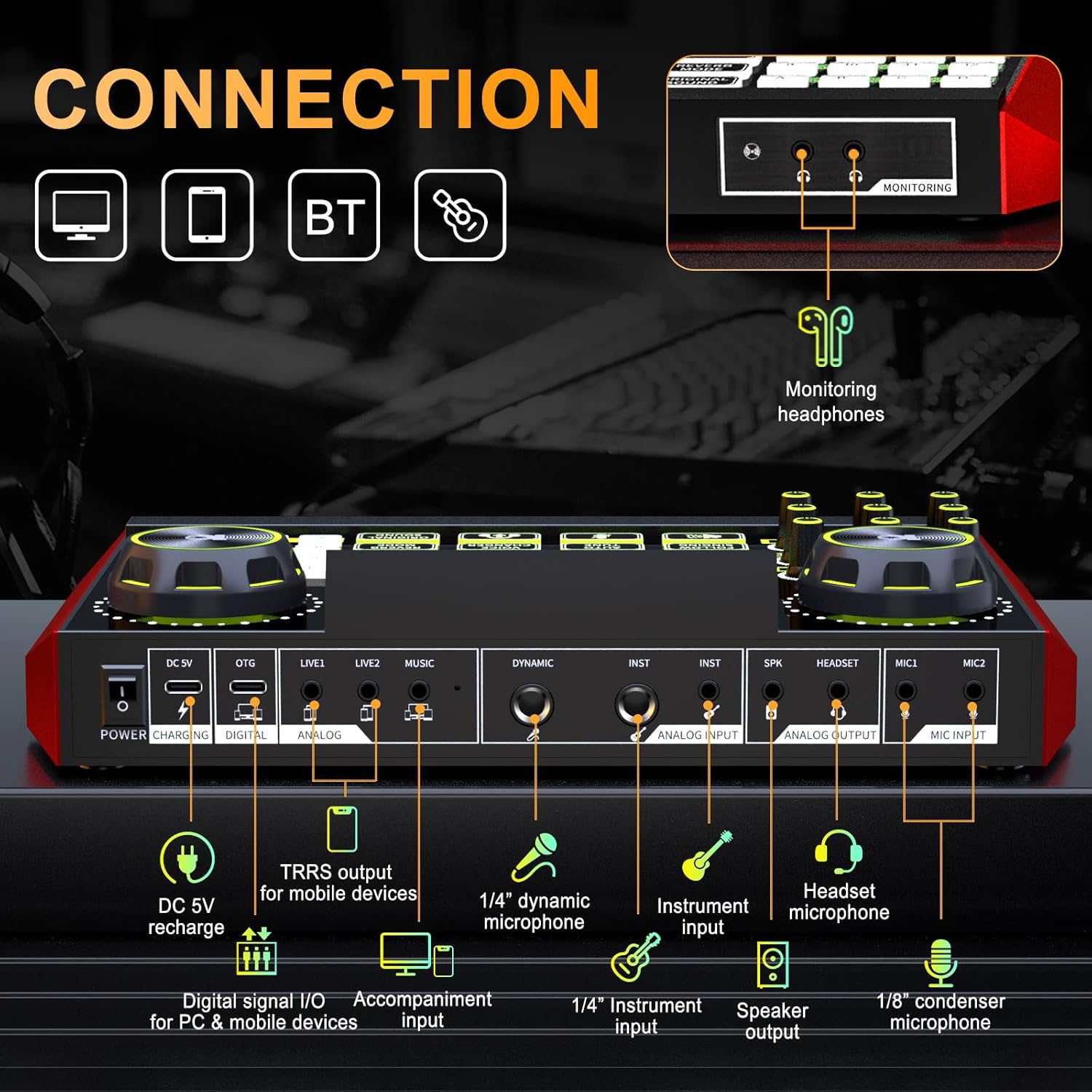
Figure 4.2: Rear connection panel of the G9 Gaming Audio Mixer.
4.1. നിയന്ത്രണങ്ങളും സൂചകങ്ങളും
- MIC Knobs: Adjust microphone gain (High, Mid, Low).
- Reverb Knobs (REV-D, REV-L): Control reverb depth and length.
- പിച്ച് നോബ്: Adjust vocal pitch.
- MON Knob: Adjust monitor headphone volume.
- ഔട്ട് നോബ്: Adjust main output volume.
- MUSIC+ Knob: Adjust background music volume.
- Ducking Button: സംസാരിക്കുമ്പോൾ പശ്ചാത്തല സംഗീതത്തിന്റെ ശബ്ദം യാന്ത്രികമായി കുറയ്ക്കുന്നു.
- Denoise Button: Reduces background noise from microphone input.
- B/T Button: ബ്ലൂടൂത്ത് ജോടിയാക്കൽ സജീവമാക്കുന്നു.
- വോയ്സ് ചേഞ്ചർ ബട്ടൺ: Cycles through different voice modes (e.g., female, uncle, baby, magic).
- Reverb Mode Button: Selects from preset reverb modes (e.g., KTV, Professional, Popular, Streamer, MC).
- ലൂപ്പ്ബാക്ക് ബട്ടൺ: Enables or disables audio loopback for recording all sounds.
- Follow Singing Button: Removes vocals from music for sing-along (Bluetooth and MUSIC jack only).
- ഓട്ടോ ട്യൂൺ ബട്ടൺ: Applies automatic pitch correction.
- Original Sound Button: Restores original vocal sound, bypassing effects.
- Customizable Sound Pads (1-12, A-D): Trigger pre-recorded or custom sound effects.
5. സജ്ജീകരണം
5.1. പ്രാരംഭ ചാർജിംഗ്
Before first use, ensure the G9 mixer is fully charged. Connect the USB-C cable to the DC 5V port on the mixer and the other end to a USB power adapter (not included) or a computer USB port. The charging indicator will show the charging status.
5.2. ഉപകരണങ്ങൾ ബന്ധിപ്പിക്കുന്നു
The G9 mixer supports various connection methods for different devices and scenarios.
- To PC/Computer: Connect the USB-C cable from the mixer's OTG (Digital) port to your computer's USB port. This enables digital audio input/output.
- To Smartphone/Tablet (Digital): Use the split USB-C / Lightning cable to connect the OTG (Digital) port to your mobile device.
- To Smartphone/Tablet (Analog): Use a 3.5mm audio cable to connect the LIVE1 or LIVE2 (Analog) port to your mobile device's headphone jack.
- മൈക്രോഫോണുകൾ:
- Connect 1/8" condenser microphones to MIC1 or MIC2 ports.
- Connect 1/4" dynamic microphones to the DYNAMIC port.
- Connect headset microphones to the HEADSET port.
- ഹെഡ്ഫോണുകൾ: Connect your monitoring headphones to the MONITOR port.
- ഉപകരണങ്ങൾ: Connect instruments to the INST ports using 1/4" cables.
- സ്പീക്കറുകൾ: Connect external speakers to the SPK (Speaker Output) port.
- Background Music Input: Connect an external audio source (e.g., phone, MP3 player) to the MUSIC port using a 3.5mm audio cable.
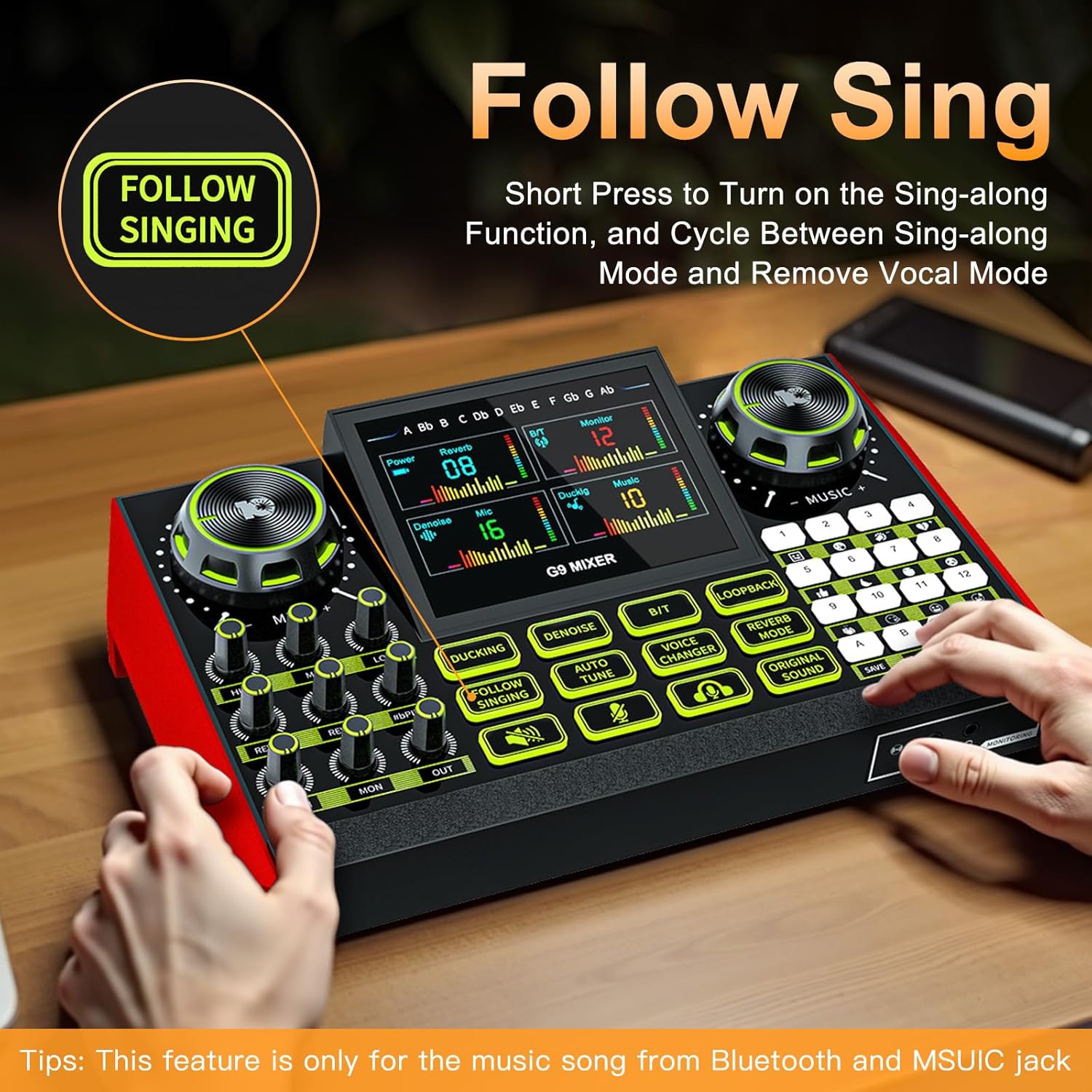
Figure 5.1: Connecting the G9 mixer to a computer and microphone.
6. പ്രവർത്തന നിർദ്ദേശങ്ങൾ
6.1. പവർ ഓൺ/ഓഫ്
Press and hold the Power button on the mixer to turn it on or off.
6.2. ഓഡിയോ ലെവലുകൾ ക്രമീകരിക്കൽ
Use the dedicated knobs to control various audio levels:
- MIC Knobs (High, Mid, Low): Rotate to adjust the equalization of your microphone input.
- MUSIC+ Knob: Rotate to adjust the volume of background music from connected devices or Bluetooth.
- MON Knob: Adjust the volume of your monitoring headphones.
- ഔട്ട് നോബ്: Adjust the overall output volume to your streaming device or speakers.
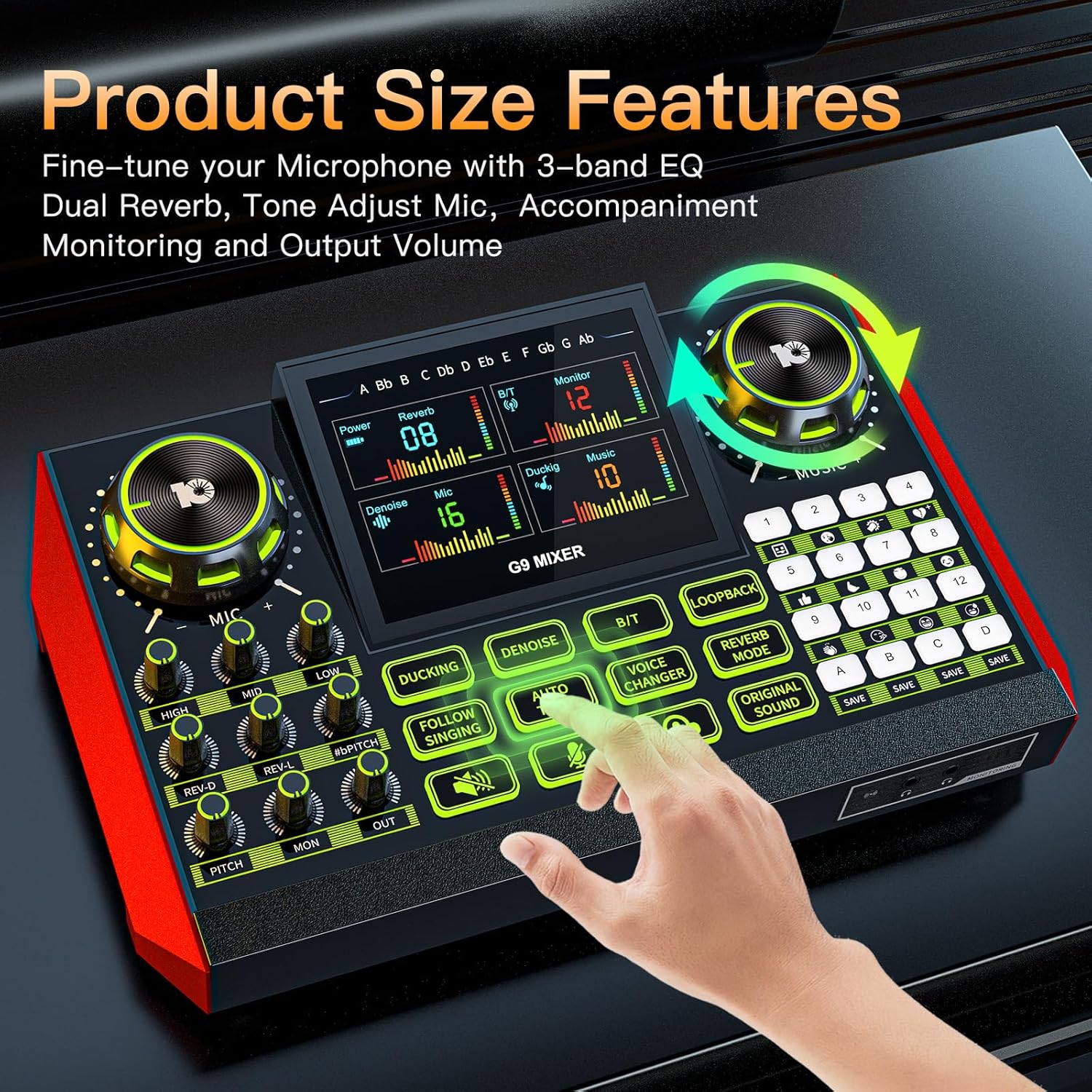
Figure 6.1: Fine-tuning audio with EQ and reverb controls.
6.3. Using Vocal Effects
The G9 mixer offers a range of vocal effects to enhance your voice:
- റിവേർബ്: Use the REV-D (Depth) and REV-L (Length) knobs to control the reverb effect. Press the റിവേർബ് മോഡ് button to cycle through preset reverb types.
- പിച്ച്: തിരിക്കുക പിച്ച് knob to adjust your vocal pitch.
- യാന്ത്രിക ട്യൂൺ: അമർത്തുക യാന്ത്രിക ട്യൂൺ button to activate automatic pitch correction.
- വോയ്സ് ചേഞ്ചർ: അമർത്തുക വോയ്സ് ചേഞ്ചർ button to cycle through different voice effects (e.g., male, female, baby, robot).

Figure 6.2: Activating voice changing modes.
6.4. സൗണ്ട് പാഡുകൾ
The mixer features 12 preset sound pads (1-12) and 4 customizable sound pads (A-D). Press a pad to trigger its assigned sound effect. For customizable pads, press and hold to record your own sound, then press again to play.

Figure 6.3: Customizable sound pads for personalized effects.
6.5. പ്രത്യേക പ്രവർത്തനങ്ങൾ
- താറാവ്: അമർത്തുക താറാവ് button to enable automatic music ducking. When you speak into the microphone, the background music volume will automatically decrease.
- ഡെനോയിസ്: അമർത്തുക ഡെനോയിസ് button to activate noise reduction for your microphone input.
- ലൂപ്പ്ബാക്ക്: അമർത്തുക ലൂപ്പ്ബാക്ക് button to enable or disable the loopback function. When enabled, all audio played on your computer/device (e.g., game audio, music) will be mixed with your microphone input and sent to your stream/recording.
- Follow Singing: ഷോർട്ട് അമർത്തുക Follow Singing button to turn on the sing-along function, which attempts to remove vocals from the music. This feature is primarily for music played via Bluetooth or the MUSIC jack.

Figure 6.4: Using the Follow Singing feature.
6.6. ബ്ലൂടൂത്ത് കണക്റ്റിവിറ്റി
To connect a device via Bluetooth:
- അമർത്തുക ബി/ടി button on the mixer. The Bluetooth indicator will start blinking.
- On your mobile device, search for Bluetooth devices and select "G9 Mixer".
- Once connected, the indicator will stop blinking. You can now play audio from your device through the mixer.
7. പരിപാലനം
Proper maintenance ensures the longevity and optimal performance of your G9 mixer.
- വൃത്തിയാക്കൽ: Use a soft, dry cloth to wipe the surface of the mixer. Do not use liquid cleaners or abrasive materials.
- സംഭരണം: നേരിട്ടുള്ള സൂര്യപ്രകാശവും കടുത്ത താപനിലയും ഏൽക്കാത്ത ഒരു തണുത്ത വരണ്ട സ്ഥലത്ത് മിക്സർ സൂക്ഷിക്കുക.
- ബാറ്ററി കെയർ: ദീർഘനേരം ബാറ്ററി സൂക്ഷിക്കുകയാണെങ്കിൽ, അതിന്റെ ആരോഗ്യം നിലനിർത്താൻ ഇടയ്ക്കിടെ ബാറ്ററി ചാർജ് ചെയ്യുക.
8. പ്രശ്നപരിഹാരം
If you encounter issues with your G9 Gaming Audio Mixer, refer to the following common problems and solutions:
| പ്രശ്നം | സാധ്യമായ കാരണം | പരിഹാരം |
|---|---|---|
| ശബ്ദ ഔട്ട്പുട്ട് ഇല്ല | Volume knobs are too low; incorrect cable connection; device not selected as audio output. | Increase OUT and MON knobs. Check all cable connections. Ensure G9 mixer is selected as the default audio output device on your computer/streaming software. |
| മൈക്രോഫോൺ പ്രവർത്തിക്കുന്നില്ല | MIC knob too low; microphone not properly connected; microphone type mismatch. | Increase MIC knobs. Ensure microphone is securely plugged into the correct port (e.g., condenser mic to MIC1/MIC2, dynamic mic to DYNAMIC). |
| വികലമായ ഓഡിയോ | Input levels too high; faulty cable. | Lower input levels (e.g., MIC knobs, MUSIC+ knob). Try a different audio cable. |
| ബ്ലൂടൂത്ത് കണക്റ്റ് ചെയ്യുന്നില്ല | മിക്സർ ജോടിയാക്കൽ മോഡിലല്ല; ഉപകരണം വളരെ അകലെയാണ്; ഇടപെടൽ. | Press the B/T button to enter pairing mode. Ensure your device is within range. Avoid strong electromagnetic interference. |
| ശബ്ദ ഇഫക്റ്റുകൾ പ്രവർത്തിക്കുന്നില്ല | Effect not activated; volume too low. | Ensure the specific effect button (e.g., Voice Changer, Auto Tune) is pressed. Check overall output volume. |
9 സ്പെസിഫിക്കേഷനുകൾ
| ഫീച്ചർ | വിശദാംശങ്ങൾ |
|---|---|
| ബ്രാൻഡ് | neculogy |
| മോഡൽ നമ്പർ | G9 |
| ഇനത്തിൻ്റെ ഭാരം | 1.84 പൗണ്ട് |
| ഉൽപ്പന്ന അളവുകൾ (LxWxH) | 12.4 x 3.54 x 2.36 ഇഞ്ച് |
| പവർ ഉറവിടം | ബാറ്ററി പവർ |
| ബാറ്ററികൾ | 1 ബാറ്ററി ആവശ്യമാണ് (ഉൾപ്പെടുത്തിയിരിക്കുന്നു) |
| ചാനലുകളുടെ എണ്ണം | 2 |
| കണക്റ്റിവിറ്റി ടെക്നോളജി | XLR, TRS, USB, Bluetooth |
| ഔട്ട്പുട്ട് കണക്റ്റർ തരം | ടി.ആർ.എസ് |
10. വാറൻ്റിയും പിന്തുണയും
The neculogy G9 Gaming Audio Mixer comes with a standard manufacturer's warranty. For specific warranty terms and conditions, please refer to the warranty card included in your product packaging or contact neculogy customer support.
For technical support, troubleshooting assistance, or any inquiries regarding your product, please visit the official neculogy website or contact their customer service team. Contact details are typically available on the product packaging or the brand's official online store.
11. ഔദ്യോഗിക ഉൽപ്പന്ന വീഡിയോകൾ
ഈ മാനുവലിൽ ഉൾപ്പെടുത്തുന്നതിനായി നൽകിയിരിക്കുന്ന ഡാറ്റയിൽ വിൽപ്പനക്കാരന്റെ ഔദ്യോഗിക ഉൽപ്പന്ന വീഡിയോകളൊന്നും കണ്ടെത്തിയില്ല.
Ask a question about this manual
Ask about setup, troubleshooting, compatibility, parts, safety, or missing instructions. Manuals+ will review the question and use this page’s manual context to help answer it.