
വൈഫൈ
Generic 4K Ultra HD WiFi Car Dash Camera
ഉപയോക്തൃ മാനുവൽ
Model: Wifi (V21)
1. ആമുഖം
This manual provides detailed instructions for the installation, operation, and maintenance of your Generic 4K Ultra HD WiFi Car Dash Camera. Designed to capture every moment of your journey with crystal clarity, this dual front and rear recording dash cam offers integrated GPS functionality and cellular phone connectivity for easy access and sharing of footage. It is an essential accessory for any driver prioritizing safety and reliable incident recording.
പ്രധാന സവിശേഷതകളിൽ ഇവ ഉൾപ്പെടുന്നു:
- Ultra HD 4K Recording: Captures crystal-clear 4K video with a dual-lens system, ensuring no detail is missed.
- ജിപിഎസ് ട്രാക്കിംഗ്: Built-in GPS logger tracks driving route, location, speed, and other detailed records.
- Dual-Lens Design: Front and rear cameras provide comprehensive coverage from multiple angles.
- മെച്ചപ്പെടുത്തിയ രാത്രി കാഴ്ച: Superior night vision capabilities ensure clear video recording even in low-light conditions.
- വൈഫൈ കണക്റ്റിവിറ്റി: Seamlessly connect to your smartphone via Wi-Fi for easy video management and sharing.
2. ഉൽപ്പന്നം കഴിഞ്ഞുview
The Generic 4K Ultra HD WiFi Car Dash Camera is a compact and reliable device designed for comprehensive vehicle surveillance. It features a main front camera unit and a rear camera for dual recording. The device integrates advanced technologies such as G-Sensor, loop recording, motion detection, and enhanced night vision to provide a secure driving experience.

ചിത്രം 2.1: മുൻഭാഗം view of the Generic 4K Ultra HD WiFi Car Dash Camera.

ചിത്രം 2.2: ഓവർview of key features including Night Version, G-Sensor, 4K+1080P recording, and APP control.

Figure 2.3: Compact design with icons illustrating features like 4K Dual Camera, WiFi, GPS, 170° Wide Angle, Loop Recording, 256GB Support, G-Sensor, and Parking Monitor.
3. പാക്കേജ് ഉള്ളടക്കം
എല്ലാ ഇനങ്ങളും ഉണ്ടെന്നും നല്ല നിലയിലാണെന്നും ഉറപ്പാക്കാൻ അൺബോക്സിംഗ് ചെയ്യുമ്പോൾ പാക്കേജ് ഉള്ളടക്കങ്ങൾ പരിശോധിക്കുക:
- V21 Dash Camera (Front Unit)
- പിൻഭാഗം View ക്യാമറ
- പവർ കേബിൾ
- Extended Lines (for rear camera)
- ഇൻസ്റ്റലേഷൻ ഗൈഡ്
- ആന്റി-സ്ലിപ്പ് മാറ്റ്
- ഉപയോക്തൃ മാനുവൽ (ഈ പ്രമാണം)
4. സജ്ജീകരണം
4.1. ഇൻസ്റ്റലേഷനായി തയ്യാറെടുക്കുന്നു
- Ensure your vehicle's windshield is clean and dry before mounting.
- Select a location on the windshield that does not obstruct your view or interfere with airbags. Typically, near the rearview mirror is ideal.
- Insert a high-speed Micro SD card (Class 10 or higher, up to 256GB) into the dash camera's slot. Format the card before first use.
4.2. Installing the Front Dash Camera
- Attach the anti-slip mat or adhesive mount to the dash camera bracket.
- Peel off the protective film from the adhesive and firmly press the dash camera onto the chosen spot on your windshield. Hold for 30 seconds to ensure strong adhesion.
- Adjust the camera lens angle to ensure it captures the road ahead clearly.
4.3. Installing the Rear Camera
- Mount the rear camera on the rear windshield, ensuring it has a clear view.
- Route the rear camera cable to the front dash camera. Most vehicles allow routing along the headliner and A-pillar trim.
- Connect the rear camera cable to the designated port on the main dash camera unit.
4.4. പവർ കണക്ഷൻ
- Connect the power cable to the dash camera.
- Plug the other end of the power cable into your vehicle's cigarette lighter socket or a suitable USB power source.
- Route the power cable neatly to avoid obstructing your driving or interfering with vehicle controls.
5. പ്രവർത്തന നിർദ്ദേശങ്ങൾ
5.1. അടിസ്ഥാന പ്രവർത്തനം
- പവർ ഓൺ/ഓഫ്: The dash camera will automatically power on and begin recording when your vehicle starts and power is supplied. It will power off automatically when the vehicle is turned off.
- റെക്കോർഡിംഗ്: Continuous loop recording is enabled by default. When the memory card is full, the oldest unlocked fileകൾ തിരുത്തിയെഴുതും.
- ജി-സെൻസർ: In case of a sudden impact or collision, the built-in G-Sensor will automatically lock the current video footage to prevent it from being overwritten.
- പാർക്കിംഗ് മോണിറ്റർ: If enabled, the dash camera can detect impacts while parked and automatically record a short video. (Requires continuous power supply, e.g., hardwire kit, not included).
5.2. വൈ-ഫൈ കണക്റ്റിവിറ്റിയും ആപ്പ് നിയന്ത്രണവും
The dash camera features integrated Wi-Fi for seamless connection to your smartphone via a dedicated app (e.g., "Viidure" as suggested by images). This allows for live view, വീഡിയോ പ്ലേബാക്ക്, ഡൗൺലോഡ്, ക്രമീകരണ ക്രമീകരണം.
- Download the recommended app from your smartphone's app store (App Store for iOS, Google Play Store for Android).
- Turn on Wi-Fi on your dash camera (refer to on-screen menu or specific button if available).
- On your smartphone, go to Wi-Fi settings and connect to the dash camera's Wi-Fi network (SSID and password usually displayed on the camera screen or in the manual).
- Open the app. You should now be able to view തത്സമയംtage, access recorded videos, and modify settings.

ചിത്രം 5.1: ഉദാample of 4K 3840*2160P recording quality and Super Night Vision capabilities.

Figure 5.2: Visual comparison demonstrating the superior clarity of 4K Ultra HD recording over 1080P.
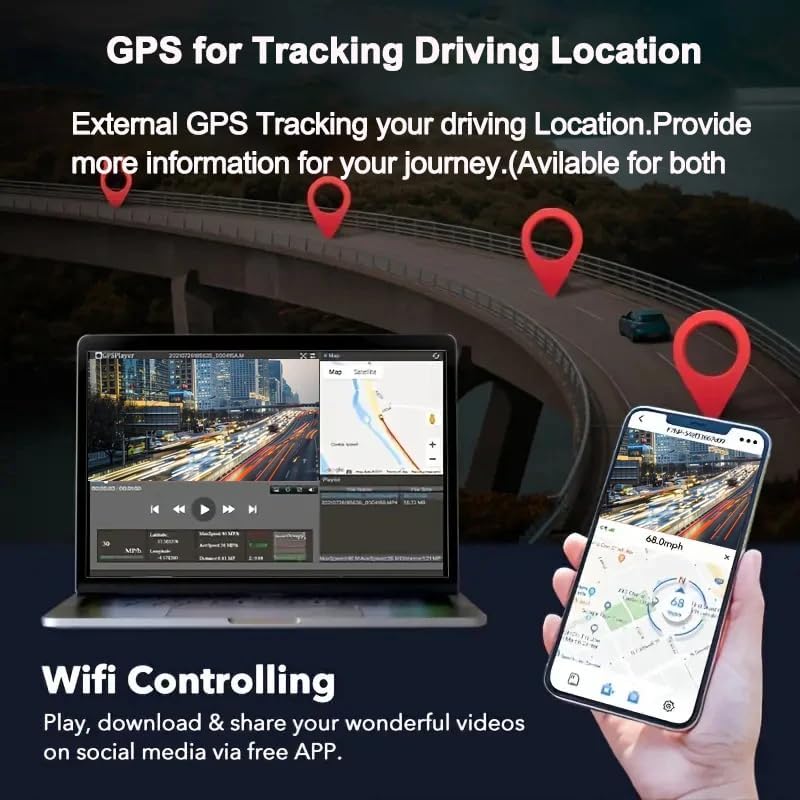
Figure 5.3: Illustration of GPS tracking functionality, showing route and location data on a map interface.

Figure 5.4: Wi-Fi control via the Viidure app, available for download on App Store and Android.
6. പരിപാലനം
- മെമ്മറി കാർഡ് ഫോർമാറ്റിംഗ്: It is recommended to format the Micro SD card regularly (e.g., once a month) to ensure optimal performance and prevent data corruption. Back up any important videos before formatting.
- ലെൻസ് ക്ലീനിംഗ്: Gently clean the camera lenses with a soft, lint-free cloth to ensure clear video quality. Avoid abrasive materials or harsh chemicals.
- ഫേംവെയർ അപ്ഡേറ്റുകൾ: നിർമ്മാതാവ് പരിശോധിക്കുക website or app periodically for firmware updates. Keeping your dash camera's firmware up-to-date can improve performance and add new features.
- താപനില: Avoid exposing the dash camera to extreme temperatures for prolonged periods, as this can affect battery life and component longevity.
7. പ്രശ്നപരിഹാരം
| പ്രശ്നം | സാധ്യമായ കാരണം / പരിഹാരം |
|---|---|
| ക്യാമറ പവർ ഓൺ ചെയ്യുന്നില്ല. |
|
| റെക്കോർഡിംഗ് നിർത്തുകയോ മരവിപ്പിക്കുകയോ ചെയ്യുന്നു. |
|
| വീഡിയോ footage മങ്ങിയതോ അവ്യക്തമോ ആണ്. |
|
| വൈഫൈ കണക്ഷൻ പ്രശ്നങ്ങൾ. |
|
| GPS സിഗ്നൽ കണ്ടെത്തിയില്ല. |
|
8 സ്പെസിഫിക്കേഷനുകൾ
| ഫീച്ചർ | വിശദാംശങ്ങൾ |
|---|---|
| മോഡലിൻ്റെ പേര് | V21 |
| മോഡൽ നമ്പർ | വൈഫൈ |
| ബ്രാൻഡ് | ജനറിക് |
| വീഡിയോ റെസല്യൂഷൻ | Front: 4K UHD (3840*2160P), Rear: 1080P (1920*1080) |
| ഡിസ്പ്ലേ സ്ക്രീൻ വലിപ്പം | 1.47 Inches (visible diagonal 2" / 4 cm) |
| പ്രത്യേക സവിശേഷതകൾ | Integrated Screen, G-Sensor + Loop Recording, Automatic Incident Detection, Built-in WiFi and App Control, Enhanced Night Vision, WDR |
| കണക്റ്റിവിറ്റി ടെക്നോളജി | Wi-Fi, HDMI |
| മൗണ്ടിംഗ് തരം | വിൻഡ്ഷീൽഡ് മ .ണ്ട് |
| പിന്തുണയ്ക്കുന്ന മെമ്മറി കാർഡ് | Up to 256GB (Micro SD, Class 10/U3 recommended) |
| അളവുകൾ | 3.3 x 9.53 x 4.98 സെ.മീ |
| പവർ ഉറവിടം | Vehicle Power (No internal battery included) |

Figure 8.1: Physical dimensions of the dash camera.
9. വാറൻ്റിയും പിന്തുണയും
For any product-related inquiries, technical support, or warranty claims, please contact the seller or manufacturer directly. Refer to your purchase documentation for specific warranty terms and contact information.
As per product information, an electronic manual in English is available. Please contact the seller for the file if you require further detailed instructions.
Ask a question about this manual
Ask about setup, troubleshooting, compatibility, parts, safety, or missing instructions. Manuals+ will review the question and use this page’s manual context to help answer it.