
1. ആമുഖം
This manual provides comprehensive instructions for the installation, operation, maintenance, and troubleshooting of your EIMSOAH 7in HD Carplay Screen. Please read this manual thoroughly before using the product to ensure proper function and safety.
The EIMSOAH Carplay Screen is an advanced in-dash navigation and multimedia system designed to enhance your driving experience with features such as wireless CarPlay/Android Auto, GPS navigation, and a high-definition touch screen display.
2 സുരക്ഷാ വിവരങ്ങൾ
Always prioritize safety. Improper installation or operation can lead to damage to the device, vehicle, or personal injury. Observe the following safety guidelines:
- Ensure the vehicle's ignition is off and the battery is disconnected before installation to prevent electrical shorts.
- ഏതെങ്കിലും ഘട്ടങ്ങളെക്കുറിച്ച് നിങ്ങൾക്ക് ഉറപ്പില്ലെങ്കിൽ, ഇൻസ്റ്റാളേഷനായി ഒരു പ്രൊഫഷണലിനെ സമീപിക്കുക.
- ഡ്രൈവിംഗിൽ നിന്ന് ശ്രദ്ധ തിരിക്കുന്ന രീതിയിൽ ഉപകരണം പ്രവർത്തിപ്പിക്കരുത്. എപ്പോഴും റോഡിൽ കണ്ണുകൾ വയ്ക്കുക.
- ഉപകരണത്തെ തീവ്രമായ താപനിലയിലോ, ദീർഘനേരം നേരിട്ടുള്ള സൂര്യപ്രകാശത്തിലോ, അമിതമായ ഈർപ്പത്തിലോ തുറന്നുകാട്ടുന്നത് ഒഴിവാക്കുക.
- Do not attempt to disassemble or modify the unit. This will void the warranty and may cause damage.
- Ensure all wiring is properly insulated and secured to prevent short circuits or interference.
3. പാക്കേജ് ഉള്ളടക്കം
താഴെ കൊടുത്തിരിക്കുന്ന എല്ലാ ഇനങ്ങളും നിങ്ങളുടെ പാക്കേജിൽ ഉണ്ടെന്ന് ഉറപ്പാക്കുക:
- 1 x Car Multimedia Player Display
- 7 x Wiring Harnesses (various types for power, audio, video, etc.)
- 1 x GPS Box/Antenna
- 1 x ഇൻസ്ട്രക്ഷൻ മാനുവൽ (ഈ ഡോക്യുമെന്റ്)
- 1 x Wiring Instruction Diagram

Figure 3.1: Complete package contents including the main display unit, wiring harnesses, and GPS antenna.
4. സജ്ജീകരണവും ഇൻസ്റ്റാളേഷനും
This section outlines the general steps for installing the EIMSOAH Carplay Screen. Specific wiring details are provided in the separate Wiring Instruction Diagram included in your package. Professional installation is recommended.
- വാഹനം തയ്യാറാക്കുക:
- Turn off the vehicle's ignition and remove the key.
- Disconnect the negative terminal of the car battery to prevent electrical hazards.
- Carefully remove the existing car stereo or dashboard panel to access the wiring harness and mounting area.
- വയറിംഗ് ഹാർനെസുകൾ ബന്ധിപ്പിക്കുക:
- Refer to the provided Wiring Instruction Diagram for detailed connections.
- Connect the main power harness, speaker wires, and other necessary connections (e.g., AUX, USB, reverse camera input if applicable) to the corresponding ports on the car multimedia player.
- എല്ലാ കണക്ഷനുകളും സുരക്ഷിതവും ശരിയായി ഇൻസുലേറ്റ് ചെയ്തതുമാണെന്ന് ഉറപ്പാക്കുക.
- ജിപിഎസ് ആന്റിന ഇൻസ്റ്റാൾ ചെയ്യുക:
- വ്യക്തമായ വെളിച്ചമുള്ള ഒരു സ്ഥലത്ത് GPS ആന്റിന സ്ഥാപിക്കുക. view ആകാശത്തിന്റെ ഒരു ദൃശ്യം, സാധാരണയായി ഡാഷ്ബോർഡിലോ വിൻഡ്ഷീൽഡിനടിയിലോ, ലോഹ തടസ്സങ്ങളിൽ നിന്ന് അകലെ.
- Route the GPS antenna cable to the back of the head unit and connect it to the designated GPS input.
- യൂണിറ്റ് മൌണ്ട് ചെയ്യുക:
- Carefully slide the car multimedia player into the dashboard opening.
- Secure the unit using the provided mounting brackets or screws, ensuring it is firmly in place.
- ബാറ്ററി വീണ്ടും ബന്ധിപ്പിച്ച് പരിശോധിക്കുക:
- കാർ ബാറ്ററിയുടെ നെഗറ്റീവ് ടെർമിനൽ വീണ്ടും ബന്ധിപ്പിക്കുക.
- Turn on the vehicle's ignition and power on the car multimedia player.
- Test all functions, including audio, touch screen response, GPS signal, Bluetooth connectivity, and any connected accessories (e.g., reverse camera).
- ഡാഷ്ബോർഡ് വീണ്ടും കൂട്ടിച്ചേർക്കുക:
- Once all functions are verified, carefully reassemble the dashboard panels.

Figure 4.1: The Carplay screen integrated into a vehicle's dashboard.
5. പ്രവർത്തന നിർദ്ദേശങ്ങൾ
The EIMSOAH Carplay Screen operates on Android 12, providing a user-friendly interface. Below are common operations:
5.1 അടിസ്ഥാന നാവിഗേഷൻ
- പവർ ഓൺ/ഓഫ്: Press and hold the power button (usually on the left side of the unit) to turn the device on or off. A short press typically mutes/unmutes audio.
- വോളിയം നിയന്ത്രണം: Use the volume buttons on the unit or steering wheel controls (if configured) to adjust audio levels.
- ഹോം സ്ക്രീൻ: Tap the "Home" icon to return to the main application screen.
- ബാക്ക് ബട്ടൺ: Tap the "Back" icon to return to the previous screen or menu.
- സമീപകാല ആപ്പുകൾ: Tap the "Recent Apps" icon to view കൂടാതെ അടുത്തിടെ തുറന്ന ആപ്ലിക്കേഷനുകൾക്കിടയിൽ മാറുക.
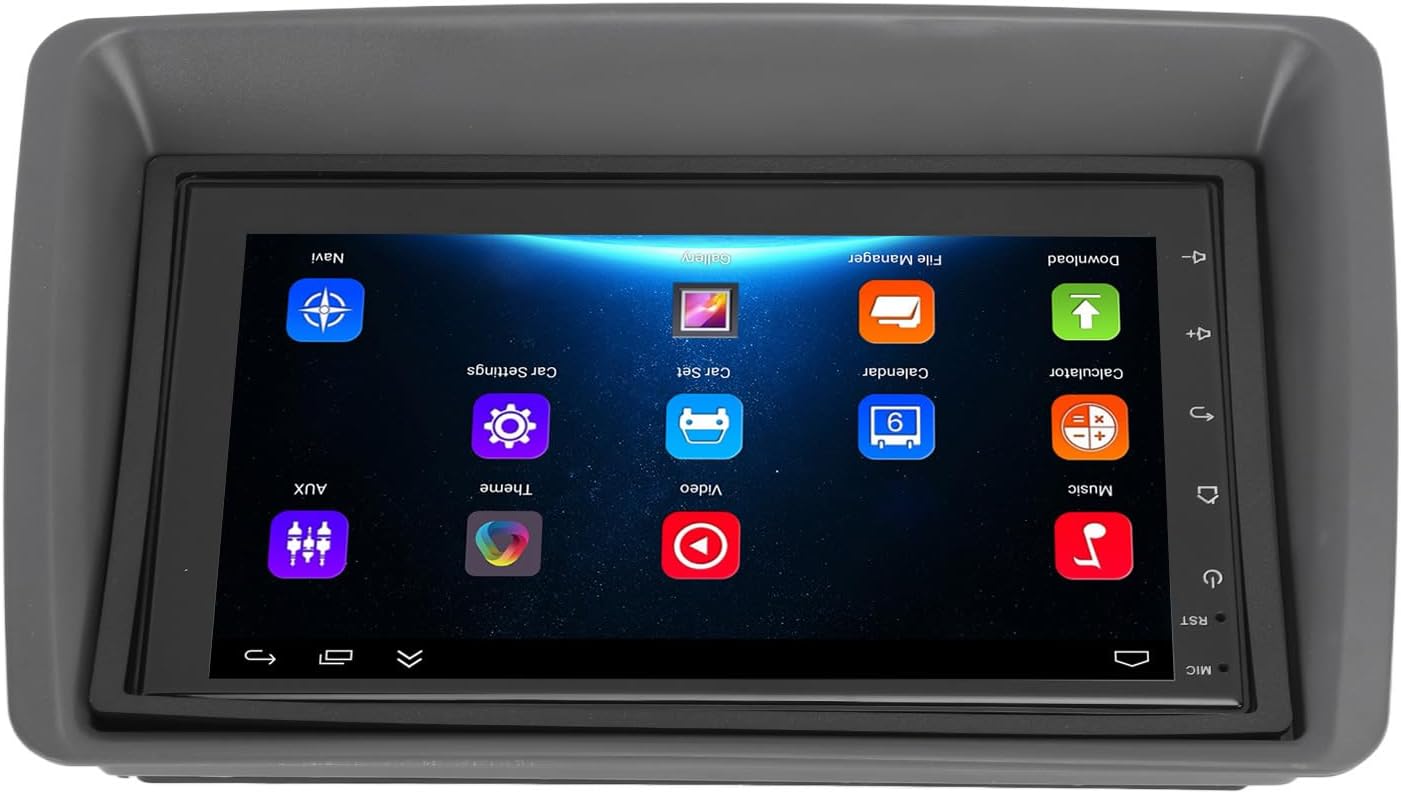
Figure 5.1: Main user interface of the Carplay screen.
5.2 വയർലെസ് കാർപ്ലേ / ആൻഡ്രോയിഡ് ഓട്ടോ
The unit supports wireless Apple CarPlay and Android Auto for seamless smartphone integration.
- നിങ്ങളുടെ സ്മാർട്ട്ഫോണിൽ ബ്ലൂടൂത്തും വൈഫൈയും പ്രവർത്തനക്ഷമമാക്കിയിട്ടുണ്ടെന്ന് ഉറപ്പാക്കുക.
- On the Carplay screen, navigate to the "CarPlay" or "Android Auto" application.
- ബ്ലൂടൂത്ത് വഴി നിങ്ങളുടെ ഫോൺ ജോടിയാക്കാൻ ഓൺ-സ്ക്രീൻ നിർദ്ദേശങ്ങൾ പാലിക്കുക. ജോടിയാക്കിക്കഴിഞ്ഞാൽ, CarPlay/Android Auto പ്രവർത്തനത്തിനായി സിസ്റ്റം സ്വയമേവ ഒരു വൈഫൈ കണക്ഷൻ സ്ഥാപിക്കും.
- Your phone's compatible apps (navigation, music, messaging) will be displayed on the Carplay screen.
5.3 ജിപിഎസ് നാവിഗേഷൻ
The unit supports both online and offline GPS navigation.
- ഓൺലൈൻ നാവിഗേഷൻ: Connect the unit to Wi-Fi (via a mobile hotspot or vehicle Wi-Fi) to use online mapping services. Download navigation apps from the pre-installed app store.
- ഓഫ്ലൈൻ നാവിഗേഷൻ: Download map data for offline use within your preferred navigation application. This allows navigation without an active internet connection.
5.4 ബ്ലൂടൂത്ത് കണക്റ്റിവിറ്റി
ഹാൻഡ്സ്-ഫ്രീ കോളിംഗിനും ഓഡിയോ സ്ട്രീമിംഗിനും നിങ്ങളുടെ സ്മാർട്ട്ഫോൺ ബ്ലൂടൂത്ത് വഴി ബന്ധിപ്പിക്കുക.
- Go to the "Settings" menu on the Carplay screen and select "Bluetooth".
- ബ്ലൂടൂത്ത് പ്രവർത്തനക്ഷമമാക്കി ഉപകരണം കണ്ടെത്താവുന്നതാക്കുക.
- On your smartphone, search for available Bluetooth devices and select "EIMSOAH Carplay" (or similar name).
- രണ്ട് ഉപകരണങ്ങളിലും ജോടിയാക്കൽ കോഡ് സ്ഥിരീകരിക്കുക.
- Once connected, you can make/receive calls and play audio through the car's speakers.
5.5 സ്പ്ലിറ്റ് സ്ക്രീൻ ഡിസ്പ്ലേ
The unit supports split-screen functionality, allowing two applications to be viewഒരേസമയം ed.
- നിങ്ങൾ ഉപയോഗിക്കാൻ ആഗ്രഹിക്കുന്ന ആദ്യ ആപ്ലിക്കേഷൻ തുറക്കുക.
- Press and hold the "Recent Apps" button (or swipe up and hold from the bottom of the screen, depending on the Android version).
- ആദ്യത്തെ ആപ്പ് സ്ക്രീനിന്റെ ഒരു വശത്തേക്ക് വലിച്ചിടുക.
- Select the second application from the recent apps list or app drawer to fill the other half of the screen.
5.6 Reverse Image Function
If a compatible reverse camera is connected (not included), the screen will automatically display the reverse view when the vehicle is shifted into reverse gear.
- Ensure the reverse camera is properly installed and connected to the designated video input.
- The system will automatically switch to the camera view റിവേഴ്സ് ഗിയർ ഇടുമ്പോൾ.
6. പരിപാലനം
Proper maintenance ensures the longevity and optimal performance of your EIMSOAH Carplay Screen.
- സ്ക്രീൻ വൃത്തിയാക്കൽ: സ്ക്രീൻ മൃദുവായി തുടയ്ക്കാൻ മൃദുവായ, ലിന്റ് രഹിത തുണി ഉപയോഗിക്കുക. കഠിനമായ കറകൾക്ക്, ചെറുതായി dampതുണിയിൽ വെള്ളം അല്ലെങ്കിൽ സ്ക്രീൻ-സേഫ് ക്ലീനർ ഉപയോഗിക്കുക. ഉരച്ചിലുകൾ ഉള്ള വസ്തുക്കളോ കഠിനമായ രാസവസ്തുക്കളോ ഒഴിവാക്കുക.
- സോഫ്റ്റ്വെയർ അപ്ഡേറ്റുകൾ: Periodically check for software updates through the system settings (if available) to ensure you have the latest features and bug fixes.
- പരിസ്ഥിതി വ്യവസ്ഥകൾ: Avoid exposing the unit to extreme temperatures, high humidity, or direct sunlight for extended periods.
- കേബിൾ മാനേജുമെന്റ്: Ensure all cables are securely connected and not pinched or exposed to excessive wear.
7. പ്രശ്നപരിഹാരം
If you encounter issues with your EIMSOAH Carplay Screen, refer to the following common problems and solutions:
| പ്രശ്നം | സാധ്യമായ കാരണം | പരിഹാരം |
|---|---|---|
| യൂണിറ്റ് പവർ ഓണാക്കുന്നില്ല. | വൈദ്യുതി ഇല്ല; വയറിംഗ് അയഞ്ഞിരിക്കുന്നു; ഫ്യൂസ് പൊട്ടി. | Check power connections and vehicle fuse box. Ensure battery is connected. |
| ഓഡിയോ ഔട്ട്പുട്ട് ഇല്ല. | Volume muted; speaker wires disconnected; incorrect audio settings. | Check volume level and mute status. Verify speaker wire connections. Adjust audio output settings. |
| ടച്ച് സ്ക്രീൻ പ്രതികരിക്കുന്നില്ല. | Software glitch; screen protector interference; physical damage. | Restart the unit. Remove any screen protectors to test. If problem persists, contact support. |
| GPS സിഗ്നൽ ദുർബലമാണ് അല്ലെങ്കിൽ നഷ്ടപ്പെട്ടു. | GPS antenna obstructed or disconnected; poor satellite coverage. | ജിപിഎസ് ആന്റിനയ്ക്ക് വ്യക്തമായ ഒരു രേഖ ഉണ്ടെന്ന് ഉറപ്പാക്കുക view of the sky and is securely connected. Move to an open area. |
| ബ്ലൂടൂത്ത് കണക്ഷൻ പ്രശ്നങ്ങൾ. | Bluetooth off on device/phone; pairing error; interference. | Ensure Bluetooth is enabled on both devices. Delete previous pairings and re-pair. Move phone closer to unit. |
| CarPlay/Android Auto കണക്റ്റ് ചെയ്യുന്നില്ല. | Wi-Fi/Bluetooth issues; phone compatibility; app issues. | Verify Wi-Fi and Bluetooth are active. Restart phone and unit. Ensure phone OS is up to date. |
If the problem persists after trying these solutions, please contact EIMSOAH customer support for further assistance.
8 സ്പെസിഫിക്കേഷനുകൾ
Detailed technical specifications for the EIMSOAH 7in HD Carplay Screen:
| ഫീച്ചർ | വിവരണം |
|---|---|
| സ്ക്രീൻ വലിപ്പം | 7 ഇഞ്ച് |
| ഓപ്പറേറ്റിംഗ് സിസ്റ്റം | ആൻഡ്രോയിഡ് 12 |
| സിപിയു | 4 കോർ |
| സ്ക്രീൻ റെസല്യൂഷൻ | 1024x600 |
| ബ്ലൂടൂത്ത് പതിപ്പ് | 4.0 |
| റേഡിയോ | എഫ്എം/ആർഡിഎസ് |
| ഔട്ട്പുട്ട് പവർ | 4 x 45W |
| Image Connection | For Android / For iOS (Wireless Apple CarPlay, Wired/Wireless Android Auto) |
| ജിപിഎസ് നാവിഗേഷൻ | Support Online/Offline Navigation |
| ടച്ച് സ്ക്രീൻ തരം | HD Capacitive Multi-Point Touch |
| Wireless WI-FI | Support 3G/4G/5G wireless signal reception |
| സ്പ്ലിറ്റ് സ്ക്രീൻ ഡിസ്പ്ലേ | Supported (left and right split screen) |
| സ്റ്റിയറിംഗ് വീൽ നിയന്ത്രണം | പിന്തുണച്ചു |
| Reverse Image Input | Supported (HD reverse video input, camera not included) |
| യുഎസ്ബി പ്രവർത്തനം | Two USB ports (media playback, file transfer, DVR) |
| AUX പ്രവർത്തനം | Audio/Video input from external devices |
| സംരക്ഷണ സർക്യൂട്ടുകൾ | ഓവർലോഡ്, ഓവർവോൾtage, ഷോർട്ട് സർക്യൂട്ട് |
| പവർ ഓഫ് മെമ്മറി | പിന്തുണച്ചു |
| വീഡിയോ ഇൻപുട്ട്/ഔട്ട്പുട്ട് | Two video inputs, one video output |
| ഓഡിയോ ഔട്ട്പുട്ട് | Left Audio Output, Right Audio Output |
| പിന്തുണയ്ക്കുന്ന ഇമേജ് ഫോർമാറ്റുകൾ | JPEG, GIF, PNG, BMP, JPG |
| പിന്തുണയ്ക്കുന്ന വീഡിയോ ഫോർമാറ്റുകൾ | MP4 / MP5 / MKV / AVI / RMVB / 1080P |
| പിന്തുണയ്ക്കുന്ന ഓഡിയോ ഫോർമാറ്റുകൾ | MP3/WMA/WAV/FLAC |
| ഭാഷ | Built-in Multiple Languages (Simplified Chinese, Traditional Chinese, English, German, Russian, Spanish, Italian, etc.) |
| ഫിറ്റ്മെൻ്റ് | Replacement for Fiat Panda 2003-2012 |
| ഇനത്തിൻ്റെ ഭാരം | 2.57 പൗണ്ട് |
| പാക്കേജ് അളവുകൾ | 14.17 x 8.27 x 4.72 ഇഞ്ച് |
9. വാറൻ്റിയും പിന്തുണയും
EIMSOAH products are designed for reliability and performance. For warranty information and technical support, please refer to the following:
- വാറൻ്റി: Specific warranty terms and conditions may vary. Please refer to the warranty card included with your product or contact the seller/manufacturer directly for details regarding coverage period and claims process.
- സാങ്കേതിക സഹായം: For technical assistance, troubleshooting beyond this manual, or inquiries about parts and service, please contact EIMSOAH customer support through the retailer where you purchased the product or visit the official EIMSOAH brand store on Amazon: EIMSOAH Store.