
1. ആമുഖം
Thank you for choosing the PUTRIMS K12 Google TV Projector. This manual provides essential information for the safe and efficient use of your new projector. Please read it thoroughly before operation and keep it for future reference.

Figure 1.1: PUTRIMS K12 Projector
2 സുരക്ഷാ വിവരങ്ങൾ
- l ചെയ്യുമ്പോൾ പ്രൊജക്ടർ ലെൻസിലേക്ക് നേരിട്ട് നോക്കരുത്amp ഓണാണ്.
- അമിതമായി ചൂടാക്കുന്നത് തടയാൻ ശരിയായ വായുസഞ്ചാരം ഉറപ്പാക്കുക.
- പ്രൊജക്ടർ വെള്ളത്തിൽ നിന്നോ മറ്റ് ദ്രാവകങ്ങളിൽ നിന്നോ അകറ്റി നിർത്തുക.
- നൽകിയിരിക്കുന്ന പവർ അഡാപ്റ്റർ മാത്രം ഉപയോഗിക്കുക.
- അസ്ഥിരമായ പ്രതലങ്ങളിൽ പ്രൊജക്ടർ സ്ഥാപിക്കുന്നത് ഒഴിവാക്കുക.
- Do not attempt to disassemble or repair the projector yourself. Contact customer support for assistance.
3. പാക്കേജ് ഉള്ളടക്കം
നിങ്ങളുടെ പാക്കേജിൽ എല്ലാ ഇനങ്ങളും ഉണ്ടെന്ന് ഉറപ്പാക്കുക:
- പുട്രിംസ് കെ12 പ്രൊജക്ടർ
- റിമോട്ട് കൺട്രോൾ
- പവർ കോർഡ്
- HDMI കേബിൾ
- പ്രൊജക്ടർ ലെൻസ് കവർ
- ഉപയോക്തൃ മാനുവൽ (ഈ പ്രമാണം)
4. ഉൽപ്പന്നം കഴിഞ്ഞുview
The PUTRIMS K12 projector is designed for a versatile home theater and business experience. It features a sleek design with essential ports for connectivity.
ചിത്രം 4.1: മുൻഭാഗം view of the K12 Projector, showing the lens and auto-focus sensors.

ചിത്രം 4.2: പിൻഭാഗം view of the K12 Projector, highlighting HDMI, USB, and audio ports.
Video 4.1: General product overview and feature demonstration of the PUTRIMS K12 projector.
5. സജ്ജീകരണം
5.1 ഭൗതിക സജ്ജീകരണം
The K12 projector offers flexible installation options to suit various environments:
- ടാബ്ലെറ്റ് പ്ലേസ്മെൻ്റ്: പ്രൊജക്ടർ ഒരു സ്ഥിരതയുള്ളതും പരന്നതുമായ പ്രതലത്തിൽ സ്ഥാപിക്കുക.
- ട്രൈപോഡ് മൗണ്ടിംഗ്: Use the M5 screw hole on the bottom to attach a tripod.
- സീലിംഗ് മൗണ്ടിംഗ്: Securely mount the projector to the ceiling using a compatible mount.
- മതിൽ മൗണ്ടിംഗ്: Attach the projector to a wall using a suitable bracket.

Figure 5.1: Diverse installation methods for the K12 Projector.
5.2 പ്രാരംഭ പവർ ഓൺ
- പ്രൊജക്ടറിലേക്കും പവർ ഔട്ട്ലെറ്റിലേക്കും പവർ കോർഡ് ബന്ധിപ്പിക്കുക.
- അത് ഓണാക്കാൻ പ്രൊജക്ടറിലോ റിമോട്ട് കൺട്രോളിലോ ഉള്ള പവർ ബട്ടൺ അമർത്തുക.
- The projector will automatically perform auto-focus and keystone correction.
5.3 നെറ്റ്വർക്ക് കണക്ഷൻ (വൈഫൈ)
To access online streaming services and updates, connect your projector to a WiFi network:
- Navigate to the 'Settings' menu on the projector.
- Select 'Network' or 'WiFi Settings'.
- Turn on WiFi and select your desired network from the list.
- ആവശ്യപ്പെടുകയാണെങ്കിൽ പാസ്വേഡ് നൽകി കണക്റ്റുചെയ്യുക.
5.4 ബ്ലൂടൂത്ത് കണക്ഷൻ
Connect external Bluetooth speakers or headphones for enhanced audio:
- 'ക്രമീകരണങ്ങൾ' എന്നതിലേക്ക് പോയി 'ബ്ലൂടൂത്ത്' തിരഞ്ഞെടുക്കുക.
- Turn on Bluetooth and put your external device into pairing mode.
- ജോടിയാക്കാൻ ലിസ്റ്റിൽ നിന്ന് നിങ്ങളുടെ ഉപകരണം തിരഞ്ഞെടുക്കുക.
5.5 സ്ക്രീൻ മിററിംഗ്
Share content from your mobile devices or computer wirelessly:
- For iOS devices (Airplay): Ensure your iOS device and the projector are connected to the same WiFi network. Open the 'iOS Cast' interface on the projector. On your iOS device, open Control Center, tap 'Screen Mirroring', and select 'K12-xxxx' from the list.
- For Android/Windows devices (Miracast): Ensure your device and the projector are connected to the same WiFi network. Open the 'Miracast' interface on the projector. On your Android/Windows device, enable screen mirroring/cast feature and select 'K12-xxxx' to connect.
6. പ്രവർത്തന നിർദ്ദേശങ്ങൾ
6.1 ഗൂഗിൾ ടിവി സവിശേഷതകൾ
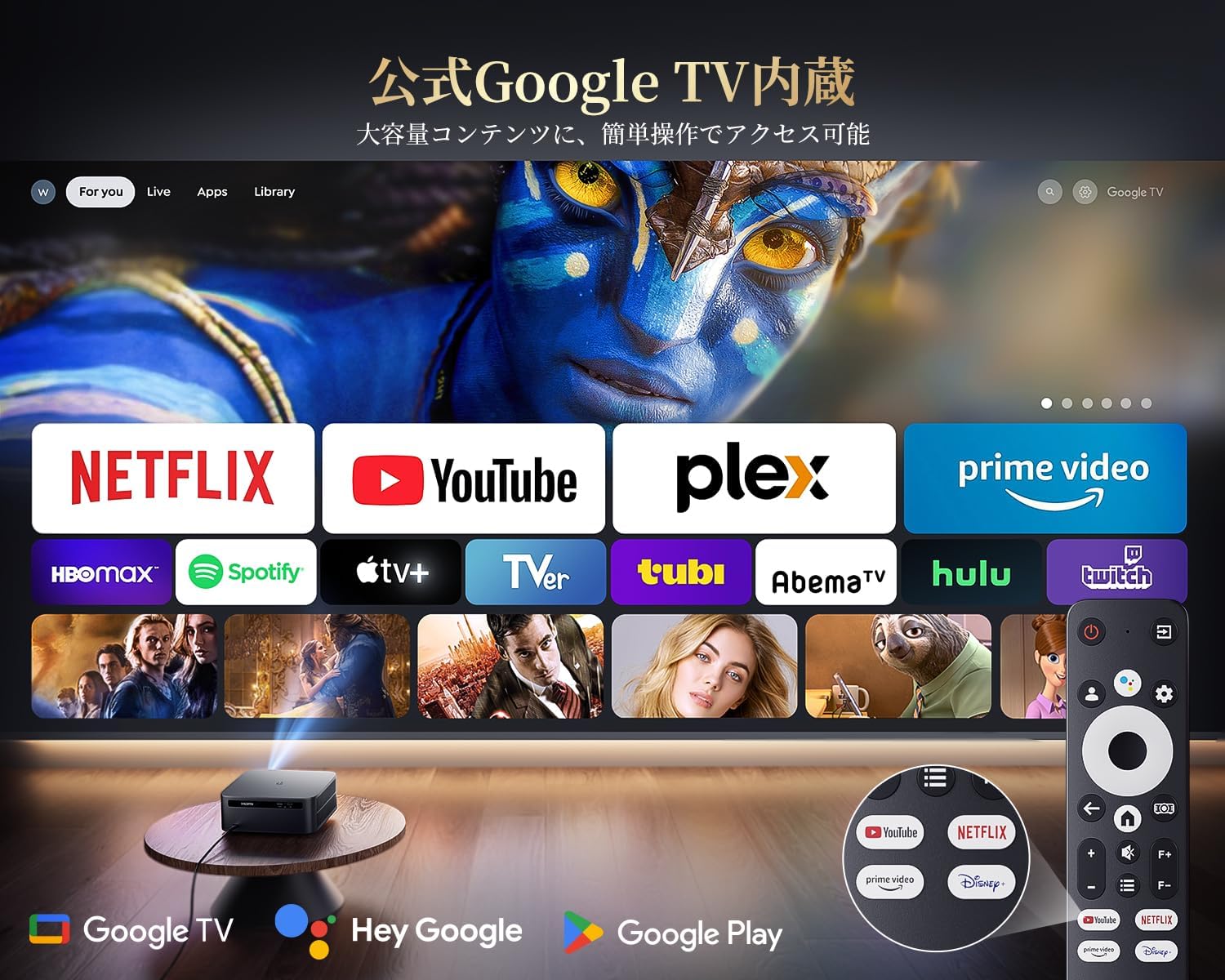
The PUTRIMS K12 comes with official Google TV, providing access to a vast library of content and applications.
- സ്ട്രീമിംഗ് ആപ്പുകൾ: Directly access Netflix, Disney+, YouTube, Prime Video, Hulu, and many more with a single click.
- ഗൂഗിൾ പ്ലേ സ്റ്റോർ: Download and install over 10,000 applications and games.
- പതിവ് അപ്ഡേറ്റുകൾ: The projector receives periodic updates to enhance security and stability.

ചിത്രം 6.1: ജനപ്രിയ സ്ട്രീമിംഗ് ആപ്ലിക്കേഷനുകളുള്ള ഗൂഗിൾ ടിവി ഇന്റർഫേസ്.
6.2 ശബ്ദ നിയന്ത്രണം
Utilize the Google Voice Assistant for convenient control of your projector and content.
- Press the voice control button on your remote.
- Speak commands such as "Open Netflix," "Play One Piece," "Tell me the weather," or "Increase volume."

Figure 6.2: Using the Google Voice Assistant with the remote control.
6.3 ഇമേജ് അഡ്ജസ്റ്റ്മെന്റ്
The K12 projector features advanced image adjustment capabilities for optimal viewing.
- ഓട്ടോ ഫോക്കസ്: The projector automatically adjusts the focus for a clear image upon startup or movement.
- യാന്ത്രിക കീസ്റ്റോൺ തിരുത്തൽ: It automatically corrects horizontal and vertical trapezoidal distortions, ensuring a perfectly rectangular image even from an angle.
- സൂം പ്രവർത്തനം: Adjust the screen size from 50% to 100% without moving the projector.
- വീക്ഷണ അനുപാതം: Supports 4:3 and 16:9 aspect ratios.
- തെളിച്ചവും ദൃശ്യതീവ്രതയും: Customize brightness and contrast settings to your preference.

ചിത്രം 6.3: ഓട്ടോമാറ്റിക് ഫോക്കസും കീസ്റ്റോൺ തിരുത്തലും പ്രവർത്തനത്തിൽ.

Figure 6.4: Projection distances and corresponding screen sizes (100", 120", 150").
6.4 ബാഹ്യ ഉപകരണങ്ങൾ ബന്ധിപ്പിക്കുന്നു
The K12 projector offers multiple connectivity options for various devices:
- എച്ച്ഡിഎംഐ ആർസി: Connect to soundbars, laptops, gaming consoles (Switch, PS5), or DVD players.
- USB: Play media directly from USB memory sticks.
- 3.5എംഎം ഓഡിയോ പോർട്ട്: ബാഹ്യ ഓഡിയോ സിസ്റ്റങ്ങളുമായി ബന്ധിപ്പിക്കുക.

Figure 6.5: Seamless connection with various external devices.
7. പരിപാലനം
7.1 ലെൻസ് ക്ലീനിംഗ്
To maintain optimal image quality, regularly clean the projector lens.
- പ്രൊജക്ടർ ഓഫ് ചെയ്തിട്ടുണ്ടെന്നും അൺപ്ലഗ് ചെയ്തിട്ടുണ്ടെന്നും ഉറപ്പാക്കുക.
- Gently wipe the lens with a soft, lint-free cloth or a cotton swab.
- കഠിനമായ കറകൾക്ക്, ഒപ്റ്റിക്കൽ പ്രതലങ്ങൾക്കായി പ്രത്യേകം രൂപകൽപ്പന ചെയ്ത ലെൻസ് ക്ലീനിംഗ് ലായനി ഉപയോഗിക്കുക.
- Avoid using abrasive materials or harsh chemicals that could damage the lens.
8. പ്രശ്നപരിഹാരം
നിങ്ങൾ നേരിട്ടേക്കാവുന്ന പൊതുവായ പ്രശ്നങ്ങൾക്കുള്ള പരിഹാരങ്ങൾ ഇതാ:
- No image/signal: Check all cable connections (HDMI, power). Ensure the correct input source is selected on the projector.
- മങ്ങിയ ചിത്രം: The projector features auto-focus. If the image remains blurry, ensure the lens is clean and there are no obstructions.
- Image not rectangular: The projector has auto-keystone correction. If issues persist, ensure the projector is placed on a stable surface and try repositioning it.
- ശബ്ദമില്ല: Check volume settings on both the projector and connected devices. Ensure external speakers are properly connected via Bluetooth or audio cable. If using HDMI ARC, verify the connection and settings.
- WiFi/Bluetooth connection issues: Ensure the projector and your device are within range of the router/device. Restart both the projector and the router/device.
- App crashes or malfunctions (for unofficial Android TV versions): The PUTRIMS K12 has an official Google TV license, which ensures stability. If you experience issues, ensure your system is updated.
കൂടുതൽ സഹായത്തിന്, ദയവായി വാറന്റി, പിന്തുണ വിഭാഗം പരിശോധിക്കുക.
9 സ്പെസിഫിക്കേഷനുകൾ
| ഫീച്ചർ | വിവരണം |
|---|---|
| ബ്രാൻഡ് | PUTRIMS |
| മോഡൽ | K12 |
| തെളിച്ചം | 1500 ആൻസി ലുമെൻസ് |
| റെസലൂഷൻ | 1080P FHD (4K Support) |
| ഓപ്പറേറ്റിംഗ് സിസ്റ്റം | Official Google TV |
| ശബ്ദ നിയന്ത്രണം | Google Voice Assistant |
| ഫോക്കസ് ചെയ്യുക | Omnidirectional Auto Focus |
| കീസ്റ്റോൺ തിരുത്തൽ | Horizontal & Vertical Auto Keystone Correction |
| സൂം ചെയ്യുക | 50%-100% |
| പരമാവധി സ്ക്രീൻ വലിപ്പം | 300 ഇഞ്ച് |
| വൈഫൈ | വൈഫൈ 6 |
| ബ്ലൂടൂത്ത് | ബ്ലൂടൂത്ത് 5.3 |
| ഓഡിയോ ഔട്ട്പുട്ട് | 20W HIFI Speaker, 3.5mm Audio Jack |
| ഇൻപുട്ട് പോർട്ടുകൾ | HDMI ARC, USB |
| അളവുകൾ | 40.5 x 30.2 x 17 സെ.മീ |
| ഭാരം | 3.31 കി.ഗ്രാം |
10. വാറൻ്റിയും പിന്തുണയും
PUTRIMS is committed to providing excellent customer service. Your K12 projector comes with comprehensive support:
- വിൽപ്പനാനന്തര സേവനം: 24 hours a day, 365 days a year.
- സാങ്കേതിക സഹായം: Professional technical assistance is available.
- വാറൻ്റി: Free exchange or 100% refund guarantee for initial defects or natural failures under normal use.
If you have any questions or require assistance, please contact PUTRIMS customer support via the official email address provided in your product packaging or on the official webസൈറ്റ്.