
Phomemo LT12
Phomemo LT12 Label Maker Machine User Manual
മോഡൽ: LT12
ആമുഖം
This user manual provides comprehensive instructions for the Phomemo LT12 Label Maker Machine. It covers setup, operation, maintenance, and troubleshooting to ensure optimal performance and longevity of your device. Please read this manual thoroughly before using the label maker.
വീഡിയോ 1: കഴിഞ്ഞുview of the Phomemo LT12 Portable Label Maker.
ബോക്സിൽ എന്താണുള്ളത്
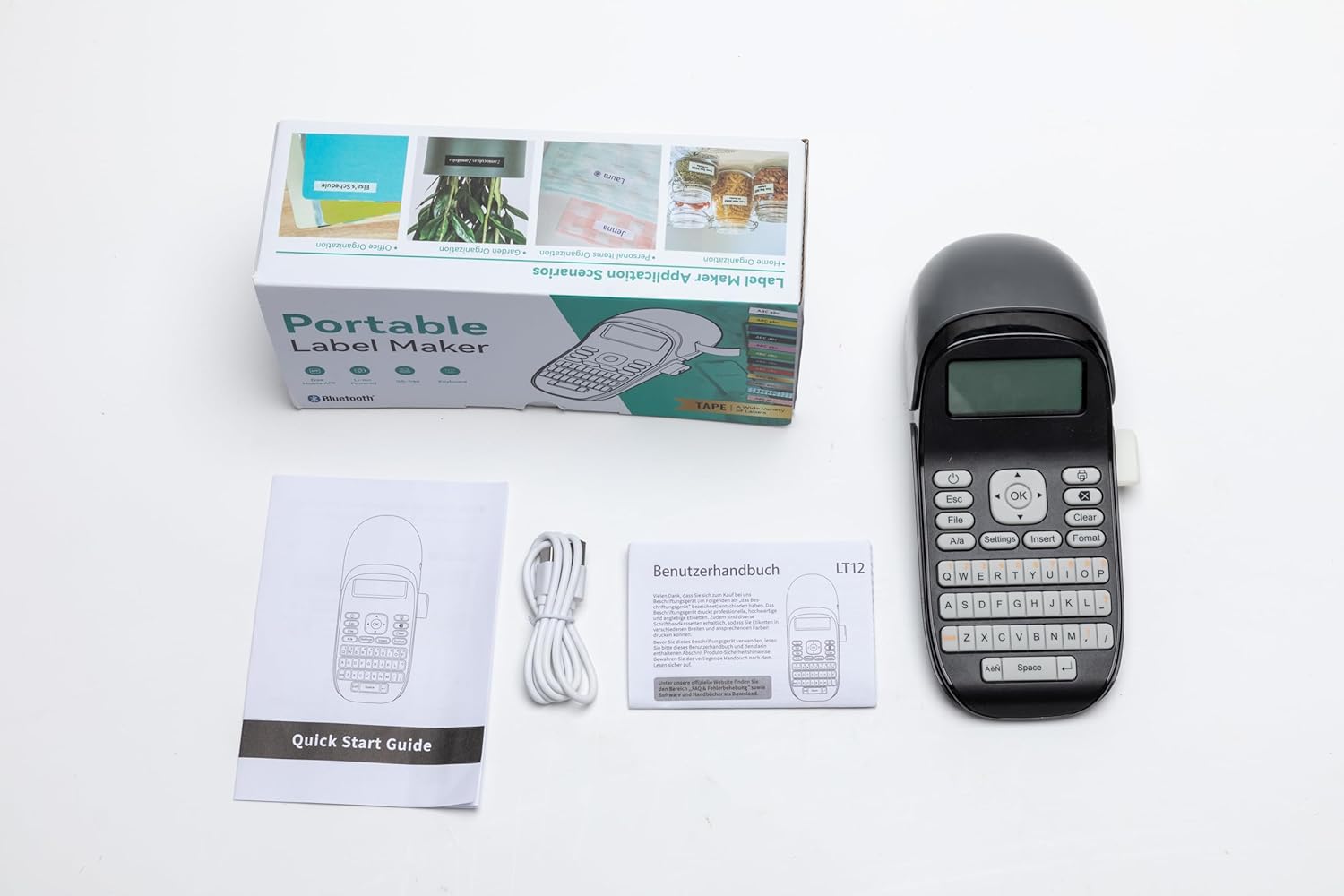
Upon unboxing your Phomemo LT12 Label Maker, please verify that all the following items are included:
- 1 x Phomemo LT12 Label Maker
- 1 x Black on white label tape (12mm*4m)
- 1 x ടൈപ്പ്-സി ചാർജിംഗ് കേബിൾ
- 1 x ദ്രുത ഗൈഡ്

Figure 1: Product Packing List
സജ്ജമാക്കുക
1. ഡിവൈസ് ഓവർview
Familiarize yourself with the key components of your Phomemo LT12 Label Maker:
- LCD സ്ക്രീൻ: Displays text, settings, and status.
- QWERTY കീബോർഡ്: For direct text input.
- Label Exit: അച്ചടിച്ച ലേബലുകൾ ഉയർന്നുവരുന്നിടത്ത്.
- കട്ടർ: Manual cutter for labels.
- USB പോർട്ട്: ഉപകരണം ചാർജ് ചെയ്യുന്നതിനായി.
- പവർ ബട്ടൺ: ഉപകരണം ഓൺ/ഓഫ് ചെയ്യാൻ.

Figure 2: Phomemo LT12 Label Maker Front View
Figure 3: Phomemo LT12 Label Maker Key Components
2 ഉപകരണം ചാർജ് ചെയ്യുന്നു
The Phomemo LT12 Label Maker is equipped with a 1200mAh high-capacity lithium battery. To charge the device, connect the provided Type-C charging cable to the USB port on the side of the label maker and plug the other end into a compatible USB power adapter (not included). The device can be used while charging.
3. Inserting the Tape Cassette
Follow these steps to properly install a label tape cassette:
- Open the tape cassette compartment cover located at the top of the device.
- Pull out a section of the label tape (approximately 1 inch or 3 cm) through the paper outlet of the cassette.
- Insert the tape cassette into the compartment, ensuring it clicks firmly into place.
- Close the tape cassette compartment cover.

Figure 4: Inserting the Label Tape Cassette
Video 2: How to install the label tape in the Phomemo LT12 Label Maker.
ഓപ്പറേഷൻ
1. Printing from the Device (QWERTY Keyboard)
The LT12 features a full QWERTY keyboard for direct label creation:
- അമർത്തുക ശക്തി ഡിസ്പ്ലേ പ്രകാശിക്കുന്നത് വരെ ബട്ടൺ അമർത്തുക.
- Type your desired text using the QWERTY keyboard. You can adjust font size, style, and add symbols using the function keys.
- അമർത്തുക അച്ചടിക്കുക button to initiate printing.
- Once the label is printed, press the കട്ടർ button on the side to cut the label.
- Tear off the backing paper from the back of the label along the easy-tear line and attach it to a dry, flat object.
Video 3: How to print directly from the Phomemo LT12 Label Maker using its keyboard.
2. Printing from Your Mobile Device (Bluetooth)
For advanced customization and ease of use, connect your LT12 to your smartphone or tablet via Bluetooth using the "Print Master" application:
- Download the "Print Master" app from your phone's app store (available for Android and iOS).
- Turn on the Bluetooth function on your LT12 Label Maker (Settings -> Bluetooth -> ON).
- Open the "Print Master" app and follow the auto-connect guidelines to search for and connect to your LT12 device.
- Once connected, you can design your labels within the app, utilizing various fonts, symbols, borders, and even images.
- Press the print icon in the app to send the label design to your LT12 for printing.
ചിത്രം 5: ബ്ലൂടൂത്ത് കണക്ഷൻ ഘട്ടങ്ങൾ
Video 4: How to print from your mobile device using the Phomemo LT12 Label Maker.
3. Customizing Labels
The Phomemo LT12 offers extensive customization options:
- Font Options: Choose from 3 font sizes, 4 font decorations, and over 160 fonts via the app.
- ചിഹ്നങ്ങളും അതിരുകളും: Access 791+ symbols and 287+ border/underline styles.
- ബഹുഭാഷാ പിന്തുണ: Supports 14 national languages.
- Tape Versatility: Compatible with 12mm thermal paper and thermal transfer supplies, including solid color, pattern, silk, and fabric iron-on labels. Labels are waterproof, oil-proof, scratch-proof, sun-proof, and resistant to high and low temperatures.

Figure 6: Multi-functional Editing Options

Figure 7: Label Application Exampലെസ്
Figure 8: Multi-functional Label Properties

Figure 9: Indoor and Outdoor Label Usage

Figure 10: LCD Backlight for Eye Care

Figure 11: Portable Design
മെയിൻ്റനൻസ്
1. വൃത്തിയാക്കലും പരിചരണവും
To ensure the longevity and optimal performance of your label maker, follow these cleaning and care guidelines:
- മൃദുവായതും ഉണങ്ങിയതുമായ തുണി ഉപയോഗിച്ച് ഉപകരണത്തിന്റെ പുറംഭാഗം പതിവായി തുടയ്ക്കുക.
- ഉരച്ചിലുകളുള്ള ക്ലീനറുകളോ ലായകങ്ങളോ ഉപയോഗിക്കരുത്.
- Keep the label maker away from excessive dust, moisture, and extreme temperatures.
- Ensure the print head and cutter area are free from adhesive residue or paper dust. Use a cotton swab lightly dampened with rubbing alcohol if necessary, but ensure the device is off and completely dry before use.
2 ബാറ്ററി ലൈഫ്
The 1200mAh lithium battery provides long-lasting use. For best battery health, avoid completely draining the battery frequently. If the device will not be used for an extended period, it is recommended to charge it periodically to maintain battery capacity.
ട്രബിൾഷൂട്ടിംഗ്
If you encounter issues with your Phomemo LT12 Label Maker, refer to the following common problems and solutions:
| പ്രശ്നം | സാധ്യമായ കാരണം | പരിഹാരം |
|---|---|---|
| ഉപകരണം ഓണാക്കില്ല. | ബാറ്ററി ചാർജ് കുറവാണ്; പവർ ബട്ടൺ ശരിയായി അമർത്തിയിട്ടില്ല. | Charge the device; Press and hold the Power button firmly. |
| Label not printing or print is faint. | Tape cassette incorrectly installed; Tape run out; Print head dirty. | Reinstall tape cassette; Replace tape; Clean the print head. |
| ബ്ലൂടൂത്ത് കണക്ഷൻ പരാജയപ്പെടുന്നു. | Bluetooth off on device/phone; App permissions; Device too far. | Ensure Bluetooth is on for both devices; Grant app permissions; Move devices closer. |
| Labels are jammed. | Incorrect tape installation; Debris in cutter. | Open compartment, remove tape, clear jam, reinstall tape; Clean cutter. |
സ്പെസിഫിക്കേഷനുകൾ
| ഫീച്ചർ | വിശദാംശങ്ങൾ |
|---|---|
| മോഡലിൻ്റെ പേര് | LT12 |
| ബ്രാൻഡ് | ഫേമോമോ |
| കണക്റ്റിവിറ്റി ടെക്നോളജി | ബ്ലൂടൂത്ത് |
| പ്രിൻ്റിംഗ് ടെക്നോളജി | Thermal and Thermal Transfer |
| അനുയോജ്യമായ ഉപകരണങ്ങൾ | സ്മാർട്ട്ഫോണുകൾ, ടാബ്ലെറ്റുകൾ (iOS, Android) |
| പരമാവധി പ്രിന്റ് സ്പീഡ് മോണോക്രോം | 60 പി.പി.എം |
| പരമാവധി കറുപ്പും വെളുപ്പും പ്രിന്റ് റെസല്യൂഷൻ | 203 ഡിപിഐ |
| പരമാവധി പ്രിന്റർ മീഡിയ വലുപ്പം | 12mm label width |
| ഉൽപ്പന്ന അളവുകൾ | 6.7D x 10W x 22.2H സെ.മീ |
| ഇനത്തിൻ്റെ ഭാരം | 298 ഗ്രാം |
| ബാറ്ററി | 1200mAh ലിഥിയം പോളിമർ (ഉൾപ്പെടുത്തിയിരിക്കുന്നു) |
| ചാർജിംഗ് പോർട്ട് | ടൈപ്പ്-സി |
വാറൻ്റിയും പിന്തുണയും
വാറൻ്റി വിവരങ്ങൾ
Please refer to the warranty card included with your product for specific warranty terms and conditions. Keep your purchase receipt as proof of purchase for warranty claims.
ഉപഭോക്തൃ പിന്തുണ
For further assistance, technical support, or inquiries about replacement parts and accessories, please visit the official Phomemo store or contact their customer service directly. You can find contact information on the Phomemo website or within the "Print Master" application.
Official Phomemo Store: Phomemo Amazon Store
Ask a question about this manual
Ask about setup, troubleshooting, compatibility, parts, safety, or missing instructions. Manuals+ will review the question and use this page’s manual context to help answer it.