
DOOGEE T40
DOOGEE T40 Android 14 Tablet User Manual
Model: T40 | Brand: DOOGEE
1. ഉൽപ്പന്നം കഴിഞ്ഞുview
The DOOGEE T40 is an advanced Android 14 tablet designed for both entertainment and productivity. It features a high-resolution 2.5K display, a powerful Octa-Core processor, and extensive storage capabilities, making it suitable for a wide range of applications from gaming to professional tasks.

ചിത്രം 1.1: മുന്നിലും പിന്നിലും view of the DOOGEE T40 Tablet, highlighting its sleek design and camera module.
പ്രധാന സവിശേഷതകൾ:
- ഡിസ്പ്ലേ: 11-inch 2.5K IPS Ultra Clear Display (2560x1600 resolution) for vibrant visuals.
- പ്രകടനം: Helio G99 Octa-Core Processor (6nm process technology) for smooth multitasking and gaming.
- മെമ്മറിയും സംഭരണവും: Up to 20GB RAM (8GB physical + 12GB virtual) and 512GB internal storage, expandable up to 2TB via microSD.
- ബാറ്ററി: 8580mAh large battery with 18W fast charging and reverse charging capability.
- കണക്റ്റിവിറ്റി: Dual SIM 4G LTE, Dual-band Wi-Fi (2.4G/5G), Bluetooth 5.0.
- ഓപ്പറേറ്റിംഗ് സിസ്റ്റം: Android 14 for enhanced productivity and entertainment.
- ഓഡിയോ: Immersive Quad Speakers for rich sound.
- ക്യാമറകൾ: 16MP Main Camera and 8MP Front Camera.
വീഡിയോ 1.1: ഒരു ഓവർview of the DOOGEE T40 Tablet, showcasing its design, display, and key features.
2. ബോക്സിൽ എന്താണുള്ളത്?
സജ്ജീകരണവുമായി മുന്നോട്ടുപോകുന്നതിനുമുമ്പ് എല്ലാ ഇനങ്ങളും പാക്കേജിൽ ഉണ്ടെന്ന് ഉറപ്പാക്കുക.
- T40 Tablet x1
- ടൈപ്പ്-സി യുഎസ്ബി കേബിൾ x1
- ചാർജർ x1
- Tool for take card x1 (SIM Ejector Tool)
- Anti-explosion film x1 (Pre-applied screen protector)
- പാക്കിംഗ് ബോക്സ് x1
- Manual x1 (This document)
3 സ്പെസിഫിക്കേഷനുകൾ
| ഫീച്ചർ | സ്പെസിഫിക്കേഷൻ |
|---|---|
| ബ്രാൻഡ് | ഡോഗി |
| മോഡലിൻ്റെ പേര് | T40 |
| ഓപ്പറേറ്റിംഗ് സിസ്റ്റം | ആൻഡ്രോയിഡ് 14 |
| സ്ക്രീൻ വലിപ്പം | 10.95 ഇഞ്ച് |
| സ്ക്രീൻ റെസല്യൂഷൻ | 2560 x 1600 പിക്സലുകൾ (2.5K) |
| പ്രോസസ്സർ | മീഡിയടെക് ഹീലിയോ G99 ഒക്ടാ-കോർ |
| റാം | 20GB (8GB ഫിസിക്കൽ + 12GB വെർച്വൽ) |
| ആന്തരിക സംഭരണം | 512 ജിബി |
| വികസിപ്പിക്കാവുന്ന സംഭരണം | മൈക്രോഎസ്ഡി കാർഡ് വഴി 2TB വരെ |
| ബാറ്ററി ശേഷി | 8580mAh |
| ചാർജിംഗ് | 18W Fast Charging, Reverse Charging |
| കണക്റ്റിവിറ്റി | Dual SIM 4G LTE, Wi-Fi 2.4G/5G, Bluetooth 5.0 |
| ക്യാമറകൾ | 16MP Main, 8MP Front |
| അളവുകൾ (LxWxH) | 10.09 x 6.61 x 0.3 ഇഞ്ച് |
| ഇനത്തിൻ്റെ ഭാരം | 2.49 പൗണ്ട് |
4. സജ്ജീകരണം
4.1. പ്രാരംഭ നിരക്ക്
Before first use, fully charge your DOOGEE T40 tablet using the provided Type-C USB cable and charger. Connect the charger to the tablet's USB-C port and plug it into a power outlet. The battery indicator on the screen will show charging progress.

Figure 4.1: Illustration of the tablet's 8580mAh battery and 18W fast charging capability.
4.2. പവർ ഓൺ/ഓഫ്
- പവർ ഓണാക്കാൻ: Press and hold the Power button (located on the side) until the DOOGEE logo appears.
- പവർ ഓഫ് ചെയ്യാൻ: പവർ ഓപ്ഷൻ മെനു ദൃശ്യമാകുന്നതുവരെ പവർ ബട്ടൺ അമർത്തിപ്പിടിക്കുക, തുടർന്ന് "പവർ ഓഫ്" തിരഞ്ഞെടുക്കുക.
- പുനരാരംഭിക്കാൻ: പവർ ഓപ്ഷനുകൾ മെനുവിൽ നിന്ന്, "പുനരാരംഭിക്കുക" തിരഞ്ഞെടുക്കുക.
4.3. സിം കാർഡും മൈക്രോ എസ്ഡി കാർഡും ഇൻസ്റ്റാൾ ചെയ്യൽ
The DOOGEE T40 supports Dual SIM 4G LTE and MicroSD card expansion.
- ടാബ്ലെറ്റിന്റെ വശത്ത് സിം കാർഡ് ട്രേ കണ്ടെത്തുക.
- Insert the provided SIM ejector tool into the small hole next to the tray and gently push until the tray pops out.
- Place your Nano-SIM cards and/or MicroSD card into the designated slots on the tray, ensuring correct orientation.
- ട്രേ അതിന്റെ സ്ഥാനത്ത് ക്ലിക്കായി വരുന്നത് വരെ ശ്രദ്ധാപൂർവ്വം ടാബ്ലെറ്റിലേക്ക് തിരികെ തള്ളുക.

Figure 4.2: Close-up of the Dual SIM and TF (MicroSD) card slot on the DOOGEE T40 Tablet.
4.4. നെറ്റ്വർക്ക് കണക്ഷൻ
- വൈഫൈ: പോകുക ക്രമീകരണങ്ങൾ > നെറ്റ്വർക്കും ഇന്റർനെറ്റും > വൈ-ഫൈ, turn Wi-Fi on, select your desired network, and enter the password if required.
- മൊബൈൽ ഡാറ്റ: Ensure your SIM card is installed correctly. Go to ക്രമീകരണം > നെറ്റ്വർക്കും ഇന്റർനെറ്റും > മൊബൈൽ നെറ്റ്വർക്ക് and enable mobile data.
5. പ്രവർത്തന നിർദ്ദേശങ്ങൾ
5.1. Navigating Android 14
The DOOGEE T40 runs on Android 14, offering an intuitive user experience.
- ഹോം സ്ക്രീൻ: വ്യത്യസ്ത ഹോം സ്ക്രീനുകൾ ആക്സസ് ചെയ്യാൻ ഇടത്തോട്ടോ വലത്തോട്ടോ സ്വൈപ്പ് ചെയ്യുക.
- ആപ്പ് ഡ്രോയർ: ഇൻസ്റ്റാൾ ചെയ്ത എല്ലാ ആപ്ലിക്കേഷനുകളും ആക്സസ് ചെയ്യാൻ സ്ക്രീനിന്റെ താഴെ നിന്ന് മുകളിലേക്ക് സ്വൈപ്പ് ചെയ്യുക.
- അറിയിപ്പുകളും ദ്രുത ക്രമീകരണങ്ങളും: സ്ക്രീനിന്റെ മുകളിൽ നിന്ന് താഴേക്ക് സ്വൈപ്പ് ചെയ്യുക view notifications and quick settings toggles (Wi-Fi, Bluetooth, etc.).
- സമീപകാല ആപ്പുകൾ: Swipe up from the bottom and hold, then release to see recently used applications.
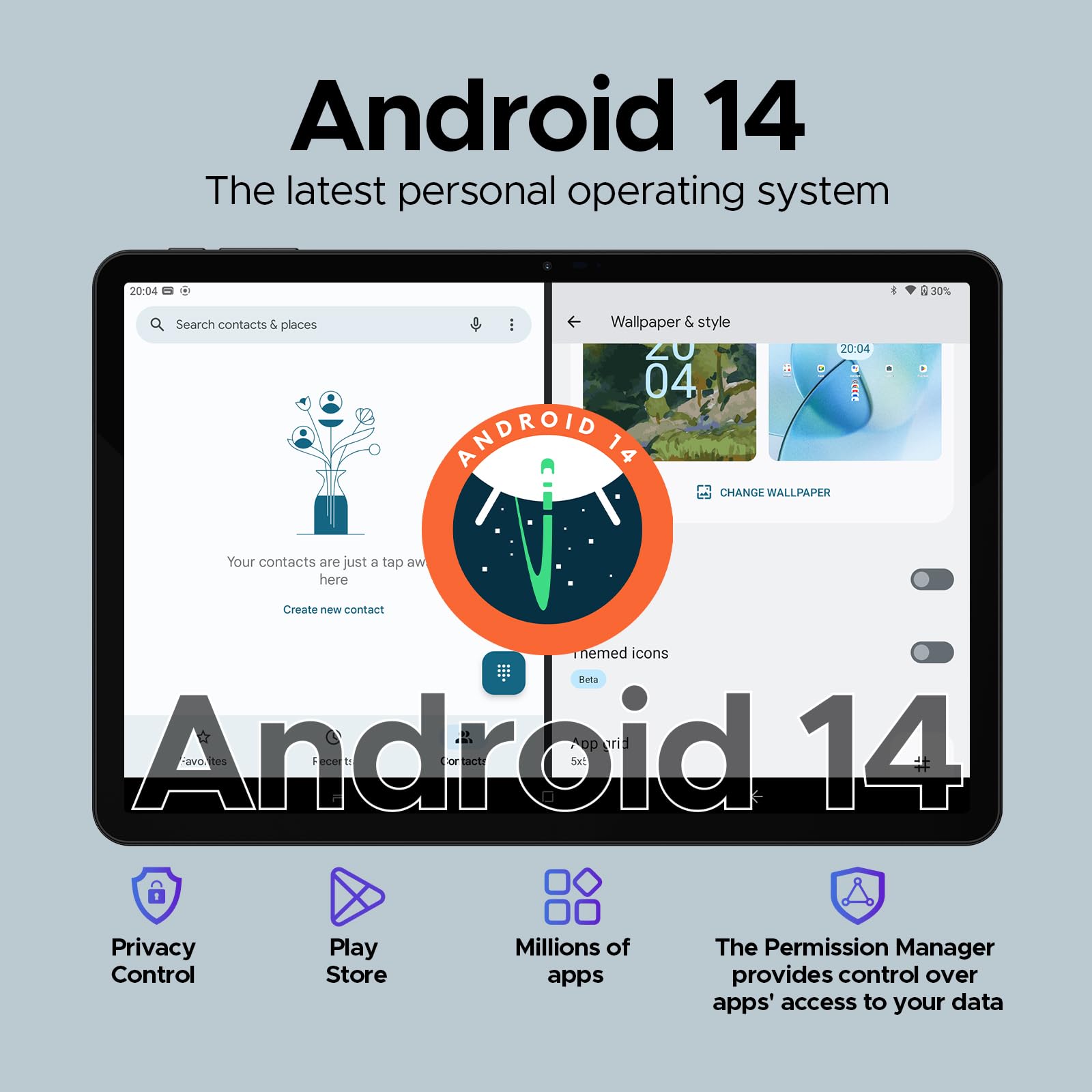
Figure 5.1: Visual representation of the Android 14 operating system interface on the DOOGEE T40.
5.2. ഫെയ്സ് അൺലോക്ക്
For quick and secure access, configure Face Unlock:
- പോകുക Settings > Security & privacy > Device unlock > Face unlock.
- നിങ്ങളുടെ മുഖം രജിസ്റ്റർ ചെയ്യുന്നതിന് ഓൺ-സ്ക്രീൻ നിർദ്ദേശങ്ങൾ പാലിക്കുക.
5.3. സ്പ്ലിറ്റ്-സ്ക്രീൻ പ്രവർത്തനം
Multitask efficiently by using two apps simultaneously:
- നിങ്ങൾ ഉപയോഗിക്കാൻ ആഗ്രഹിക്കുന്ന ആദ്യ ആപ്പ് തുറക്കുക.
- Swipe up from the bottom and hold to access recent apps.
- Tap the app icon at the top of the first app's card, then select "Split screen".
- സ്ക്രീനിന്റെ മറ്റേ പകുതി നിറയ്ക്കാൻ നിങ്ങളുടെ സമീപകാല ആപ്പുകളിൽ നിന്നോ ആപ്പ് ഡ്രോയറിൽ നിന്നോ രണ്ടാമത്തെ ആപ്പ് തിരഞ്ഞെടുക്കുക.
5.4. OTG (On-The-Go) Functionality
The DOOGEE T40 supports OTG, allowing you to connect USB devices like flash drives, keyboards, or mice directly to the tablet using a compatible OTG adapter (not included).
It also supports reverse charging, allowing the tablet to act as a power bank for other devices. Connect your device to the tablet's USB-C port using a compatible cable.
6. പരിപാലനം
6.1. ബാറ്ററി പരിചരണം
- ബാറ്ററിയുടെ ആയുസ്സ് കുറയ്ക്കുമെന്നതിനാൽ തീവ്രമായ താപനില ഒഴിവാക്കുക.
- Use only the original charger and cable provided with the tablet.
- ഒപ്റ്റിമൽ ബാറ്ററി ദീർഘായുസ്സിനായി, ഇടയ്ക്കിടെ ബാറ്ററി പൂർണ്ണമായും കളയുന്നത് ഒഴിവാക്കുക അല്ലെങ്കിൽ ദീർഘനേരം 100% ൽ സൂക്ഷിക്കുക.
6.2. വൃത്തിയാക്കൽ
- ടാബ്ലെറ്റിന്റെ സ്ക്രീനും ബോഡിയും വൃത്തിയാക്കാൻ മൃദുവായ, ലിന്റ് രഹിത തുണി ഉപയോഗിക്കുക.
- കഠിനമായ പാടുകൾക്ക്, ചെറുതായി dampതുണിയിൽ വെള്ളം അല്ലെങ്കിൽ സ്ക്രീൻ ക്ലീനർ ഉപയോഗിക്കുക. കഠിനമായ രാസവസ്തുക്കൾ ഒഴിവാക്കുക.
6.3. സോഫ്റ്റ്വെയർ അപ്ഡേറ്റുകൾ
ഒപ്റ്റിമൽ പ്രകടനം, സുരക്ഷ, പുതിയ സവിശേഷതകളിലേക്കുള്ള ആക്സസ് എന്നിവ ഉറപ്പാക്കാൻ സോഫ്റ്റ്വെയർ അപ്ഡേറ്റുകൾ പതിവായി പരിശോധിച്ച് ഇൻസ്റ്റാൾ ചെയ്യുക.
- പോകുക ക്രമീകരണങ്ങൾ > സിസ്റ്റം > സിസ്റ്റം അപ്ഡേറ്റ്.
- Follow the on-screen prompts to download and install any available updates. Ensure your tablet is sufficiently charged or connected to power during updates.
7. പ്രശ്നപരിഹാരം
| പ്രശ്നം | സാധ്യമായ പരിഹാരം |
|---|---|
| ടാബ്ലെറ്റ് ഓണാക്കുന്നില്ല. | ബാറ്ററി ചാർജ്ജ് ചെയ്തിട്ടുണ്ടെന്ന് ഉറപ്പാക്കുക. ചാർജർ കണക്റ്റ് ചെയ്ത് വീണ്ടും പവർ ചെയ്യാൻ ശ്രമിക്കുന്നതിന് മുമ്പ് കുറച്ച് മിനിറ്റ് കാത്തിരിക്കുക. പ്രതികരിക്കുന്നില്ലെങ്കിൽ, റീസ്റ്റാർട്ട് ചെയ്യാൻ നിർബന്ധിതമാക്കാൻ പവർ ബട്ടൺ 10-15 സെക്കൻഡ് അമർത്തിപ്പിടിക്കുക. |
| വൈഫൈ കണക്ഷൻ പ്രശ്നങ്ങൾ. | ടാബ്ലെറ്റും നിങ്ങളുടെ വൈഫൈ റൂട്ടറും പുനരാരംഭിക്കുക. വൈഫൈ ക്രമീകരണങ്ങളിൽ നെറ്റ്വർക്ക് മറന്ന് വീണ്ടും കണക്റ്റുചെയ്യുക. നിങ്ങൾ വൈഫൈ സിഗ്നലിന്റെ പരിധിയിലാണെന്ന് ഉറപ്പാക്കുക. |
| ആപ്പുകൾ ക്രാഷ് ചെയ്യുകയോ മരവിക്കുകയോ ചെയ്യുന്നു. | Clear the cache and data for the problematic app (ക്രമീകരണങ്ങൾ > ആപ്പുകൾ > [ആപ്പ് നാമം] > സംഭരണവും കാഷെയും). ഗൂഗിൾ പ്ലേ സ്റ്റോറിൽ നിന്ന് ആപ്പ് അപ്ഡേറ്റ് ചെയ്യുക. പ്രശ്നം നിലനിൽക്കുകയാണെങ്കിൽ, ആപ്പ് അൺഇൻസ്റ്റാൾ ചെയ്ത് വീണ്ടും ഇൻസ്റ്റാൾ ചെയ്യുക. |
| മന്ദഗതിയിലുള്ള പ്രകടനം. | Close unused background apps. Clear cache regularly. Consider uninstalling rarely used apps. Ensure sufficient free storage space. Restart the tablet periodically. |
| സിം കാർഡ് കണ്ടെത്തിയില്ല. | Ensure the SIM card is correctly inserted into the tray. Restart the tablet. Verify that the SIM card is active with your mobile carrier. |
8. വാറൻ്റിയും പിന്തുണയും
The DOOGEE T40 Tablet comes with a 2 വർഷത്തെ വാറൻ്റി, as stated in the product features. For any technical assistance or warranty claims, please contact the seller directly.
വിൽപ്പനക്കാരൻ: Tablet flagship store
DOOGEE provides lifetime technical support and full 24/7 customer service for their products.
For further assistance, refer to the official DOOGEE webസൈറ്റ് ചെയ്യുക അല്ലെങ്കിൽ അവരുടെ ഉപഭോക്തൃ പിന്തുണ ചാനലുകളുമായി ബന്ധപ്പെടുക.
Ask a question about this manual
Ask about setup, troubleshooting, compatibility, parts, safety, or missing instructions. Manuals+ will review the question and use this page’s manual context to help answer it.