
1. ആമുഖം
This manual provides comprehensive instructions for setting up, operating, maintaining, and troubleshooting your Cudy AX3000 WiFi 6 Mesh System M3000. Please read this guide carefully to ensure optimal performance and longevity of your device.
The Cudy AX3000 WiFi 6 Mesh System is designed to replace your traditional router and extenders, offering seamless, whole-home mesh WiFi coverage. It features a powerful 1.3 GHz dual-core CPU for fast data transmission and low latency, supporting up to 200 devices simultaneously.
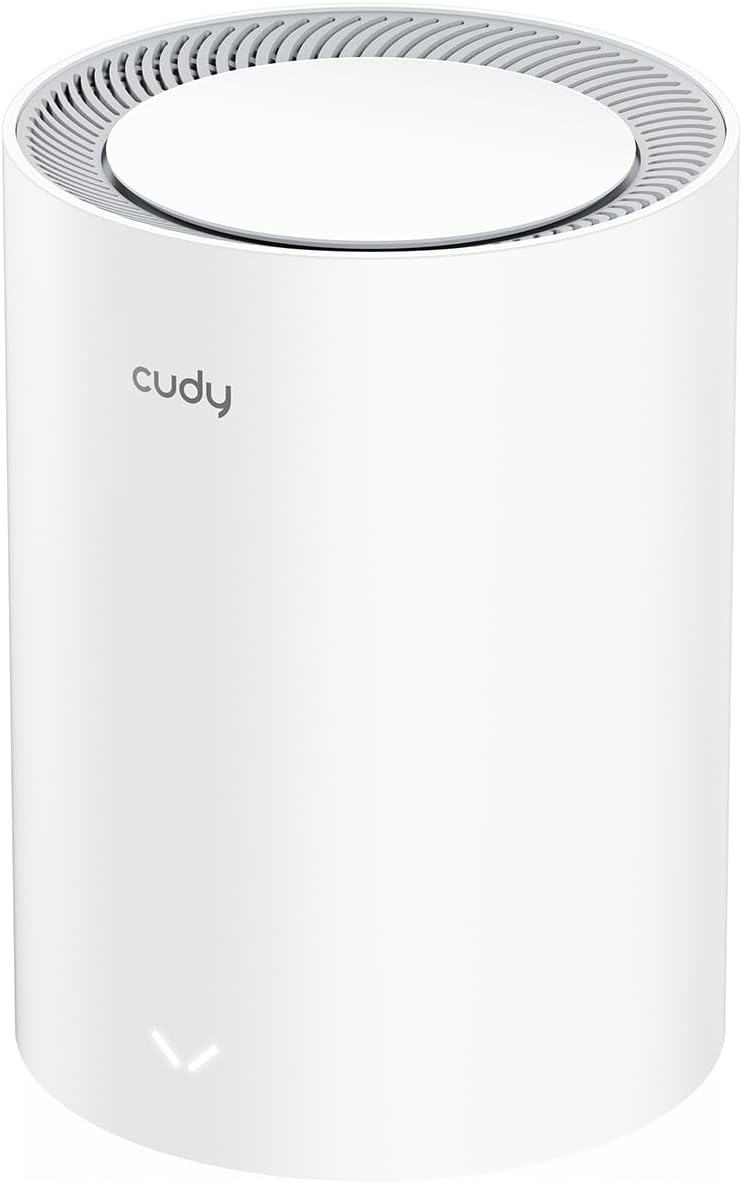
Image: Two Cudy M3000 Mesh Units displayed on a wooden surface, highlighting their design and the product's premium multi-gig AX3000 Wi-Fi 6 capabilities.
2. പാക്കേജ് ഉള്ളടക്കം
നിങ്ങളുടെ പാക്കേജിൽ എല്ലാ ഇനങ്ങളും ഉണ്ടെന്ന് ഉറപ്പാക്കുക:
- Cudy M3000 Mesh Unit
- പവർ അഡാപ്റ്റർ
- ഇഥർനെറ്റ് കേബിൾ
- ദ്രുത ഇൻസ്റ്റലേഷൻ ഗൈഡ്

Image: The retail box for the Cudy M3000 Mesh System, showing the product and branding.
3. ഉൽപ്പന്നം കഴിഞ്ഞുview
The Cudy M3000 Mesh Unit features a sleek design with essential ports and indicators for easy management.
3.1. Physical Appearance and Ports
ചിത്രം: പിൻഭാഗം view of the Cudy M3000 Mesh Unit, highlighting the WAN and LAN ports, power input, and reset button.
The unit typically includes:
- WAN Port (2.5G Multi-Gigabit): Connects to your modem or existing router for internet access.
- LAN പോർട്ട്(കൾ): For wired connections to devices like PCs, gaming consoles, or network storage.
- പവർ ഇൻപുട്ട്: Connects to the provided power adapter.
- റീസെറ്റ് ബട്ടൺ: Used to restore factory default settings.
3.2. എൽഇഡി സൂചകങ്ങൾ
The LED indicator on the front of the unit provides status information:
- സോളിഡ് ബ്ലൂ: Device is powered on and operating normally.
- പൾസിംഗ് ബ്ലൂ: Device is starting up or establishing a connection.
- കടും ചുവപ്പ്: No internet connection or an error has occurred.
4. സജ്ജീകരണ ഗൈഡ്
Follow these steps to set up your Cudy AX3000 Mesh System.
4.1. പ്രാരംഭ പ്ലേസ്മെന്റ്
Place your first M3000 unit (main unit) in a central location in your home, away from obstructions and interference sources like microwaves or cordless phones. For multi-unit systems, strategically place additional units to maximize coverage.

Image: A diagram illustrating optimal placement of mesh units for comprehensive WiFi coverage across different floor plans, including single-unit, two-unit, and three-unit setups for varying square meterages.
4.2. ഹാർഡ്വെയർ കണക്ഷൻ
- പവർ ഓഫ്: Disconnect power from your modem (if applicable) and any existing router.
- പ്രധാന യൂണിറ്റ് ബന്ധിപ്പിക്കുക: Connect one end of the provided Ethernet cable to the WAN port (2.5G) of the Cudy M3000 unit and the other end to your modem's LAN port.
- പവർ ഓൺ: Connect the power adapter to the Cudy M3000 unit and plug it into a power outlet. Wait for the LED indicator to turn solid blue.
- Connect Additional Units (if applicable): For multi-unit systems, place additional M3000 units and power them on. They will automatically connect to the main unit.
4.3. നെറ്റ്വർക്ക് കോൺഫിഗറേഷൻ
You can configure your mesh system using the Cudy App or a web ബ്രൗസർ.
Using the Cudy App:
- Download the "Cudy" app from your mobile device's app store.
- Open the app and follow the on-screen instructions to detect and set up your Cudy M3000 Mesh System.

Image: Screenshots of the Cudy mobile application interface, demonstrating device management and setup features.
എ ഉപയോഗിക്കുന്നത് Web ബ്രൗസർ:
- Connect your computer or mobile device to the Cudy M3000's default WiFi network (SSID and password are on the bottom label of the unit).
- എ തുറക്കുക web ബ്രൗസർ ചെയ്ത് എൻ്റർ ചെയ്യുക
http://cudy.netor192.168.10.1വിലാസ ബാറിൽ. - Follow the setup wizard to configure your internet connection and WiFi settings.
5. പ്രവർത്തന നിർദ്ദേശങ്ങൾ
Once set up, your Cudy M3000 Mesh System provides seamless WiFi coverage. Here are key operational aspects:
5.1. സുഗമമായ റോമിംഗ്
The mesh system allows your devices to automatically switch to the strongest WiFi signal as you move around your home, ensuring an uninterrupted connection.
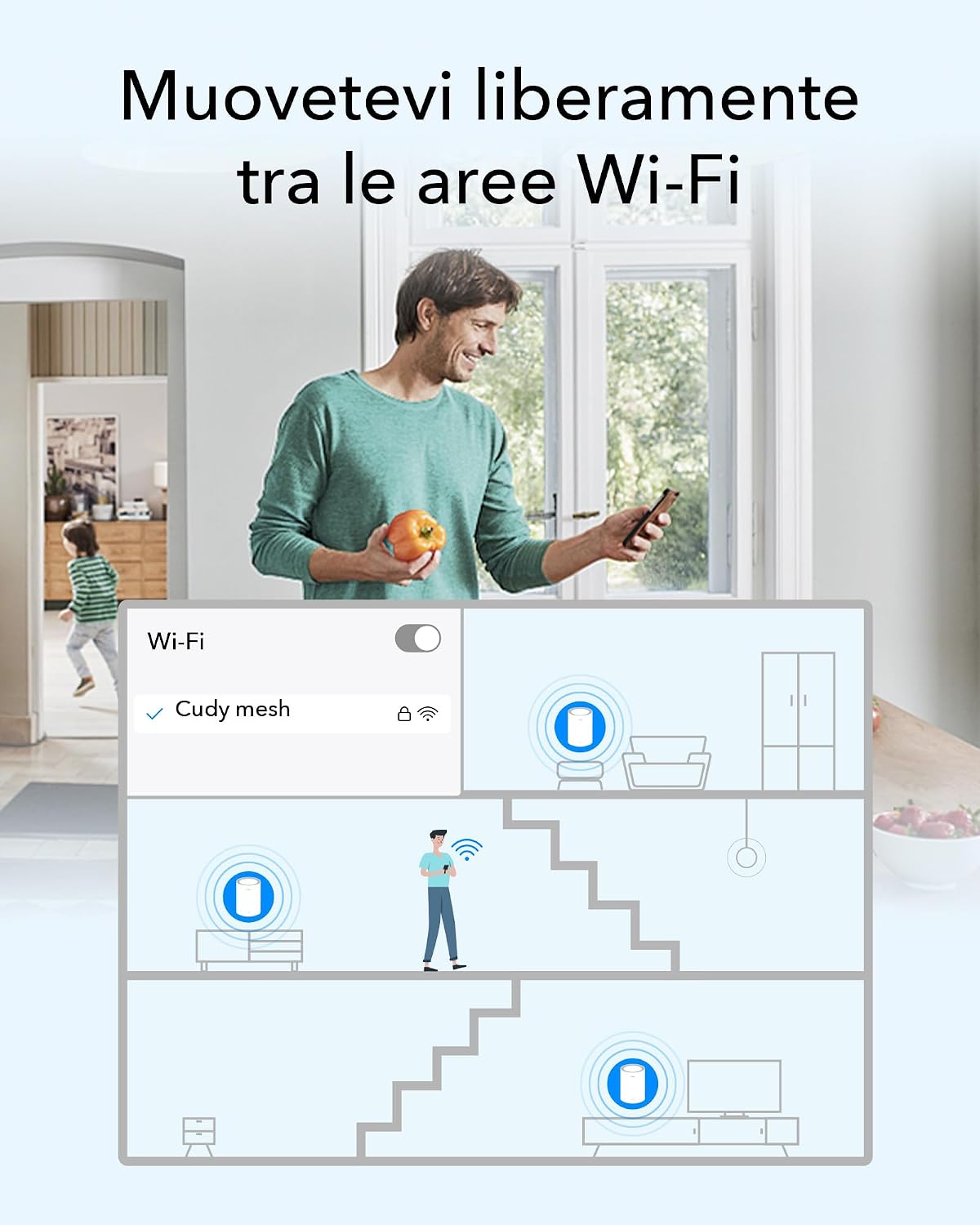
Image: A visual representation of a person moving through a house while their device maintains a continuous WiFi connection by seamlessly switching between mesh units.
5.2. ഇഥർനെറ്റ് ബാക്ക്ഹോൾ
For optimal performance, especially in larger homes or with high-bandwidth applications, you can connect mesh units via Ethernet cables. This creates a dedicated wired connection between units, improving speed and stability.
5.3. ഉപകരണങ്ങൾ ബന്ധിപ്പിക്കുന്നു
Connect your wireless devices to the WiFi network using the SSID and password you configured during setup. For wired devices, use the available LAN ports on any mesh unit.
6. വിപുലമായ സവിശേഷതകൾ
The Cudy M3000 offers several advanced features for enhanced control and security.
6.1. VPN പിന്തുണ
The system supports various VPN protocols, including WireGuard, OpenVPN, ZeroTier, IPSec, PPTP, and L2TP, allowing for secure remote connections and privacy.

Image: A collection of logos representing the VPN protocols supported by the Cudy M3000, including WireGuard, OpenVPN, ZeroTier, IPSec, L2TP, and PPTP.
6.2. രക്ഷാകർതൃ നിയന്ത്രണങ്ങൾ
Manage internet access for specific devices or users with features like website filtering and time limits.

Image: A child reading a book in bed, accompanied by icons for home network management and parental controls, illustrating the ability to manage internet access.
6.3. സേവന നിലവാരം (QoS)
Prioritize network traffic for specific applications or devices to ensure smooth performance for critical tasks like gaming or video conferencing.
6.4. Security Protocols
The system supports WPA2 and WPA3 security protocols to protect your network from unauthorized access.

Image: Three golden shield icons symbolizing WPA3 encryption, Guest Network functionality, and DoS Protection, highlighting the system's security features.
7. പരിപാലനം
Regular maintenance ensures your mesh system operates efficiently.
- ഫേംവെയർ അപ്ഡേറ്റുകൾ: Check for and install firmware updates regularly through the Cudy App or web interface to benefit from new features and security enhancements.
- റീബൂട്ട് ചെയ്യുന്നു: Periodically reboot your mesh units to refresh network connections and resolve minor issues.
- വൃത്തിയാക്കൽ: Keep the units clean and free from dust to prevent overheating. Use a soft, dry cloth.
8. പ്രശ്നപരിഹാരം
നിങ്ങൾക്ക് പ്രശ്നങ്ങൾ നേരിടുകയാണെങ്കിൽ, ഇനിപ്പറയുന്ന പരിഹാരങ്ങൾ പരീക്ഷിക്കുക:
8.1. No Internet Connection (Red LED)
- Check the connection between your main M3000 unit and the modem. Ensure the Ethernet cable is securely plugged into the WAN port.
- Reboot your modem and then your Cudy M3000 unit.
- Verify your internet service is active by connecting a computer directly to the modem.
8.2. ദുർബലമായ വൈഫൈ സിഗ്നൽ അല്ലെങ്കിൽ ഡെഡ് സോണുകൾ
- Adjust the placement of your mesh units to ensure optimal coverage. Avoid placing them near large metal objects or thick walls.
- Consider adding another Cudy M3000 unit to expand coverage.
- If using multiple units, ensure they are within effective range of each other.
8.3. Unable to Access Web മാനേജ്മെൻ്റ് പേജ്
- Ensure your device is connected to the Cudy M3000's WiFi network or via an Ethernet cable.
- നിങ്ങളുടെ ബ്രൗസറിന്റെ കാഷെ മായ്ക്കുകയോ മറ്റൊരു ബ്രൗസർ ഉപയോഗിക്കുകയോ ചെയ്യുക.
- നിങ്ങൾ ശരിയായ വിലാസമാണ് ഉപയോഗിക്കുന്നതെന്ന് ഉറപ്പാക്കുക:
http://cudy.netor192.168.10.1.
8.4. ഫാക്ടറി റീസെറ്റ്
If problems persist, you may need to perform a factory reset. With the unit powered on, press and hold the Reset button (usually located on the back) for about 10 seconds until the LED indicator changes. The unit will reboot with factory default settings.
9 സ്പെസിഫിക്കേഷനുകൾ
| ഫീച്ചർ | സ്പെസിഫിക്കേഷൻ |
|---|---|
| ബ്രാൻഡ് | കുഡി |
| മോഡലിൻ്റെ പേര് | M3000 (1-PACK)_EU V2.0 |
| ഫ്രീക്വൻസി ബാൻഡ് ക്ലാസ് | ഡ്യുവൽ ബാൻഡ് |
| വയർലെസ് സ്റ്റാൻഡേർഡ് | 802.11ax (Wi-Fi 6) |
| ഡാറ്റ കൈമാറ്റ നിരക്ക് | 3000 Mbps |
| Max Upstream Data Transfer Rate | 2500 Mbps |
| WAN Port Bandwidth | 2.5G Multi-Gigabit |
| ലാൻ പോർട്ട് ബാൻഡ്വിഡ്ത്ത് | 1000Mbps |
| തുറമുഖങ്ങളുടെ എണ്ണം | 2 (1x WAN, 1x LAN) |
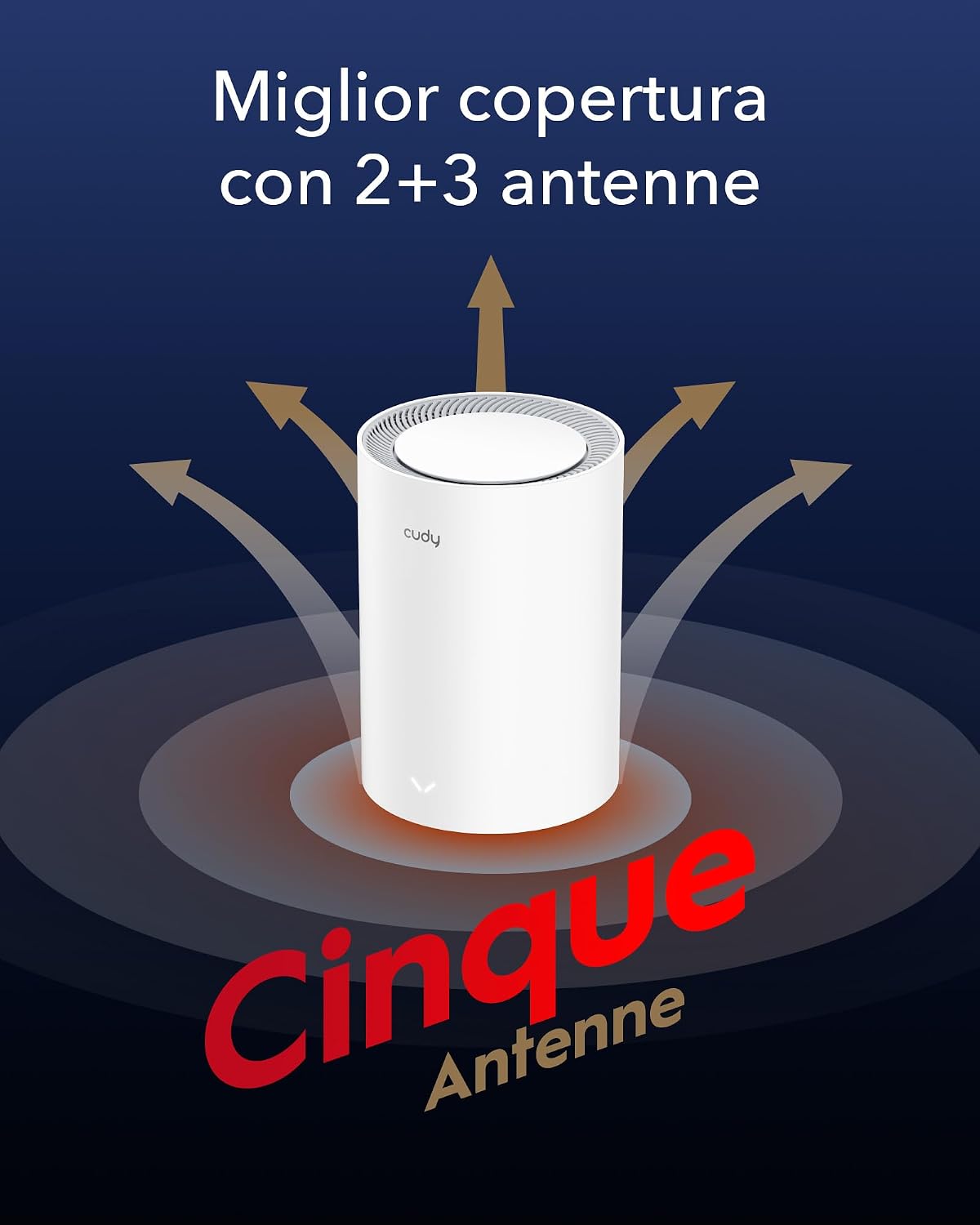
| ആൻ്റിന തരം | Internal (5 Antennas) |
| സിഗ്നൽ കവറേജ് | Up to 270 m² (with multiple units) |
| സിപിയു | 1.3 GHz Dual-Core Cortex-A53 |
| റാം ഇൻസ്റ്റാൾ ചെയ്തു | 256 MB |
| സുരക്ഷാ പ്രോട്ടോക്കോളുകൾ | WPA2, WPA3 |
| VPN പിന്തുണ | WireGuard, OpenVPN, ZeroTier, IPSec, PPTP, L2TP |
| ഓപ്പറേറ്റിംഗ് സിസ്റ്റങ്ങൾ | CudyOS, OpenWRT Compatible |
| നിയന്ത്രണ രീതി | ആപ്പ്, Web ഇൻ്റർഫേസ് |
| അളവുകൾ (LxWxH) | 11L x 11l x 15.5H cm |
| ഭാരം | 360 ഗ്രാം |
| വാല്യംtage | 12 വോൾട്ട് |
| ശുപാർശ ചെയ്യുന്ന ഉപയോഗം | ഇൻഡോർ |
10. വാറൻ്റിയും പിന്തുണയും
10.1. ഉൽപ്പന്ന വാറൻ്റി
The Cudy AX3000 WiFi 6 Mesh System M3000 comes with a 2 വർഷത്തെ വാറൻ്റി വാങ്ങിയ തീയതി മുതൽ. വാറന്റി ക്ലെയിമുകൾക്കായി നിങ്ങളുടെ വാങ്ങിയതിന്റെ തെളിവ് സൂക്ഷിക്കുക.
10.2. സാങ്കേതിക പിന്തുണ
For technical assistance, troubleshooting, or any questions regarding your Cudy product, please contact Cudy technical support or customer service. You can find contact information on the official Cudy website or in the Quick Installation Guide included with your product.
Official Cudy videos are available to guide users step-by-step through configuration and setup processes.