
ആമുഖം
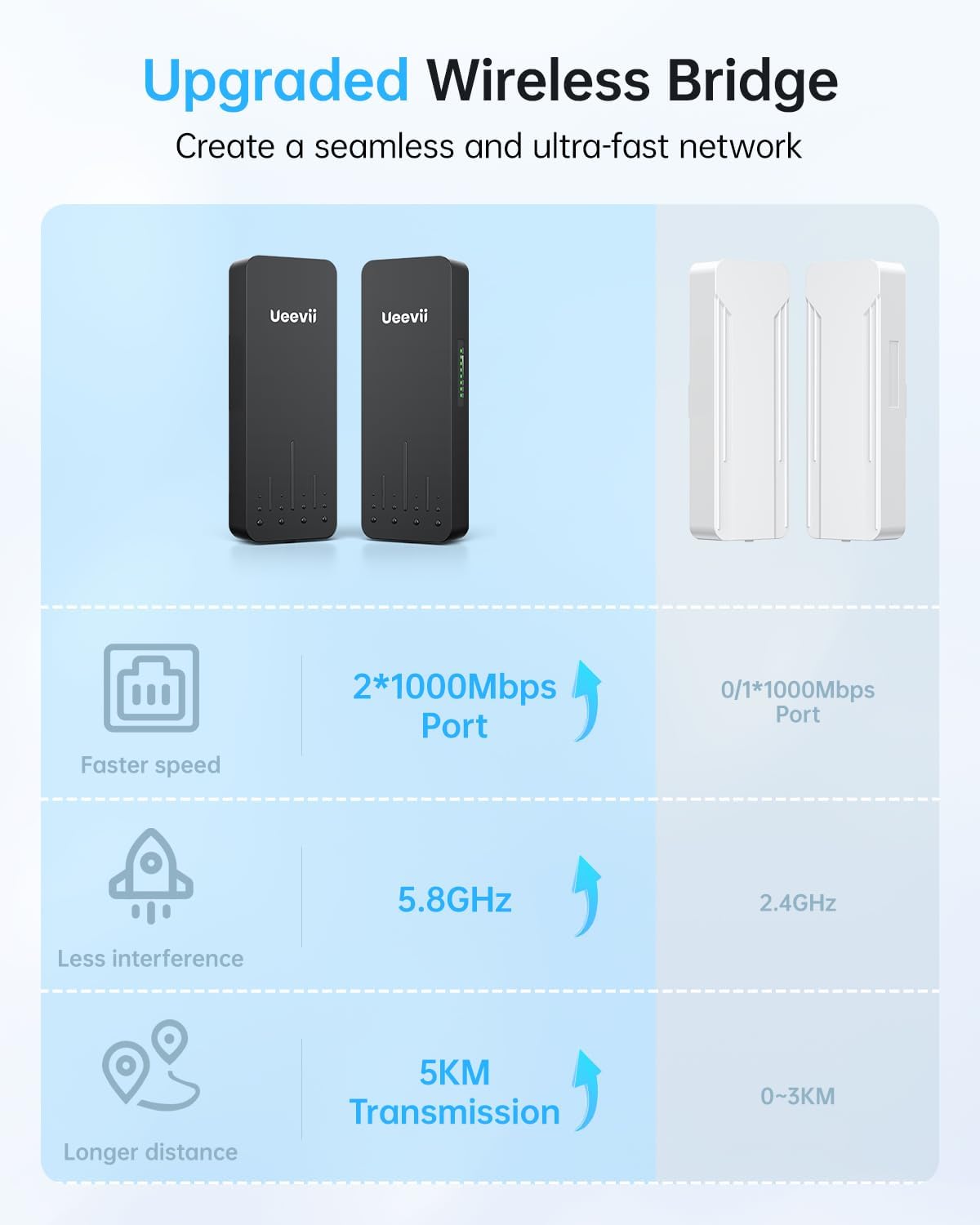
The UeeVii Wireless Bridge CPE990 is designed for extending network connectivity over long distances, up to 5 kilometers. Operating on the 5.8GHz frequency band, it provides increased bandwidth for ultra-fast data transfer, superior interference resistance, and low latency. Featuring dual 1000Mbps RJ45 ports with PoE capability, this device ensures reliable internet connections for various environments, including barns, garages, warehouses, and remote outbuildings. Its IP66-rated weatherproof design ensures durability against rain, dust, and extreme temperatures.
പാക്കേജ് ഉള്ളടക്കം
Upon unboxing your UeeVii Wireless Bridge CPE990, you should find the following items:
- 2 x UeeVii Wireless Bridge CPE990 units
- 2 x Gigabit PoE Adapters (24V)
- 2 x Cat 5e നെറ്റ്വർക്ക് കേബിളുകൾ
- 2 x Metal Hoops for mounting
- 1 x ഉപയോക്തൃ മാനുവൽ

അൺബോക്സിംഗ് വീഡിയോ
Video 1: This video demonstrates the unboxing process for the UeeVii Wireless Bridge CPE990, showing all included components and accessories.
സജ്ജമാക്കുക
The UeeVii Wireless Bridge CPE990 units arrive pre-configured for out-of-box use, simplifying the setup process. No complicated setup or technical expertise is required for basic point-to-point connections.
എളുപ്പമുള്ള ജോടിയാക്കൽ
The devices feature easy dial code pairing. Each unit has a switch to designate it as either a Master or a Slave. For a point-to-point connection, one unit should be set as Master and the other as Slave. The units will automatically pair when powered on and within range, provided they are set to the same channel.
പവർ ഓവർ ഇഥർനെറ്റ് (PoE) കണക്ഷൻ
Each wireless bridge unit is powered via a PoE adapter. Connect one end of the provided Ethernet cable to the PoE port on the adapter and the other end to the LAN/PoE port on the bridge unit. The LAN port on the PoE adapter can then be connected to your network router or switch.
ഓപ്പറേറ്റിംഗ് മോഡുകൾ
The CPE990 supports both Point-to-Point (PTP) and Point-to-Multipoint (PTMP) modes to meet various network extension needs.
Point-to-Point (PTP) Mode
In PTP mode, two wireless bridge units establish a direct wireless link, acting as a virtual Ethernet cable. This is ideal for extending a network connection between two specific locations, such as a main building and a remote barn or workshop.
Point-to-Multipoint (PTMP) Mode
For PTMP configurations, one Master bridge unit can connect to multiple Slave bridge units. This allows for expanding network and surveillance coverage to several remote locations from a central point. All Slave units must receive their signal directly from the Master unit and be within a 60-degree angle of the Master.

Network Extension Video
Video 2: This video demonstrates the Point-to-Point bridging capability of the UeeVii Wireless Bridge, ideal for long-distance network extension.
ഇൻസ്റ്റലേഷൻ
The UeeVii Wireless Bridge CPE990 offers two primary installation options: wall-mounted and pole-mounted. Both options are supported with the included hardware.
മൗണ്ടിംഗ് ഓപ്ഷനുകൾ
- മതിൽ ഘടിപ്പിച്ചത്: Secure the bridge directly to a flat surface using appropriate fasteners.
- Pole-Mounted: Use the included metal hoops to attach the bridge securely to a pole.
Ensure a clear line of sight between the Master and Slave units for optimal performance and maximum transmission range.

Weatherproof Features
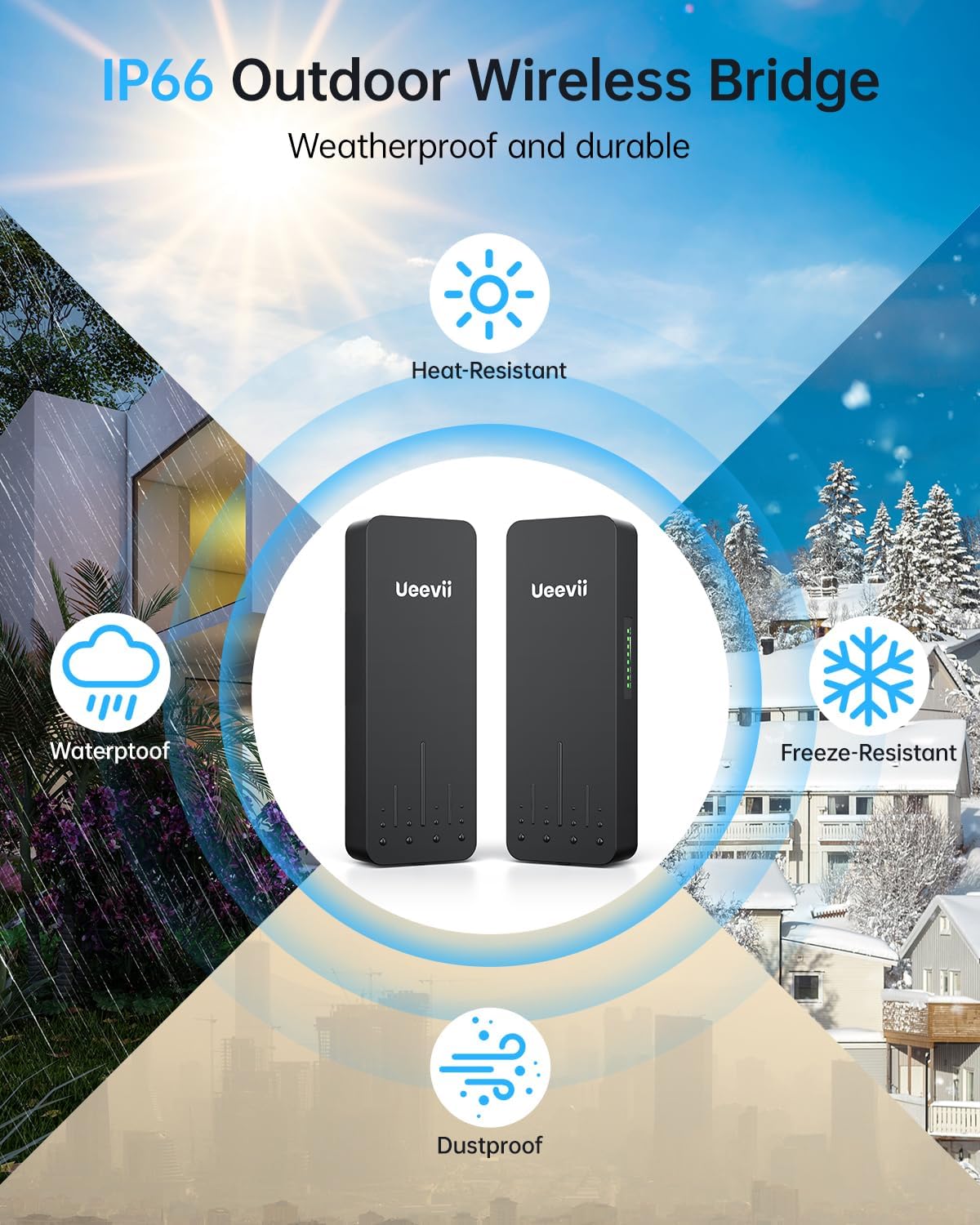
The CPE990 is designed for outdoor use and features an IP66-rated weatherproof casing, ensuring reliable operation in various environmental conditions.
- വാട്ടർപ്രൂഫ്: Protects against rain and water splashes.
- പൊടിപടലം: Prevents dust ingress, maintaining internal component integrity.
- Freeze-Resistant: Operates effectively in low temperatures.
- ചൂട് ചെറുക്കുന്ന: Maintains performance in high temperatures.
സ്പെസിഫിക്കേഷനുകൾ
| ഫീച്ചർ | സ്പെസിഫിക്കേഷൻ |
|---|---|
| മോഡലിൻ്റെ പേര് | CPE990 |
| ബ്രാൻഡ് | UeeVii |
| പ്രക്ഷേപണ ശ്രേണി | 5 കിലോമീറ്റർ വരെ |
| ആന്റിന നേട്ടം | 14 ദിബി |
| ഫ്രീക്വൻസി ബാൻഡ് | 5.8GHz |
| ഇഥർനെറ്റ് പോർട്ടുകൾ | Dual 1000Mbps RJ45 (PoE-enabled) |
| കാലാവസ്ഥാ പ്രൂഫ് റേറ്റിംഗ് | IP66 |
| വൈദ്യുതി വിതരണം | 24V PoE |
| ഇൻസ്റ്റലേഷൻ ഓപ്ഷനുകൾ | Wall-mounted, Pole-mounted |
| വയർലെസ് സ്റ്റാൻഡേർഡ് | 802.11എ, 802.11എസി, 802.11എൻ |
| നിറം | കറുപ്പ് |
ട്രബിൾഷൂട്ടിംഗ്
If you encounter issues with your UeeVii Wireless Bridge CPE990, consider the following common troubleshooting steps:
- No Signal/Poor Performance: Ensure a clear line of sight between the Master and Slave units. Obstructions like trees or buildings can significantly degrade signal quality and speed.
- ജോടിയാക്കൽ പ്രശ്നങ്ങൾ: Verify that one unit is set as Master and the other as Slave using the A/B switch. Ensure both units are powered on and set to the same channel. It is recommended to pair units at a short distance (e.g., 1-2 feet apart) before final installation.
- ഇൻ്റർനെറ്റ് കണക്ഷൻ ഇല്ല: Check all Ethernet cable connections. Ensure the PoE adapters are correctly supplying power and data. Verify your main router/network is functioning correctly.
- ഘടക പരിശോധന: Before installation, inspect all components for any physical damage or missing parts. If any components are damaged or missing, contact customer support.
വാറൻ്റിയും പിന്തുണയും
For any issues not covered in this manual, or for warranty inquiries, please contact UeeVii customer support. The user manual typically provides contact information such as an email address for support.
Customer Service Email: support@ueevii.com