
SUPVAN E11
SUPVAN E11 ബ്ലൂടൂത്ത് ലേബൽ മേക്കർ മെഷീൻ യൂസർ മാനുവൽ
ആമുഖം
This manual provides detailed instructions for the setup, operation, maintenance, and troubleshooting of your SUPVAN E11 Bluetooth Label Maker Machine. Please read this manual thoroughly before using the device to ensure proper function and longevity.
സുരക്ഷാ വിവരങ്ങൾ
- വെള്ളം, ഉയർന്ന ആർദ്രത എന്നിവയിൽ നിന്ന് ഉപകരണം അകറ്റി നിർത്തുക.
- തീവ്രമായ താപനിലയിലോ നേരിട്ടുള്ള സൂര്യപ്രകാശത്തിലോ ഉപകരണം തുറന്നുകാട്ടരുത്.
- Use only SUPVAN approved label tapes to prevent damage to the print head.
- ഉപകരണം സ്വയം ഡിസ്അസംബ്ലിംഗ് ചെയ്യാനോ നന്നാക്കാനോ ശ്രമിക്കരുത്. സഹായത്തിന് ഉപഭോക്തൃ പിന്തുണയുമായി ബന്ധപ്പെടുക.
- കുട്ടികൾക്ക് ലഭ്യമാകാതെ സൂക്ഷിക്കുക.
പാക്കേജ് ഉള്ളടക്കം
നിങ്ങളുടെ പാക്കേജിൽ എല്ലാ ഇനങ്ങളും ഉണ്ടെന്ന് ഉറപ്പാക്കുക:
- E11 ലേബൽ മേക്കർ
- ഉപയോക്തൃ മാനുവൽ
- യുഎസ്ബി-സി കേബിൾ
- 2 Rolls White Continuous Label Tape (15 mm x 6 m)
- 2 Rolls White Die-cut Label Tape (12 mm x 40 mm)

Image: Contents of the SUPVAN E11 Label Maker package, including the label maker, USB-C cable, user manual, and four rolls of label tape.
ഉൽപ്പന്നം കഴിഞ്ഞുview
The SUPVAN E11 is a portable thermal label maker designed for various labeling needs. It features a QWERTY keyboard for direct input and Bluetooth connectivity for app-based design and printing.
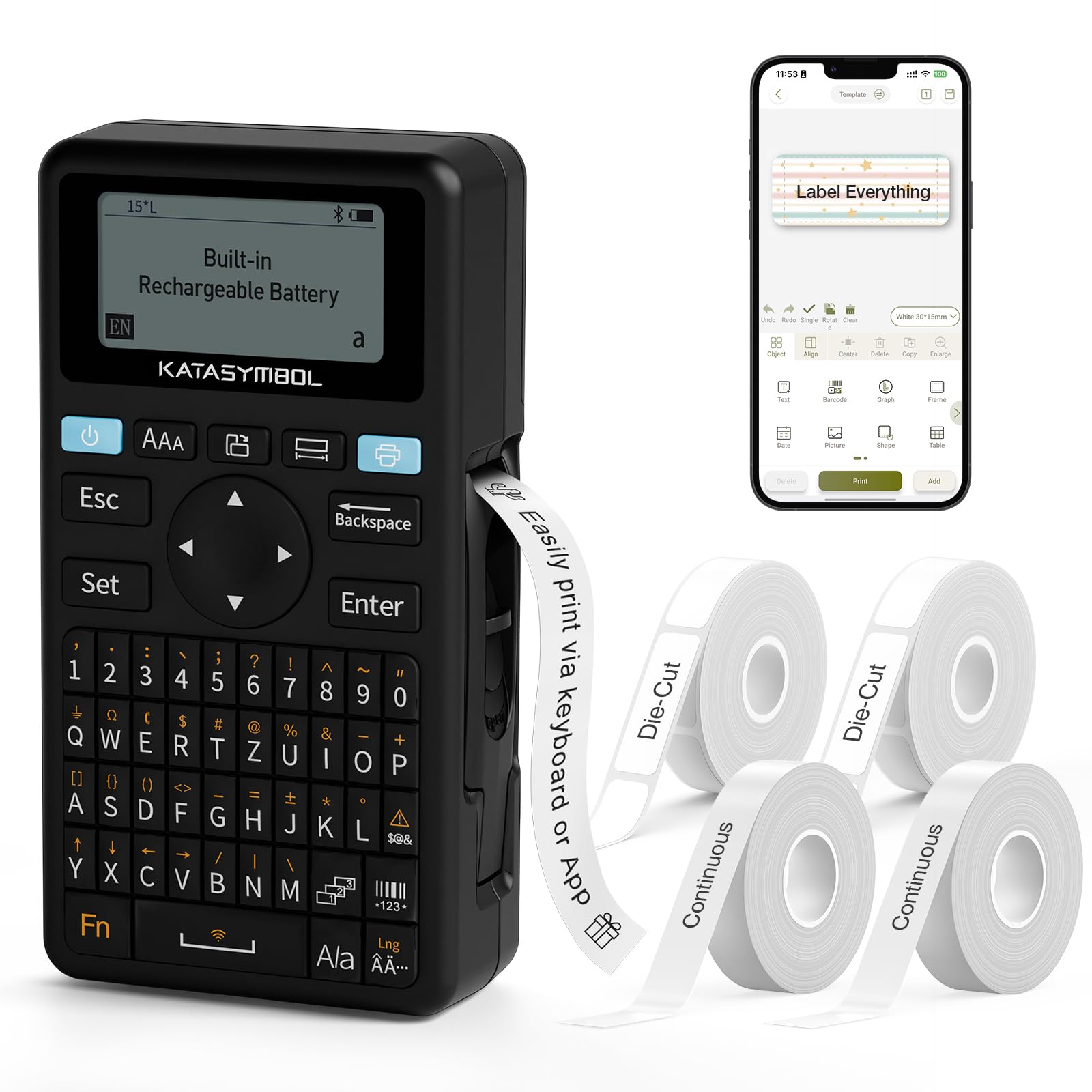
ചിത്രം: മുൻഭാഗം view of the SUPVAN E11 Label Maker, showing the QWERTY keyboard and display screen.
സജ്ജമാക്കുക
1 ഉപകരണം ചാർജ് ചെയ്യുന്നു
The SUPVAN E11 features a built-in 1200 mAh rechargeable battery. Before initial use, fully charge the device using the provided USB-C cable.
- Connect the USB-C cable to the charging port on the label maker.
- കേബിളിന്റെ മറ്റേ അറ്റം ഒരു USB പവർ അഡാപ്റ്ററുമായി (ഉൾപ്പെടുത്തിയിട്ടില്ല) അല്ലെങ്കിൽ ഒരു കമ്പ്യൂട്ടർ USB പോർട്ടുമായി ബന്ധിപ്പിക്കുക.
- ഉപകരണത്തിലെ ചാർജിംഗ് ഇൻഡിക്കേറ്റർ ചാർജിംഗ് സ്റ്റാറ്റസ് കാണിക്കും.

Image: The SUPVAN E11 Label Maker demonstrating that it uses thermal paper and requires no ink or toner.
2. ലേബൽ ടേപ്പ് ഇൻസ്റ്റാൾ ചെയ്യുന്നു
The E11 label maker uses thermal label rolls. Follow these steps to install a new roll:
- ഉപകരണത്തിന്റെ വശത്തുള്ള ലേബൽ കമ്പാർട്ട്മെന്റ് കവർ തുറക്കുക.
- Insert the label roll into the compartment, ensuring the label tape feeds out from the bottom and through the guide slot.
- കമ്പാർട്ട്മെൻ്റ് കവർ സുരക്ഷിതമായി അടയ്ക്കുക.

Image: A hand demonstrating how to install a label tape roll into the SUPVAN E11 Label Maker.
3. Connecting via Bluetooth (App)
For advanced customization and printing, connect your label maker to the companion app:
- നിങ്ങളുടെ ഉപകരണത്തിന്റെ ആപ്പ് സ്റ്റോറിൽ നിന്ന് ഔദ്യോഗിക SUPVAN ആപ്പ് ഡൗൺലോഡ് ചെയ്യുക.
- Turn on the label maker and ensure Bluetooth is enabled on your smartphone.
- Open the SUPVAN app and follow the on-screen instructions to pair with your E11 device.

Image: A visual guide showing the step-by-step process of connecting the label maker to the mobile app via Bluetooth.
ഓപ്പറേഷൻ
1. Keyboard Printing
For quick and frequent labeling, use the integrated QWERTY keyboard:
- ലേബൽ മേക്കർ ഓണാക്കുക.
- Type your desired text using the keyboard. The text will appear on the LCD display.
- ലേബൽ പ്രിന്റ് ചെയ്യാൻ 'പ്രിന്റ്' ബട്ടൺ അമർത്തുക.
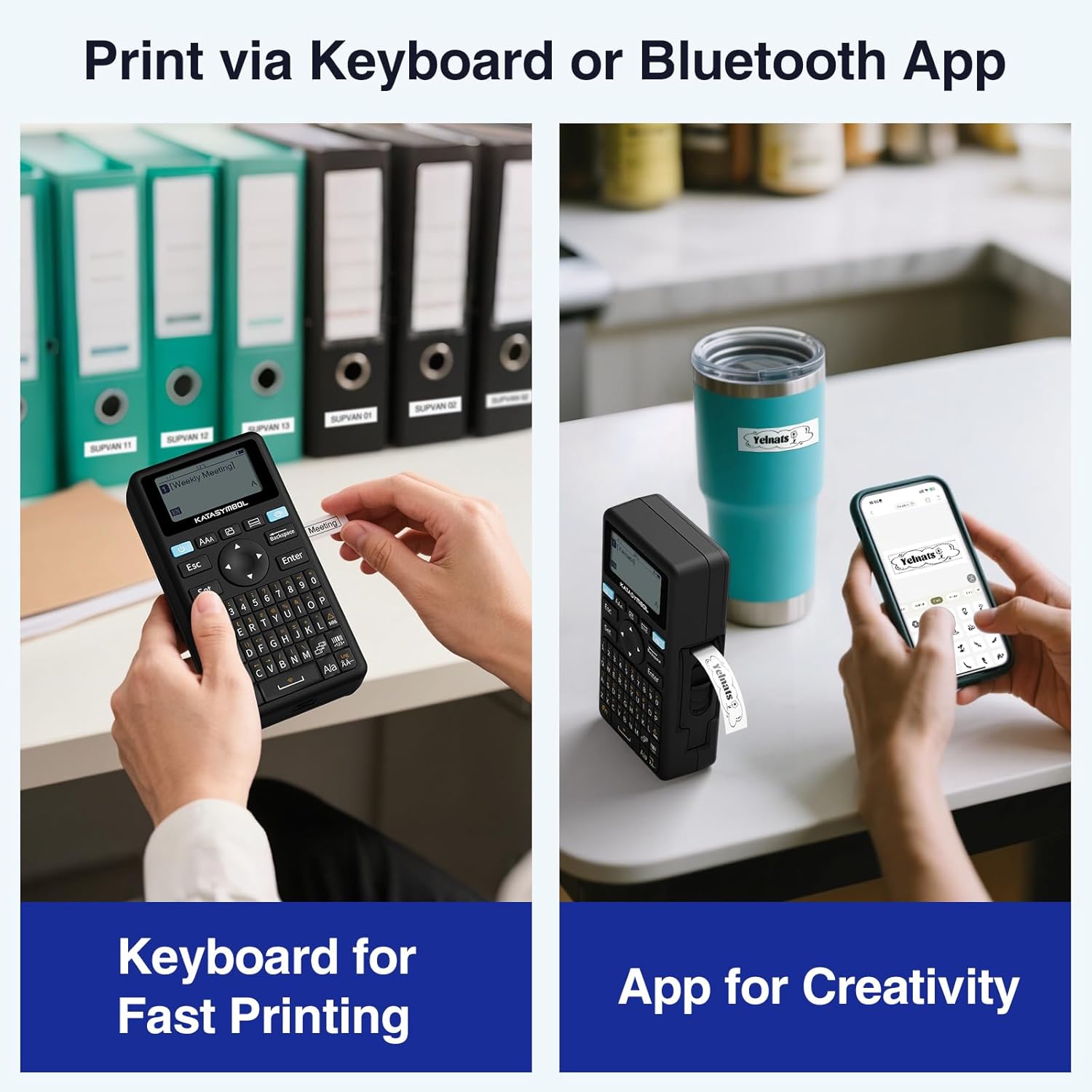
Image: A person using the SUPVAN E11 Label Maker's keyboard to type and print a label.
2. App Printing and Customization
The SUPVAN app offers extensive customization options:
- Ensure your device is connected to the app via Bluetooth.
- Open the app and select your label design.
- Utilize the app's features to customize your label:
- ഫോണ്ടുകൾ: Choose from over 30 fonts.
- ഫ്രെയിമുകൾ: Apply from over 50 frames.
- ഐക്കണുകൾ: Select from over 660 icons.
- QR കോഡുകളും ബാർകോഡുകളും: Generate and print QR codes and various barcode types.
- ടെംപ്ലേറ്റുകൾ: Create and save your own label templates.
- Once your design is complete, tap the 'Print' button in the app.
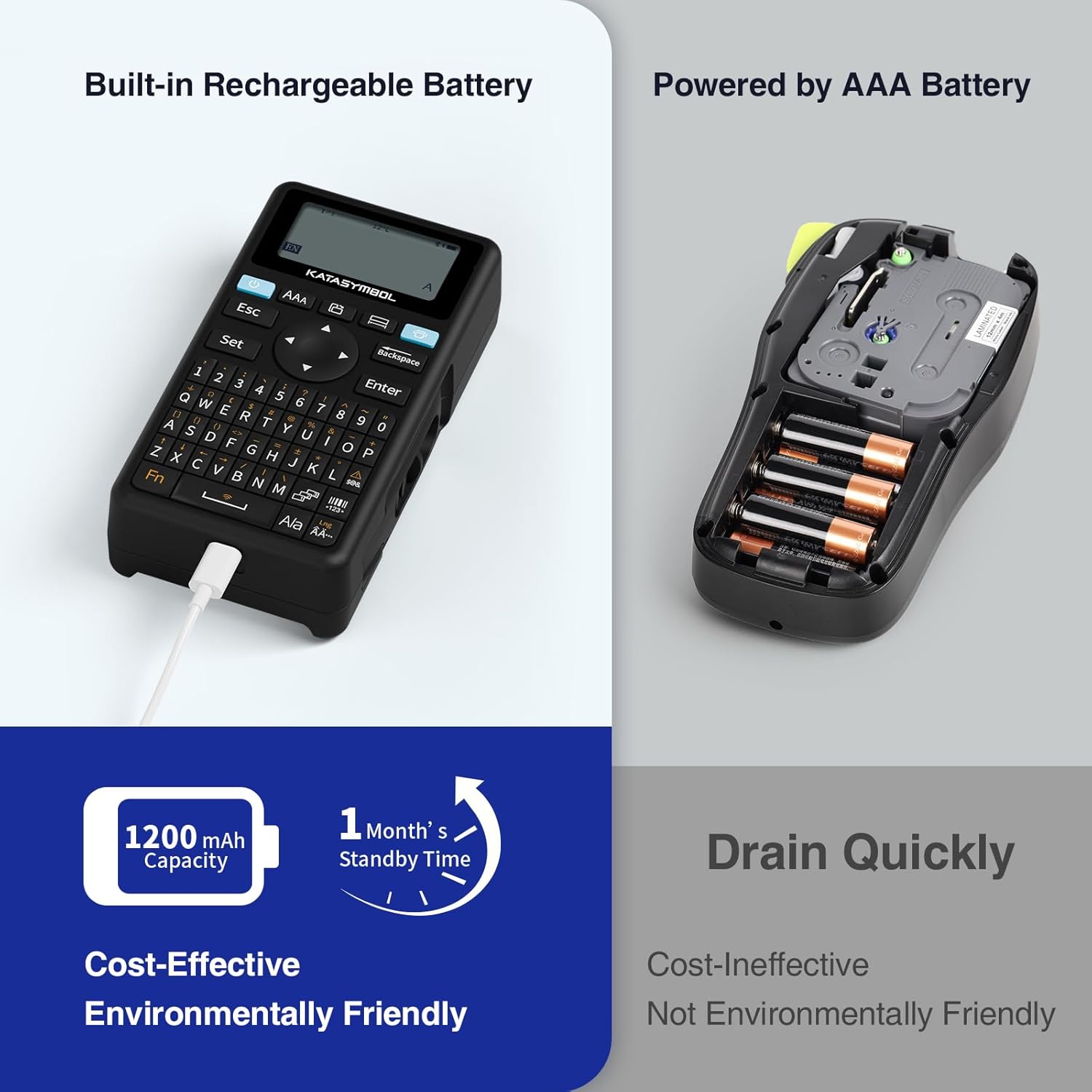
Image: A person using the SUPVAN E11 Label Maker in conjunction with the mobile app to design and print a customized label.

Image: A visual representation of the SUPVAN Label App's features, including a wide selection of fonts, frames, icons, and options for QR codes and barcodes.
Adjusting Label Font Size in the App
Video: This video demonstrates how to adjust the font size of your label text within the SUPVAN mobile application.
Adjusting Font Styles in the App
Video: This video illustrates the process of changing font styles and applying various formatting options to your labels using the SUPVAN mobile application.
3. Label Types and Minimal Margin Printing
The E11 supports both continuous and die-cut labels, offering flexibility for different applications. It also features minimal margin printing, reducing label waste.
- തുടർച്ചയായ ലേബലുകൾ: Ideal for long text or custom lengths.
- ഡൈ-കട്ട് ലേബലുകൾ: Pre-sized labels for specific items or standard applications.
- Minimal Margin: The E11 prints with only a 0.2-inch margin, significantly less than many other label makers, saving tape.

ചിത്രം: ഉദാamples of die-cut and continuous labels printed by the SUPVAN E11, showcasing its versatility for different label types.
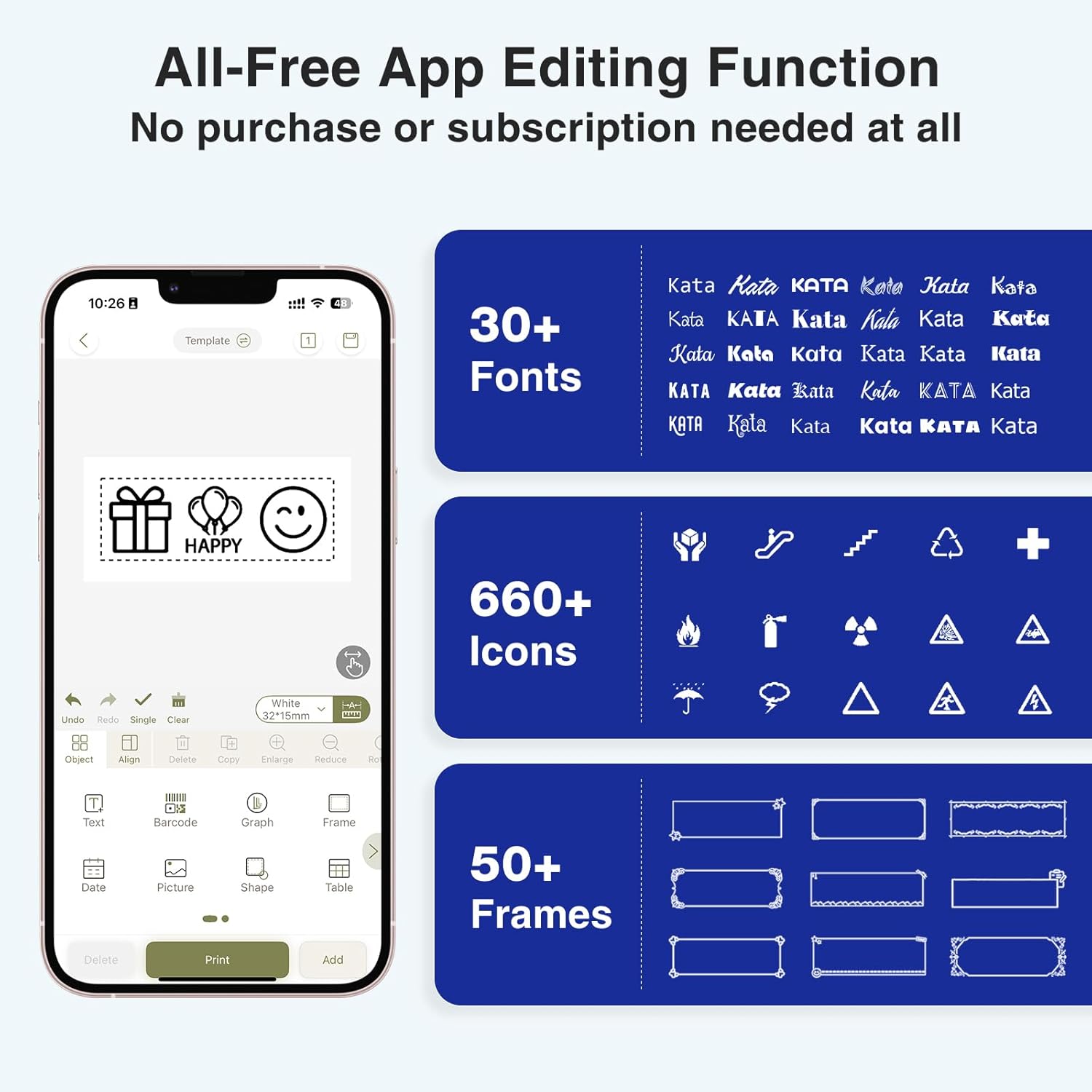
Image: A visual comparison highlighting the minimal 0.2-inch margin of SUPVAN labels versus the larger 1-inch margin of other label makers, demonstrating material efficiency.
4. Wide Applications
The SUPVAN E11 is suitable for various organizational tasks in different environments:
- വീട്: Organizing pantry items, storage bins, and personal belongings.
- അടുക്കള: Labeling food containers, spices, and expiry dates.
- ഓഫീസ്: Categorizing files, folders, and office supplies.
- സ്കൂൾ: Labeling school supplies, books, and projects.
- Garage/Workshop: Organizing tools and parts.

Image: A collage showing various applications of labels created with the SUPVAN E11, including labeling bottles, file folders, and storage containers.
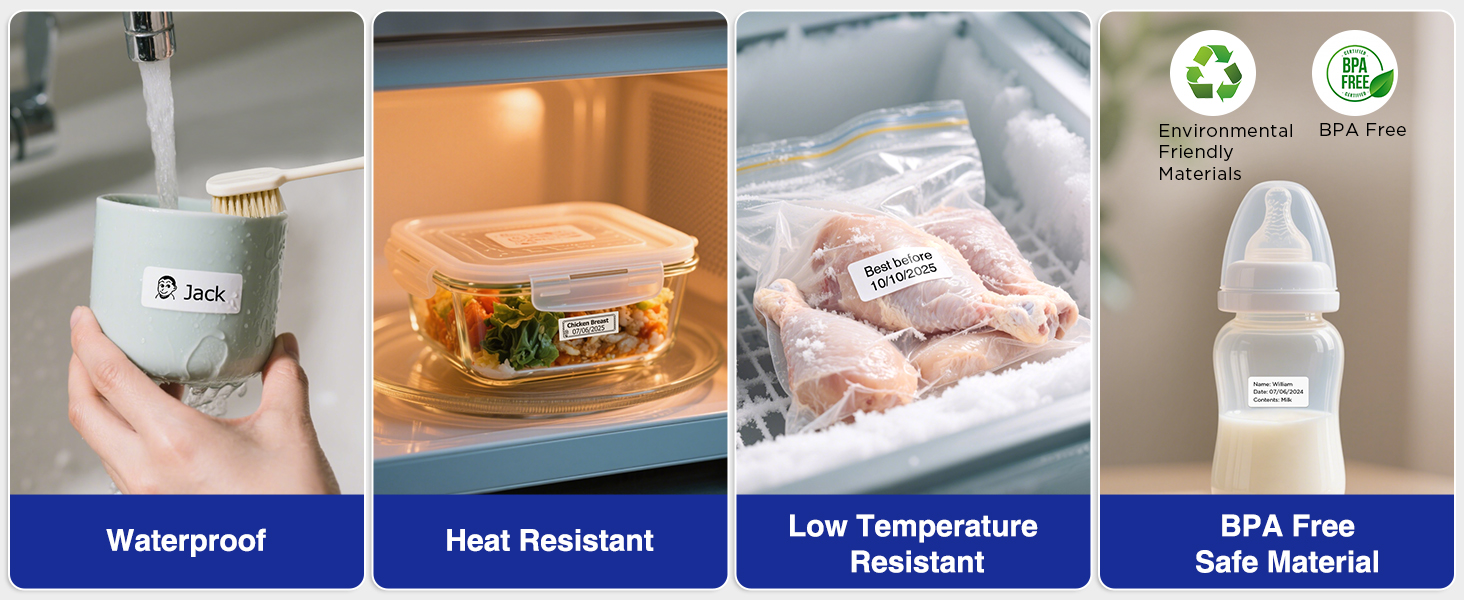
Image: A display illustrating the durability of SUPVAN laminated labels, highlighting their waterproof, heat-resistant, low-temperature resistant, and BPA-free characteristics.
മെയിൻ്റനൻസ്
1. പ്രിന്റ് ഹെഡ് വൃത്തിയാക്കൽ
മികച്ച പ്രിന്റ് ഗുണനിലവാരം ഉറപ്പാക്കാൻ, പ്രിന്റ് ഹെഡ് പതിവായി വൃത്തിയാക്കുക:
- Turn off the label maker and open the label compartment.
- മൃദുവായ, ലിന്റ് രഹിത തുണി ഉപയോഗിച്ച് പ്രിന്റ് ഹെഡ് സൌമ്യമായി തുടയ്ക്കുക d.ampഐസോപ്രോപൈൽ ആൽക്കഹോൾ ഉപയോഗിച്ചാണ് നിർവഹിച്ചത്.
- Allow the print head to dry completely before closing the compartment and using the device.
2. ബാറ്ററി പരിചരണം
ബാറ്ററി ആയുസ്സ് വർദ്ധിപ്പിക്കാൻ:
- ബാറ്ററി ഇടയ്ക്കിടെ പൂർണ്ണമായും ഡിസ്ചാർജ് ചെയ്യുന്നത് ഒഴിവാക്കുക.
- ബാറ്ററിയുടെ ആരോഗ്യം നിലനിർത്താൻ, ഉപയോഗത്തിലില്ലെങ്കിൽ പോലും, ഉപകരണം പതിവായി ചാർജ് ചെയ്യുക.
- ദീർഘനേരം ഉപയോഗിക്കാത്തപ്പോൾ ഉപകരണം തണുത്തതും വരണ്ടതുമായ സ്ഥലത്ത് സൂക്ഷിക്കുക.
ട്രബിൾഷൂട്ടിംഗ്
| പ്രശ്നം | സാധ്യമായ കാരണം | പരിഹാരം |
|---|---|---|
| Device does not turn on or turns off unexpectedly. | Low battery; device overload during long prints. | Ensure the device is fully charged. For long prints, try breaking the text into shorter segments. |
| Poor print quality (faint, streaky, or blank labels). | Print head is dirty; incorrect label tape installation; faulty label tape. | Clean the print head as described in the Maintenance section. Reinstall the label tape correctly. Try a new roll of label tape. |
| ബ്ലൂടൂത്ത് കണക്ഷൻ പ്രശ്നങ്ങൾ. | Bluetooth is off; device not paired; app issues. | Ensure Bluetooth is enabled on both devices. Re-pair the label maker through the app. Restart the app and the label maker. |
| Labels are not feeding correctly or jamming. | Improper tape installation; foreign object in the feed path. | Open the compartment and re-install the tape, ensuring it is aligned. Check for any obstructions and carefully remove them. |
സ്പെസിഫിക്കേഷനുകൾ
| ഫീച്ചർ | വിശദാംശങ്ങൾ |
|---|---|
| ബ്രാൻഡ് | SUPVAN |
| മോഡലിൻ്റെ പേര് | E11 |
| കണക്റ്റിവിറ്റി ടെക്നോളജി | ബ്ലൂടൂത്ത് |
| പ്രിൻ്റിംഗ് ടെക്നോളജി | തെർമൽ |
| പ്രിൻ്റർ ഔട്ട്പുട്ട് | മോണോക്രോം |
| പരമാവധി പ്രിന്റ് സ്പീഡ് മോണോക്രോം | 40 മിമി/സെ |
| റെസലൂഷൻ | 203 ഡിപിഐ |
| ഇനത്തിൻ്റെ ഭാരം | 0.5 പൗണ്ട് (ഏകദേശം 227 ഗ്രാം) |
| ഉൽപ്പന്ന അളവുകൾ (D x W x H) | 5.8" x 3.1" x 1.5" (ഏകദേശം 14.7cm x 7.9cm x 3.8cm) |
| ബാറ്ററി ശേഷി | 1200 mAh |
| ചാർജിംഗ് ഇൻ്റർഫേസ് | യുഎസ്ബി ടൈപ്പ് സി |
| ഡിസ്പ്ലേ തരം | എൽസിഡി |
| നിയന്ത്രണ രീതി | ആപ്പ്, പുഷ് ബട്ടൺ |
| പരമാവധി മീഡിയ വലുപ്പം | 15 മിമി x 6 മീ |
വാറൻ്റി വിവരങ്ങൾ
SUPVAN E11 ലേബൽ മേക്കർ ഒരു 2 വർഷത്തെ നിർമ്മാതാവിൻ്റെ വാറൻ്റി. സാധാരണ ഉപയോഗത്തിലുള്ള മെറ്റീരിയലുകളിലെയും നിർമ്മാണത്തിലെയും വൈകല്യങ്ങൾ ഈ വാറന്റി ഉൾക്കൊള്ളുന്നു. വാറന്റി ക്ലെയിമുകൾക്കായി നിങ്ങളുടെ വാങ്ങലിന്റെ തെളിവ് സൂക്ഷിക്കുക.
For detailed warranty terms and conditions, please refer to the official SUPVAN webസൈറ്റ് അല്ലെങ്കിൽ ഉപഭോക്തൃ പിന്തുണയുമായി ബന്ധപ്പെടുക.
ഉപഭോക്തൃ പിന്തുണ
If you encounter any issues or have questions not covered in this manual, please contact SUPVAN customer support:
- Webസൈറ്റ്: Visit the official SUPVAN webപതിവുചോദ്യങ്ങൾക്കും പിന്തുണാ ഉറവിടങ്ങൾക്കുമുള്ള സൈറ്റ്.
- ഇമെയിൽ: നിങ്ങളുടെ ഉൽപ്പന്ന പാക്കേജിംഗ് അല്ലെങ്കിൽ ഔദ്യോഗിക webഉപഭോക്തൃ സേവന ഇമെയിൽ വിലാസങ്ങൾക്കായുള്ള സൈറ്റ്.
Ask a question about this manual
Ask about setup, troubleshooting, compatibility, parts, safety, or missing instructions. Manuals+ will review the question and use this page’s manual context to help answer it.