
ഫോമെമോ M108
Phomemo M108 Bluetooth Label Maker User Manual
Your Guide to Efficient and Versatile Labeling
1. ആമുഖം
Welcome to the user manual for your new Phomemo M108 Bluetooth Label Maker. This compact and portable thermal printer is designed to simplify your labeling needs for home, office, and small business use. With its inkless technology and versatile app, you can create professional and personalized labels with ease. Please read this manual carefully to ensure proper use and maintenance of your device.
2. ഉൽപ്പന്നം കഴിഞ്ഞുview
2.1 പാക്കേജ് ഉള്ളടക്കം
Upon opening your Phomemo M108 package, please verify that all the following items are included:
- 1X Phomemo M108 2 Inch Label Maker Machine
- 1X Type-C Cable
- 1X ദ്രുത ആരംഭ ഗൈഡ്
- 40*30MM Thermal Labels (100PCS)
2.2 പ്രധാന സവിശേഷതകൾ
The Phomemo M108 Label Maker offers a range of features designed for convenience and efficiency:
- App-Enabled Bluetooth Connectivity: Seamlessly connect to the 'Print Master' app via Bluetooth for label creation.
- വൈഡ് ലേബൽ അനുയോജ്യത: Supports label sizes ranging from 0.78'' to 2'' (20 - 50mm) for diverse applications.
- മഷിയില്ലാത്ത താപ പ്രിന്റിംഗ്: Advanced thermal technology eliminates the need for ink cartridges, ensuring clean and clear prints.
- ബഹുമുഖ പ്രയോഗങ്ങൾ: Ideal for small businesses, home organization, office tasks, and creating personalized labels.
- ഒതുക്കമുള്ളതും പോർട്ടബിൾ ഡിസൈൻ: Lightweight and easy to carry, allowing for on-the-go labeling.
2.3 ഉൽപ്പന്ന ഡയഗ്രം
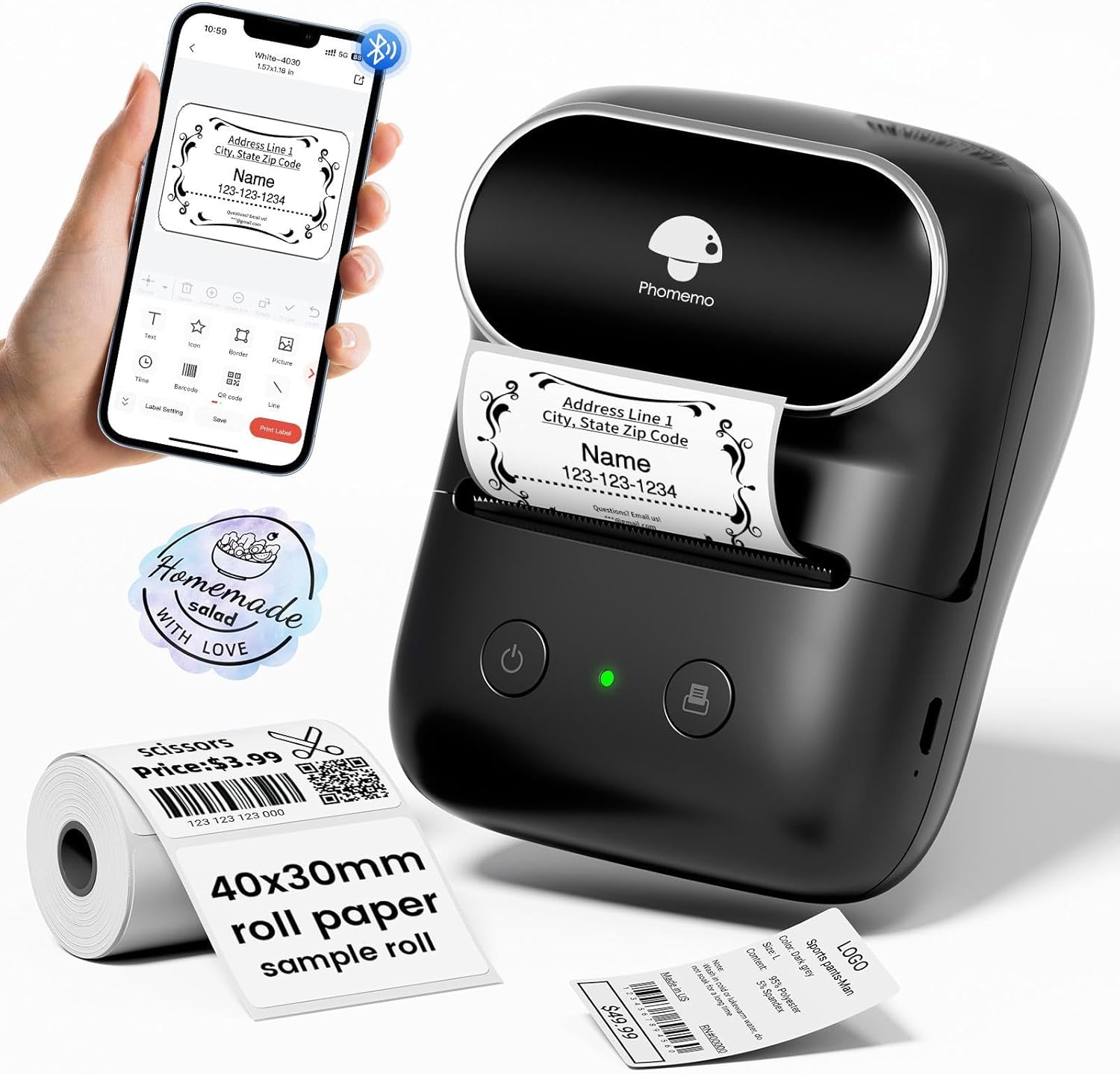
Figure 1: Phomemo M108 Label Maker and its components.
3. സജ്ജീകരണ ഗൈഡ്
3.1 ഉപകരണം ചാർജ് ചെയ്യുന്നു
Before first use, ensure your Phomemo M108 is fully charged. Connect the included Type-C cable to the charging port on the device and a compatible USB power adapter (not included). The indicator light will show charging status.

Figure 2: Charging the Phomemo M108 via Type-C cable.
3.2 ലേബലുകൾ ലോഡുചെയ്യുന്നു
Follow these steps to properly load the thermal label roll into your printer:
- മുകളിലെ കവർ തുറക്കുക: Gently slide the top cover release button to open the label compartment.
- Attach Paper Roll to Holder: Place the label roll onto the provided holder, ensuring the labels feed from the bottom.
- Insert Roll: Insert the label roll and holder into the compartment, making sure the labels are aligned with the print head.
- കവർ അടയ്ക്കുക: Close the top cover firmly until it clicks into place. Ensure a small portion of the label protrudes from the output slot.

Figure 3: Step-by-step guide for loading labels.
3.3 ആപ്പ് ഇൻസ്റ്റാളേഷനും കണക്ഷനും
The Phomemo M108 operates via the 'Print Master' mobile application. Follow these steps to get started:
- ആപ്പ് ഇൻസ്റ്റാൾ ചെയ്യുക: Download 'Print Master' from the ഗൂഗിൾ പ്ലേ സ്റ്റോർ (ആൻഡ്രോയിഡിന്) അല്ലെങ്കിൽ ആപ്പിൾ ആപ്പ് സ്റ്റോർ (iOS-ന്).
- സൈൻ ഇൻ: Open the app and sign in or create an account.
- ബ്ലൂടൂത്ത് പ്രവർത്തനക്ഷമമാക്കുക: നിങ്ങളുടെ സ്മാർട്ട്ഫോണിലോ ടാബ്ലെറ്റിലോ ബ്ലൂടൂത്ത് പ്രവർത്തനക്ഷമമാക്കിയിട്ടുണ്ടെന്ന് ഉറപ്പാക്കുക.
- പ്രിന്റർ ബന്ധിപ്പിക്കുക: In the 'Print Master' app, search for and select your Phomemo M108 device to establish a Bluetooth connection. The app will guide you through the pairing process.

Figure 4: Connecting your Phomemo M108 to the 'Print Master' app.
നുറുങ്ങ്: For optimal performance, ensure your device's operating system and the 'Print Master' app are updated to their latest versions.
4. പ്രവർത്തന നിർദ്ദേശങ്ങൾ
4.1 അടിസ്ഥാന പ്രിന്റിംഗ്
കണക്റ്റുചെയ്തുകഴിഞ്ഞാൽ, നിങ്ങൾക്ക് ലേബലുകൾ സൃഷ്ടിക്കാനും പ്രിന്റ് ചെയ്യാനും ആരംഭിക്കാം:
- Select Template or Create New: Choose from over 300 templates or start a new design within the 'Print Master' app.
- Customize Your Label: Use the app's tools to add text, icons (over 1000 available), borders, images, barcodes, and QR codes.
- പ്രീview: Review your label design on the app screen to ensure it meets your requirements.
- പ്രിൻ്റ്: Tap the 'Print Label' button in the app. The printer will automatically feed and print your label.

Figure 5: Customizing labels using the 'Print Master' app.
4.2 Using the 'Print Master' App
The 'Print Master' app is your central hub for all labeling functions. It provides a user-friendly interface with extensive customization options. You can adjust font styles, sizes, alignment, and even import your own images. The app also supports various label types, including regular, circular, clear, and patterned labels.
For a visual demonstration of the label maker in action, please refer to the following official product video:
Video 1: Official Phomemo M108 Bluetooth Label Maker demonstration, showcasing അതിന്റെ സവിശേഷതകളും ഉപയോഗ എളുപ്പവും.
വീഡിയോ 2: ഒരു സംക്ഷിപ്ത വിവരണംview of the Phomemo M108 thermal label maker, highlighting its thermal printing capabilities.
5. പരിപാലനം
5.1 പ്രിന്റ് ഹെഡ് വൃത്തിയാക്കൽ
To ensure consistent print quality, regularly clean the print head. Use a soft, lint-free cloth lightly dampened with rubbing alcohol. Gently wipe the print head surface. Allow it to dry completely before closing the cover or using the printer.
5.2 Storing Labels
Store thermal labels in a cool, dry place away from direct sunlight and excessive heat. This will help preserve their adhesive properties and print quality over time.
6. പ്രശ്നപരിഹാരം
If you encounter any issues with your Phomemo M108, please refer to the table below for common problems and their solutions:
| ഇഷ്യൂ | പരിഹാരം |
|---|---|
| പ്രിന്റർ ബ്ലൂടൂത്ത് വഴി കണക്റ്റ് ചെയ്യുന്നില്ല. | Ensure Bluetooth is enabled on your mobile device. Restart both the printer and the 'Print Master' app. Try forgetting the device in your phone's Bluetooth settings and re-pairing. |
| Poor print quality (faded, unclear) | Check if the label roll is inserted correctly. Clean the print head (refer to Maintenance section). Ensure you are using genuine Phomemo thermal labels. |
| ഫീഡിംഗ് അല്ലെങ്കിൽ ജാമിംഗ് ചെയ്യാത്ത ലേബലുകൾ | Open the cover and check for any obstructions or misaligned labels. Reload the label roll, ensuring it's properly seated. |
| പ്രിന്റർ ഓണാക്കുന്നില്ല | Ensure the printer is fully charged. If the issue persists, contact customer support. |
7. ഉൽപ്പന്ന സവിശേഷതകൾ
| സ്പെസിഫിക്കേഷൻ | വിശദാംശങ്ങൾ |
|---|---|
| മോഡലിൻ്റെ പേര് | M108 |
| ബ്രാൻഡ് | ഫേമോമോ |
| കണക്റ്റിവിറ്റി ടെക്നോളജി | യുഎസ്ബി ടൈപ്പ്-സി, ബ്ലൂടൂത്ത് |
| പ്രിൻ്റിംഗ് ടെക്നോളജി | തെർമൽ |
| പരമാവധി പ്രിന്റ് റെസല്യൂഷൻ | 203 ഡിപിഐ |
| Max Label Width | 2 ഇഞ്ച് (50 മിമി) |
| ബാറ്ററി ശേഷി | 1 ലിഥിയം പോളിമർ ബാറ്ററി (ഉൾപ്പെടുത്തിയിരിക്കുന്നു) |
| ഉൽപ്പന്ന അളവുകൾ | 4.48 x 2.44 x 3.43 ഇഞ്ച് |
| ഇനത്തിൻ്റെ ഭാരം | 0.804 ഔൺസ് (22.8 ഗ്രാം) |
| അനുയോജ്യമായ ഉപകരണങ്ങൾ | Windows 7 and above, Chrome OS, iOS, Mac OS 10 and above, Android |
8. വാറൻ്റിയും പിന്തുണയും
8.1 വാറൻ്റി വിവരങ്ങൾ
Your Phomemo M108 Label Maker comes with a standard manufacturer's warranty. Please refer to the warranty card included in your package for specific terms and conditions, including coverage period and limitations. Keep your purchase receipt as proof of purchase for warranty claims.
8.2 ഉപഭോക്തൃ പിന്തുണ
For technical assistance, troubleshooting beyond this manual, or warranty inquiries, please contact Phomemo customer support. You can typically find contact information on the official Phomemo website or through the 'Print Master' app's help section.
We are committed to providing you with the best possible experience with your Phomemo M108 Label Maker.
Ask a question about this manual
Ask about setup, troubleshooting, compatibility, parts, safety, or missing instructions. Manuals+ will review the question and use this page’s manual context to help answer it.