
IFYOO IFYOO-G53-Black3
IFYOO G53 Wireless Vertical Ergonomic Mouse
ഇൻസ്ട്രക്ഷൻ മാനുവൽ
ബ്രാൻഡ്: IFYOO | മോഡൽ: IFYOO-G53-Black3
1. ആമുഖം
The IFYOO G53 Wireless Vertical Ergonomic Mouse is designed to provide superior comfort and enhance productivity. Its unique vertical design promotes a natural handshake position, reducing wrist strain and discomfort often associated with traditional mice. This tri-mode mouse offers versatile connectivity options and customizable features to adapt to various computing environments.

Figure 1.1: IFYOO G53 Wireless Vertical Ergonomic Mouse.
2 പ്രധാന സവിശേഷതകൾ
- Superior Ergonomic Design: Keeps your hand in a natural handshake position to reduce wrist stress and pain, helping to prevent Carpal Tunnel Syndrome.
- ട്രൈ-മോഡ് കണക്റ്റിവിറ്റി: Supports 2.4GHz wireless, Bluetooth 5.1, and wired USB-C connections, allowing seamless switching between multiple devices.
- ക്രമീകരിക്കാവുന്ന DPI: Max 8400 DPI for smooth and accurate tracking, with multiple DPI settings (500, 1600, 2400, 3200, 4000, 4800, 8400) for precise control.
- ഡൈനാമിക് RGB ലൈറ്റിംഗ്: Features 9 RGB lighting modes for customizable visual effects, which can also be turned off. DPI changes are indicated by logo color.
- 5 Programmable Side Buttons: Boost productivity with shortcuts for forward/backward webpage navigation, changing lighting effects, opening file explorer, or returning to desktop. (Note: Some side button shortcuts may not work with Mac OS, iPad OS, and other operating systems, except for light switch, and are primarily supported on Windows 10/11).
- റീചാർജ് ചെയ്യാവുന്ന ബാറ്ററി: Built-in 600mAh rechargeable battery with intelligent power saving. Charges via USB-C.

Figure 2.1: Ergonomic design promotes a natural hand position, reducing wrist strain.
3. പാക്കേജ് ഉള്ളടക്കം
പാക്കേജിൽ എല്ലാ ഇനങ്ങളും ഉണ്ടെന്ന് ഉറപ്പാക്കുക:
- 1x IFYOO G53 Wireless Vertical Ergonomic Mouse
- 1x ഉപയോക്തൃ മാനുവൽ (ഈ പ്രമാണം)
- 1x ടൈപ്പ്-സി യുഎസ്ബി ചാർജിംഗ് കേബിൾ
- 1x 2.4 GHz USB Receiver (stored at the bottom of the mouse)
4. സജ്ജീകരണം
4.1 മൗസ് ചാർജ് ചെയ്യുന്നു
Before first use, it is recommended to fully charge the mouse. Connect the provided USB-C cable to the charging port on the front of the mouse and the other end to a USB power source (e.g., computer USB port, USB wall adapter). The RGB lighting may indicate charging status.
4.2 നിങ്ങളുടെ ഉപകരണത്തിലേക്ക് കണക്റ്റുചെയ്യുന്നു
The G53 mouse offers three connection modes:
- 2.4GHz വയർലെസ് മോഡ്:
- Locate the 2.4 GHz USB receiver stored in the magnetic compartment at the bottom of the mouse.
- നിങ്ങളുടെ കമ്പ്യൂട്ടറിൽ ലഭ്യമായ USB പോർട്ടിലേക്ക് USB റിസീവർ പ്ലഗ് ചെയ്യുക.
- Slide the mode switch at the bottom of the mouse to the "2.4G" position. The mouse should connect automatically.
- ബ്ലൂടൂത്ത് (ബിടി) മോഡ്:
- Slide the mode switch at the bottom of the mouse to the "BT" position.
- On your device (Windows, Mac, iPad OS, Android), go to Bluetooth settings and search for new devices.
- Select "IFYOO G53" from the list of available devices to pair.
- വയർഡ് മോഡ്:
- Connect the provided USB-C cable to the mouse's charging port and the USB-A end to your computer's USB port.
- Slide the mode switch at the bottom of the mouse to the "Wired" position. The mouse will function as a wired device and charge simultaneously.

Figure 4.1: Seamless multi-device connectivity with 2.4G, Wired, and Bluetooth modes.
4.3 Driver Software (Windows Only)
To modify mouse configurations and customize buttons (excluding light switch), driver software is available for Windows OS only. Visit www.ifyoo.net to download the latest driver. This software allows for personalized profiles, macro settings, and advanced RGB control.

Figure 4.2: Professional driver software interface for Windows customization.
5. പ്രവർത്തന നിർദ്ദേശങ്ങൾ
5.1 ബട്ടൺ പ്രവർത്തനങ്ങൾ
The IFYOO G53 mouse features 10 buttons for enhanced control:

Figure 5.1: Mouse layout and button overview.
- ഇടത് ബട്ടൺ (1): സ്റ്റാൻഡേർഡ് ഇടത്-ക്ലിക്ക് പ്രവർത്തനം.
- സ്ക്രോൾ വീൽ (2): മുകളിലേക്കും/താഴേക്കും സ്ക്രോൾ ചെയ്യുക, മധ്യത്തിൽ ക്ലിക്ക് ചെയ്യുക.
- വലത് ബട്ടൺ (3): സ്റ്റാൻഡേർഡ് റൈറ്റ്-ക്ലിക്ക് ഫംഗ്ഷൻ.
- DPI ബട്ടൺ (4): DPI ക്രമീകരണങ്ങളിലൂടെ കടന്നുപോകുന്നു.
- ഫോർവേഡ് ബട്ടൺ (5): മുന്നോട്ട് നാവിഗേറ്റ് ചെയ്യുന്നു web browsers/applications.
- പിന്നിലേക്കുള്ള ബട്ടൺ (6): പിന്നിലേക്ക് നാവിഗേറ്റ് ചെയ്യുന്നു web browsers/applications.
- Light Effect Button (7): RGB ലൈറ്റിംഗ് മോഡുകൾ മാറ്റുന്നു.
- File Resource Manager (8): തുറക്കുന്നു File Explorer (Windows only).
- BOSS Button (9): Returns to desktop (Windows only).
- Mode Indicator (10): Displays current connection mode.
- 2.4G Receiver (11): USB dongle for 2.4GHz wireless connection.
- മോഡ് ബട്ടൺ (12): Switch between 2.4G, Wired, and BT modes.
Note: Due to system compatibility, functions of buttons 5, 6, 8, and 9 can only be used on Windows OS.
5.2 ഡിപിഐ സെൻസിറ്റിവിറ്റി ക്രമീകരിക്കൽ
അമർത്തുക ഡിപിഐ ബട്ടൺ (4) to cycle through the available DPI settings. Each change in DPI will typically be indicated by a change in the logo's LED color, allowing you to visually confirm your current sensitivity level.
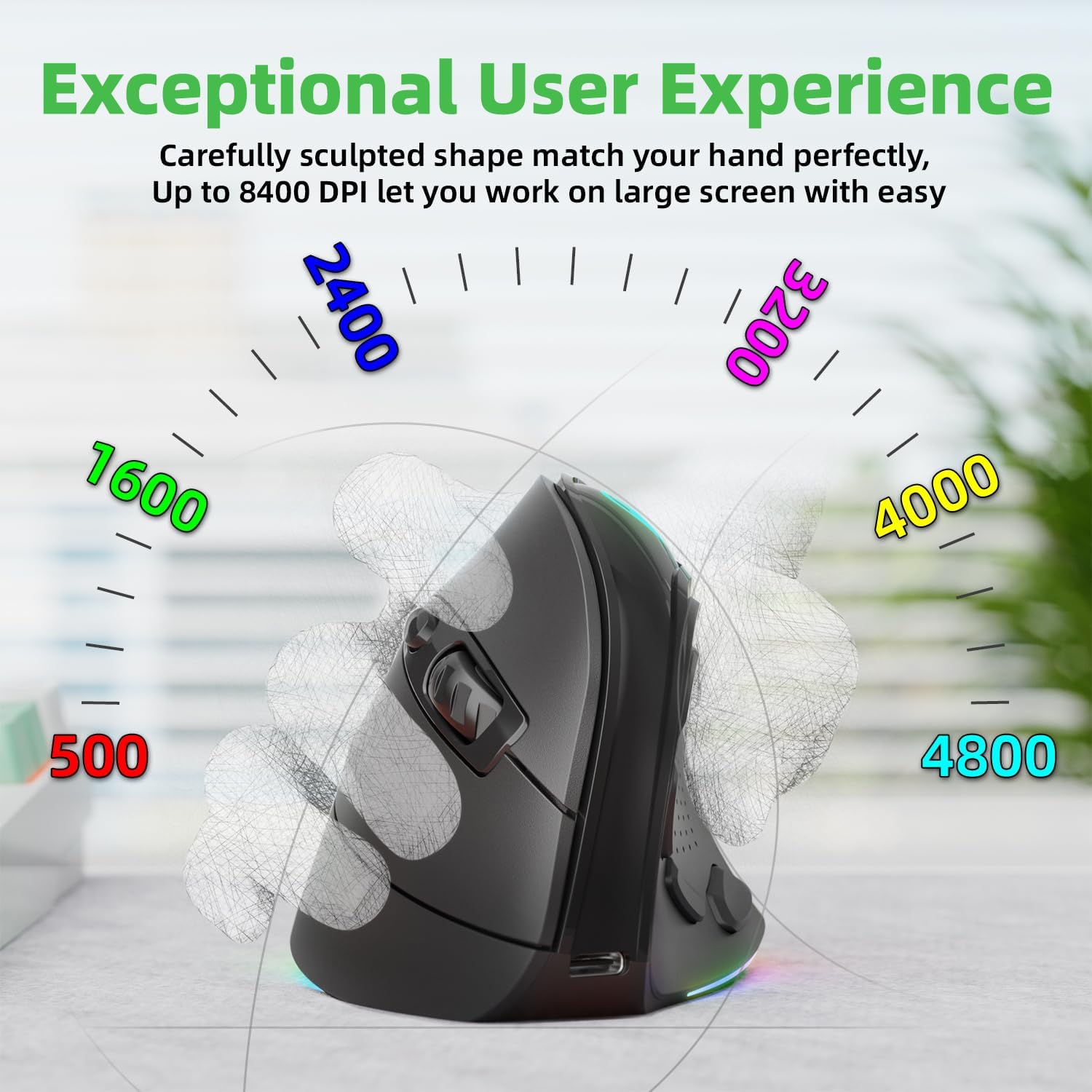
Figure 5.2: Adjustable DPI up to 8400, with logo color indicating current DPI.
5.3 Controlling RGB Lighting
അമർത്തുക Light Effect Button (7) to cycle through the 9 dynamic RGB lighting modes. Continue pressing to find your preferred effect or to turn the lighting off.
6. പരിപാലനം
- വൃത്തിയാക്കൽ: മൗസ് വൃത്തിയാക്കാൻ മൃദുവായതും ഉണങ്ങിയതുമായ തുണി ഉപയോഗിക്കുക. കഠിനമായ അഴുക്കിന്, ചെറുതായി dampതുണിയിൽ വെള്ളം അല്ലെങ്കിൽ നേരിയ ക്ലീനിംഗ് ലായനി ഉപയോഗിക്കുക. കഠിനമായ രാസവസ്തുക്കളോ ഉരച്ചിലുകളോ ഉള്ള വസ്തുക്കൾ ഒഴിവാക്കുക.
- സംഭരണം: When not in use for extended periods, store the mouse in a cool, dry place. Ensure the 2.4 GHz receiver is stored securely in its compartment at the bottom of the mouse.
- ബാറ്ററി കെയർ: To prolong battery life, avoid fully discharging the mouse frequently. Charge it when the battery indicator is low.
7. പ്രശ്നപരിഹാരം
- മൗസ് പ്രതികരിക്കുന്നില്ല:
- മൗസ് ചാർജ് ചെയ്തിട്ടുണ്ടെന്ന് ഉറപ്പാക്കുക.
- Check the connection mode switch (2.4G, Wired, BT) is in the correct position.
- For 2.4GHz, ensure the USB receiver is securely plugged in. Try a different USB port.
- ബ്ലൂടൂത്തിന്, നിങ്ങളുടെ ഉപകരണത്തിൽ ബ്ലൂടൂത്ത് പ്രവർത്തനക്ഷമമാക്കിയിട്ടുണ്ടെന്നും മൗസ് ജോടിയാക്കിയിട്ടുണ്ടെന്നും ഉറപ്പാക്കുക. വീണ്ടും ജോടിയാക്കാൻ ശ്രമിക്കുക.
- In wired mode, ensure the USB-C cable is properly connected.
- കഴ്സർ ചലനം ക്രമരഹിതമോ മന്ദഗതിയിലുള്ളതോ ആണ്:
- DPI ബട്ടൺ ഉപയോഗിച്ച് DPI ക്രമീകരണം ക്രമീകരിക്കുക.
- മൗസ് സെൻസർ വൃത്തിയുള്ളതും അവശിഷ്ടങ്ങളിൽ നിന്ന് മുക്തവുമാണെന്ന് ഉറപ്പാക്കുക.
- വൃത്തിയുള്ളതും പ്രതിഫലിക്കാത്തതുമായ ഒരു പ്രതലത്തിലോ മൗസ് പാഡിലോ മൗസ് ഉപയോഗിക്കുക.
- Side buttons not working (Mac OS/iPad OS):
- As noted, some side button functions (Forward, Backward, File Resource Manager, BOSS Button) are system-specific and primarily supported on Windows OS. The Light Effect Button should function across all compatible OS.
8 സ്പെസിഫിക്കേഷനുകൾ
| ബ്രാൻഡ് | IFYOO |
| മോഡൽ നമ്പർ | IFYOO-G53-Black3 |
| കണക്റ്റിവിറ്റി ടെക്നോളജി | 2.4GHz Wireless, Bluetooth 5.1, Wired (USB-C) |
| മൂവ്മെന്റ് ഡിറ്റക്ഷൻ ടെക്നോളജി | ഒപ്റ്റിക്കൽ |
| ബട്ടണുകളുടെ എണ്ണം | 10 |
| ഡിപിഐ ക്രമീകരണങ്ങൾ | 8400 വരെ (ക്രമീകരിക്കാവുന്നത്) |
| ബാറ്ററി | 600mAh ലിഥിയം പോളിമർ (റീചാർജ് ചെയ്യാവുന്നത്) |
| ചാർജിംഗ് പോർട്ട് | USB-C |
| അനുയോജ്യത | Windows 11/10/7/8, Mac OS, iPad OS, Android |
| ഇനത്തിൻ്റെ ഭാരം | 8.4 ഔൺസ് |
| പാക്കേജ് അളവുകൾ | 5.87 x 4.49 x 3.31 ഇഞ്ച് |
| മാതൃരാജ്യം | ചൈന |
9. വാറണ്ടിയും പിന്തുണയും
9.1 One-Year Warranty
IFYOO offers a 90-day free replacement and one-year warranty service from the date of purchase. If there are any problems with the product, please do not hesitate to contact us.
9.2 ഉപഭോക്തൃ പിന്തുണ
- ഉദ്യോഗസ്ഥൻ Webസൈറ്റ്: www.ifyoo.net
- ഉപഭോക്തൃ സേവന ഇമെയിൽ: cs@ifyoo.net (9:00 - 18:00 Monday to Friday)
- Manuals, Drivers, Firmware Updates: support.ifyoo.net
- വീഡിയോ ട്യൂട്ടോറിയലുകൾ: www.youtube.com/IFYOO
Ask a question about this manual
Ask about setup, troubleshooting, compatibility, parts, safety, or missing instructions. Manuals+ will review the question and use this page’s manual context to help answer it.