
H155-382
H155-382 CPE 5 5G Router User Manual
മോഡൽ: H155-382
ആമുഖം
Thank you for choosing the Generic H155-382 5G Router. This device is designed to provide seamless, high-speed 5G connectivity for your home or office, ideal for demanding applications such as gaming and live streaming. With its sleek design, 5GHz single-band operation, and 802.11ax wireless communication standard, it ensures reliable and efficient internet access for a wide range of smart devices, including gaming consoles, smartphones, and smart TVs. This manual will guide you through the setup, operation, and maintenance of your new router.
സുരക്ഷാ വിവരങ്ങൾ
- വൈദ്യുതി വിതരണം: Use only the power adapter provided with the device. Using an incompatible power adapter may cause damage or fire.
- വെൻ്റിലേഷൻ: Ensure adequate ventilation around the router. Do not block ventilation openings or place the device in an enclosed space.
- ജലവും ഈർപ്പവും: Keep the device away from water, moisture, and high humidity environments.
- താപനില: Operate the device within the recommended temperature range. Avoid extreme heat or cold.
- വൃത്തിയാക്കൽ: വൃത്തിയാക്കുന്നതിന് മുമ്പ് വൈദ്യുതി വിച്ഛേദിക്കുക. മൃദുവായതും ഉണങ്ങിയതുമായ തുണി ഉപയോഗിക്കുക. ലിക്വിഡ് അല്ലെങ്കിൽ എയറോസോൾ ക്ലീനറുകൾ ഉപയോഗിക്കരുത്.
- വേർപെടുത്തുക: ഉപകരണം സ്വയം ഡിസ്അസംബ്ലിംഗ് ചെയ്യാനോ നന്നാക്കാനോ ശ്രമിക്കരുത്. എല്ലാ സേവനങ്ങളും യോഗ്യതയുള്ള ഉദ്യോഗസ്ഥരെ ഏൽപ്പിക്കുക.
പാക്കേജ് ഉള്ളടക്കം

Image: The Generic H155-382 5G Router shown alongside its retail packaging.
പാക്കേജിലെ ഉള്ളടക്കങ്ങൾ ശ്രദ്ധാപൂർവ്വം പരിശോധിക്കുക. ഏതെങ്കിലും ഇനം നഷ്ടപ്പെട്ടാലോ കേടായാലോ, നിങ്ങളുടെ റീട്ടെയിലറെ ബന്ധപ്പെടുക.
- Generic H155-382 5G Router
- പവർ അഡാപ്റ്റർ
- ഇതർനെറ്റ് കേബിൾ (RJ45)
- ദ്രുത ആരംഭ ഗൈഡ് (ഈ പ്രമാണം)
ഉൽപ്പന്നം കഴിഞ്ഞുview
ഫ്രണ്ട് പാനൽ
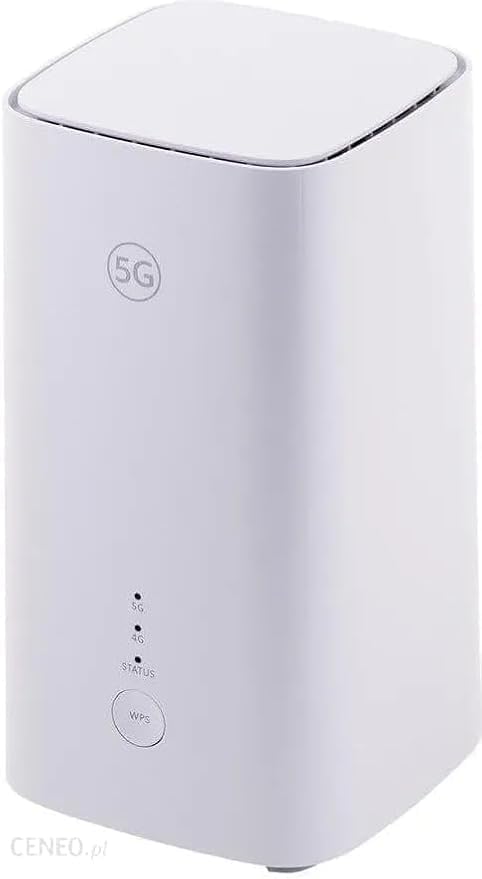
ചിത്രം: മുൻഭാഗം view of the H155-382 router, highlighting the 5G logo, LED indicators, and the WPS button.
- 5G സൂചകം: 5G നെറ്റ്വർക്ക് സ്റ്റാറ്റസ് സൂചിപ്പിക്കുന്നു.
- 4G സൂചകം: 4G നെറ്റ്വർക്ക് സ്റ്റാറ്റസ് സൂചിപ്പിക്കുന്നു.
- സ്റ്റാറ്റസ് സൂചകം: Indicates system status (e.g., power on, network connection).
- WPS ബട്ടൺ: Press to quickly connect Wi-Fi Protected Setup (WPS) compatible devices.
Rear Panel (Typical Configuration)
The rear panel typically includes the following ports and buttons:
- പവർ പോർട്ട്: പവർ അഡാപ്റ്ററുമായി ബന്ധിപ്പിക്കുന്നു.
- ലാൻ പോർട്ട്സ്: Ethernet ports for wired connections to devices like computers or gaming consoles.
- WAN/LAN പോർട്ട്: An Ethernet port that can function as either a WAN (for connecting to a modem) or a LAN port.
- സിം കാർഡ് സ്ലോട്ട്: Insert your 5G/4G SIM card here.
- റീസെറ്റ് ബട്ടൺ: Used to restore factory default settings (usually a pinhole button).
സജ്ജമാക്കുക
- ഘട്ടം 1: സിം കാർഡ് ചേർക്കുക
Locate the SIM card slot on the router. Gently insert your 5G/4G Nano-SIM card into the slot until it clicks into place. Ensure the SIM card is inserted in the correct orientation as indicated by the diagram near the slot.
- ഘട്ടം 2: പവർ ബന്ധിപ്പിക്കുക
Connect the provided power adapter to the router's power port, then plug the adapter into a power outlet. The router will power on automatically, and the indicator lights will illuminate.
- ഘട്ടം 3: ഉപകരണങ്ങൾ ബന്ധിപ്പിക്കുക
You can connect devices to the router in two ways:
- വൈഫൈ: On your device (smartphone, laptop, etc.), search for available Wi-Fi networks. Select the network name (SSID) printed on the label at the bottom of the router and enter the Wi-Fi password (Key) when prompted.
- വയർ: Connect an Ethernet cable from one of the router's LAN ports to the Ethernet port on your computer or other wired device.
- Step 4: Initial Configuration (Optional)
For advanced settings or to change default Wi-Fi credentials, open a web browser on a connected device and enter the router's default IP address (e.g., 192.168.8.1 or 192.168.1.1) found on the router's label. Log in using the default username and password (also on the label). You can also use the dedicated mobile application for remote control and configuration, as the router supports remote access.
നിങ്ങളുടെ റൂട്ടർ പ്രവർത്തിപ്പിക്കുന്നു
വൈഫൈയിലേക്ക് കണക്റ്റ് ചെയ്യുന്നു
Once the router is powered on and has established a network connection (indicated by stable 5G/4G and STATUS LEDs), your Wi-Fi network will be broadcast. Connect your devices using the SSID and password provided on the router's label. For WPS-enabled devices, press the WPS button on the router and then activate WPS on your device within two minutes.
ആക്സസ് ചെയ്യുന്നു Web ഇൻ്റർഫേസ്
ദി web interface allows you to manage your router's settings. To access it:
- Ensure your device is connected to the router (via Wi-Fi or Ethernet).
- എ തുറക്കുക web ബ്രൗസർ (ഉദാ. ക്രോം, ഫയർഫോക്സ്, എഡ്ജ്).
- Type the router's default IP address (e.g., 192.168.8.1) into the address bar and press Enter.
- Enter the login username and password when prompted.
റിമോട്ട് ആക്സസ്
This router supports remote access, allowing you to manage its settings and monitor its status from a dedicated application on your smartphone or tablet. Refer to the router's web interface or quick start guide for details on setting up remote access.
മെയിൻ്റനൻസ്
- പ്ലേസ്മെൻ്റ്: തടസ്സങ്ങൾ, വലിയ ലോഹ വസ്തുക്കൾ, തടസ്സമുണ്ടാക്കുന്ന മറ്റ് ഇലക്ട്രോണിക് ഉപകരണങ്ങൾ എന്നിവയിൽ നിന്ന് മാറി, തുറന്ന സ്ഥലത്ത് റൂട്ടർ സ്ഥാപിക്കുക.
- വൃത്തിയാക്കൽ: Regularly clean the router's exterior with a soft, dry cloth to prevent dust buildup. Do not use liquid cleaners.
- ഫേംവെയർ അപ്ഡേറ്റുകൾ: റൂട്ടറുകളിലൂടെ ഫേംവെയർ അപ്ഡേറ്റുകൾക്കായി ഇടയ്ക്കിടെ പരിശോധിക്കുക. web interface. Keeping the firmware updated ensures optimal performance and security.
- പുനരാരംഭിക്കുന്നു: If you experience connectivity issues, try restarting the router by unplugging the power adapter for 10 seconds and then plugging it back in.
ട്രബിൾഷൂട്ടിംഗ്
| പ്രശ്നം | സാധ്യമായ കാരണം | പരിഹാരം |
|---|---|---|
| പവർ/എൽഇഡികൾ ഓഫല്ല | പവർ അഡാപ്റ്റർ ബന്ധിപ്പിച്ചിട്ടില്ല; പവർ ഔട്ട്ലെറ്റ് പ്രശ്നം. | Ensure power adapter is securely connected to router and a working power outlet. |
| ഇൻ്റർനെറ്റ് കണക്ഷനില്ല | SIM card not inserted correctly; no network signal; incorrect APN settings. | Reinsert SIM card; check signal strength; configure APN settings via web ഇൻ്റർഫേസ്. |
| കുറഞ്ഞ വൈഫൈ വേഗത | Interference; too many connected devices; router placement. | Move router to a central location; reduce interference; limit connected devices. |
| ആക്സസ് ചെയ്യാൻ കഴിയില്ല web ഇൻ്റർഫേസ് | Incorrect IP address; device not connected to router. | Verify router's IP address; ensure device is connected to router's Wi-Fi or LAN. |
| Forgot Wi-Fi password/login | പാസ്വേഡ് നഷ്ടപ്പെട്ടു. | Perform a factory reset using the reset button (this will erase all custom settings). |
സ്പെസിഫിക്കേഷനുകൾ
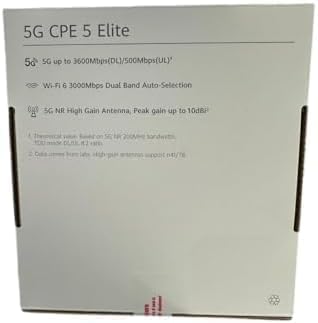
Image: The back of the product box, detailing key specifications and features.
| ഫീച്ചർ | വിവരണം |
|---|---|
| മോഡലിൻ്റെ പേര് | H155-382 |
| ഇനം മോഡൽ നമ്പർ | H155-382-or381 |
| ബ്രാൻഡ് | ജനറിക് |
| കണക്റ്റിവിറ്റി ടെക്നോളജി | 5G |
| വയർലെസ് കമ്മ്യൂണിക്കേഷൻ സ്റ്റാൻഡേർഡ് | 802.11ax (Wi-Fi 6) |
| ഫ്രീക്വൻസി ബാൻഡ് ക്ലാസ് | സിംഗിൾ-ബാൻഡ് |
| ആവൃത്തി | 5 GHz |
| പ്രത്യേക സവിശേഷതകൾ | റിമോട്ട് ആക്സസ് |
| അനുയോജ്യമായ ഉപകരണങ്ങൾ | Gaming Console, Smartphone, Smart TV |
| ഉൾപ്പെടുത്തിയ ഘടകങ്ങൾ | റൂട്ടർ |
| പാക്കേജ് അളവുകൾ | 10 x 8 x 5 സെ.മീ |
| ഇനത്തിൻ്റെ ഭാരം | 2 കി.ഗ്രാം |
| മാതൃരാജ്യം | ചൈന |
വാറൻ്റിയും പിന്തുണയും
This product comes with a standard manufacturer's warranty. For specific warranty terms and conditions, please refer to the warranty card included in your package or contact your point of purchase. For technical support, troubleshooting assistance, or to inquire about repairs, please contact the retailer or the manufacturer's customer service. Keep your purchase receipt as proof of purchase for warranty claims.
Ask a question about this manual
Ask about setup, troubleshooting, compatibility, parts, safety, or missing instructions. Manuals+ will review the question and use this page’s manual context to help answer it.