
DUDUDRAGON M8
DUDUDRAGON Instant Print Kids Camera User Manual
മോഡൽ: M8
ആമുഖം
Welcome to the DUDUDRAGON Instant Print Kids Camera user manual. This camera is designed for young creators, offering a fun and interactive way to capture memories. It features dual front and rear cameras, instant black-and-white printing, 1080P video recording, and various creative modes. Please read this manual carefully to ensure proper use and maintenance of your camera.
ബോക്സിൽ എന്താണുള്ളത്

Image: Contents of the DUDUDRAGON Instant Print Kids Camera package, including the camera, print paper rolls, color pens, SD card, and Type-C cable.
- 1 x Instant Camera
- 3 x Roll Print Paper
- 5 x Color Pen
- 1 x 32GB SD കാർഡ്
- 1 x ടൈപ്പ് സി കേബിൾ
സജ്ജമാക്കുക
1. ക്യാമറ ചാർജ് ചെയ്യുന്നു
Before first use, fully charge the camera. Connect the provided Type-C USB cable to the camera's charging port and the other end to a USB power adapter (not included) or a computer's USB port. The charging indicator will show the charging status. A full charge provides approximately 4-5 hours of continuous use.

Image: The camera connected via Type-C cable to a laptop, illustrating charging and data transfer capabilities.
2. SD കാർഡ് ചേർക്കൽ
Locate the SD card slot on the side of the camera. Insert the included 32GB SD card into the slot until it clicks into place. Ensure the card is inserted in the correct orientation. This card is essential for saving color photos and videos.
3. Loading Print Paper
- Step 1: Open the paper compartment cover. Locate the latch or button to release the cover of the paper compartment.

Image: A visual guide showing the steps to load print paper into the camera, starting with opening the paper compartment.
- Step 2: Install the print paper roll. Place a new roll of thermal print paper into the compartment. Ensure the paper feeds from the bottom of the roll towards the printing slot.
- Step 3: Pull out 1 inch of paper then close the cover. Gently pull out about one inch of paper from the slot, then close the compartment cover firmly until it clicks.
പ്രവർത്തന നിർദ്ദേശങ്ങൾ
അടിസ്ഥാന പ്രവർത്തനം
- പവർ ഓൺ/ഓഫ്: Press and hold the power button to turn the camera on or off.
- നാവിഗേഷൻ: Use the directional buttons to navigate through menus and options on the 2.4-inch screen.
- ഷട്ടർ ബട്ടൺ: Press the shutter button to take a photo or start/stop video recording.
ഫോട്ടോഗ്രാഫി സവിശേഷതകൾ

ചിത്രം: ഒരു സമഗ്രമായ ഓവർview of the camera's features, highlighting its capabilities for photography, video, and entertainment.
ഡ്യുവൽ ഫ്രണ്ട് & റിയർ ക്യാമറകൾ
The camera is equipped with both front and rear lenses, allowing for versatile shooting, including selfies. Switch between cameras using the designated button or menu option.

Image: Two children using the camera's front-facing lens to take a selfie, demonstrating the dual camera functionality.
തൽക്ഷണ പ്രിൻ്റിംഗ്
Capture a moment and print it instantly in black and white. The camera prints photos in approximately 1 second. Color images are saved to the 32GB SD card.

Image: Illustrates the option to save color photos to the SD card or print black and white photos instantly.
You can also adjust the printing density:

Image: Demonstrates three printing modes (Low, Middle, High) for adjusting print density.
1080P വീഡിയോ റെക്കോർഡിംഗ്
Record high-definition 1080P videos. Switch to video mode and press the shutter button to start and stop recording.
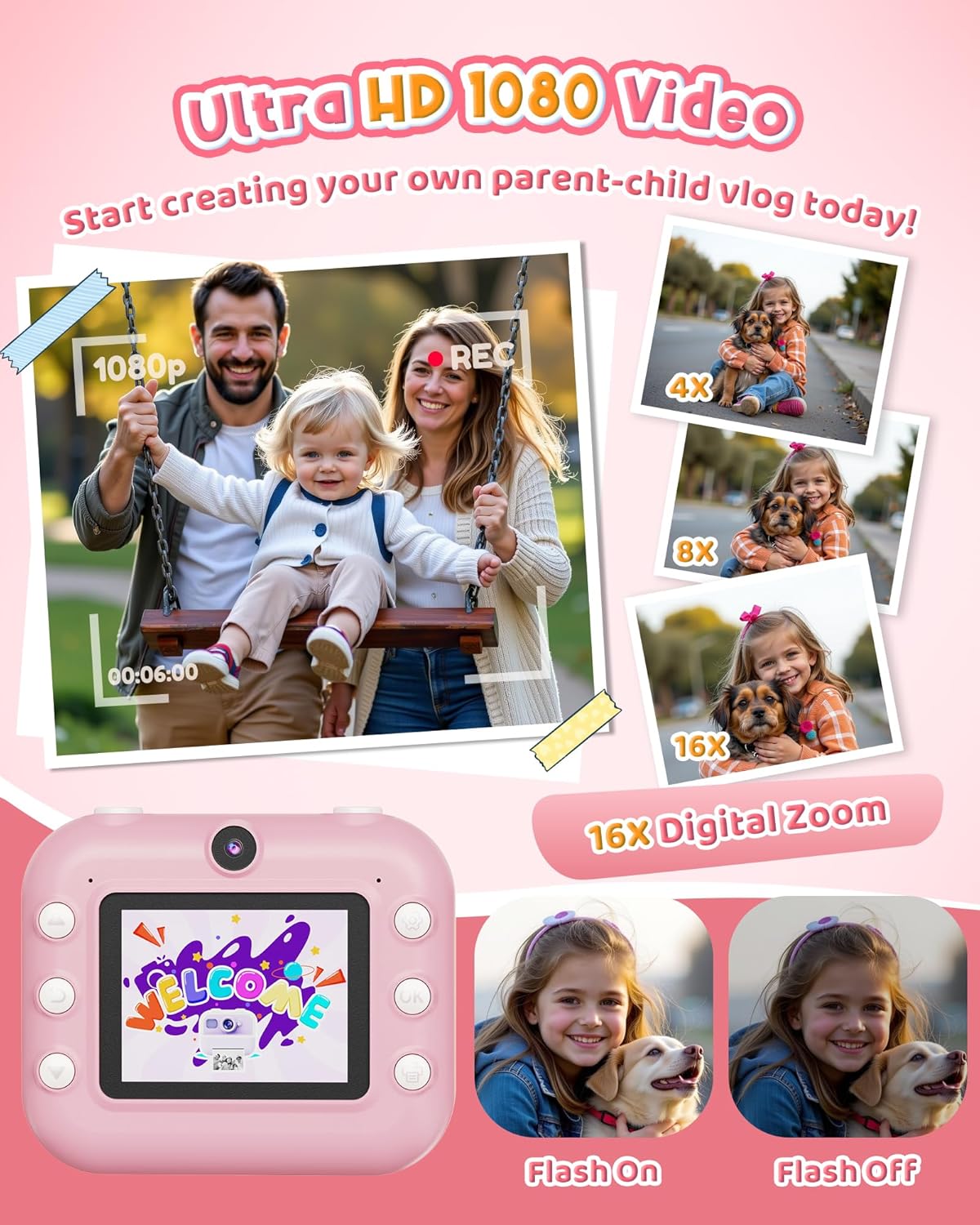
Image: A family capturing a moment with the camera in 1080P video mode, also highlighting the 16X digital zoom capability.
ഡിജിറ്റൽ സൂം
The camera supports up to 16x digital zoom. Use the zoom buttons to adjust the magnification before taking a photo or recording a video.

Image: Visual demonstration of the camera's 4x, 8x, and 16x digital zoom levels.
ഫ്ലാഷ് ഫംഗ്ഷൻ
Activate or deactivate the built-in flash to improve image quality in low-light conditions.

Image: Shows the difference in image quality with the camera's flash turned on and off.
Creative Modes & Filters
Enhance your photos with 20 frames and 7 filters. Explore various fun frames and stickers to personalize your prints.
- സമയദൈർഘ്യം: Set a delay for photos (3s, 5s, or 10s) to capture group shots or self-portraits.
- Continuous Shooting (Burst Mode): Capture 3 or 5 shots in a rapid sequence with a single press of the shutter button.

Image: Children engaging with the camera's creative features, including coloring printed photos and applying fun filters and stickers.

Image: Illustrates the selfie timer function with options for 3, 5, or 10-second delays before capturing a photo.

Image: Demonstrates the burst shooting feature, capturing multiple photos in quick succession.
വിനോദ സവിശേഷതകൾ
- പസിൽ ഗെയിമുകൾ: The camera includes 5 built-in puzzle games for entertainment.
- MP3 പ്ലെയർ: Load MP3 audio files onto the SD card to use the camera as a portable music player.

Image: Illustrates the camera's entertainment features, including built-in puzzle games and MP3 music playback.
മെയിൻ്റനൻസ്
- മൃദുവായതും ഉണങ്ങിയതുമായ തുണി ഉപയോഗിച്ച് ക്യാമറ തുടച്ച് വൃത്തിയായി സൂക്ഷിക്കുക.
- തീവ്രമായ താപനില, നേരിട്ടുള്ള സൂര്യപ്രകാശം അല്ലെങ്കിൽ ഈർപ്പം എന്നിവയിൽ ക്യാമറ തുറന്നുകാട്ടുന്നത് ഒഴിവാക്കുക.
- Store the camera in a safe place when not in use to prevent damage.
- Use only the recommended thermal print paper for optimal printing results.
ട്രബിൾഷൂട്ടിംഗ്
| പ്രശ്നം | സാധ്യമായ കാരണം | പരിഹാരം |
|---|---|---|
| ക്യാമറ ഓണാകുന്നില്ല. | കുറഞ്ഞ ബാറ്ററി. | Charge the camera fully using the provided Type-C cable. |
| ഫോട്ടോകൾ പ്രിന്റ് ചെയ്യുന്നില്ല. | No print paper or paper loaded incorrectly. | Check if paper is loaded correctly and if there is enough paper. Ensure the paper is thermal paper. |
| മോശം പ്രിന്റ് നിലവാരം. | Low battery, incorrect print density setting, or low-quality paper. | Ensure camera is charged. Adjust print density settings (Low, Middle, High). Use recommended thermal paper. |
| Cannot save color photos/videos. | SD കാർഡ് ചേർത്തിട്ടില്ല, നിറഞ്ഞിട്ടില്ല, അല്ലെങ്കിൽ കേടായിട്ടില്ല. | Ensure SD card is properly inserted. Check available space. Format the SD card (this will erase all data). |
| ക്യാമറ മരവിക്കുന്നു. | സോഫ്റ്റ്വെയർ തകരാർ. | Press and hold the power button for 10 seconds to force a restart. If issues persist, contact customer support. |
സ്പെസിഫിക്കേഷനുകൾ
| മോഡലിൻ്റെ പേര് | M8 |
| ബ്രാൻഡ് | DUDUDRAGON |
| പരമാവധി Webക്യാമറ ഇമേജ് റെസല്യൂഷൻ | 48 എം.പി |
| ഒപ്റ്റിക്കൽ സൂം | 16 x |
| ഇമേജ് സ്റ്റെബിലൈസേഷൻ | ഡിജിറ്റൽ |
| പിന്തുണച്ചു File ഫോർമാറ്റ് | JPEG, MP4 |
| ഫോട്ടോ സെൻസർ ടെക്നോളജി | CMOS |
| വീക്ഷണാനുപാതം | 4:3 |
| ഇനത്തിൻ്റെ ഭാരം | 15.2 ഔൺസ് |
| ബാറ്ററികൾ | 1 ലിഥിയം അയോൺ ബാറ്ററികൾ ആവശ്യമാണ് (ഉൾപ്പെടുത്തിയിരിക്കുന്നു) |
| നിർമ്മാതാവ് | Shenzhen Yamaxtech Co., LTD |
വാറൻ്റിയും പിന്തുണയും
For warranty information and customer support, please refer to the contact details provided on the product packaging or the official DUDUDRAGON webസൈറ്റ്.
The product is crafted from high-quality, non-toxic materials and designed with shockproof protection to ensure durability.
Ask a question about this manual
Ask about setup, troubleshooting, compatibility, parts, safety, or missing instructions. Manuals+ will review the question and use this page’s manual context to help answer it.