
1. ആമുഖം
This manual provides detailed instructions for the setup, operation, and maintenance of your ATTACK SHARK X98PRO Wireless Mechanical Keyboard. The X98PRO features tri-mode connectivity (Bluetooth, 2.4GHz wireless, USB-C wired), hot-swappable switches, a customizable TFT screen, and a multi-function CNC knob, designed for both gaming and productivity across various operating systems.
2. പാക്കേജ് ഉള്ളടക്കം
- അറ്റാക്ക് ഷാർക്ക് X98PRO മെക്കാനിക്കൽ കീബോർഡ്
- USB-C മുതൽ USB-A ബ്രെയ്ഡഡ് കേബിൾ വരെ
- 2.4GHz വയർലെസ് റിസീവർ
- കീക്യാപ് പുള്ളർ
- സ്വിച്ച് പുള്ളർ
- ഉപയോക്തൃ മാനുവൽ (ഈ പ്രമാണം)
3. Keyboard Layout and Components
The X98PRO features a compact 98-key layout, integrating a numeric keypad while maintaining a smaller footprint than a full-size keyboard. Key components include:
- 1.14 ഇഞ്ച് TFT സ്ക്രീൻ: Located above the numeric keypad, this screen displays various information and allows for customization.
- CNC Multi-Function Knob: Positioned next to the TFT screen, this knob controls volume, brightness, RGB effects, and connection modes.
- യുഎസ്ബി-സി പോർട്ട്: വയർഡ് കണക്ഷനും ചാർജിംഗിനും.
- 2.4GHz Wireless Receiver Storage: Typically located in a dedicated slot on the keyboard for safekeeping.


4. സജ്ജീകരണം
4.1. കീബോർഡ് ചാർജ് ചെയ്യുന്നു
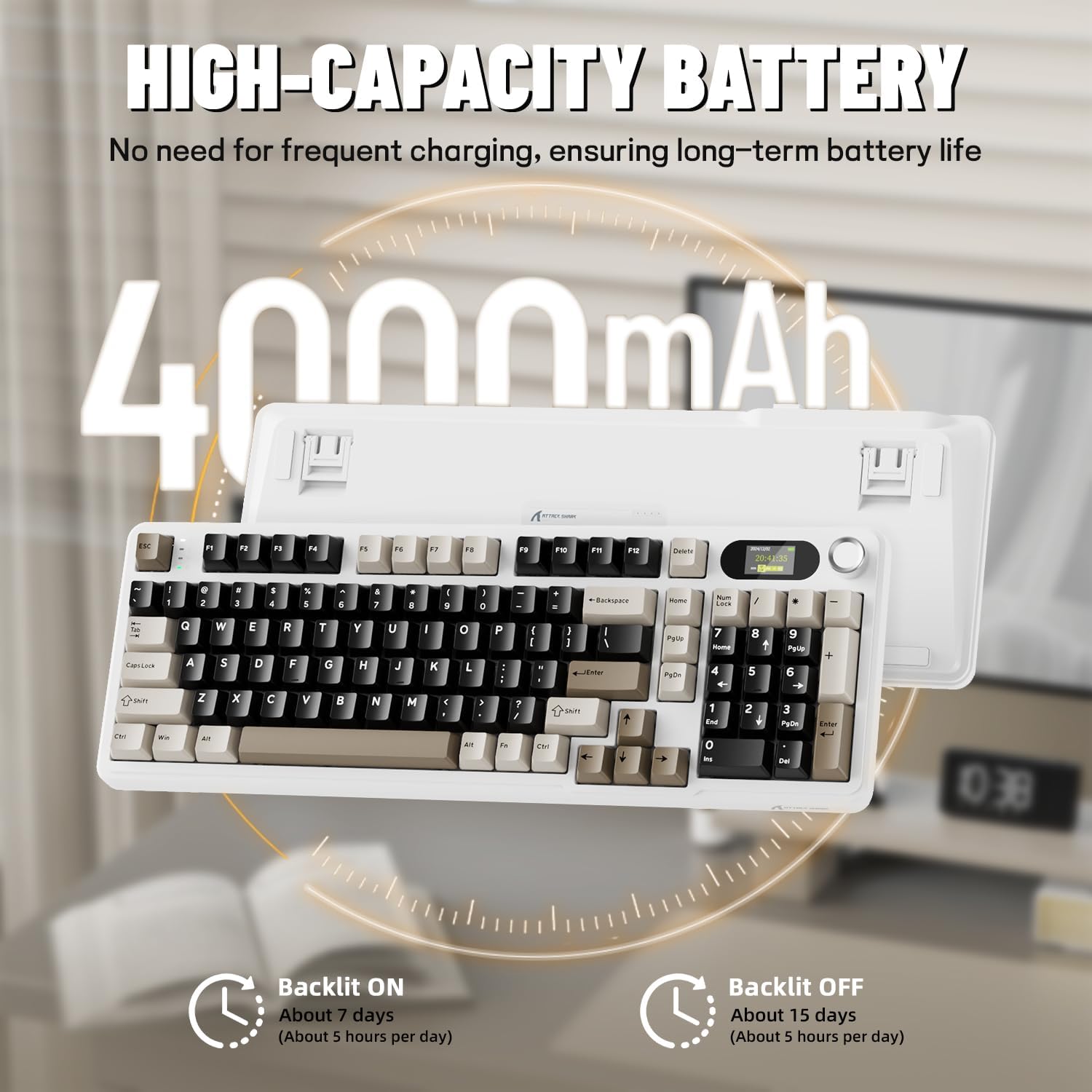
Before first use, it is recommended to fully charge the keyboard. Connect the provided USB-C cable to the keyboard's USB-C port and the other end to a USB-A power source (e.g., computer, wall adapter). The TFT screen will indicate charging status. The keyboard features a 4000mAh battery for extended wireless use.
4.2. കണക്റ്റിവിറ്റി മോഡുകൾ
The X98PRO supports three connection modes:
- USB-C വയേർഡ് മോഡ്: Connect the keyboard directly to your device using the USB-C cable. This mode also charges the keyboard.
- 2.4GHz വയർലെസ് മോഡ്:
- Insert the 2.4GHz wireless receiver into an available USB port on your computer.
- Switch the keyboard's mode selector to 2.4G. The keyboard should automatically connect.
- ബ്ലൂടൂത്ത് 5.0 മോഡ്: കീബോർഡിന് മൂന്ന് ബ്ലൂടൂത്ത് ഉപകരണങ്ങളുമായി പെയർ ചെയ്യാൻ കഴിയും.
- കീബോർഡിന്റെ മോഡ് സെലക്ടർ ബ്ലൂടൂത്തിലേക്ക് മാറ്റുക.
- അമർത്തിപ്പിടിക്കുക Fn + 1, Fn + 2, അല്ലെങ്കിൽ Fn + 3 for 3-5 seconds until the indicator light flashes, indicating pairing mode.
- On your device (PC, Mac, Tablet), search for Bluetooth devices and select "ATTACK SHARK X98PRO" to pair.
- ജോടിയാക്കിയ ബ്ലൂടൂത്ത് ഉപകരണങ്ങൾക്കിടയിൽ മാറാൻ, അമർത്തുക Fn + 1, Fn + 2, അല്ലെങ്കിൽ Fn + 3 ചുരുക്കത്തിൽ.

4.3. പ്രാരംഭ കോൺഫിഗറേഷൻ (Web-based Driver)
The X98PRO utilizes an intuitive web-based driver for advanced customization. This allows you to edit, upload, and switch display content for the TFT screen, customize RGB lighting, remap keys, and set macros without installing dedicated software. Access the official ATTACK SHARK webഎന്നതിനായുള്ള സൈറ്റ് web driver interface.

5. പ്രവർത്തന നിർദ്ദേശങ്ങൾ
5.1. TFT Screen Functions
The 1.14-inch TFT screen can display various information:
- സിസ്റ്റം നില: Connection mode (wired, 2.4G, BT1/2/3), operating system (Win/Mac).
- ബാറ്ററി ലൈഫ്: Real-time battery level.
- സമയം: നിലവിലെ സമയം.
- ഇഷ്ടാനുസൃത GIF-കൾ: Upload personalized animations via the web ഡ്രൈവർ.
To navigate the TFT screen menu, rotate the CNC knob to scroll through options and press the knob to confirm a selection.
5.2. CNC Multi-Function Knob
The CNC knob provides intuitive control over several keyboard features:
- വോളിയം നിയന്ത്രണം: By default or after switching, rotate to adjust system volume.
- തെളിച്ച നിയന്ത്രണം: ബാക്ക്ലൈറ്റിന്റെ തെളിച്ചം ക്രമീകരിക്കുക.
- RGB ഇഫക്റ്റുകൾ: വ്യത്യസ്ത RGB ലൈറ്റിംഗ് ഇഫക്റ്റുകളിലൂടെ കടന്നുപോകുക.
- കണക്ഷൻ മോഡുകൾ: Switch between wired, 2.4GHz, and Bluetooth modes.
To switch the knob's function (e.g., between volume and RGB control), press എഫ്എൻ + നോബ് (press the knob down).
5.3. RGB ബാക്ക്ലൈറ്റിംഗ്
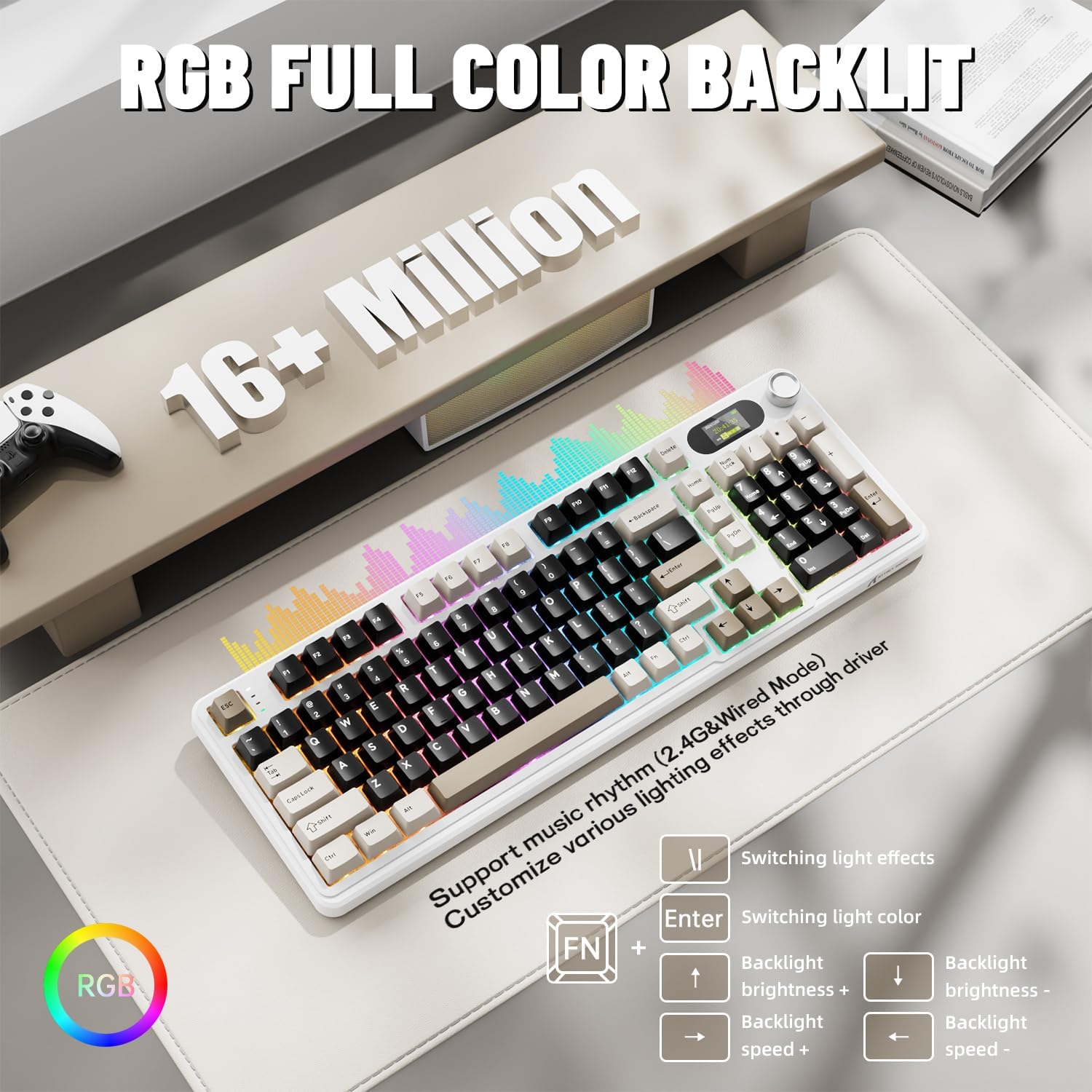
The X98PRO features full RGB backlighting with multiple effects. Control options include:
- സ്വിച്ചിംഗ് ലൈറ്റ് ഇഫക്റ്റുകൾ: അമർത്തുക Fn + എന്റർ ചെയ്യുക.
- Switching Light Color: അമർത്തുക Fn + \|.
- ബാക്ക്ലൈറ്റ് തെളിച്ചം: അമർത്തുക Fn + മുകളിലേക്കുള്ള അമ്പടയാളം (വർദ്ധിപ്പിക്കുക) അല്ലെങ്കിൽ Fn + താഴേക്കുള്ള അമ്പടയാളം (കുറവ്).
- ബാക്ക്ലൈറ്റ് വേഗത: അമർത്തുക Fn + ഇടത് അമ്പടയാളം (കുറയ്ക്കുക) അല്ലെങ്കിൽ Fn + വലത് അമ്പടയാളം (increase).
Further customization of RGB lighting, including per-key lighting and custom profiles, is available through the web-അധിഷ്ഠിത ഡ്രൈവർ.
5.4. ഹോട്ട്-സ്വാപ്പബിൾ സ്വിച്ചുകൾ
The X98PRO features a hot-swappable PCB, allowing you to easily change mechanical switches without soldering. It is compatible with most 3-pin and 5-pin mechanical switches.
- Using the provided switch puller, carefully grip the switch and pull it straight up to remove it.
- പുതിയ സ്വിച്ചിന്റെ പിന്നുകൾ പിസിബിയിലെ ദ്വാരങ്ങളുമായി വിന്യസിക്കുക. പിന്നുകൾ നേരെയാണെന്ന് ഉറപ്പാക്കുക.
- പുതിയ സ്വിച്ച് ക്ലിക്ക് ആകുന്നതുവരെ സൌമ്യമായി അമർത്തുക. നിർബന്ധിച്ച് അമർത്തരുത്.

6. പരിപാലനം
6.1. വൃത്തിയാക്കൽ
- കീബോർഡ് വൃത്തിയാക്കുന്നതിന് മുമ്പ് എല്ലാ വൈദ്യുതി സ്രോതസ്സുകളിൽ നിന്നും വിച്ഛേദിക്കുക.
- നന്നായി വൃത്തിയാക്കുന്നതിന് കീക്യാപ്പുകൾ നീക്കം ചെയ്യാൻ ഒരു കീക്യാപ്പ് പുള്ളർ ഉപയോഗിക്കുക.
- കീബോർഡ് പ്രതലം മൃദുവായ, d ടവൽ ഉപയോഗിച്ച് തുടയ്ക്കുക.amp തുണി. കഠിനമായ രാസവസ്തുക്കൾ ഒഴിവാക്കുക.
- താക്കോലുകൾക്കിടയിലുള്ള പൊടിയും അവശിഷ്ടങ്ങളും നീക്കം ചെയ്യാൻ കംപ്രസ് ചെയ്ത വായു ഉപയോഗിക്കുക.
6.2. സ്വിച്ചും കീക്യാപ്പ് മാറ്റിസ്ഥാപിക്കലും
Refer to Section 5.4 for instructions on replacing switches. Keycaps can be removed using the provided keycap puller and replaced with compatible sets.
7. പ്രശ്നപരിഹാരം
- കീബോർഡ് പ്രതികരിക്കുന്നില്ല: Ensure the keyboard is charged. Check the connection mode (wired, 2.4G, BT) and ensure it matches your device. For 2.4GHz, ensure the receiver is properly inserted. For Bluetooth, re-pair if necessary.
- TFT screen not updating/syncing: Ensure the keyboard is connected to a device. For time synchronization or custom GIFs, use the web-അധിഷ്ഠിത ഡ്രൈവർ.
- ഹ്രസ്വ ബാറ്ററി ലൈഫ്: Ensure the keyboard is fully charged. Reduce backlight brightness or disable RGB effects to conserve battery.
- രജിസ്റ്റർ ചെയ്യാത്ത കീകൾ: If a specific key is not working, try removing and re-inserting its switch. If the issue persists, consider replacing the switch.
- ഇഷ്ടാനുസൃതമാക്കൽ പ്രശ്നങ്ങൾ: Ensure you are using the official web-based driver. Clear browser cache or try a different browser if experiencing issues.
8 സ്പെസിഫിക്കേഷനുകൾ
| ബ്രാൻഡ് | അറ്റാക്ക് സ്രാവ് |
| മോഡൽ | X98PRO |
| കണക്റ്റിവിറ്റി ടെക്നോളജി | 2.4GHz, Bluetooth 5.0, USB-C Wired |
| കീബോർഡ് വിവരണം | മെക്കാനിക്കൽ |
| സ്വിച്ച് തരം | Linear (Blueberry switches) |
| ഹോട്ട്-സ്വാപ്പബിൾ | Yes (3-pin and 5-pin compatible) |
| ബാറ്ററി ശേഷി | 4000mAh |
| പ്രത്യേക സവിശേഷതകൾ | Customizable TFT Display, Multi-Function CNC Knob, RGB Backlit, Gasket Mount |
| അനുയോജ്യമായ ഉപകരണങ്ങൾ | Laptop, PC, Tablet (Windows, Mac, Linux) |
| അളവുകൾ | 16.4 x 5.8 x 1.8 ഇഞ്ച് (ഏകദേശം) |
| ഇനത്തിൻ്റെ ഭാരം | 2.9 പൗണ്ട് |
9. വാറൻ്റിയും പിന്തുണയും
വാറന്റി വിവരങ്ങൾക്കും സാങ്കേതിക പിന്തുണയ്ക്കും, ദയവായി ഔദ്യോഗിക ATTACK SHARK കാണുക. webസൈറ്റിൽ ബന്ധപ്പെടുക അല്ലെങ്കിൽ അവരുടെ ഉപഭോക്തൃ സേവനവുമായി ബന്ധപ്പെടുക. വാറന്റി ക്ലെയിമുകൾക്കായി നിങ്ങളുടെ വാങ്ങൽ രസീത് സൂക്ഷിക്കുക.