
1. ആമുഖം
Thank you for choosing the KOORUI N07 27-inch 4K UHD Monitor. This monitor is designed to provide a superior visual experience with its 3840x2160 resolution, IPS panel, 60Hz refresh rate, HDR10 support, and Adaptive Sync technology. This manual provides essential information for setting up, operating, and maintaining your monitor to ensure optimal performance and longevity. Please read this manual thoroughly before using the product.
2 സുരക്ഷാ വിവരങ്ങൾ
- Always place the monitor on a stable, flat surface.
- വെന്റിലേഷൻ തുറക്കൽ തടയരുത്.
- നിർമ്മാതാവ് നൽകുന്ന പവർ അഡാപ്റ്റർ മാത്രം ഉപയോഗിക്കുക.
- മോണിറ്റർ വെള്ളത്തിൽ നിന്നും അമിതമായ ഈർപ്പത്തിൽ നിന്നും അകറ്റി നിർത്തുക.
- Avoid exposing the monitor to direct sunlight or high temperatures.
- Disconnect the power cable during lightning storms or when unused for long periods.
3. പാക്കേജ് ഉള്ളടക്കം
തുറക്കുമ്പോൾ പാക്കേജ് ഉള്ളടക്കം പരിശോധിക്കുക. ഏതെങ്കിലും ഇനങ്ങൾ നഷ്ടപ്പെട്ടാലോ കേടുപാടുകൾ സംഭവിച്ചാലോ, നിങ്ങളുടെ റീട്ടെയിലറെ ബന്ധപ്പെടുക.
- KOORUI N07 27-inch 4K UHD Monitor
- മോണിറ്റർ സ്റ്റാൻഡ് (ബേസും കഴുത്തും)
- പവർ അഡാപ്റ്ററും പവർ കേബിളും
- HDMI കേബിൾ
- ഡിസ്പ്ലേ പോർട്ട് കേബിൾ
- ഉപയോക്തൃ മാനുവൽ
4. Monitor Assembly and Setup
4.1 സ്റ്റാൻഡ് അറ്റാച്ചുചെയ്യുന്നു
- പോറലുകൾ ഏൽക്കാതിരിക്കാൻ മോണിറ്റർ മൃദുവായതും വൃത്തിയുള്ളതുമായ ഒരു തുണിയിൽ ശ്രദ്ധാപൂർവ്വം മുഖം താഴ്ത്തി വയ്ക്കുക.
- Attach the stand neck to the back of the monitor, aligning the mounting points.
- നൽകിയിരിക്കുന്ന സ്ക്രൂകൾ ഉപയോഗിച്ച് സ്റ്റാൻഡ് നെക്ക് ഉറപ്പിക്കുക.
- സ്റ്റാൻഡ് ബേസ് സ്റ്റാൻഡ് നെക്കിൽ ഘടിപ്പിച്ച് തള്ളവിരൽ സ്ക്രൂ മുറുക്കുക.

ചിത്രം 4.1: പിൻഭാഗം view of the monitor showing VESA mount and tilt adjustment.
4.2 ബന്ധിപ്പിക്കുന്ന കേബിളുകൾ
The KOORUI N07 monitor offers versatile connectivity options. Ensure your computer is turned off before making any connections.
- പവർ കണക്ഷൻ: Connect the power adapter to the monitor's DC input port, then plug the power cable into a power outlet.
- വീഡിയോ കണക്ഷൻ: Connect one end of the HDMI or DisplayPort cable to the corresponding port on your computer's graphics card and the other end to an HDMI (HDMI1 or HDMI2) or DisplayPort (DP) input on the monitor.
- ഓഡിയോ ഔട്ട്പുട്ട്: If desired, connect external speakers or headphones to the 3.5mm audio output port on the monitor.

Figure 4.2: Connectivity options for the KOORUI N07 monitor.
4.3 പവർ ചെയ്യുന്നു
After connecting all necessary cables, press the power button on the monitor to turn it on. The monitor will automatically detect the active input source.
5. പ്രവർത്തന നിർദ്ദേശങ്ങൾ
5.1 ഓൺ-സ്ക്രീൻ ഡിസ്പ്ലേ (OSD) മെനു
The OSD menu allows you to adjust various monitor settings. Use the buttons located on the bottom right of the monitor to navigate and select options.
- പവർ ബട്ടൺ: മോണിറ്റർ ഓൺ/ഓഫ് ചെയ്യുന്നു.
- മെനു ബട്ടൺ: OSD മെനു തുറക്കുന്നു.
- നാവിഗേഷൻ ബട്ടണുകൾ: മെനു ഓപ്ഷനുകളിലൂടെ നീങ്ങാനും മൂല്യങ്ങൾ ക്രമീകരിക്കാനും ഉപയോഗിക്കുന്നു.
- പുറത്തുകടക്കുക ബട്ടൺ: OSD മെനുവിൽ നിന്ന് പുറത്തുകടക്കുന്നു.
5.2 പ്രധാന OSD ക്രമീകരണങ്ങൾ
- ചിത്ര ക്രമീകരണങ്ങൾ: തെളിച്ചം, ദൃശ്യതീവ്രത, മൂർച്ച, വർണ്ണ താപനില എന്നിവ ക്രമീകരിക്കുക.
- വർണ്ണ മോഡുകൾ: Select from various preset modes like Standard, Movie, Game, and Eye Care.
- ഇൻപുട്ട് ഉറവിടം: Manually select between HDMI1, HDMI2, or DisplayPort inputs.
- അഡാപ്റ്റീവ് സമന്വയം: Enable or disable Adaptive Sync for smoother gameplay.
- HDR10: Activate HDR10 for enhanced dynamic range with compatible content.
6. സവിശേഷതകൾ കഴിഞ്ഞുview
6.1 4K UHD Resolution (3840x2160)
Experience incredible detail and clarity with a resolution four times higher than Full HD. This monitor provides 8.3 million pixels for a sharper and more colorful image.

Figure 6.1: 4K UHD resolution detail comparison.
6.2 IPS Panel Technology
The IPS panel offers a wide 178° viewing angle and vibrant color reproduction (90% DCI-P3, 99% sRGB), ensuring consistent image quality from almost any perspective. This is ideal for graphic designers, gamers, and movie enthusiasts.

Figure 6.2: IPS panel with 99% sRGB color accuracy.
6.3 HDR10 പിന്തുണ
Enjoy content with enhanced dynamic range. HDR10 provides brighter whites, deeper blacks, and more vivid colors, bringing your favorite movies and games to life with greater realism.

Figure 6.3: HDR10 technology for improved image quality.
6.4 Adaptive Sync Technology
Adaptive Sync eliminates screen tearing and stuttering, providing a smoother and more fluid visual experience, especially during fast-paced gaming or video playback.

Figure 6.4: Adaptive Sync in action, preventing screen tearing.
6.5 നേത്ര സംരക്ഷണ സാങ്കേതികവിദ്യ
The monitor features a Blue Light Filter and Flicker-Free technology to reduce eye strain during prolonged use. The Eye Care mode optimizes settings to minimize blue light emission, promoting visual comfort.
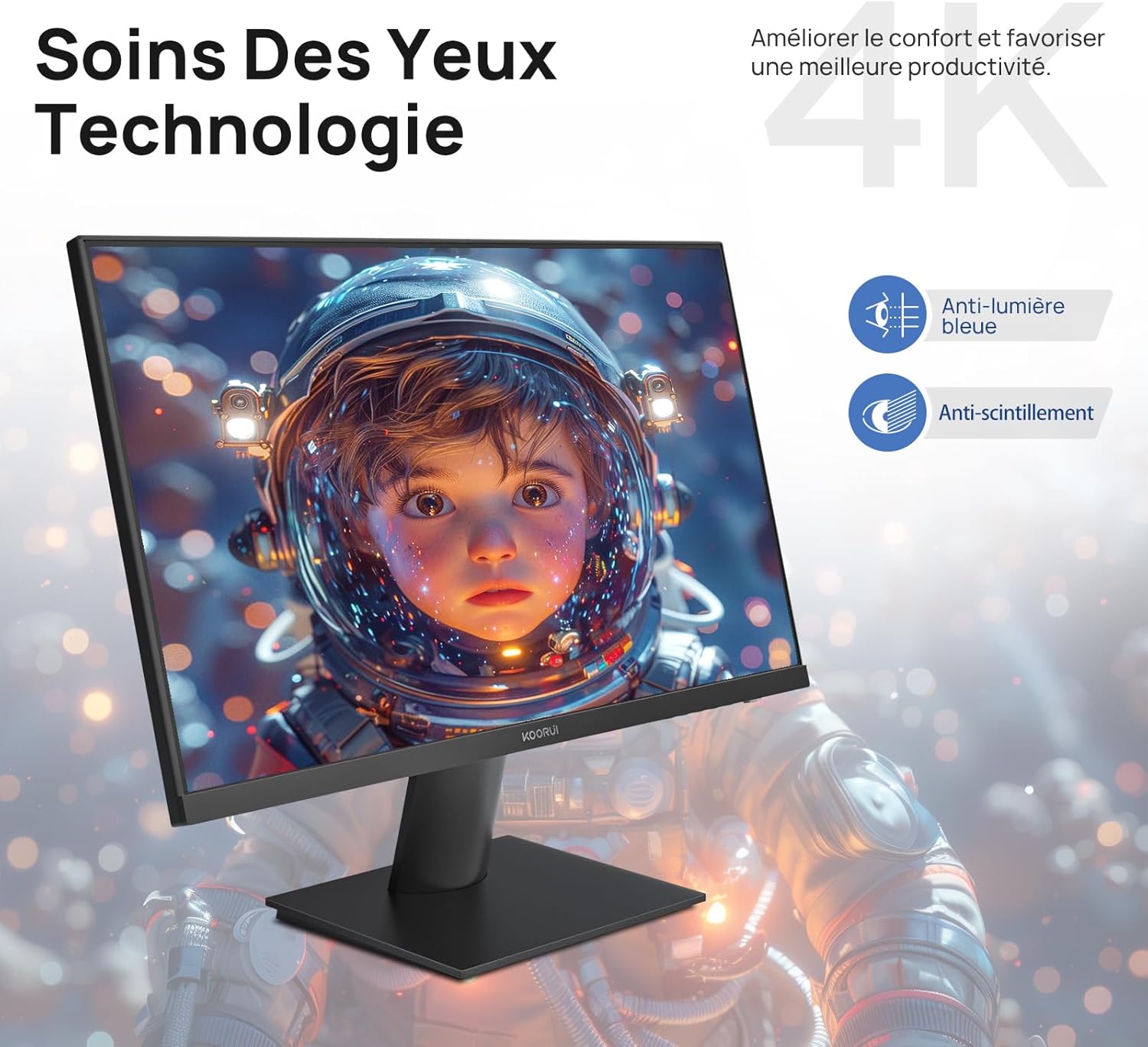
Figure 6.5: Eye Care technology for reduced eye strain.
6.6 എർഗണോമിക് ഡിസൈൻ
The monitor stand allows for tilt adjustment from -5° to 20°, enabling you to find the most comfortable viewing angle for your posture.
6.7 VESA Mount Compatibility
The KOORUI N07 supports 100x100mm VESA mounting, allowing you to easily attach it to a wall mount or an articulated monitor arm for a flexible and clutter-free workspace.

Figure 6.6: VESA mount compatibility for flexible setup.
7. ഉൽപ്പന്ന വീഡിയോ കഴിഞ്ഞുview
വീഡിയോ 7.1: ഒരു ഓവർview of the KOORUI N07 27-inch 4K UHD monitor, highlighting its key features such as 4K resolution, DCI-P3 color gamut, HDR10 support, versatile usage for creation, viewing, and gaming, adjustable tilt, and VESA mounting capabilities.
8. പ്രശ്നപരിഹാരം
നിങ്ങളുടെ മോണിറ്ററിൽ പ്രശ്നങ്ങൾ നേരിടുകയാണെങ്കിൽ, ദയവായി താഴെ പറയുന്ന പൊതുവായ പ്രശ്നങ്ങളും പരിഹാരങ്ങളും പരിശോധിക്കുക:
| പ്രശ്നം | സാധ്യമായ പരിഹാരം |
|---|---|
| സ്ക്രീനിൽ ചിത്രമൊന്നുമില്ല | Ensure power cable is securely connected. Check video cable connection (HDMI/DP) to both monitor and computer. Verify correct input source is selected in OSD. |
| ചിത്രം മങ്ങിയതോ വളച്ചൊടിച്ചതോ ആണ് | Check display resolution settings on your computer. Ensure it is set to 3840x2160. Adjust sharpness in the OSD menu. |
| നിറങ്ങൾ തെറ്റായി കാണപ്പെടുന്നു | Adjust color temperature and color settings in the OSD menu. Try resetting picture settings to factory defaults. |
| സ്ക്രീൻ മിന്നിമറയുന്നു | Ensure the video cable is securely connected. Disable Adaptive Sync if enabled, or update your graphics card drivers. |
9 സ്പെസിഫിക്കേഷനുകൾ
| ഫീച്ചർ | വിശദാംശങ്ങൾ |
|---|---|
| ബ്രാൻഡ് | കൂറുയി |
| മോഡൽ നമ്പർ | N07 |
| സ്ക്രീൻ വലിപ്പം | 27 ഇഞ്ച് |
| റെസലൂഷൻ | 4K UHD (3840 x 2160 പിക്സലുകൾ) |
| പാനൽ തരം | ഐ.പി.എസ് |
| പുതുക്കിയ നിരക്ക് | 60 Hz |
| പ്രതികരണ സമയം | 4 മില്ലിസെക്കൻഡ് |
| വീക്ഷണാനുപാതം | 16:9 |
| കോൺട്രാസ്റ്റ് റേഷ്യോ | 1000:1 |
| തെളിച്ചം | 300 cd/m² |
| Viewing ആംഗിൾ | 178 ഡിഗ്രി |
| കണക്റ്റിവിറ്റി | 2x HDMI 2.0, 1x DisplayPort 1.4, 1x Audio Out |
| VESA അനുയോജ്യത | 100x100 മി.മീ |
| പ്രത്യേക സവിശേഷതകൾ | Blue Light Filter, Tilt Adjustment, Frameless, Flicker-Free, Adaptive Sync, HDR10 |
| അളവുകൾ (D x W x H) | 20.5P x 61lx 45H സെന്റീമീറ്റർ |
| ഭാരം | 3 കിലോഗ്രാം |
10. പരിപാലനം
To ensure the longevity and optimal performance of your KOORUI N07 monitor, follow these maintenance guidelines:
- സ്ക്രീൻ വൃത്തിയാക്കൽ: മൃദുവായ, ലിന്റ് രഹിത തുണി ഉപയോഗിച്ച് സ്ക്രീൻ സൌമ്യമായി തുടയ്ക്കുക. കഠിനമായ പാടുകൾക്ക്, dampവെള്ളം അല്ലെങ്കിൽ ഒരു പ്രത്യേക സ്ക്രീൻ ക്ലീനർ ഉപയോഗിച്ച് തുണിയിൽ അൽപം തടവുക. ഒരിക്കലും സ്ക്രീനിൽ നേരിട്ട് ദ്രാവകം തളിക്കരുത്.
- സി വൃത്തിയാക്കൽasing: മോണിറ്റർ വൃത്തിയാക്കാൻ മൃദുവായതും ഉണങ്ങിയതുമായ തുണി ഉപയോഗിക്കുക c.asing. അബ്രാസീവ് ക്ലീനറുകളോ ലായകങ്ങളോ ഒഴിവാക്കുക.
- വെൻ്റിലേഷൻ: അമിതമായി ചൂടാകുന്നത് തടയാൻ മോണിറ്ററിലെ വെന്റിലേഷൻ ദ്വാരങ്ങൾ അടഞ്ഞിട്ടില്ലെന്ന് ഉറപ്പാക്കുക.
- പവർ ഓഫ്: Turn off the monitor when not in use for extended periods.
11. വാറൻ്റിയും പിന്തുണയും
The KOORUI N07 monitor comes with a 2 വർഷത്തെ നിർമ്മാതാവിന്റെ വാറന്റി. This warranty covers defects in materials and workmanship under normal use. For warranty claims or technical support, please contact KOORUI customer service or your retailer with your proof of purchase.
For additional support, troubleshooting guides, and driver downloads, please visit the official KOORUI webസൈറ്റ്.