
ആമുഖം
This manual provides detailed instructions for the setup, operation, and maintenance of your ATTACK SHARK X66 Wireless Mechanical Gaming Keyboard. Please read this manual thoroughly to ensure proper use and to maximize your keyboard's performance.

Image: The ATTACK SHARK X66 Wireless Mechanical Gaming Keyboard, showcasing its compact 66-key layout and volume knob.
സജ്ജമാക്കുക
Before using your ATTACK SHARK X66 keyboard, please follow these steps for initial setup.
1. അൺബോക്സിംഗും ഉള്ളടക്കവും
പാക്കേജിംഗിൽ നിന്ന് എല്ലാ ഇനങ്ങളും ശ്രദ്ധാപൂർവ്വം നീക്കം ചെയ്യുക. എല്ലാ ഘടകങ്ങളും ഉണ്ടെന്ന് ഉറപ്പാക്കുക:
- 1 x ATTACK SHARK X66 Mechanical Keyboard
- 1 x 2-in-1 Keycap and Switch Puller
- 1 x USB-C കേബിൾ
- 2 x Spare Strawberry Switches
- 1 x ഉപയോക്തൃ മാനുവൽ

Image: A visual representation of the ATTACK SHARK X66 keyboard and its included accessories, such as the USB-C cable, keycap/switch puller, and spare switches.
2. പ്രാരംഭ ചാർജിംഗ്
For optimal performance, it is recommended to fully charge the keyboard before its first use. Connect the provided USB-C cable to the keyboard's USB-C port and the other end to a power source (e.g., computer USB port, USB wall adapter). The charging indicator light will provide feedback on the charging status.
ഓപ്പറേറ്റിംഗ് മോഡുകൾ
The ATTACK SHARK X66 keyboard supports three connection modes: Wired (USB-C), 2.4G Wireless, and Bluetooth 5.0. You can seamlessly switch between these modes.

Image: The side of the ATTACK SHARK X66 keyboard, highlighting the 2.4G, BT, and USB-C connection mode switches, along with the USB receiver storage slot.
1. വയേർഡ് മോഡ് (USB-C)
Connect the keyboard to your device using the provided USB-C cable. This mode provides a stable connection and charges the keyboard simultaneously.
2. 2.4G വയർലെസ് മോഡ്
- Locate the 2.4G USB receiver, typically stored in a dedicated slot on the keyboard.
- നിങ്ങളുടെ കമ്പ്യൂട്ടറിൽ ലഭ്യമായ ഒരു USB പോർട്ടിലേക്ക് 2.4G USB റിസീവർ പ്ലഗ് ചെയ്യുക.
- കീബോർഡിലെ മോഡ് സ്വിച്ച് '2.4G' ആയി സജ്ജമാക്കുക.
- കീബോർഡ് യാന്ത്രികമായി കണക്ട് ചെയ്യണം.
3. ബ്ലൂടൂത്ത് 5.0 മോഡ്
- കീബോർഡിലെ മോഡ് സ്വിച്ച് 'BT' ആയി സജ്ജമാക്കുക.
- നിങ്ങളുടെ ഉപകരണത്തിൽ (കമ്പ്യൂട്ടർ, ടാബ്ലെറ്റ്, സ്മാർട്ട്ഫോൺ), ബ്ലൂടൂത്ത് പ്രവർത്തനക്ഷമമാക്കി പുതിയ ഉപകരണങ്ങൾക്കായി തിരയുക.
- The keyboard will appear as 'ATTACK SHARK X66' or similar. Select it to pair.
- The keyboard supports up to three Bluetooth devices. Switch between paired devices using FN+Q, FN+W, അല്ലെങ്കിൽ FN+E.
4. System Switch (Win/Mac)
The keyboard features a dedicated switch to toggle between Windows and Mac operating system layouts, ensuring full compatibility and correct key functions for your chosen system.
Video: An official product video demonstrating the tri-mode connectivity (wired, 2.4G, Bluetooth) and system switching capabilities of the ATTACK SHARK X66 Mechanical Gaming Keyboard.
പ്രധാന പ്രവർത്തനങ്ങൾ
The ATTACK SHARK X66 keyboard includes a functional knob and various FN key combinations to enhance usability.
1. മൾട്ടിമീഡിയ നോബ്
The aluminum alloy knob located on the top right of the keyboard provides quick access to multimedia controls:
- ഘടികാരദിശയിൽ തിരിക്കുക: വോളിയം കൂട്ടുക
- എതിർ ഘടികാരദിശയിൽ തിരിക്കുക: വോളിയം കുറയ്ക്കുക
- അമർത്തുക: ഓഡിയോ മ്യൂട്ടുചെയ്യുക/അൺമ്യൂട്ടുചെയ്യുക

ചിത്രം: വിശദമായ ഒരു ചിത്രം view of the functional aluminum metal knob on the ATTACK SHARK X66 keyboard, illustrating its volume control and mute/unmute capabilities.
2. FN കീ കോമ്പിനേഷനുകൾ
ദി Fn key (Function key) allows access to secondary functions printed on various keys. Refer to the keycaps for specific combinations. Common functions include:
- FN + [കീ]: Activates the secondary function of the key.
- FN + ബാക്ക്സ്പെയ്സ്: Displays battery level (keys 1-0 will light up to indicate charge).
- എഫ്എൻ + പിജിഡിഎൻ: Cycles through RGB backlight modes.
- FN + മുകളിലേക്കുള്ള അമ്പടയാളം: ബാക്ക്ലൈറ്റ് തെളിച്ചം വർദ്ധിപ്പിക്കുന്നു.
- FN + താഴേക്കുള്ള അമ്പടയാളം: ബാക്ക്ലൈറ്റിന്റെ തെളിച്ചം കുറയ്ക്കുന്നു.
- FN + ഇടത് അമ്പടയാളം: Changes backlight color.
- FN + വലത് അമ്പടയാളം: Changes backlight color.
- എഫ്എൻ + എക്സ്: Toggles backlight On/Off.
RGB ബാക്ക്ലൈറ്റ് നിയന്ത്രണം
The ATTACK SHARK X66 keyboard features dynamic RGB backlighting with multiple effects and customization options.

Image: The ATTACK SHARK X66 keyboard illuminated with vibrant RGB lighting, demonstrating its 16+ million color capabilities and dynamic effects.
- ബാക്ക്ലൈറ്റ് മോഡ് മാറ്റുക: അമർത്തുക FN + PgDn to cycle through 18 dynamic chroma backlit modes, 7 monochrome colors, and 1 rainbow color light.
- തെളിച്ചം ക്രമീകരിക്കുക: ഉപയോഗിക്കുക FN + മുകളിലേക്കുള്ള അമ്പടയാളം തെളിച്ചം വർദ്ധിപ്പിക്കാനും FN + താഴേക്കുള്ള അമ്പടയാളം തെളിച്ചം കുറയ്ക്കാൻ.
- നിറം മാറ്റുക: ഉപയോഗിക്കുക FN + ഇടത് അമ്പടയാളം or FN + വലത് അമ്പടയാളം to change the backlight color in certain modes.
- ബാക്ക്ലൈറ്റ് ടോഗിൾ ചെയ്യുക: അമർത്തുക FN + X ബാക്ക്ലൈറ്റ് ഓണാക്കാനോ ഓഫാക്കാനോ.
ഹോട്ട്-സ്വാപ്പ് ചെയ്യാവുന്ന സ്വിച്ചുകൾ
The ATTACK SHARK X66 keyboard is equipped with hot-swappable sockets, allowing you to customize your typing experience by changing switches without soldering.

ചിത്രം: വിശദമായ ഒരു ചിത്രം view of the hot-swappable sockets and custom Strawberry switches on the ATTACK SHARK X66 keyboard, demonstrating the ease of switch replacement.
- അനുയോജ്യത: Supports most 3-pin and 5-pin mechanical switches.
- സ്വിച്ച് മാറ്റിസ്ഥാപിക്കൽ: Use the provided 2-in-1 keycap and switch puller to carefully remove keycaps and switches. Align new switches with the sockets and press firmly until they click into place.
- Included Switches: The keyboard comes with linear Strawberry switches, known for their smooth and responsive feel.
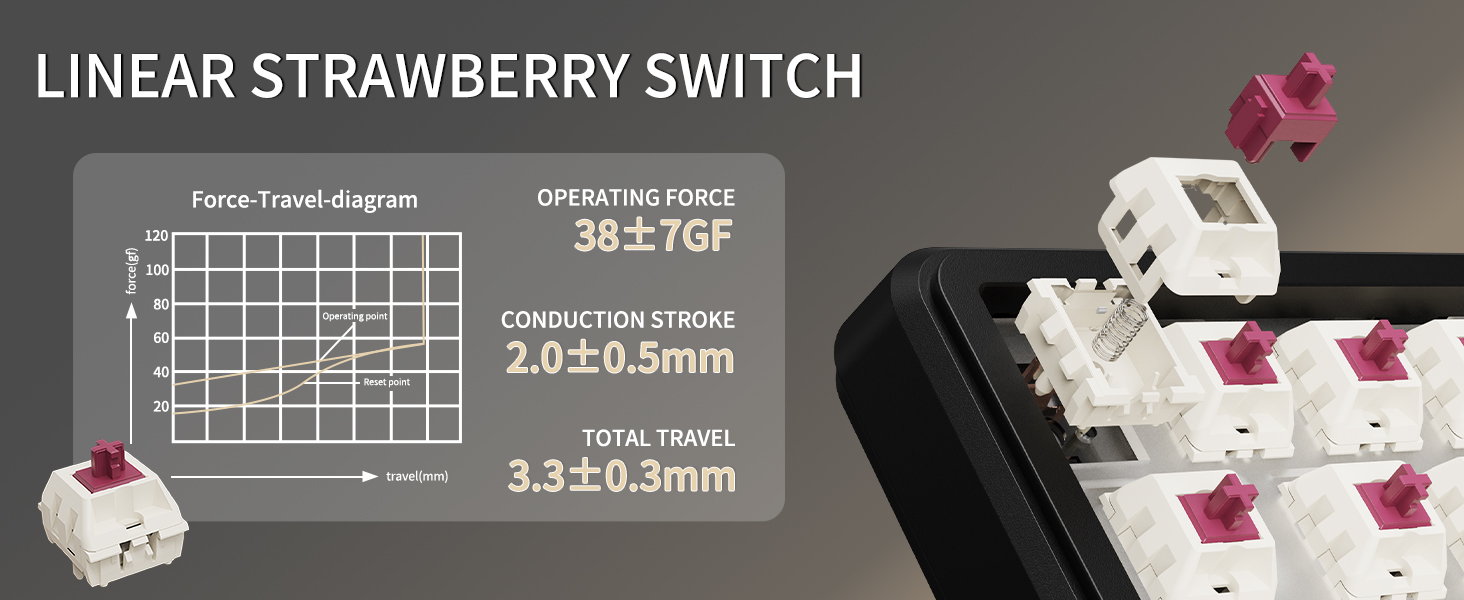
Image: A diagram illustrating the force-travel characteristics of the Linear Strawberry Switch, detailing operating force, conduction stroke, and total travel.
ബാറ്ററി മാനേജ്മെൻ്റ്
The ATTACK SHARK X66 keyboard is equipped with a 3000mAh battery for extended wireless use.

Image: A close-up of the indicator lights on the ATTACK SHARK X66 keyboard, showing status for Caps Lock, Win Lock, and charging.
- ചാർജിംഗ് സൂചകം: A dedicated indicator light shows the charging status.
- ബാറ്ററി ലെവൽ പരിശോധന: ദീർഘനേരം അമർത്തുക FN + ബാക്ക്സ്പേസ്. The number keys (1-0) will light up to visually represent the current battery level (e.g., 10 keys lit for 100%, 1 key lit for 10%).
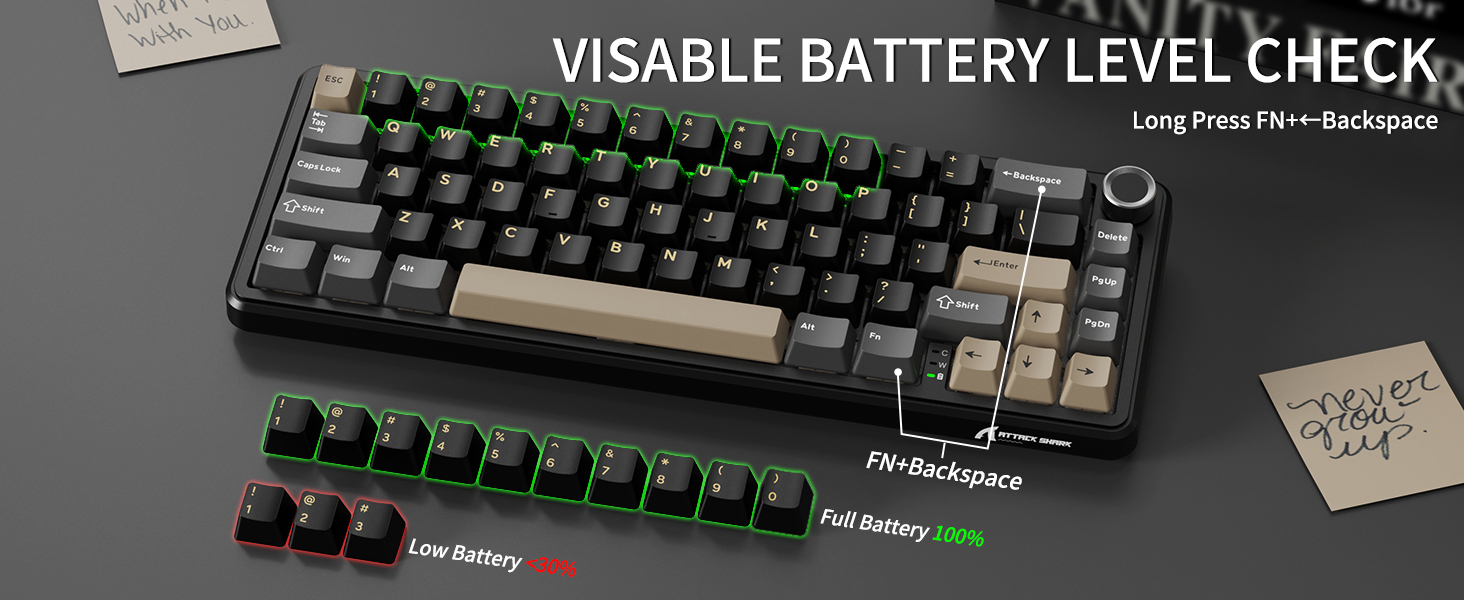
Image: The ATTACK SHARK X66 keyboard demonstrating the visible battery level check feature, where pressing FN+Backspace illuminates number keys to indicate charge percentage.
മെയിൻ്റനൻസ്
പതിവ് അറ്റകുറ്റപ്പണികൾ നിങ്ങളുടെ കീബോർഡിന്റെ ആയുസ്സും പ്രകടനവും വർദ്ധിപ്പിക്കാൻ സഹായിക്കുന്നു.
- വൃത്തിയാക്കൽ: Use a soft, dry cloth to wipe the keyboard surface. For deeper cleaning, remove keycaps using the provided puller and use compressed air to clear debris.
- കീക്യാപ്പ്, സ്വിച്ച് കെയർ: Avoid excessive force when removing or installing keycaps and switches to prevent damage to the stems or sockets.
- സംഭരണം: ദീർഘനേരം ഉപയോഗിക്കാത്തപ്പോൾ, കീബോർഡ് വരണ്ടതും പൊടി രഹിതവുമായ അന്തരീക്ഷത്തിൽ സൂക്ഷിക്കുക.
ട്രബിൾഷൂട്ടിംഗ്
If you encounter issues with your ATTACK SHARK X66 keyboard, refer to the following common solutions:
- കീബോർഡ് പ്രതികരിക്കുന്നില്ല:
- കീബോർഡ് ചാർജ് ചെയ്തിട്ടുണ്ടെന്ന് ഉറപ്പാക്കുക.
- Check the connection mode switch (Wired, 2.4G, BT) matches your intended connection.
- 2.4G-ക്ക്, USB റിസീവർ സുരക്ഷിതമായി പ്ലഗ് ഇൻ ചെയ്തിട്ടുണ്ടെന്ന് ഉറപ്പാക്കുക.
- ബ്ലൂടൂത്തിന്, കീബോർഡ് ജോടിയാക്കിയിട്ടുണ്ടെന്നും നിങ്ങളുടെ ഉപകരണത്തിന്റെ ബ്ലൂടൂത്ത് ക്രമീകരണങ്ങളിൽ തിരഞ്ഞെടുത്തിട്ടുണ്ടെന്നും ഉറപ്പാക്കുക.
- Try restarting the keyboard and your device.
- Spacebar Not Functioning: If the spacebar does not register presses, carefully remove the spacebar keycap using the provided puller. Check for any packing foam or foreign objects underneath that might be obstructing the switch's travel. Remove any obstructions and re-install the keycap.
- ബാക്ക്ലൈറ്റ് പ്രശ്നങ്ങൾ:
- ബാക്ക്ലൈറ്റ് ഓഫാക്കിയിട്ടില്ലെന്ന് ഉറപ്പാക്കുക (FN + X).
- ഉപയോഗിച്ച് തെളിച്ചം ക്രമീകരിക്കുക FN + മുകളിലേക്കും താഴേക്കും ഉള്ള അമ്പടയാളം.
- ഉപയോഗിച്ച് മോഡുകളിലൂടെ സൈക്കിൾ ചെയ്യുക FN + PgDn.
- Incorrect Key Functions (Windows/Mac): Ensure the system switch on the keyboard is set to the correct operating system (Win or Mac).
- Typo in Manual (FN+BiidAb): Please note that some early documentation may contain a typo referring to a 'BiidAb' key. The correct key combination to change backlight modes is FN + PgDn.
സ്പെസിഫിക്കേഷനുകൾ
| ഫീച്ചർ | വിവരണം |
|---|---|
| മോഡൽ | X66 |
| ബ്രാൻഡ് | അറ്റാക്ക് സ്രാവ് |
| കണക്റ്റിവിറ്റി | USB-C Wired, 2.4G Wireless, Bluetooth 5.0 |
| ലേഔട്ട് | 66-Key, 60% Gasket Mounted |
| സ്വിച്ചുകൾ | Hot-Swappable (3/5 pin), Linear Strawberry Switches |
| കീകാപ്പുകൾ | PBT Keycaps, OEM Profile |
| ബാക്ക്ലൈറ്റ് | RGB (18 dynamic modes, 7 monochrome, 1 rainbow) |
| ബാറ്ററി ശേഷി | 3000mAh |
| പ്രത്യേക സവിശേഷതകൾ | Multimedia Knob, Dual System Compatibility (Win/Mac), Gasket Mount, 5-layer Sound Absorbing Material, Adjustable Two-stagഇ ബ്രാക്കറ്റ് |
| അളവുകൾ | 14.02 x 6.5 x 2.05 ഇഞ്ച് |
| ഭാരം | 1.96 പൗണ്ട് |
വാറൻ്റിയും പിന്തുണയും
വാറന്റി വിവരങ്ങൾക്കും സാങ്കേതിക പിന്തുണയ്ക്കും, ദയവായി ഔദ്യോഗിക ATTACK SHARK കാണുക. webസൈറ്റിൽ ബന്ധപ്പെടുക അല്ലെങ്കിൽ അവരുടെ ഉപഭോക്തൃ സേവനവുമായി നേരിട്ട് ബന്ധപ്പെടുക. വാങ്ങിയതിന്റെ തെളിവായി നിങ്ങളുടെ വാങ്ങൽ രസീത് സൂക്ഷിക്കുക.