
1. ആമുഖം
This manual provides detailed instructions for the installation, operation, and maintenance of your Yinker 4-Port HDMI KVM Multiviewer Switcher. This device allows you to control up to four HDMI sources (such as computers, laptops, game consoles, or CCTV systems) using a single set of keyboard, mouse, and monitor. It also supports various multi-viewer display modes and 4K@30Hz resolution.
2. പാക്കേജ് ഉള്ളടക്കം
താഴെ ലിസ്റ്റ് ചെയ്തിരിക്കുന്ന എല്ലാ ഇനങ്ങളും നിങ്ങളുടെ പാക്കേജിൽ ഉൾപ്പെടുത്തിയിട്ടുണ്ടെന്ന് ദയവായി പരിശോധിക്കുക:
- 1x HDMI Multiviewer കെവിഎം സ്വിച്ച്
- 1x Remote Control (AAA battery not included)
- 4x USB Cable (Type-B)
- 1x ഉപയോക്തൃ മാനുവൽ
- 1x Power Adapter (DC12V)
- 1x 3-pin Phoenix socket
- 2x Foot Pad
- 1x Mounting Rack

Image: Contents of the Yinker 4-Port HDMI KVM Multiviewer Switcher package, including the main unit, remote control, USB cables, power adapter, user manual, and mounting accessories.
Video: An unboxing demonstration of the Yinker HDMI KVM with Multiviewer, showing all included components and their initial presentation.
3. ഉൽപ്പന്നം കഴിഞ്ഞുview
The Yinker 4-Port HDMI KVM Multiviewer Switcher is designed to streamline your workspace by allowing control of multiple devices from a single workstation. It features multiple input and output ports for seamless integration with your existing setup.
3.1 ഫ്രണ്ട് പാനൽ
- ഓഡിയോ: ട്ട്: 3.5mm audio jack for external speakers or headphones.
- USB OUT (2 ports): നിങ്ങളുടെ കീബോർഡും മൗസും ബന്ധിപ്പിക്കുക.
- IR: റിമോട്ട് കൺട്രോളിനുള്ള ഇൻഫ്രാറെഡ് റിസീവർ.
- PC1-PC4 Buttons: Manual selection buttons for switching between input sources.
- മോഡ് ബട്ടൺ: വ്യത്യസ്ത ഡിസ്പ്ലേ മോഡുകളിലൂടെ സഞ്ചരിക്കുന്നു.
3.2 പിൻ പാനൽ
- DC12V: പവർ ഇൻപുട്ട് പോർട്ട്.
- എച്ച്ഡിഎംഐ പുറത്ത്: Connect to your monitor/display.
- HDMI IN (1-4): Connect up to four HDMI source devices.
- USB IN (1-4): Connect to the USB ports of your source devices (PC, laptop, etc.) for KVM functionality.
ചിത്രം: വിശദമായ ഒരു ചിത്രം view of the Yinker 4-Port HDMI KVM Multiviewer Switcher, highlighting its front and rear panels with all input and output ports labeled.
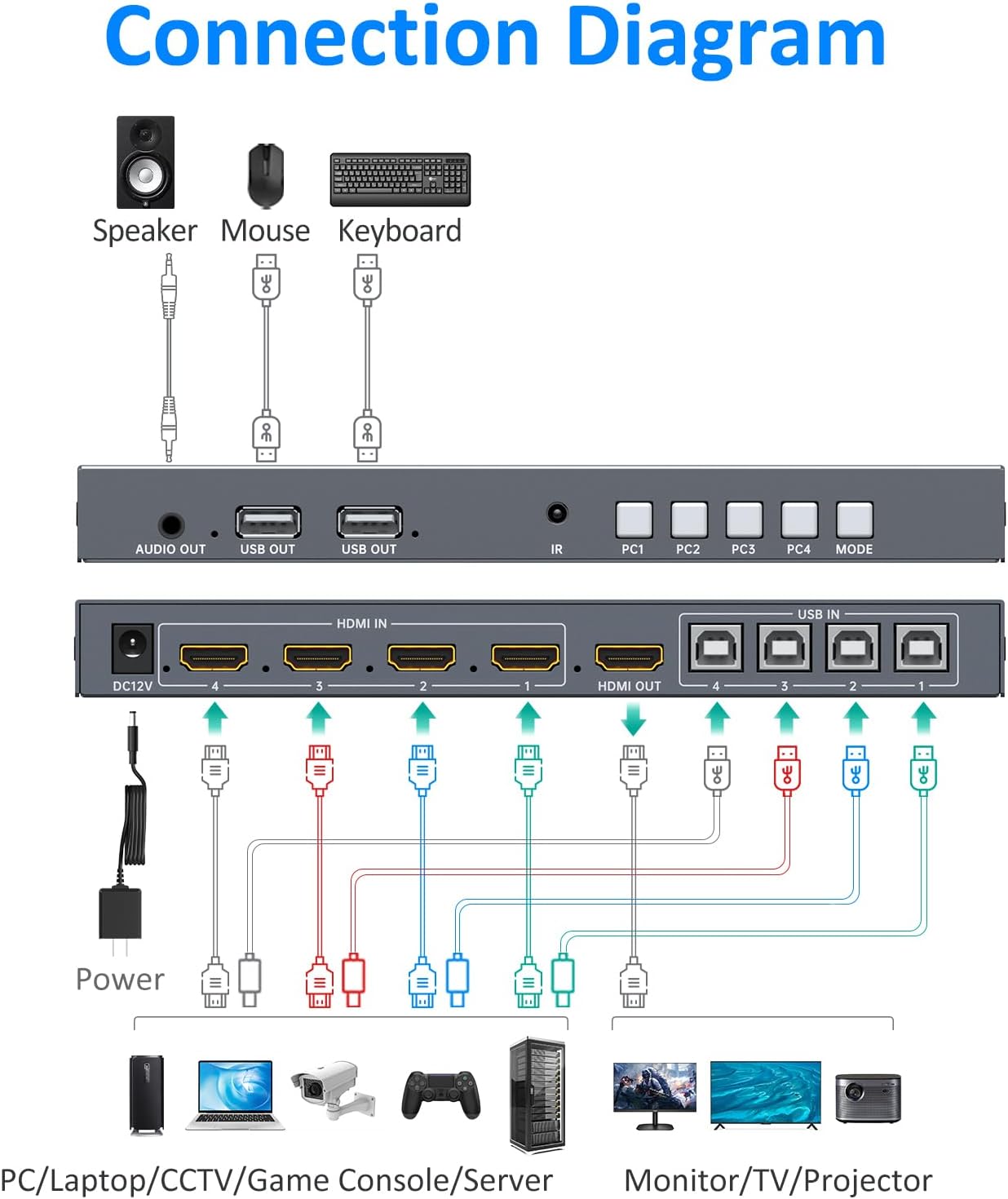
4. സജ്ജീകരണവും കണക്ഷനും
Follow these steps to connect your Yinker KVM Multiviewer Switcher:
- Connect your keyboard and mouse to the USB ഔട്ട് കെവിഎം സ്വിച്ചിന്റെ മുൻ പാനലിലുള്ള പോർട്ടുകൾ.
- Connect your monitor/display to the HDMI ഔട്ട് പിൻ പാനലിലെ പോർട്ട്.
- For each source device (PC, laptop, etc.):
- Connect an HDMI cable from the source device's HDMI output to an HDMI-IN കെവിഎം സ്വിച്ചിലെ പോർട്ട് (1-4).
- Connect a USB Type-B cable from the source device's USB port to the corresponding USB IN കെവിഎം സ്വിച്ചിലെ പോർട്ട് (1-4).
- If using external audio, connect your speakers or headphones to the ഓഡിയോ .ട്ട് മുൻ പാനലിലെ പോർട്ട്.
- Connect the 12V Power Adapter to the DC12V port on the rear panel and plug it into a power outlet.

Image: A visual diagram illustrating the correct connection of source devices, monitor, keyboard, mouse, and power to the Yinker KVM Multiviewer Switcher.
Video: A demonstration of the various display modes available on the Yinker 4K HDMI KVM Multiviewer, showcasing single screen, split screen, and Picture-in-Picture functionalities.
5. Operating Modes and Switching
The KVM Multiviewer offers several display modes and control methods for flexible operation.
5.1 ഡിസ്പ്ലേ മോഡുകൾ
The device supports 6 display modes, allowing simultaneous or individual viewing of up to four sources:
- സിംഗിൾ മോഡ്: Displays one source in full screen.
- 1x3 Mode: Displays one main source and three smaller sources.
- PIP (Picture-in-Picture) Mode: Displays one main source with a smaller secondary source overlay.
- POP (Picture-on-Picture) Mode (1 & 2): Displays two sources side-by-side or in other split configurations.
- ക്വാഡ് മോഡ്: Displays all four sources simultaneously in a 2x2 grid.

Image: Visual representation of the six display modes: Single, 1x3, PIP, POP (1), POP (2), and Quad mode, demonstrating how multiple video sources can be arranged on a single screen.
5.2 നിയന്ത്രണ രീതികൾ
You can switch between sources and modes using three methods:
- പാനൽ ബട്ടണുകൾ: Use the PC1-PC4 and MODE buttons on the front panel.
- IR റിമോട്ട് കൺട്രോൾ: Use the included remote control for convenient switching.
- കീബോർഡ് ഹോട്ട്കീകൾ: Utilize specific keyboard combinations for quick switching.

Image: Illustration of the three control methods for the KVM switch: direct buttons on the device, an infrared remote control, and keyboard hotkeys.
5.3 കെവിഎം പ്രവർത്തനം
The KVM functionality allows a single keyboard and mouse to control multiple computers. The device supports two main KVM control modes:
- Synchronized Mode: In Quad Screen mode, all four keyboard and mouse movements are synchronized across all displayed sources.
- Roaming Mode: The keyboard and mouse can move seamlessly between the four screens, allowing individual control of each source.

Image: Comparison of Synchronized Mode, where a single mouse cursor controls all four screens simultaneously, and Roaming Mode, where the mouse can move freely between screens for individual control.
6. Keyboard Hotkey Commands
Keyboard hotkeys provide a quick way to switch between sources and control various functions. Refer to the detailed hotkey list in the included user manual for specific commands. A common hotkey sequence involves pressing * + 1 / 2 / ... / 8 to switch sources or modes.

Image: A keyboard illustrating the use of hotkey combinations for switching sources, keyboard, mouse, resolution, and audio settings on the KVM Multiviewer.
7. ഓഡിയോ putട്ട്പുട്ട്
The KVM switch includes a 3.5mm audio output port on the front panel, allowing you to connect external speakers or headphones for audio playback from the selected source.

Image: A visual representation of the 3.5mm audio output port on the KVM switch, connected to external speakers, demonstrating its audio functionality.
8. Seamless Switching
The Yinker KVM Multiviewer is designed for fast and seamless switching between input sources, minimizing display lag. This ensures a smooth transition when changing between connected devices.

Image: A comparison showing the rapid, seamless switching of the Yinker KVM Multiviewer (0.01 seconds) versus the typical 2-3 second lag found in other devices.
9 അനുയോജ്യത
The Yinker 4-Port HDMI KVM Multiviewer Switcher is compatible with both Windows and macOS operating systems, ensuring broad usability across different computing environments.

Image: An illustration depicting the compatibility of the KVM Multiviewer with both Windows and macOS laptops, indicating broad operating system support.
10 സ്പെസിഫിക്കേഷനുകൾ
| ഫീച്ചർ | വിവരണം |
|---|---|
| മോഡൽ നമ്പർ | SW041S |
| ബ്രാൻഡ് | യിങ്കർ |
| കണക്റ്റർ തരം | HDMI |
| തുറമുഖങ്ങളുടെ എണ്ണം | 4 |
| റെസല്യൂഷൻ സപ്പോർട്ട് | Up to 4K@30Hz (downscales to 1080P and 720P) |
| എച്ച്ഡിസിപി പതിപ്പ് | 1.4 |
| ഓഡിയോ ഔട്ട്പുട്ട് | 3.5 എംഎം ജാക്ക് |
| നിയന്ത്രണ മാർഗങ്ങൾ | Panel Button, Remote Control, Keyboard Hotkey |
| നിറം | സ്ലിവർ |
11. പ്രശ്നപരിഹാരം
If you encounter issues with your KVM Multiviewer, please refer to the following common solutions:
- ഡിസ്പ്ലേ ഇല്ല: Ensure all HDMI cables are securely connected and the KVM switch is powered on. Try restarting the source devices and the KVM switch. Verify your monitor supports the output resolution.
- No Keyboard/Mouse Control: Check USB cable connections from source devices to the KVM switch and from the KVM switch to the keyboard/mouse. Try connecting the keyboard/mouse directly to a source device to confirm functionality.
- തെറ്റായ വീക്ഷണാനുപാതം: If the display shows an incorrect aspect ratio after switching, try cycling through display modes or restarting the KVM switch.
- റിമോട്ട് കൺട്രോൾ പ്രവർത്തിക്കുന്നില്ല: Ensure the remote control has fresh batteries and there are no obstructions between the remote and the KVM's IR receiver.
- ഓഡിയോ പ്രശ്നങ്ങൾ: Confirm that external speakers/headphones are properly connected to the 3.5mm AUDIO OUT port and that the audio output settings on your source device are correctly configured.
12. പരിപാലനം
To ensure the longevity and optimal performance of your Yinker KVM Multiviewer Switcher, follow these maintenance guidelines:
- Keep the device in a cool, dry place away from direct sunlight and excessive heat.
- ഉപകരണം ഈർപ്പം അല്ലെങ്കിൽ ദ്രാവകത്തിലേക്ക് തുറന്നുകാട്ടുന്നത് ഒഴിവാക്കുക.
- മൃദുവായതും ഉണങ്ങിയതുമായ തുണി ഉപയോഗിച്ച് പുറംഭാഗം വൃത്തിയാക്കുക. കഠിനമായ രാസവസ്തുക്കളോ ഉരച്ചിലുകളുള്ള ക്ലീനറുകളോ ഉപയോഗിക്കരുത്.
- അമിതമായി ചൂടാക്കുന്നത് തടയാൻ ഉപകരണത്തിന് ചുറ്റും ശരിയായ വായുസഞ്ചാരം ഉറപ്പാക്കുക.
13. വാറൻ്റിയും പിന്തുണയും
This Yinker product comes with a 1 വർഷത്തെ വാറൻ്റി from the date of purchase. For technical support, warranty claims, or any inquiries, please contact Yinker customer service. Refer to the contact information provided in your package or visit the official Yinker webസൈറ്റ്.
Yinker Support Email: info1@yinkertech.com

